Modifying Sound Clips
Cartoon Animator provides three tracks for adding audio files. After the audio files are loaded, you may adjust the basic settings for the individual audio clips.
 Importing Sound
-
Click the
 Create Sound button in the Create menu and
select the target track you want the sound to be put in to.
Create Sound button in the Create menu and
select the target track you want the sound to be put in to.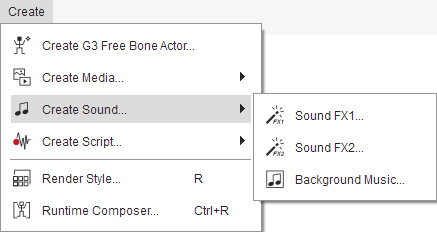
-
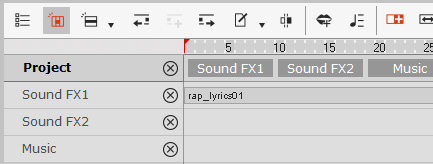
Open the Timeline >> Project and show all the tracks
related to the sound for the project.
Modifying Sound Clips
- Select the target sound clip.
-
Click the
 Sound Modify button on the timeline toolbar.
-
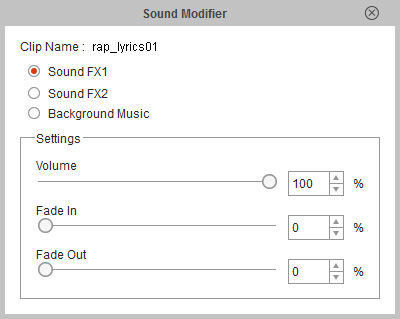
Drag the slider to decide the Volume, Fade In and Fade Out percentage.
 Note:
Note:The maximum percentage of the Fade In and Fade Out is 50%. This means the percentage of the whole clip.
