Creating Beveled Edges
You can create pseudo-bevel Normals at the edges of the current layer’s mask to enhance depth, making decal textures appear more three-dimensional.
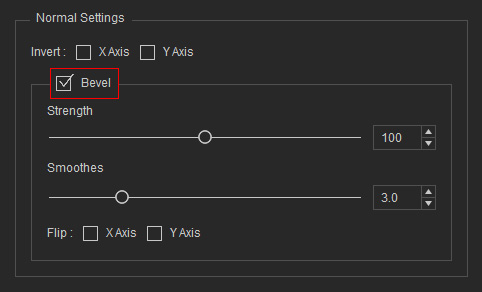
In the Normal Settings section of the Texture Editor, enable the Bevel checkbox to create beveled edges and access the available settings.
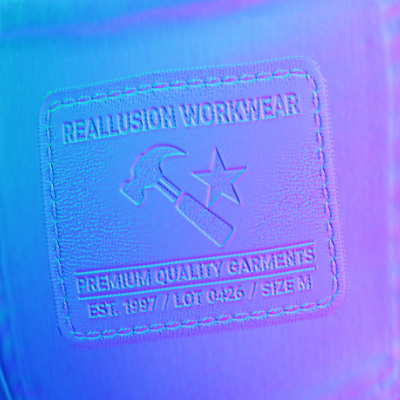 | 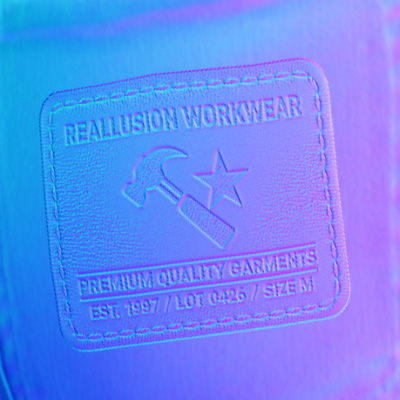 |
Bevel = Off (default) | Bevel = On |
Adjusting Bevel Strength
The Strength value controls the prominence of pseudo-bevel Normals on the Normal map, affecting the perceived depth along the edges.
| 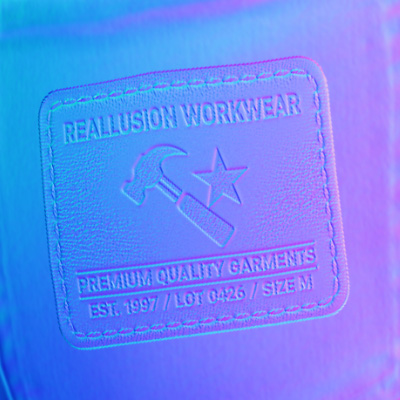 |
Strength = 100 (default) | Strength = 200 |
Adjusting Bevel Smoothness
The Smoothness value controls the gradient of the Bevel Normals: higher values create smoother edge transitions, while lower values produce sharper, more pronounced edges.
| 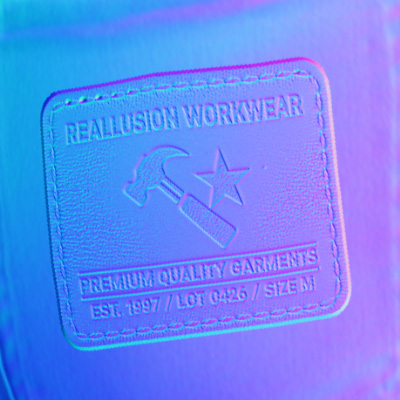 |
Smoothness = 3 | Smoothness = 10 |
Flipping Bevels
Use the Flip options to reverse the direction of Bevel Normals generated along the face edges on the X or Y axis, helping to correct lighting and rendering.
- Flip along the Y-axis:
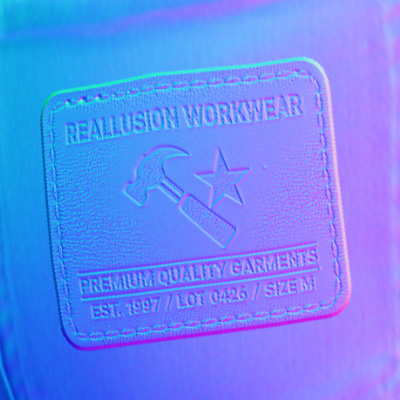
Original Bevel Normal: The Bevel Normals produce lighting that appears to come from below.
Checking Y Axis flips the Bevel Normals along the Y axis, making the lighting appear as if coming from above.
- Flip along the X-axis:
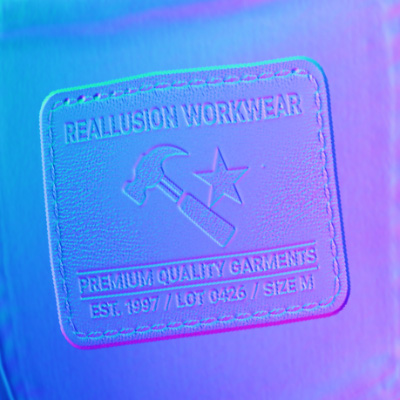
Original Bevel Normal: Lighting appears to come from one side.
Checking X Axis flips the Bevel Normals along the X axis, causing the lighting to appear from the opposite side.
