Applying Blending Modes
After generating the textures, blend them with the base color of the underlying layer to achieve more natural results. The Layer Manager provides 14 blending mode options to refine how the generated textures interact with the underlying base color.
All generated textures are saved in layers using the default “Normal” blending mode, but you can switch to other modes from the drop-down list to preview different visual effects.
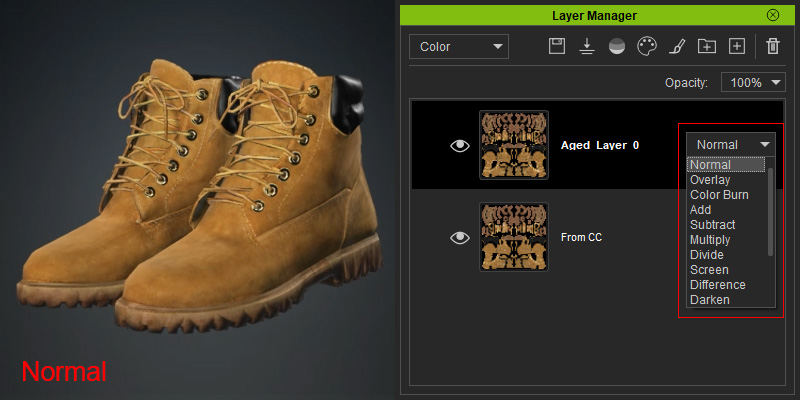
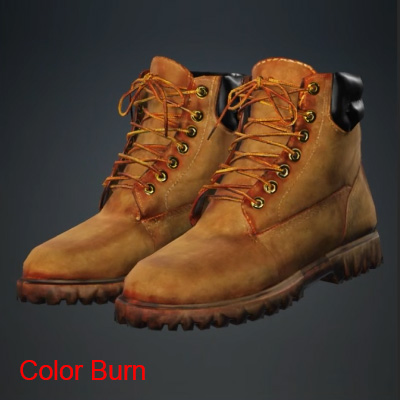
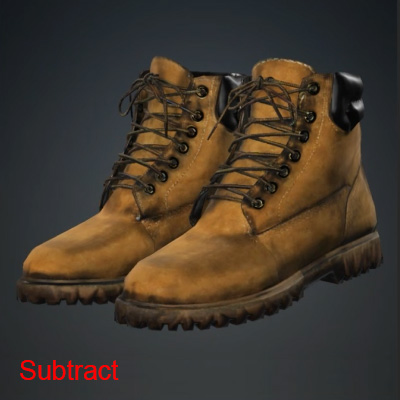
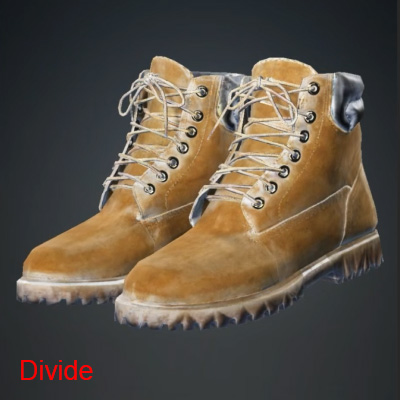
Blend textures with the underlying layer using different blending modes:
To reduce the visual impact of the blending, lower the Opacity value for the selected layer.
| 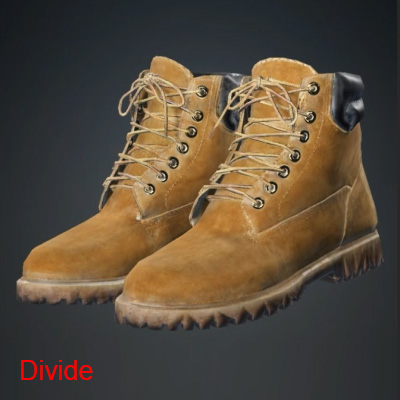 |
Opacity = 100 | Opacity = 50 |
In addition to colored fabrics, the blending mode can also be applied to hard mesh, as illustrated below.
Blending Mode | Example | Description |
Normal | 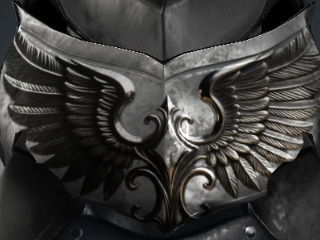 | Applies the generated texture directly, setting each pixel to the resulting color. This mode performs no special compositing and is used by default. |
Overlay | 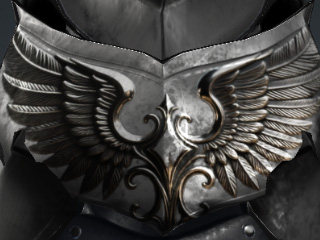 | Applies either multiplication or screening based on the base color luminance. This mode overlays new colors while preserving the base image’s highlights and shadows. The base color is mixed, not replaced, to maintain its original grayscale values. |
Color Burn | 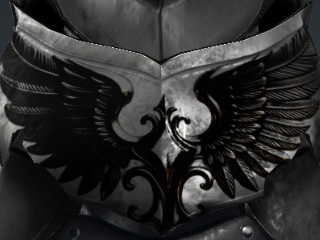 | Darkens the base color by increasing the contrast relative to the texture color, evaluating each channel independently. Blending with pure white results in no change to the base color. |
Add | 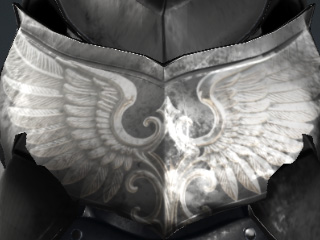 | Brightens the base color by increasing its channel values according to the texture color. Blending with pure black results in no change to the base color. |
Subtract | 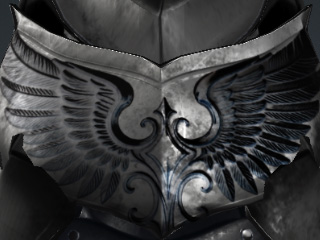 | Subtracts the texture color from the base color on a per-channel basis. |
Multiply | 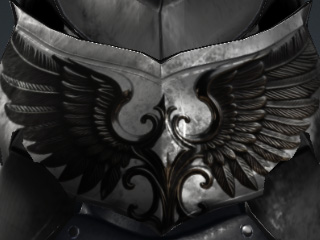 | Applies per-channel multiplication of the base and texture colors, resulting in a darker output. Pure black produces black, while pure white makes no difference to the base color. |
Divide | 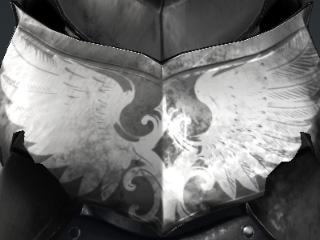 | Divides the base color by the texture color on a per-channel basis. The result brightens the image. Dividing by black produces pure white in that channel, while dividing by white leaves the base color unchanged. |
Screen | 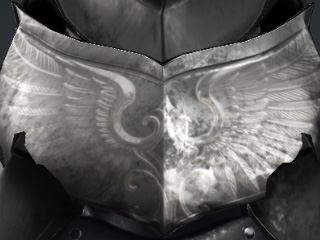 | Looks at the color information in each channel and lightens the base color by combining it with the texture color through an inverse-multiply operation. The result is always a brighter color. |
Difference | 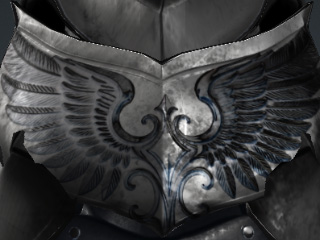 | Computes the per-channel absolute difference by subtracting the lower value from the higher one. Blending with pure white inverts the base color; blending with pure black leaves it unchanged. |
Darken | 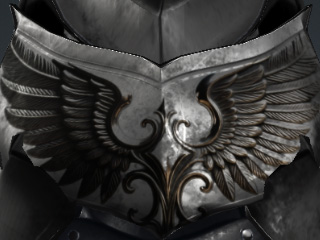 | Compares base and texture colors per channel and outputs whichever is darker. Lighter pixels are replaced; darker pixels are preserved. |
Lighten | 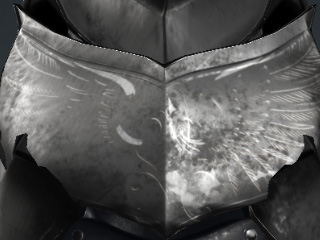 | Compares the base and texture colors per channel and outputs whichever is lighter. Darker pixels are replaced; lighter pixels are preserved. |
Soft Light | 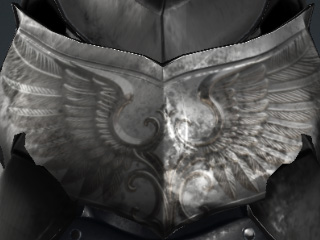 | Adjusts brightness based on the texture color, producing a soft, diffused lighting effect. Texture colors above 50% gray lighten the base (dodge), while those below 50% gray darken it (burn). Pure black or white increases contrast locally but does not yield absolute black or white. |
Hard Light | 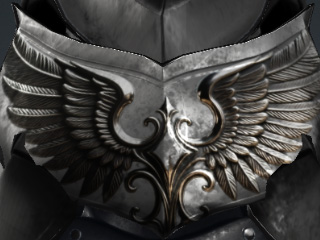 | Applies Multiply or Screen blending based on the texture color’s luminance, producing a high-contrast, spotlight-like effect. Blend values above 50% gray lighten the image; values below 50% gray darken it. Painting with fully black or white yields pure black or white. |
Luminosity | 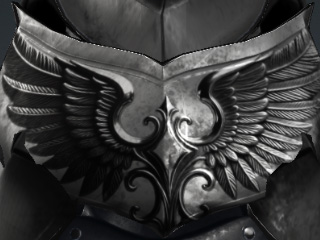 | Looks at the color information in each channel and applies the luminance (brightness) of the texture color while preserving the hue and saturation of the base color. This mode is useful for adjusting lightness or contrast without altering the underlying color tones. |
