Generating PBR Maps
In the Texture Editor, you can generate PBR maps (including Metallic and Roughness maps) from the Base Color map to simulate real-world material appearance under different lighting conditions.
To generate PBR maps for pattern or decal textures, click the PBR button above the Texture Settings section.
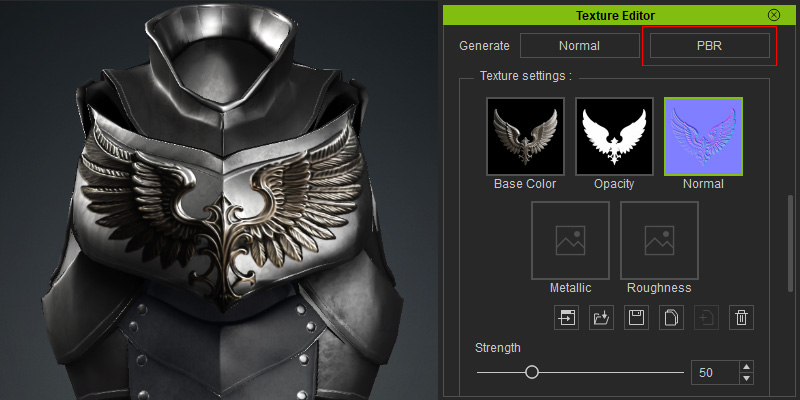
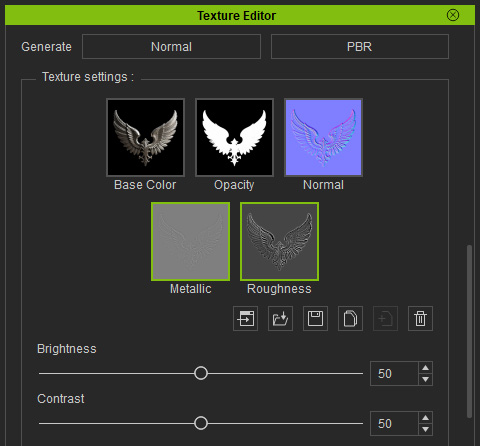
The generated maps will create channel thumbnails in the Texture Settings section.
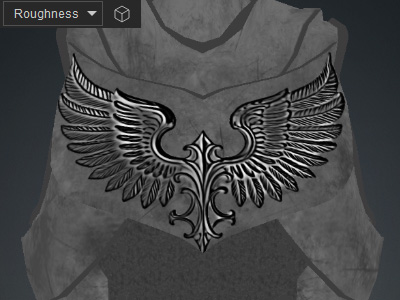
Use the material channel option on the toolbar to view the generated texture map in the Metallic channel and the generated texture map in the Roughness channel within the 3D View.
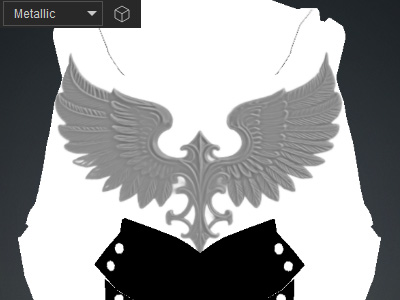
Adjusting Brightness and Contrast for Metallic Map
With the Metallic channel selected, drag the Brightness and Contrast sliders to adjust the overall metallic reflectivity and edge strength for the current layer.
- Brightness: Increasing the value enhances metallic reflections on the texture surface.
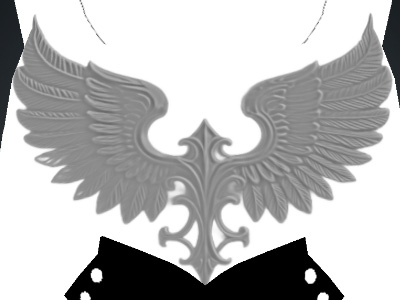
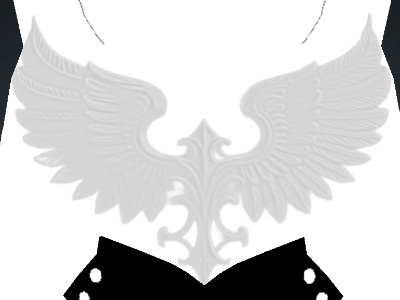
Brightness = 50
Brightness = 75
- Contrast: Increasing the value strengthens the edges of the metallic areas.
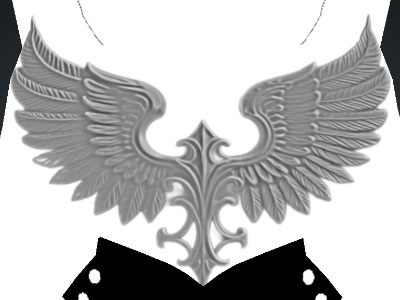
Contrast = 50
Contrast = 100
Adjusting Brightness and Contrast for Roughness Map
With the Roughness channel selected, drag the Brightness and Contrast sliders to adjust the overall smoothness and the reflectivity contrast of black-and-white details for the current layer.
- Brightness: This value determines the perceived smoothness or roughness of the texture surface: higher values increase roughness, while lower values result in a smoother surface.
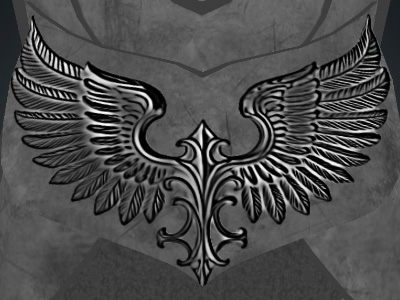
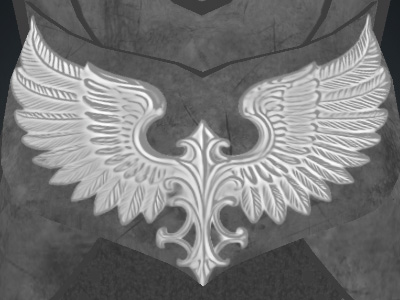
Brightness = 50
Brightness = 75
- Contrast: Adjusts the detail contrast in the texture; higher values emphasize roughness, lower values smooth out details.
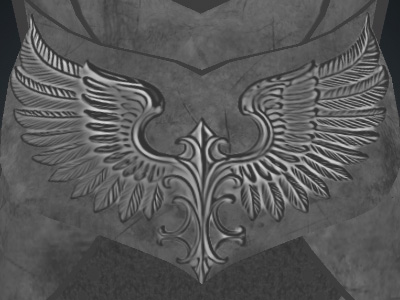
Contrast = 25
Contrast = 50
