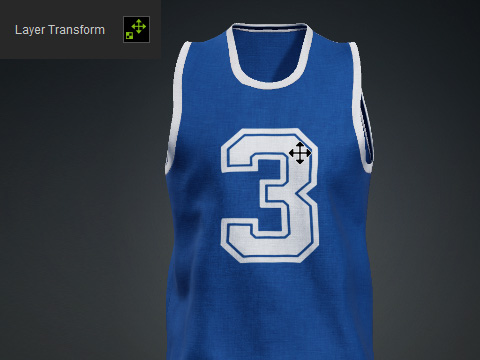
Transforming Textures
To position, rotate, and scale textures in FashionGen, you can use either the interactive Gizmo in the viewport or manually enter values in the Texture Editor. FashionGen provides texture tiling and offset without having to change the mesh UVs. You can also use these tools to align a texture map to the fabric weft or warp.
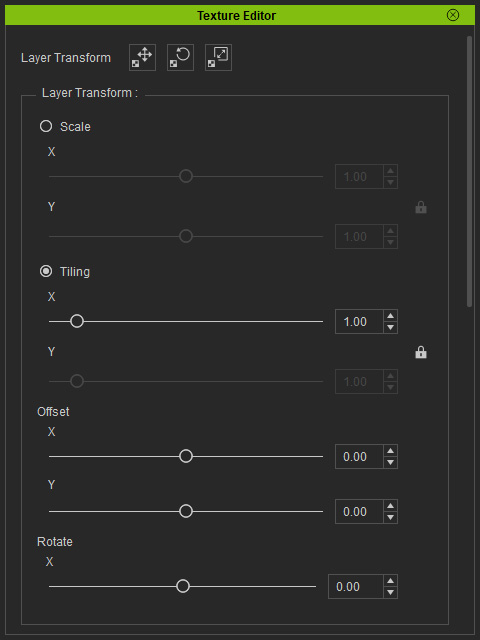
Use the Layer Transform buttons or sliders in the Texture Editor to position and adjust patterns or decals on the 3D mesh.
Transforming Patterns
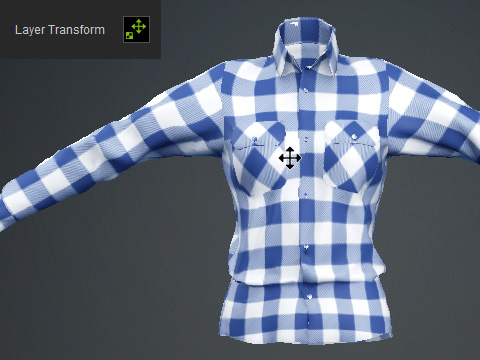
Follow the steps below to align and tile the pattern according to the shirt’s fabric alignment.
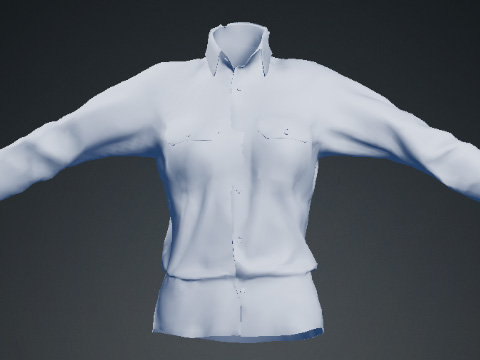
- Apply a pattern to the clothing.
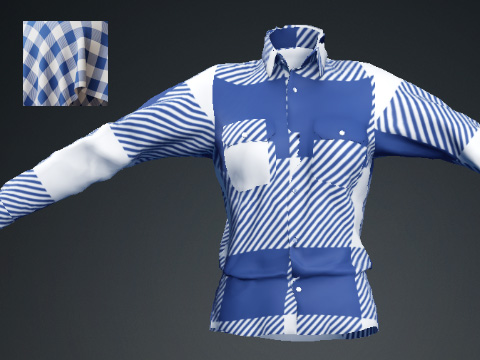
- Press the Scale Texture button or adjust the Tiling slider to decrease or increase the pattern repetition.
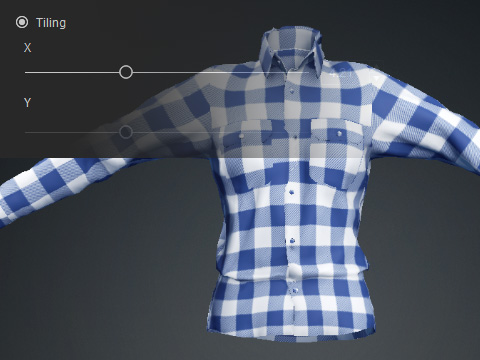
- Use the Translate Texture Gizmo or drag the Offset sliders to position the texture as desired.
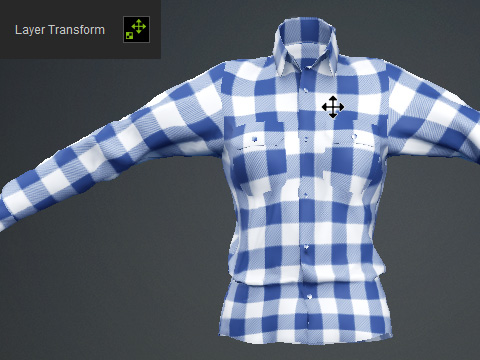
- To adjust the pattern orientation for the pockets, duplicate the current layer and assign it the pockets’ Color ID.
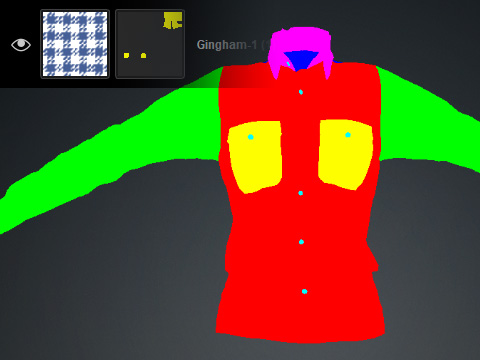
- Press the Rotate Texture button or drag the Rotate slider to adjust the pattern orientation on the pockets.
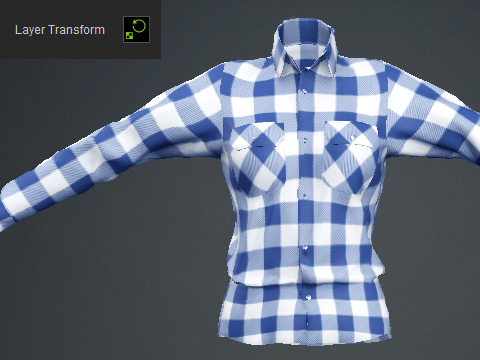
- Adjust the pattern position on the pockets using the Translate Texture Gizmo or the Offset sliders as needed.
Transforming Decals
Follow the steps below to reposition the decal on the back of the tank top.
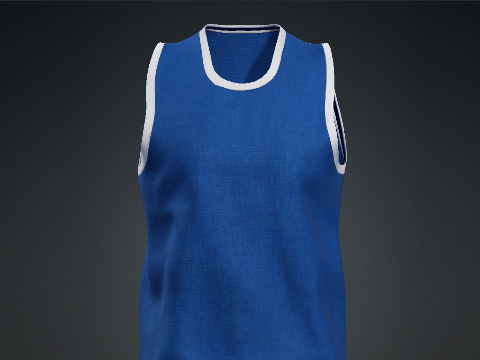
- Apply a decal to the clothing.
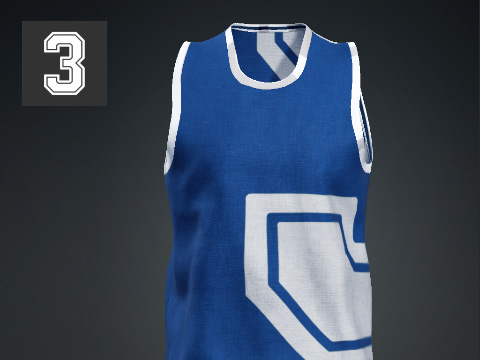
- Use the Translate Texture Gizmo or drag the Offset sliders to move the decal to the center.
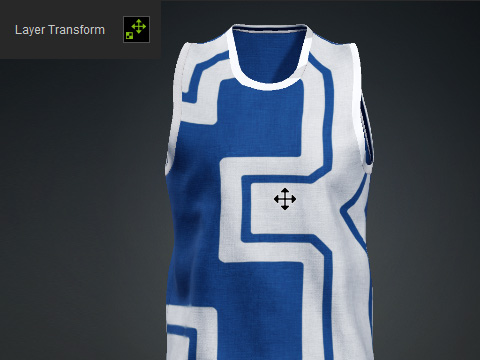
- Press the Scale Texture button or drag the Scale slider to the left to reduce the size of the decal.
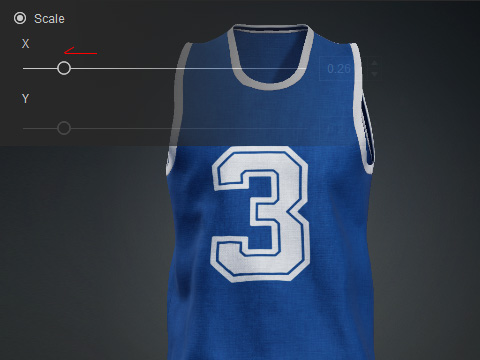
- Fine-tune the decal position using the Translate Texture Gizmo or Offset sliders.