Installing AI Models
FashionGen requires specific AI models for generating and editing textures, which must be installed based on your hardware. It works with 3 Text-to-Image models: Stable Diffusion 1.5 (SD1.5), Stable Diffusion XL (SDXL), and Qwen.
AI Model | Stable Diffusion 1.5 | Stable Diffusion XL | Qwen |
Examples |
|
|
|
Advantages | Fast and simple:
| Balanced quality:
| High quality:
|
Suitable Applications | For simple abstract images, not requiring complex textures or materials. | For images requiring detailed rendering or intricate pattern design. | For textures or materials such as clothing, badges, or accessories (e.g., embroidery, leather, metal). |
Limitations |
|
| Understands complex text. |



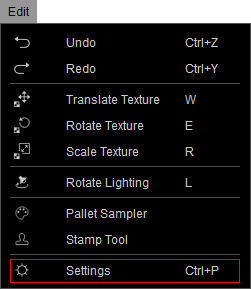
To install the relevant AI models, open the Settings panel from the main menu (Edit > Settings), or click the  Settings button on the toolbar.
Select the AI Model tab to view the available installation options.
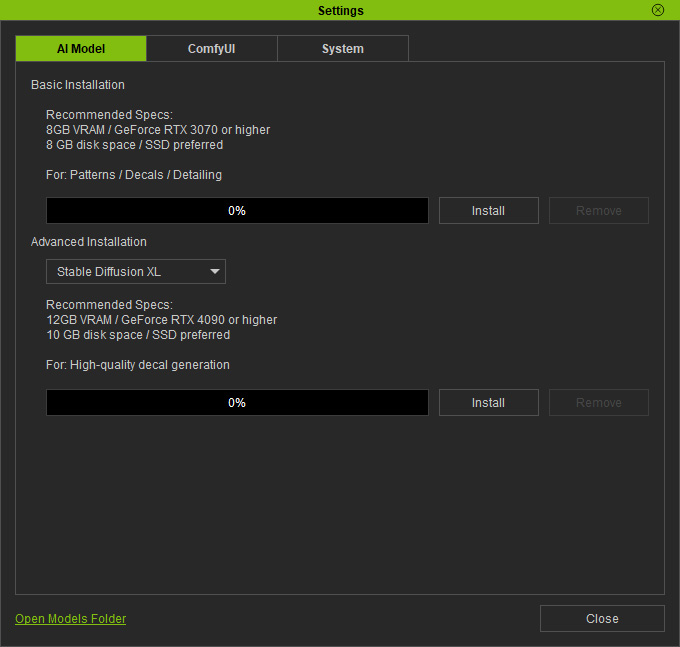
The Basic Installation includes the Stable Diffusion 1.5 AI model and the necessary dataset for all AI generation features in FashionGen.
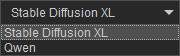
The Advanced Installation provides higher-quality decal generation using Stable Diffusion XL or Qwen model options (both available in the drop-down list).
Check the system requirements for the Basic and Advanced Installation options in the table below.
Basic Installation | Advanced Installation | |
AI Model | Stable Diffusion 1.5 | Stable Diffusion XL / Qwen |
Function | Patten, Decal, Detailing, Aging | High-Quality Decal |
Processor (CPU) | Intel 10th Gen Core i5 Processors or higher | Intel 10th Gen Core i5 Processors or higher |
Memory | 64 GB RAM | 64 GB RAM |
Graphics Card | NVIDIA GeForce GTX 3070 or higher
| NVIDIA GeForce GTX 4090 or higher
|
Video Memory | 8 GB RAM or higher | 12 GB RAM or higher |
Storage | 25 GB of free disk space * | 15–20 GB of free disk space * |
Operating System | Windows 11 and 10 | Windows 11 and 10 |
* SSD is recommended for providing 3–20x faster AI model processing than an HDD.
Before installing AI models, ensure there is sufficient disk space in the destination installation folder by clicking the Open Models Folder link.
By default, AI models are installed in the following folder, which is created during the installation of ComfyUI from Reallusion Hub:
C:\Program Files\Common Files\Reallusion\RLComfyUI\ComfyUI\models
- Click the Install button to start the installation process.
- Click the Remove button to uninstall the AI model.
