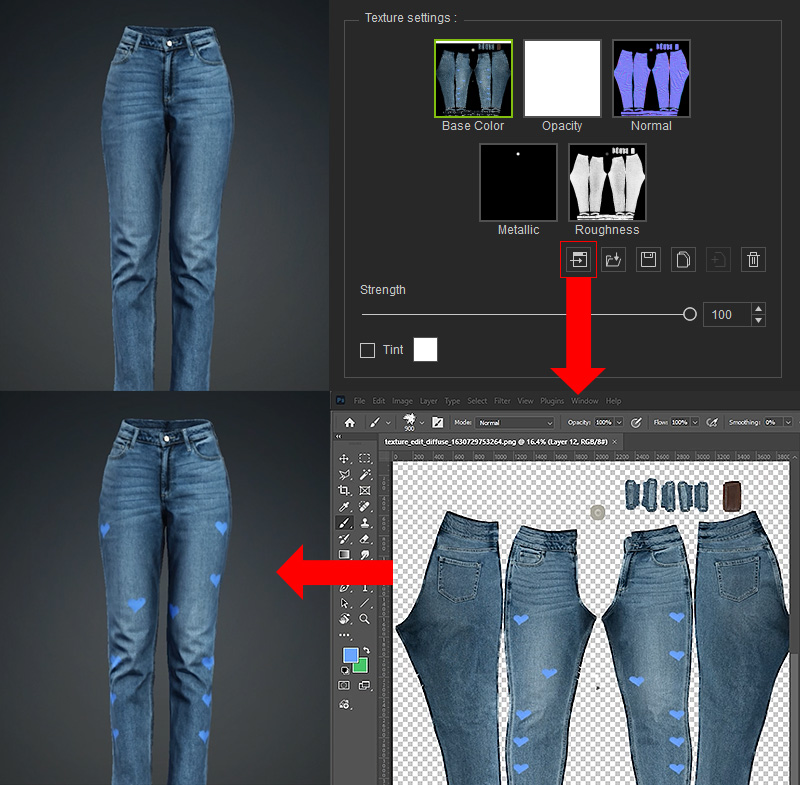
Specifying Image Resolution and Texture Editor
Users can specify the texture resolution for AI generation and designate an external texture editor for AI-generated images.
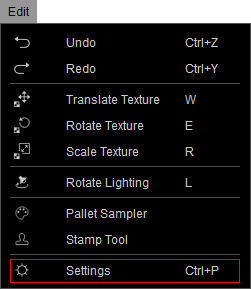
To configure the image resolution, open the Settings panel from the main menu (Edit > Settings), or click the  Settings button in the toolbar.
Switch to the System tab and select a texture resolution that matches your computer’s performance.
Changes will take effect after restarting the application.
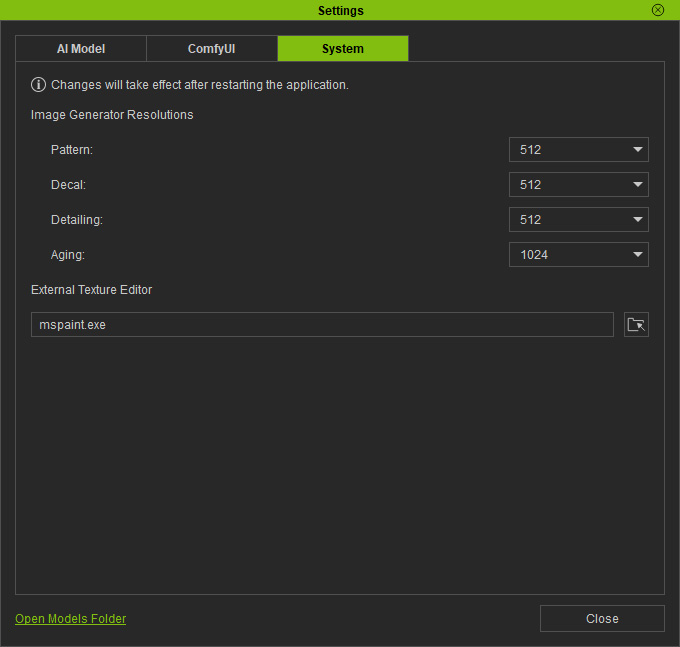
Image Generator Resolutions
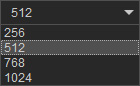
The available resolution options for AI-generated Pattern, Decal, Detailing, and Aging images are 256, 512, 768, and 1024.
- Pattern images can use lower resolutions, as they are seamlessly tiled across the entire clothing.
- Aging images may benefit from higher resolutions, since their effects can influence the entire garment.
External Texture Editor
Click the  Browse button and navigate to the executable file of a preferred image editor (e.g., Adobe Photoshop or MS Paint) to use as the texture editor with FashionGen.
Textures edited using the Launch feature of the FashionGen material editor will open in the image editor specified on this tab.