Material Channel View
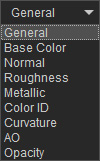
Each garment can have up to 9 texture channels, which work together to form the final texture of the clothing when using the PBR Shader Type.
Use the drop-down list to select a channel and toggle between 3D and 2D views from the toolbar for inspection.

|
|
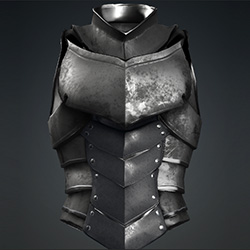
 3D View: For viewing the garment as a fully-textured 3D model.
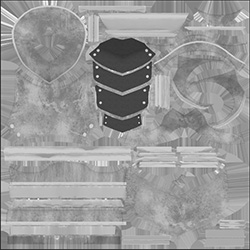
 2D View: Displays the texture of the selected layer for close inspection.
|
Material Channel |
2D View |
3D View |
Description |
|
General Map |
|
|
Simulates real-world material appearance under lighting conditions, enhancing texture quality by using physical material properties defined primarily through Metallic and Roughness maps. |
|
Base Color Map
|
|
|
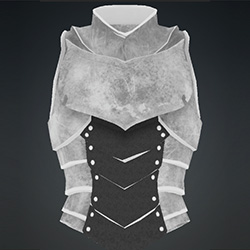
Projects the bitmap image onto the 3D surface while retaining the image’s original pixel colors. |
|
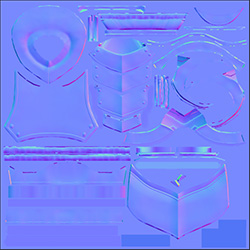
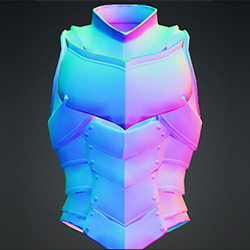
Normal Map
|
|
|
Defines the orientation of surfaces. Generation:
|
|
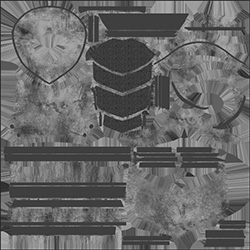
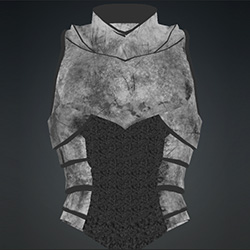
Roughness Map
|
|
|
Describes the surface’s micro-level coarseness. Areas mapped in white are relatively rough, while those mapped in black are perfectly smooth. Generation:
|
|
Metallic Map
|
|
|
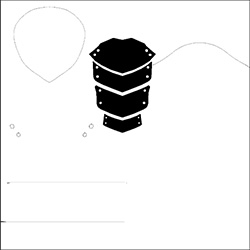
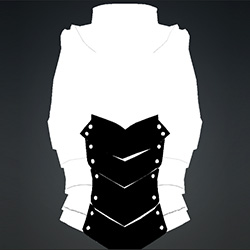
Controls surface reflectivity, classifying areas of the mesh as metallic or non-metallic. White indicates complete reflectivity; black indicates none. Generation:
|
|
Color ID Map
|
|
|
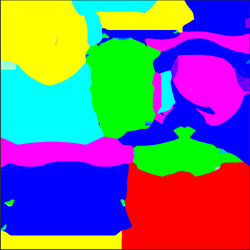
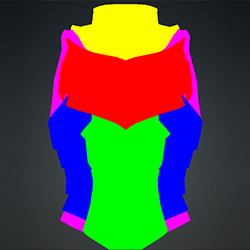
Used as a color mask that allows different materials to be applied to specific, separate regions of the clothing. |
|
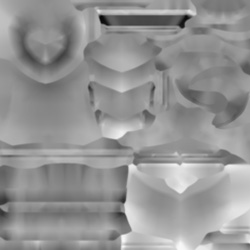
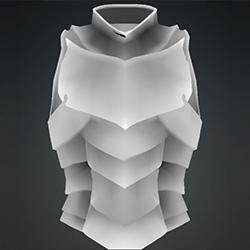
Curvature Map
|
|
|
Serves as a reference map for AI-generated aging effects, where elevated mesh areas appear white and recessed areas appear black to guide certain surface effects. |
|
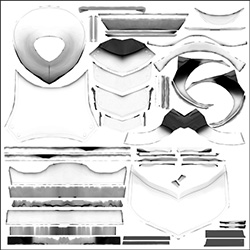
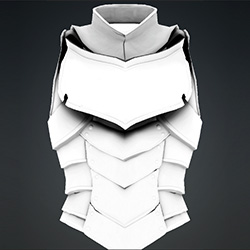
AO Map
|
|
|
Improves the perception of depth on the mesh by shadowing the seams or overlapping areas. |
|
Opacity Map
|
|
|
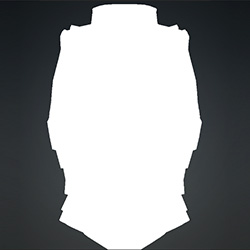
Creates transparency and cut-out effects from a grayscale image. Black areas are removed, white areas are fully visible, and gray values determine the object's transparency (alpha) level. |


