Instant Purchase 
You can obtain a content license with Reallusion DA Points right in the program.
It is a quick, convenient way to buy an individual pack or item without visiting the Reallusion online stores.
Content that exist on multiple stores are prioritized by Reallusion Content Store, ActorCore, and finally, Marketplace.
( Watch Tutorial - Smart Search: Seek, Try, and Purchase Assets )
Sign in and check your available points from the top-right corner of the program.
The points here include DA Points and Bonus Points.
Bonus Points are usually earned by participating in sales campaigns and achieving purchase milestones.
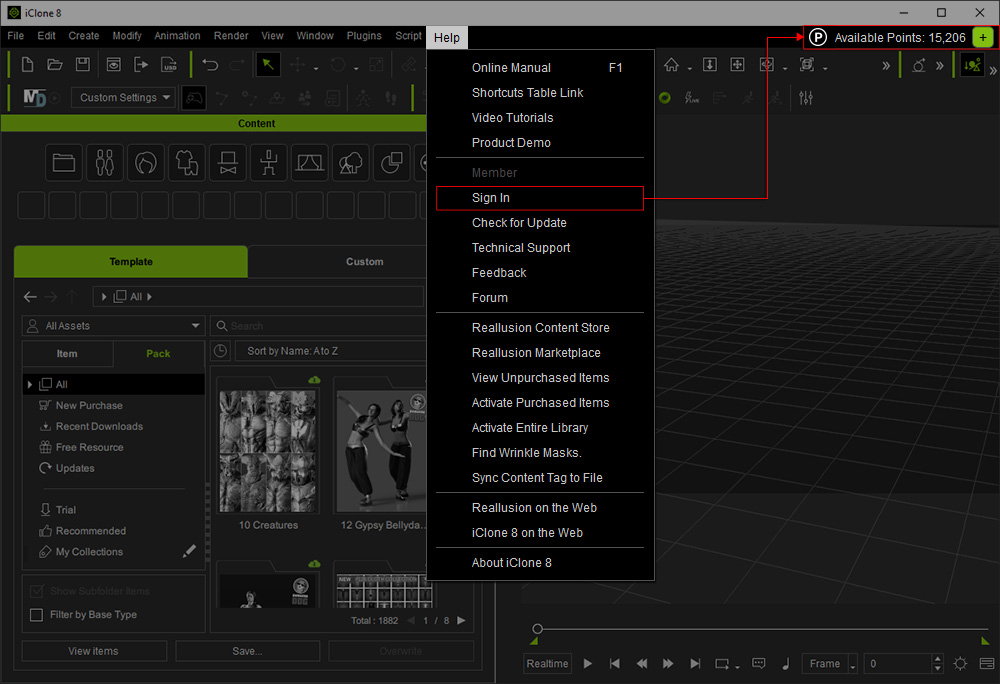
* Click the + button next to the available points to buy DA Points (100 points equals US$1.00).
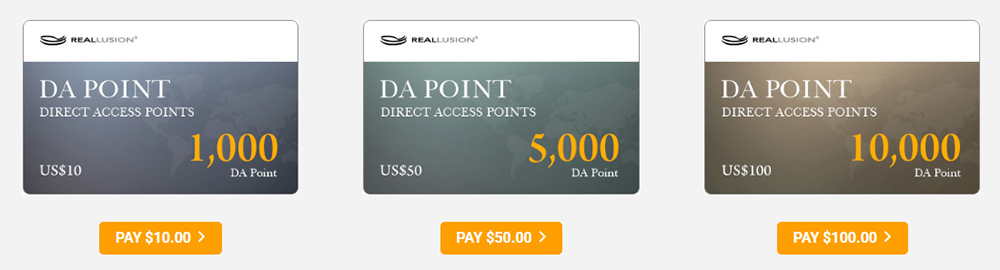
- DA Points do not have expiration dates.
- DA Points can be used across all Reallusion online stores, including the Software Store.
DA Points make it possible to buy items directly from Smart Search.
- Make sure you are connected to the Internet.
Right-click on a pack or item under the Trial category and choose Instant Purchase....
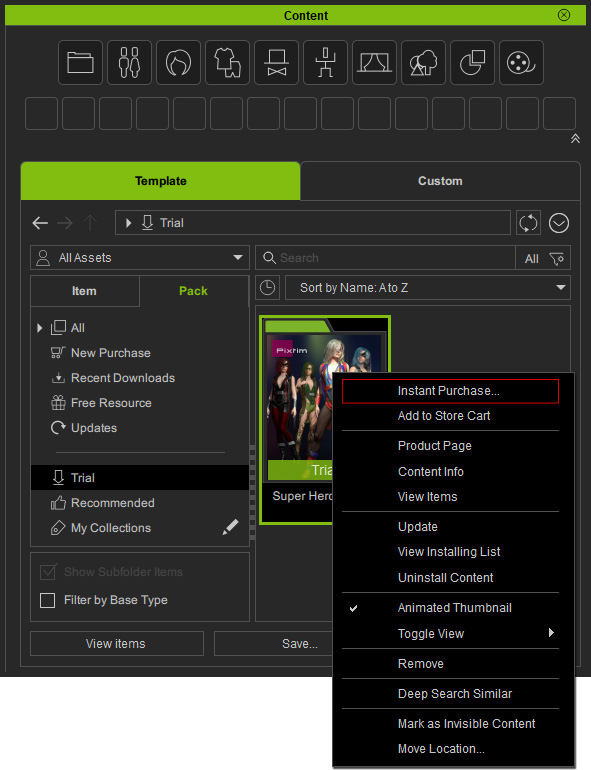
- The Instant Purchase dialog window will appear with pricing options for available license types.
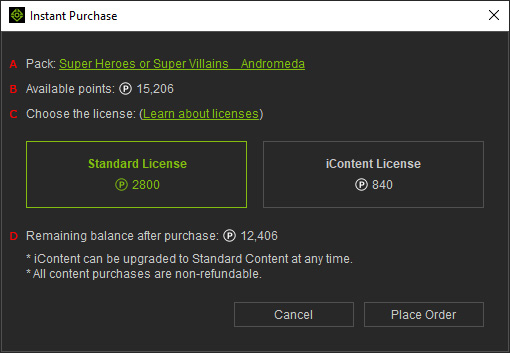
- Pack or Item: Indicates the pack or item name (with links to product page) you are going to purchase. When items in a pack cannot be sold separately, the pack name will show instead.
- Available points: Shows the available DA Points and Bonus Points (earned from Reallusion campaigns) for purchasing.
- Choose a desired license based on your using scenario.
- Standard License (default option): A price allows to export 3D assets for use in your production pipelines, including games, films, and XR projects.
- iContent License (available for 3D models): A 30% of the Standard License price permits output of images and videos for both personal and commercial use. With this cheaper price, you can have a large amount of creative materials to collaborate with other team members, and it is easy to use the price difference to upgrade to a Standard License for 3D object output.
- Remaining balance after purchasing: Estimates the remaining points after purchasing the selected license.
Note that your Bonus Point will be deducted first for purchasing.
If it shows negative (red) numbers, click the Buy DA Points button to get more DA Point for this purchase.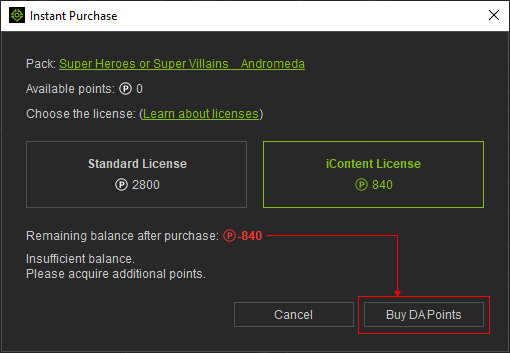
- Click the Place Order button to confirm. Be aware that this purchase is non-refundable.
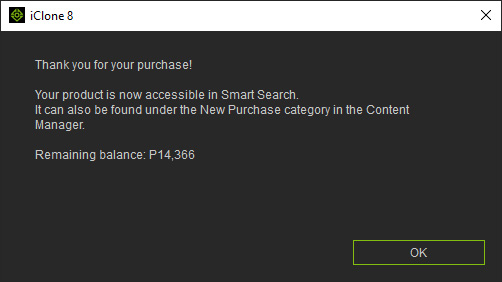
- A message will instantly pop up with the remaining balance and remind you that the purchased content can be accessible in Smart Search and Content Manager.
Click OK.
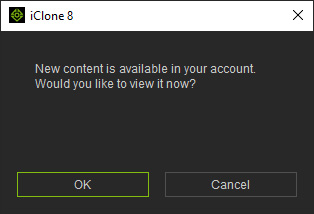
- Click OK again in the ensuing message to view the purchased content in Content Manager.
- The purchased content will appear in the New Purchase node.
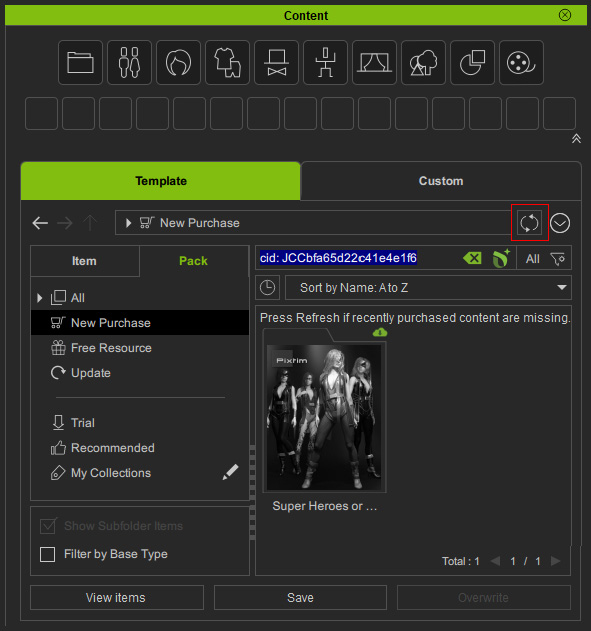
* Click the Refresh button to manually sync with the purchased online content.
If it is the case that:
button to manually sync with the purchased online content.
If it is the case that:
- You didn't receive the instant notice from Content Manager after making a purchase in the online store.
- You deleted the content files accidentally.
- You changed to a new computer.
- You are a workgroup member and want to download and install the template content shared by the other members.
- Double-click to install and view items inside the purchased pack, and you will see the overlaid "Trial" text on the thumbnail is now removed.
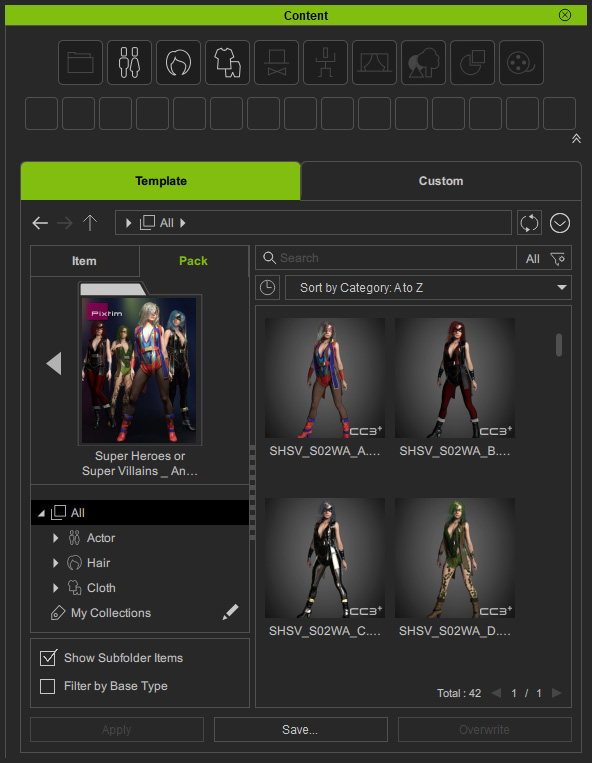
- The watermark should disappear automatically after purchase (otherwise, perform Help > Activate Purchased Items to do so manually).
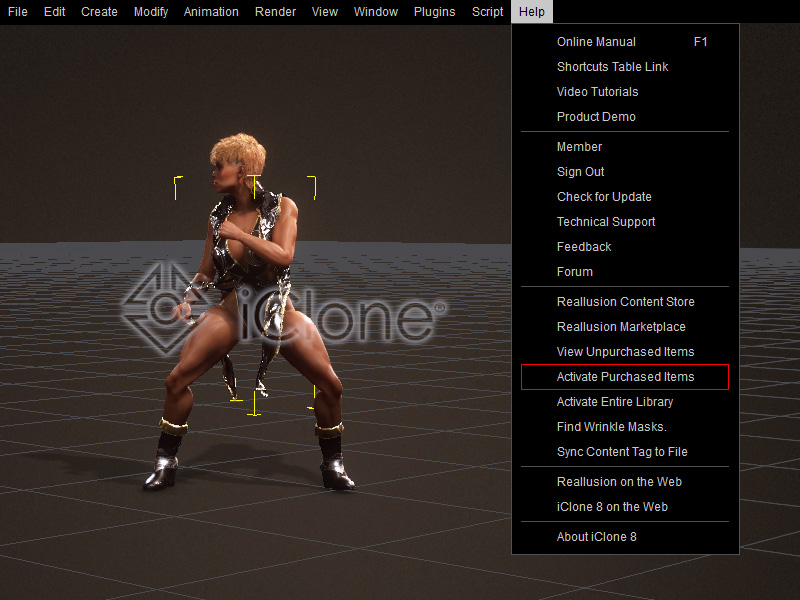
- Now you can render the images and videos with iContent in the scene.
Or, go a step further with 3rd-party export with the Standard Content License.