Removing Animations and Preserving Project States
iClone provides a feature for removing all the animations in the current project; in addition, you are able to retain the scene state after the removal.
This feature can be used when your project is messed up with accidental animations you do not want to have. Removing the animations for each and every object is tedious, troublesome, and time-consuming; you may use this feature to keep the project in a certain state with the following simple steps.
Furthermore, if you are creating several takes for your story, then this feature is useful for you to set the state for the next cut based on the current one.
Removing All Animations
-
Create a new project with assigned animations or motions to the objects
within it.
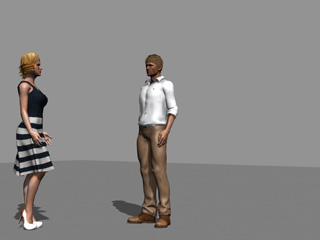
- Make sure everything is deselected.
-
Go to a desired time frame.
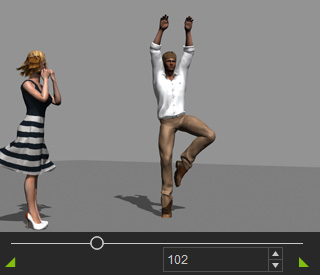
 Note:
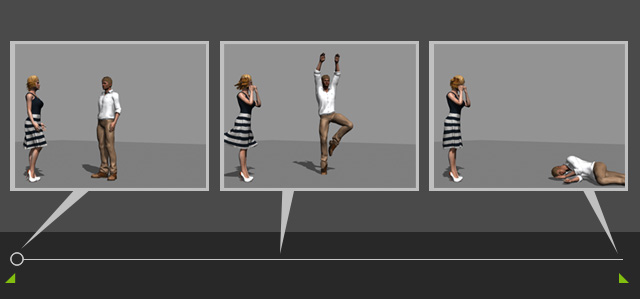
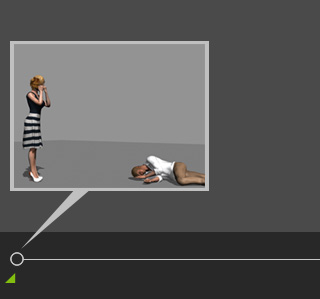
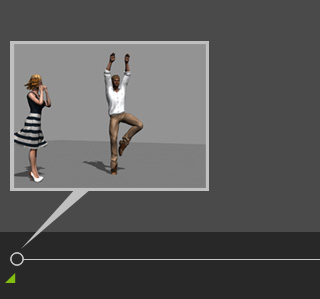
Note:The project states for the first, current, and last frames are as shown below:
- Right click on the empty space in the working area.
-
In the right-click menu, hover to the Remove Scene Animation item.
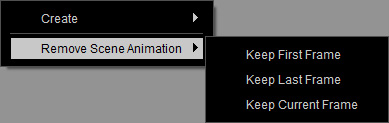
- Keep First Frame: Remove all animations but keep the project state in the first frame.
- Keep Last Frame: Remove all animations but keep the project state in the last frame.
- Keep Current Frame: Remove all animations but keep the project state in the current frame.
-
The project afterward will be no animations with the selected state kept at
the first frame.
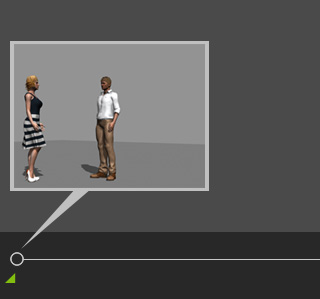
Keep First Frame
Keep Last Frame
Keep Current Frame
