Importing RLHead to iClone CC Characters
-
Before starting this section, make sure you have created a RLHead from CrazyTalk.
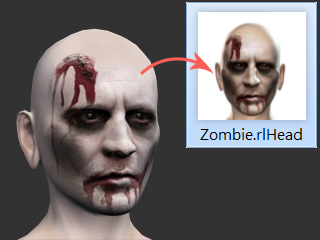
-
In iClone, apply a CC character (poses, motions
or expressions are optional).
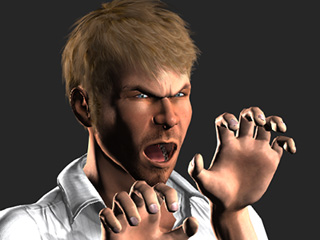
-
Drag and drop the saved head file onto the character.
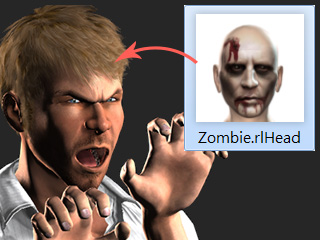
-
A dialog box will appear with the options to load the morphing and texture data in the head file.
Click the OK button to load them completely.
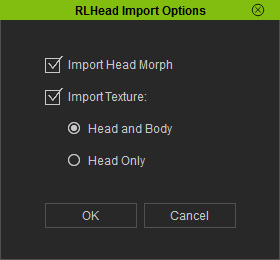
 Note:
Note:Please refer to the Importing Options section in this page for more information about these settings.
-
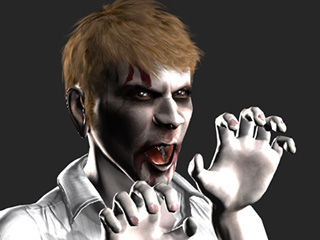
The original head is replaced with the one you created from CrazyTalk.
Importing Options
The settings for the Import Options determine if the applying items from the universal 3D head
are either shape, or texture of the head, or both.
Import Head Morph - Different Head Shapes, Same Original Texture
The morph data from the RLHead can be applied while the original facial texture is kept. The concept
is as shown below: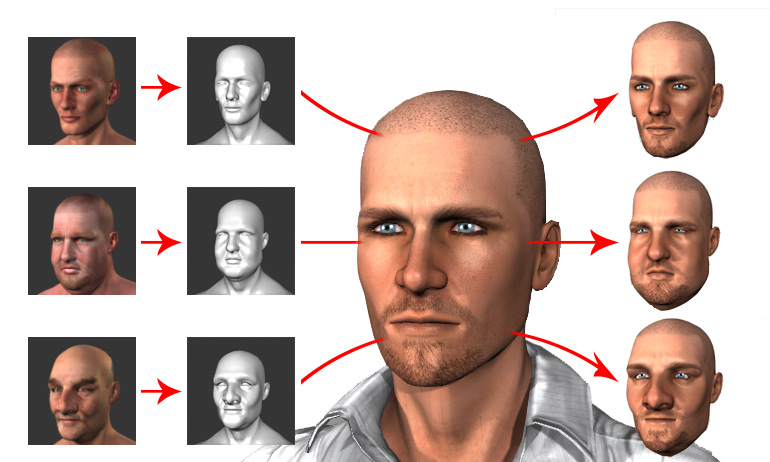
Import Texture - Same Head Shape, Different Textures
Textures from any RLHead, including their unique Normal and Specular maps,
can be applied to a same head to create different looks.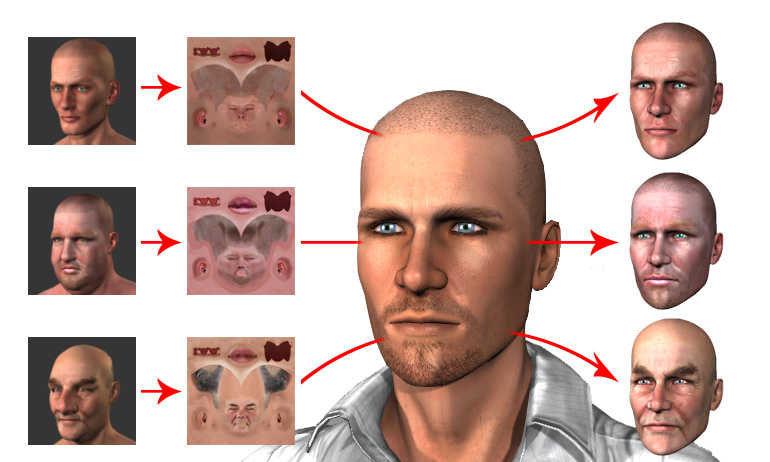
Note:
Choose the Head and Body or the Head Only radio button to determine if you want to replace the head and body or only the head textures from the selected RLHead template.
