Using Toon Shader
To cartoonize 3D animations in iClone, you can use the Toon Shader
feature. This feature traces the color of every object (Sky, 2D Background and Textures of the 8 channels on objects are excluded),
and converts them into cartoon styles. Cartoon rendering and cell shading allows animators to create a flat-looking 3D image with a cartoonish look,
typically exemplified in artistically animated movies. You can then profile objects with
outlines and blend the Diffuse, Ambient and Specular colors of each object with the color settings of the Toon Shader
to convert these objects into three color levels: Light, Midtone and Shade.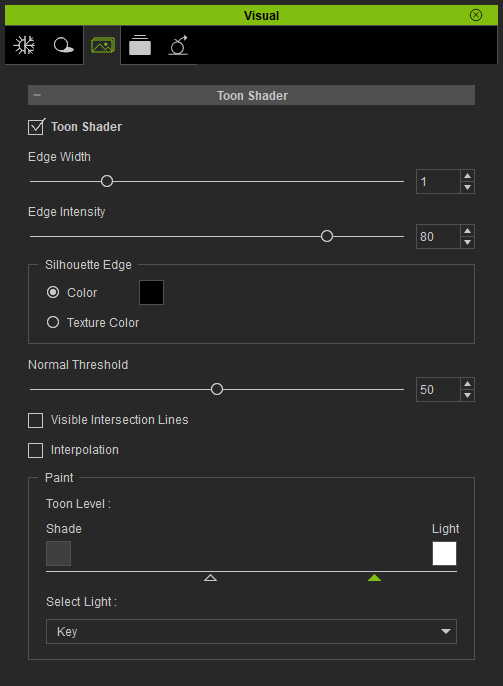
With the Toon Shader feature, you are able to trace the outline of objects, and define the color and the width of the outline.
 Enabling Toon Shader
- Switch to the Toon Shader tab in the Visual Settings panel.
-
Enable the Toon Shader box.
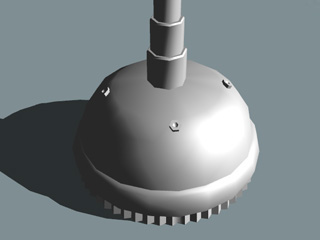
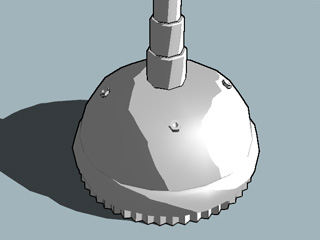
Toon Shader = Off
Toon Shader = On
Modifying Edges
-
The width and strength of the edges on objects can be modified to create more artistic projects.
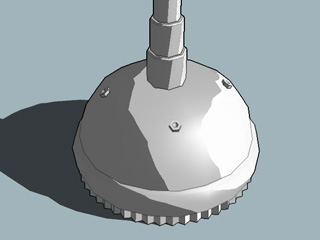
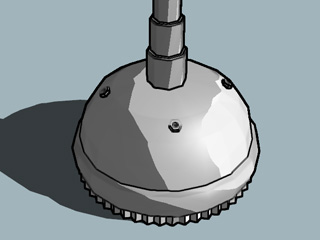
Edge Width = 1
Edge Width = 6
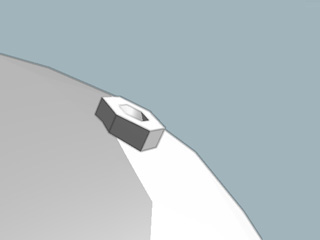
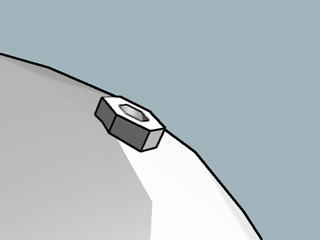
Edge Intensity = 20
Edge Intensity = 100
-
The edges can be defined to a solid color or use the
color-swatch
 or the colors of the adjacent faces.
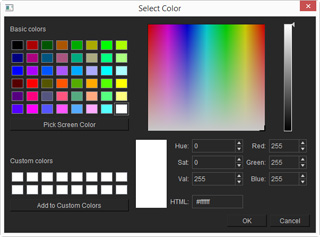 Color Picker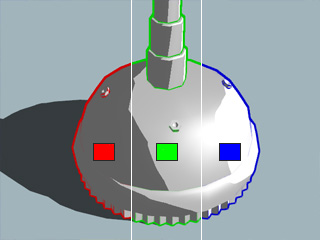
Silhouette Edge = Red, Green and Blue
Silhouette = Texture Color
(The color is defined by the color of the
adjacent face) -
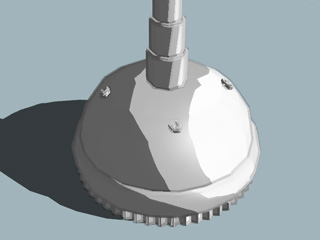
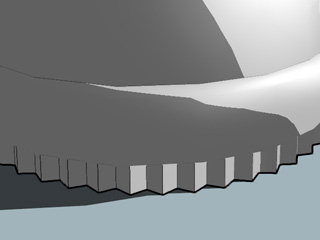
By adjusting the value of Normal Threshold, the edge lines are drawn according to the angle formed by two adjacent faces. The higher the threshold value is,
the fewer edges are traced.
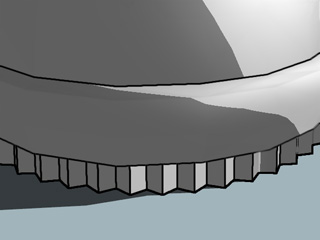
Threshold = 0
Threshold = 100
- Because the the normal directions of some polygons, from same or different objects,
can be identical; the edge lines will be vague or even ignored when the objects are
hindered by each other. Turn on the Visible Intersection Lines and the
edge lines will be forced to appear.
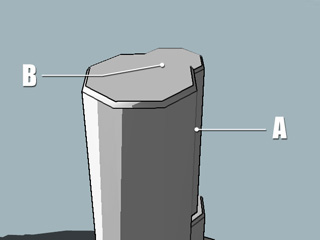
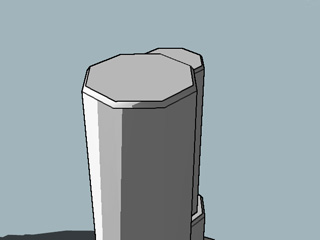
Visible Intersection Lines = Off
A: The line is vague.
B: The line is totally eliminated.
Visible Intersection Lines = On
Defining the Range of Three Color Levels
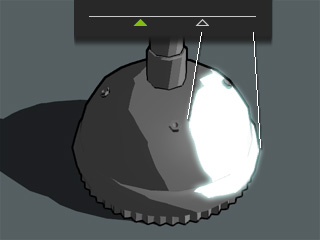
The Toon Shader feature uses three color levels
to present the 3-dimenstional sensations of objects.
You may make the range of each level to set the objects brighter or darker. The ranges of the levels are as
described as in the illustrations below: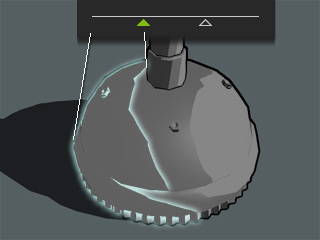
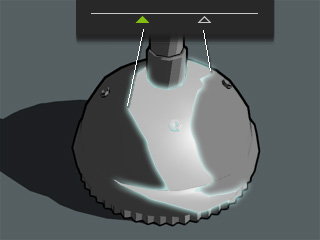
-
You may drag the two anchors to adjust the range of each level.
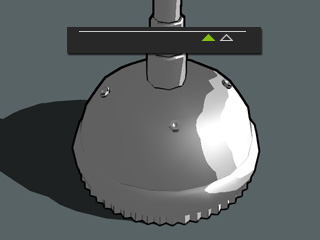
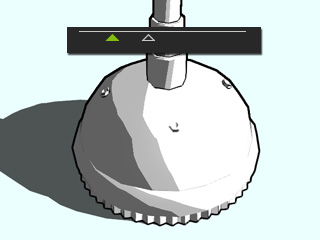
- You may also adjust the two colors
by clicking the color-swatch .
The gradient color of the three levels between these two colors will be automatically generated.
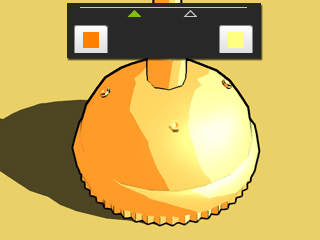
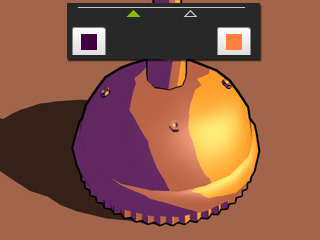
Adjust the two colors. The midtone color will be auto-generated.
- The Interpolation
enable smooth gradients for the Toon Shader; it can be used to eliminate the sharp color seams on objects' surfaces when you turn on this effect.
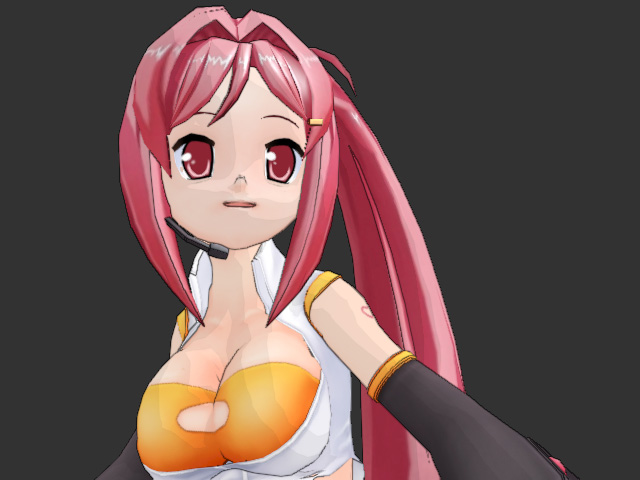
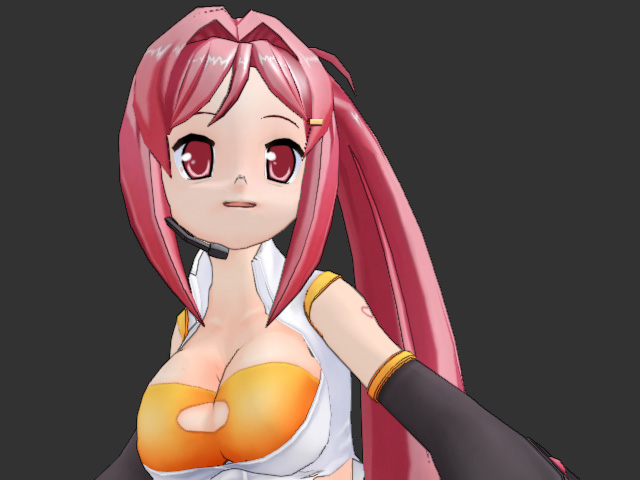
Interpolation = Off
Interpolation = On
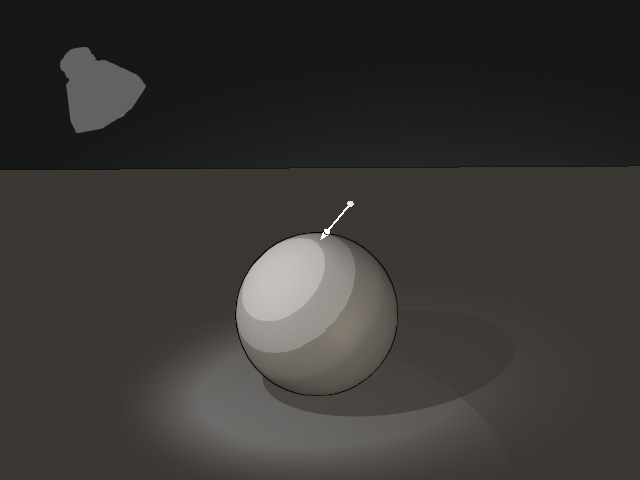
- Select Light:
You can pick existing directional lights or spotlights as the lighting source for the Toon Shader
in the Select Light drop-down list.
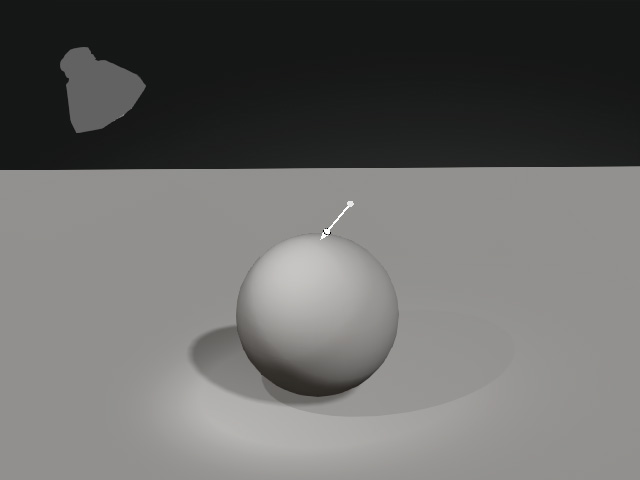
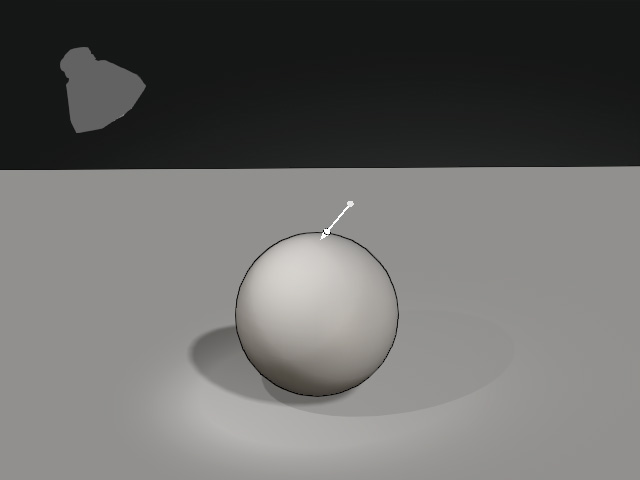
No Toon Effect.
Select Light = None
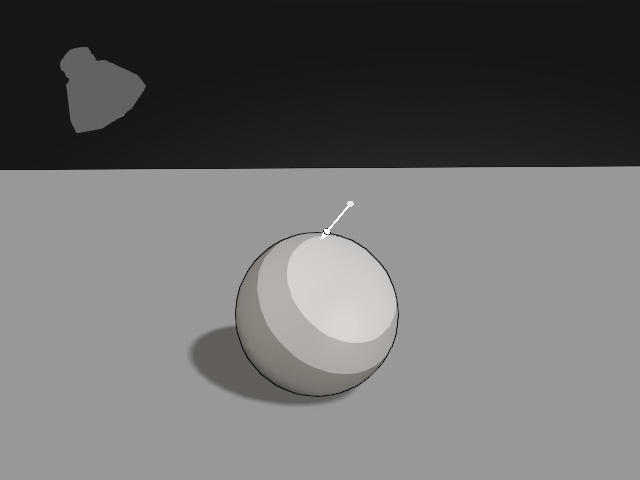
Select Light = Directional Light
Select Light = Spotlight
