Creating New Image Layer
An image layer allows you to overlay a text or image to the whole project.
-
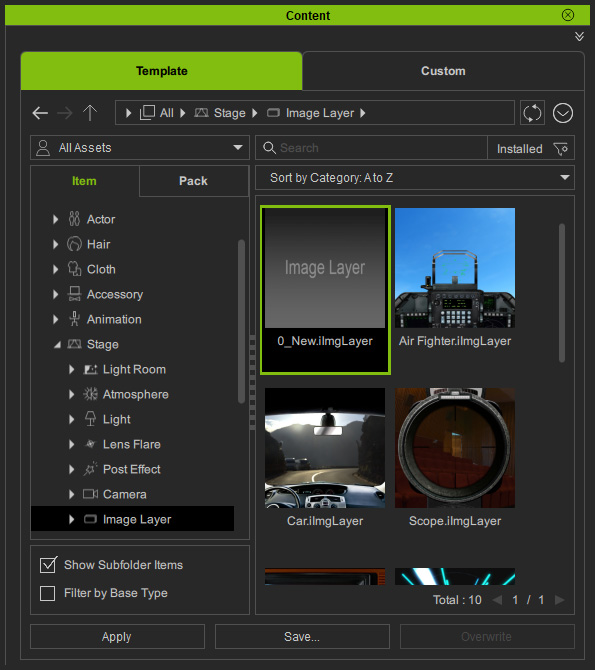
Double-click the 0_New Template from the Content Manager >> Stage tab >> Image Layer library.
A brand new image layer will be added to your project.
-
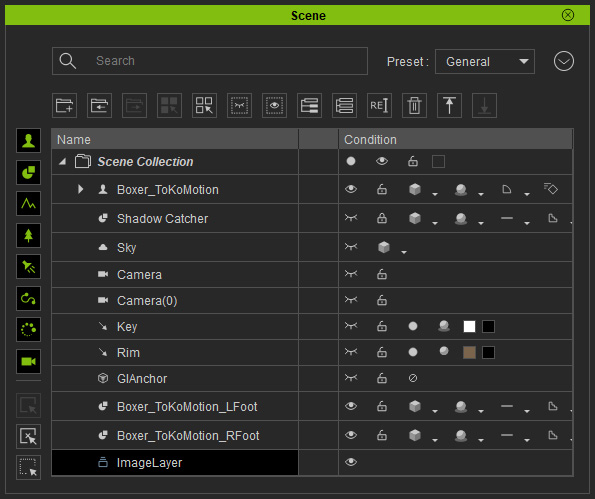
Select the image layer in the Scene Manager if it is not selected.
-
Switch to the Material tab in the Modify panel.
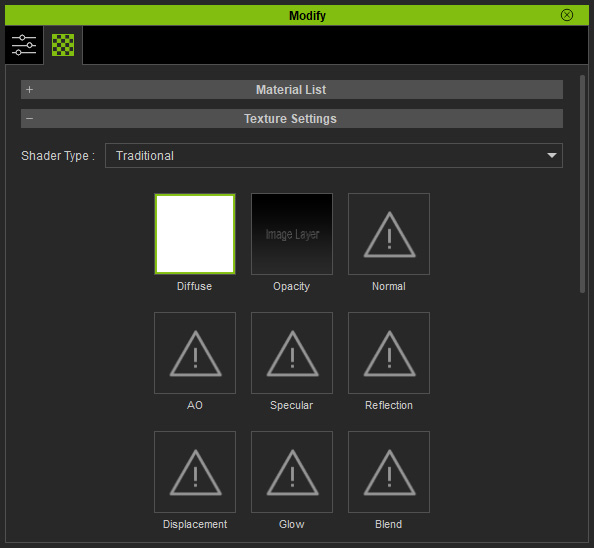
- Double-click on the Diffuse icon to open an image or video to apply.
- Double-click on the Opacity icon to open an image or video to apply as an alpha source.
- Double-click on the Glow icon to apply a glowing source.
