Creating Light with Custom Shape
The Light in iClone support greyscale masks that act as user-defined light shapes.
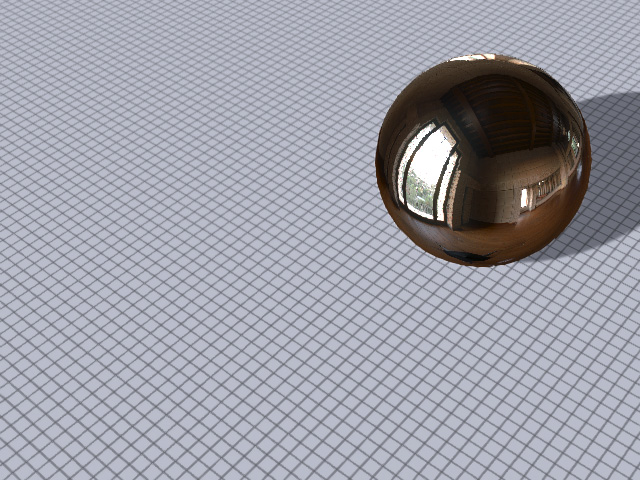
- Create a project.
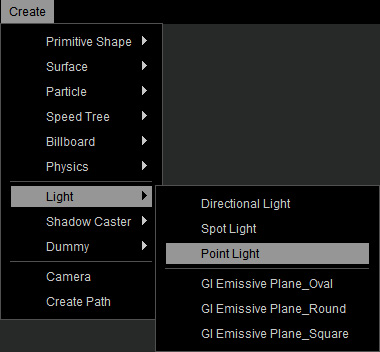
- Create a point light by executing the Create > Light > Point Light command.
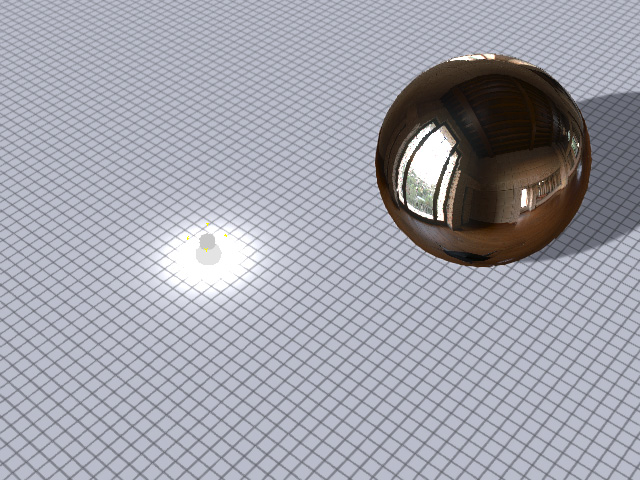
- Adjust the position of the point light.
- Make sure the light is selected and go to the Light section in the Modify panel. Change the Shape drop-down list to Rectangle.
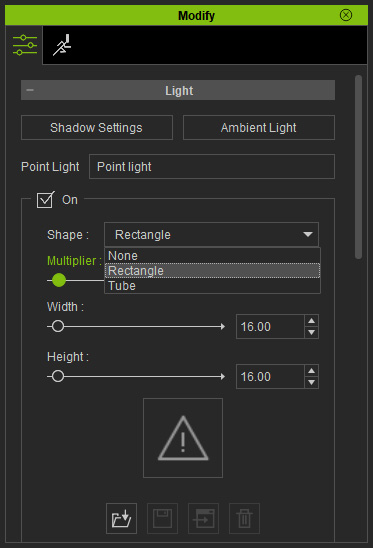
The shape of the light is as shown: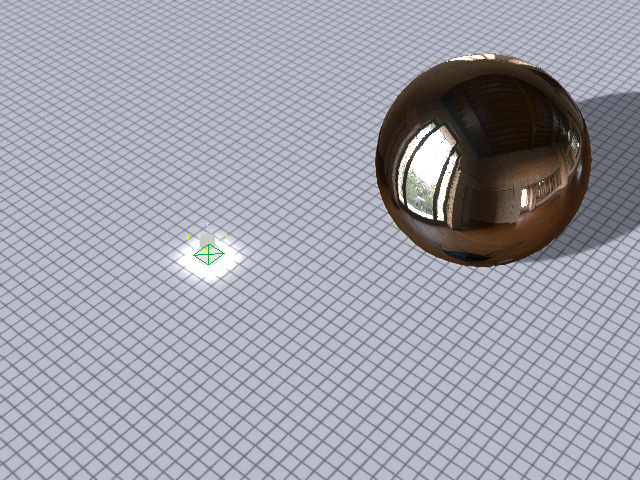
- Drag the Width and Height sliders to determine the desired size of the rectangle.
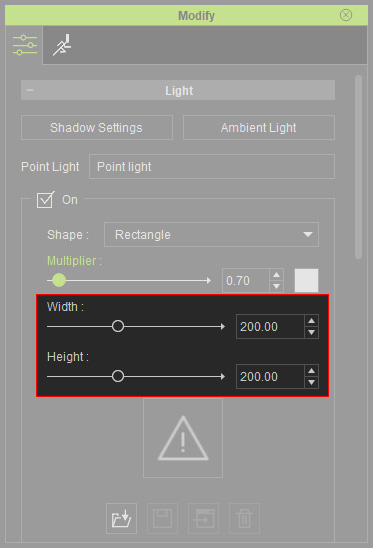
You will see a rectangular light casting on the floor.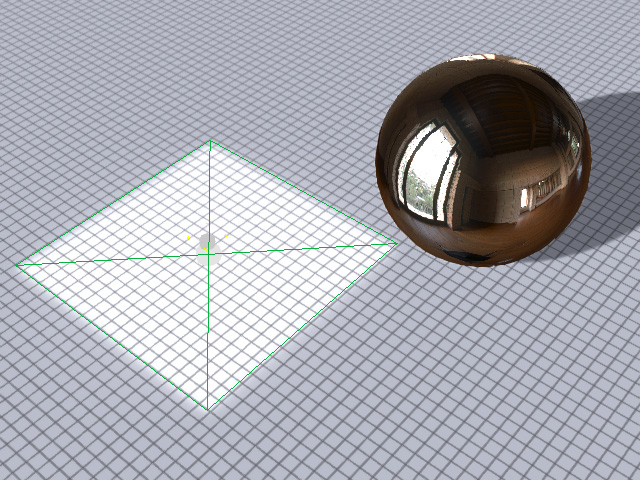
- Prepare a greyscale image and load it into the texture channel under the size sliders.
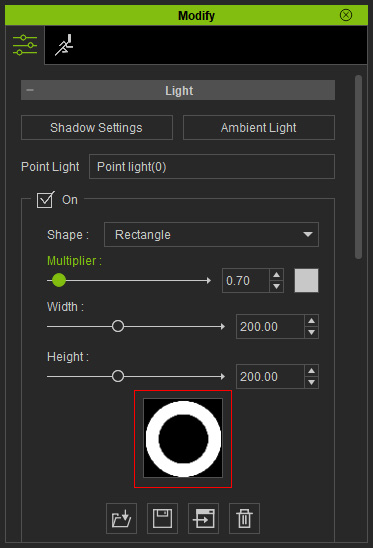
- The rectangle is masked by the image.
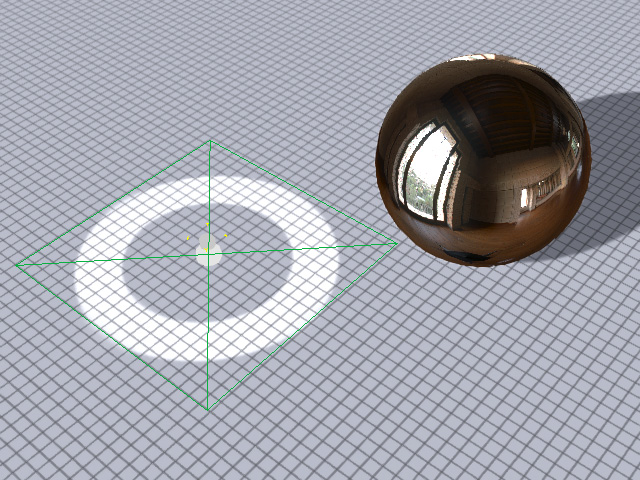
* Note the strength of the light is determined by the luminance of the image. - You can relocate the light to spread the light evenly across the
object.
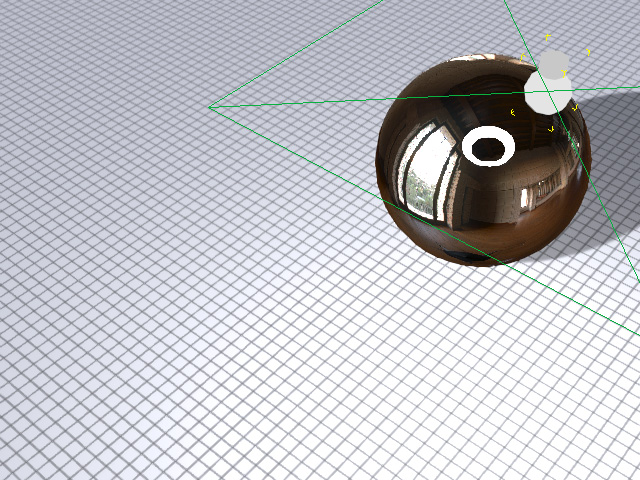
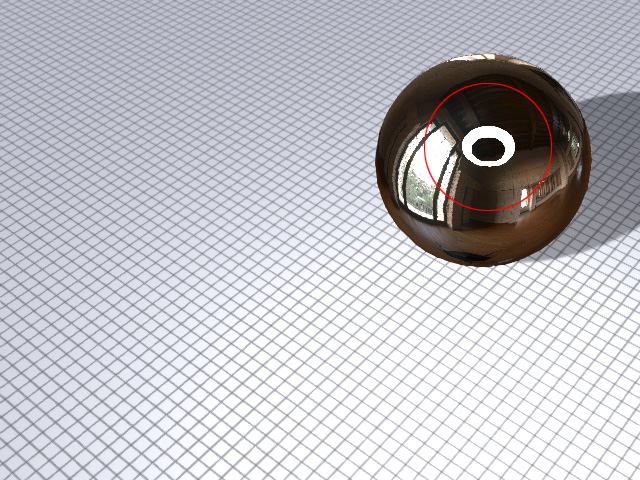
- The light shape can still be seen in the reflections, even when
the point light is hidden.
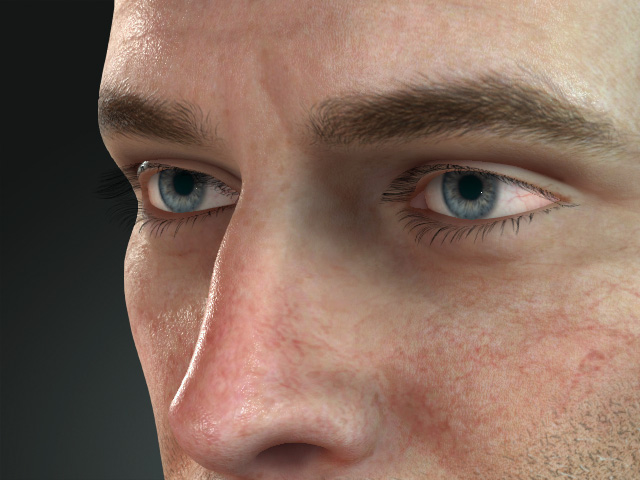
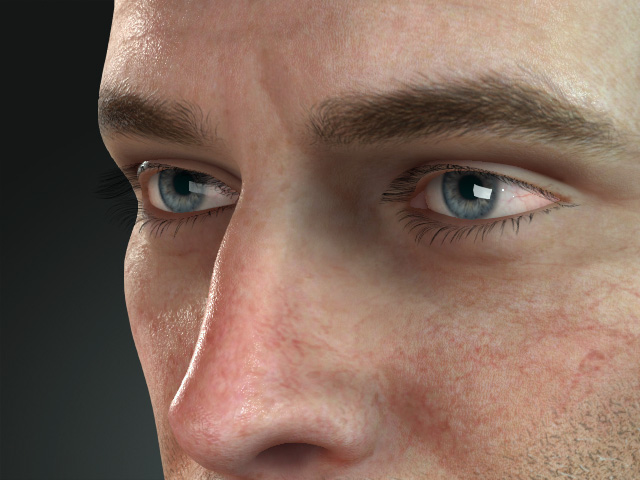
This feature can add extra highlights to a character's eyes.
|
|
|
Without light reflection in the eyes |
With light reflection in the eyes |
