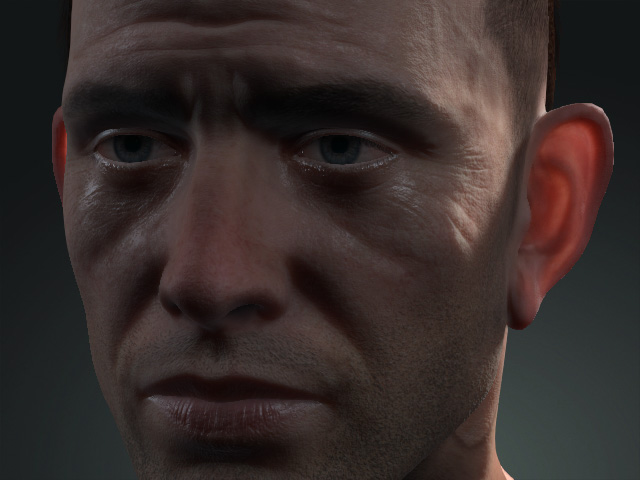
SSS Light for Character
The SSS (Sub-Surface Scattering) effect is a mechanism of light
transport. The light passes through the surface of a translucent object,
interact with the inside of the material at irregular angles, and then exits the surface and scatters.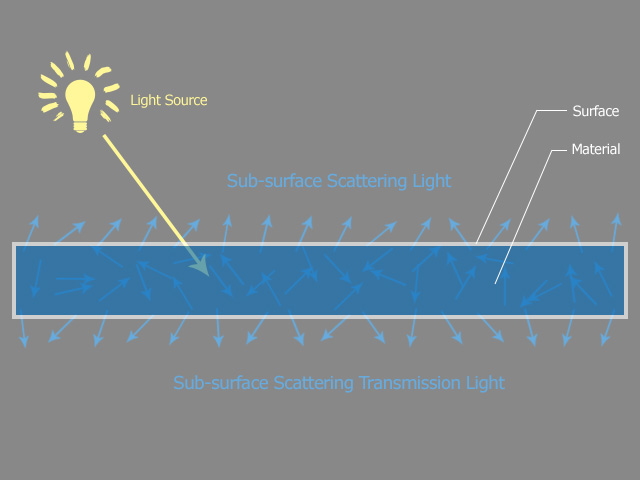
Therefore, the SSS effect can be rendered in iClone when three terms are met:
- The object's material (in this case, Character Skin) is translucent.
- The light's SSS Transmission attribute is activated for rendering the transmission light in the shadow.
- The Digital Human Shader checkbox in the Preference panel should be activated.
SSS Light on Lighten Surface
- Create a project with character and a directional light (or a spotlight).
- Select the character and switch to the Material tab in the Modify panel.
- Select the materials for the Head, Body, Arm, Leg, and Nails.

- Change the Shader Type to Digital_Human X (the X can be Hair, Head, Eye, Teeth Gums, Tongue and Skin).
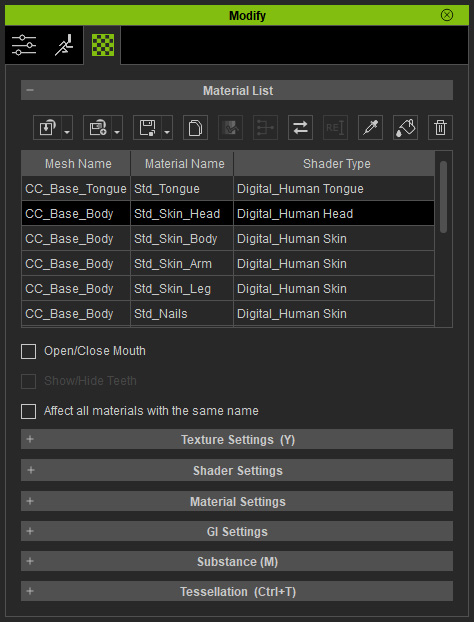
This step sets the mesh material to translucent.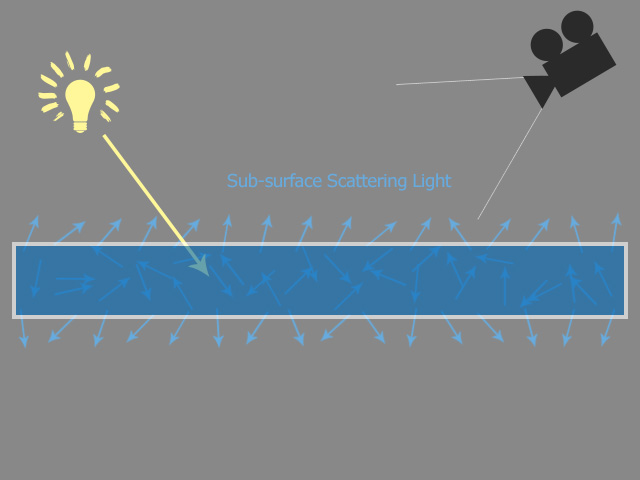
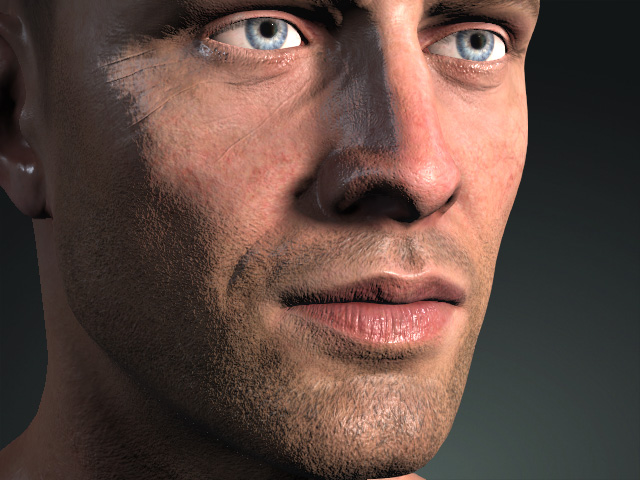
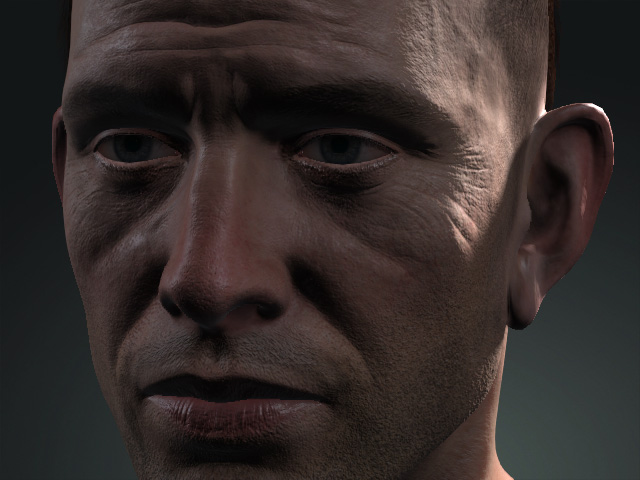
Now, you can see the SSS effect on the character's face: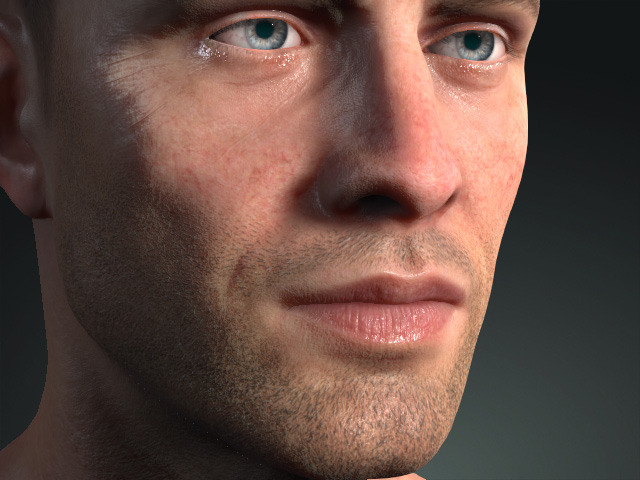
SSS Light in Shadow
- Create a project.
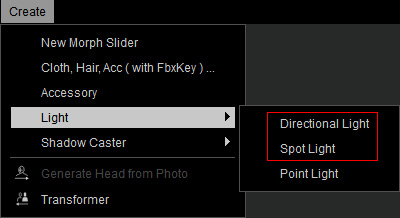
- Execute the Create > Light > Directional Light or Spotlight (in this case, directional light) command to create a spotlight.
- Adjust the orientation of the light.
- Make sure the light is selected and go to the Light section in the Modify panel
and activate the SSS Transmission checkbox.
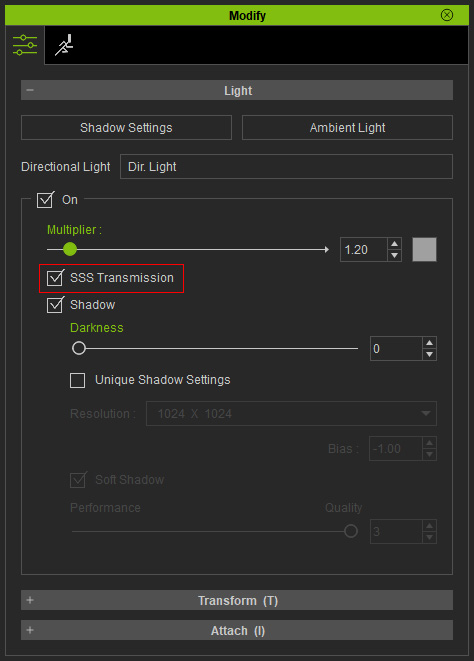
This step ensures that the light can penetrate the surface into the material of the object.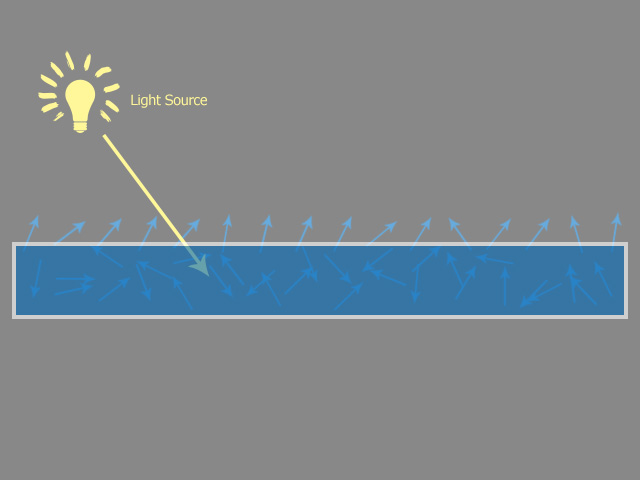
However, you can not see the SSS effect after this step because only one term aforementioned criteria is met. - Select the character and switch to the Material tab in the Modify panel.
- Click the Convert Object Shader button on top of the material list.

- In the Convert Object Shader to panel, set the target shader type to Digital Human Shader
and click the Convert button.
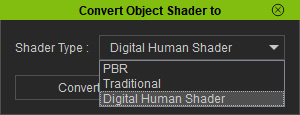
- The Shader Types of the materials will be automatically arranged to adequate shaders.
This step sets the mesh materials to translucent.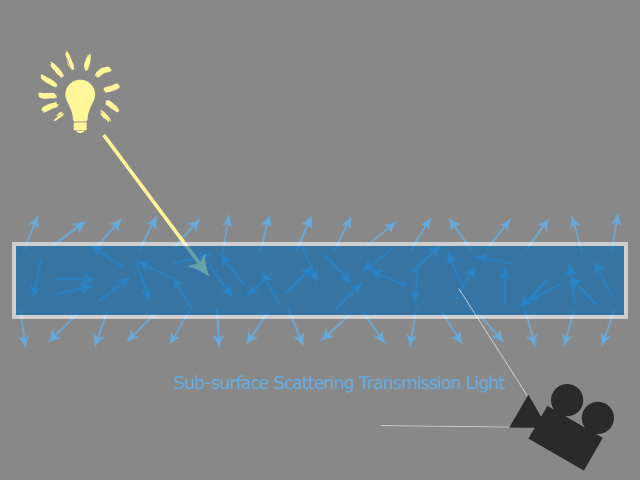
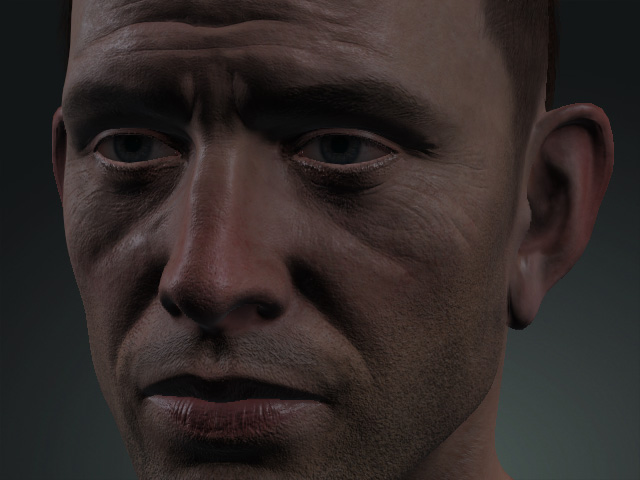
Now, you can see the SSS effect on the character's ears: