Where to Apply Spring Effect
In iClone, only the bones of an object can have spring effects. However, you can merely turn on/off or adjust the spring behaviors that have already been applied to an object. If you want to apply spring effects to a specific bone, then you need to do it in Character Creator.
Before applying spring effects to bones, you need to know how and which bones are available for you to manually apply spring effects to.
Standard Actors
The Standard actors in iClone contain the Reallusion Standard Bone structure in which all bones from the Hip to Face, Finger and Toe are all occupied, which means that you are not allowed to apply spring effects to them.
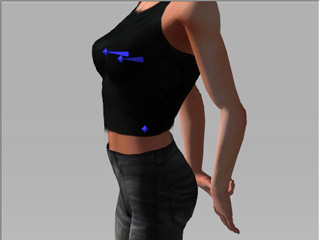
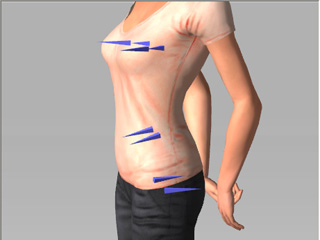
However, there are still some bones that can be given spring effects, and they are the Hair, Breast, Abdominal (G3 actors or above) and Hip Cheek (G5 actors or above) bones.
|
|
|
G3 Actor |
G5 Actor |
Humanoid Actors
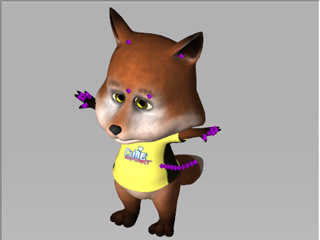
If you have bone-skinned biped models that are created in any external 3D tools such as Maya or 3DS Max, then everything classified as a kernel bones (from Hip to Head, Forearm, and Toe bones) need to be mapped to the standard bone structure in Character Creator. The excessive or branch bones, which can be mapped as Extended Bones, are able to be given spring effects.

|
|
|
Kernel Bones (must be used for mapping to Reallusion Standard Bone Structure) |
Extended Bones |
Non-human Actors
Because the non-human actors are freely created bone-skinned models, every bone can be given
spring effects except the root and the bones one level under the root.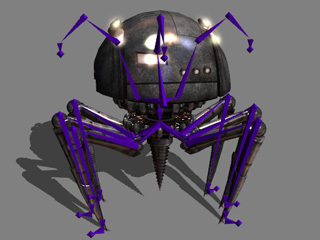
Props
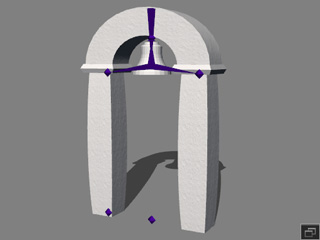
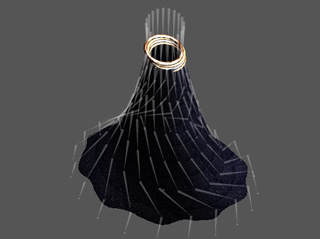
The props can be bone-skinned props (from external 3D tools) or merged props (from iClone). Each bone in the structure can be given spring effects except the root and the bones one level under the root.
|
|
|
Merged prop via iClone |
Bone-skinned prop from 3D tools |
