Copying and Pasting Textures
There are two aspects to copy and paste textures across channels. However, currently, it only supports characters, props and accessories.
Across Objects (Characters, Props or Accessories)
- Apply two different objects with same UV coordinates (in this case, two characters).
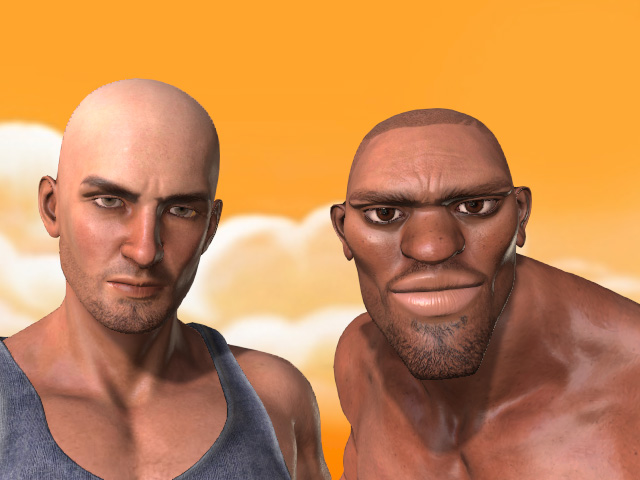
- Select one of the object and access its Texture Settings section; pick the source texture channel.
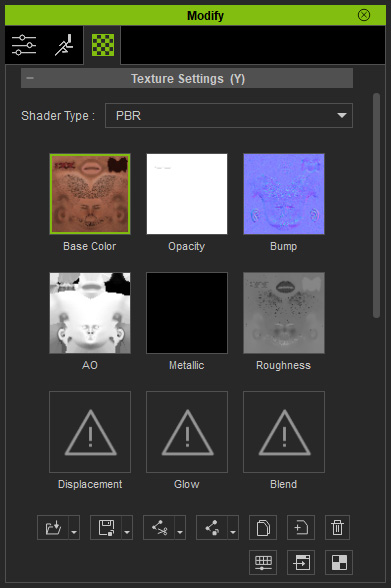
- Click the Copy button.

You can alternatively right click on the channel and execute the Copy command from the right-click menu.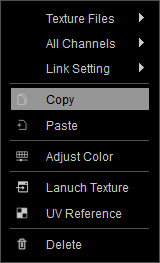
- Select the other object and select the target texture channel for pasting.
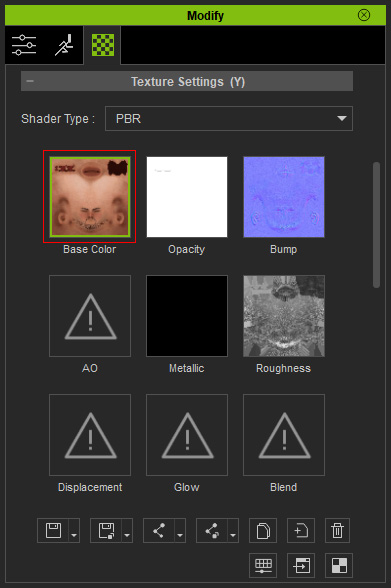
- Click the Paste button to paste the source texture into this channel.

You can alternatively right click on the channel and execute the Paste command from the right-click menu.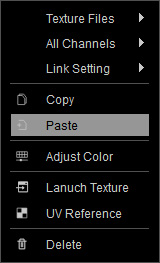
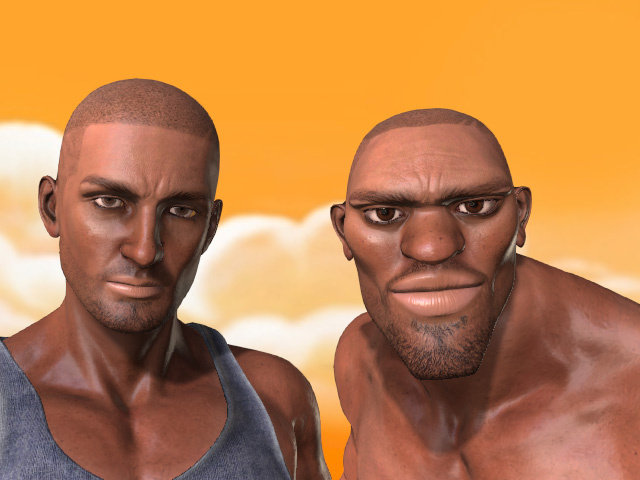
- The texture will be replaced.
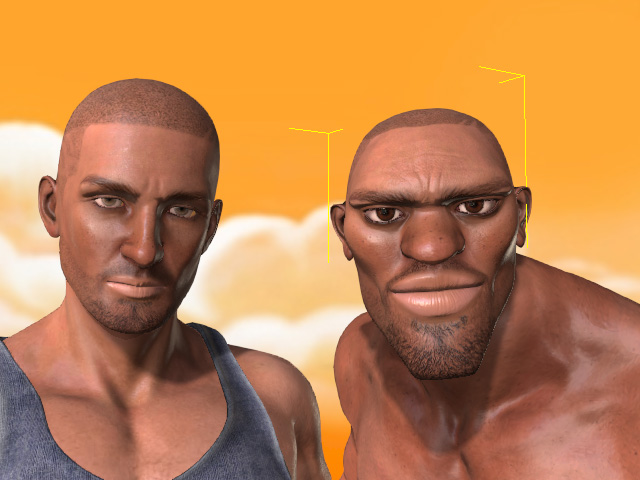
- Repeat the same steps for any other texture channels of different materials.
Across Channels
Another aspect is the ability to copy and past across channels of different materials.
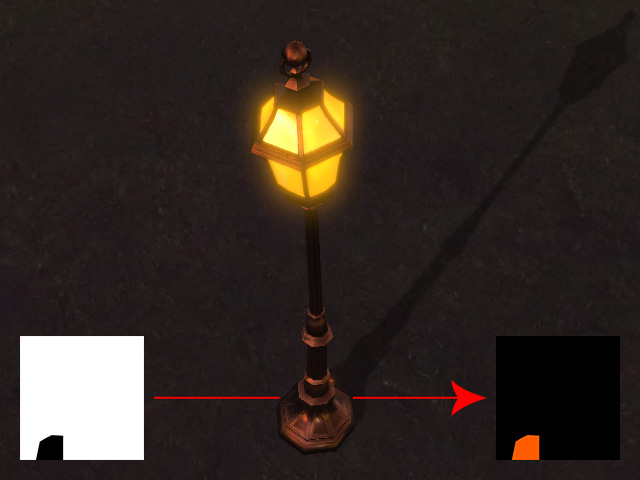
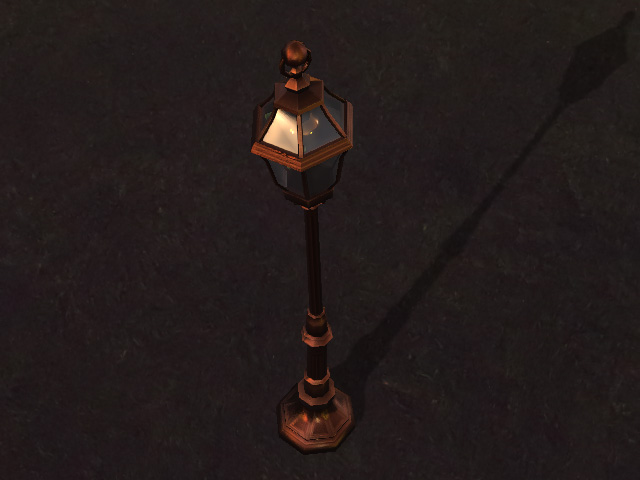
- Apply an object to the scene (in this case, a street lamp).
- Select the object and go to the Texture Settings section in the Modify panel >> Material tab.
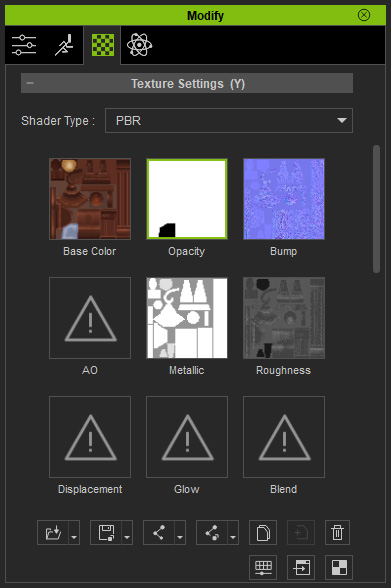
- Select one of the channel as the texture source (in this case, the Opacity channel).
- Drag and drop the texture onto target channel of the same material.
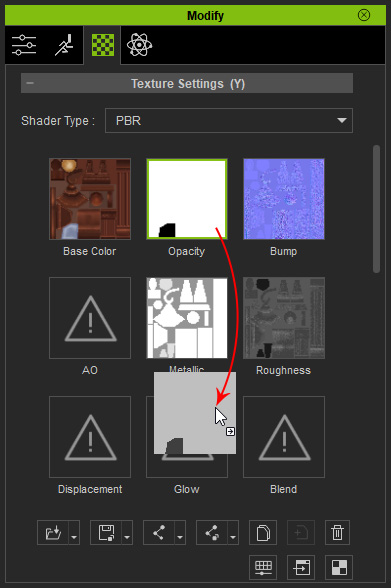
Alternatively, you can first copy the texture from the source channel with the right-click menu.
And then paste the texture to the target channel with the right-click menu. - The target channel will be filled with the source texture.
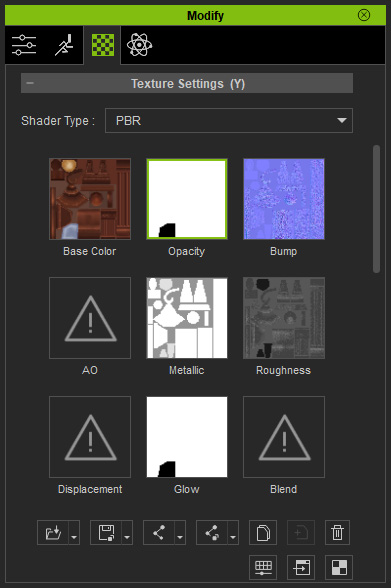
- The result displayed in the view-port:
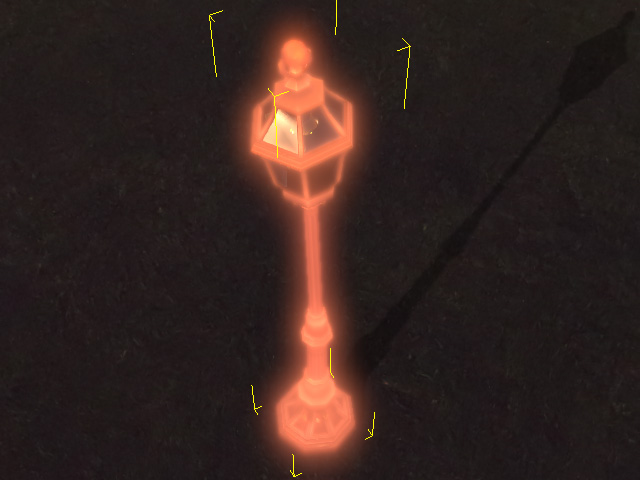
- You can then adjust the newly added texture to have the ideal effect.