External Texture and Material Sharing
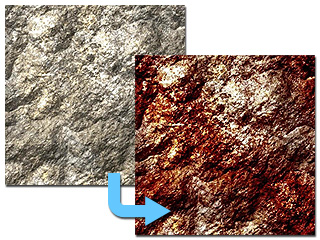
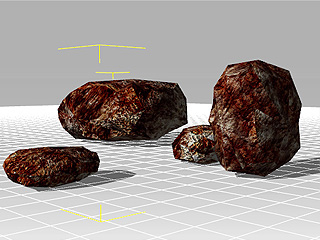
In iClone, there are several ways to have multiple object share one same texture or material (consists of various textures), which may decrease the size of the project if the textures need to be reused repetitively.
External Texture
-
Prepare two objects in iClone, and one image as the texture image for the objects.
- Access the File >> Import Settings >> External Texture command on the menu bar.
-
Double click on any one of the channels for one object.
Load the image as one of the textures.
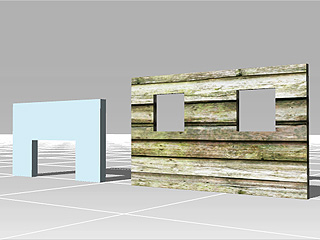
-
Repeat step 2 and 3 for the other object.
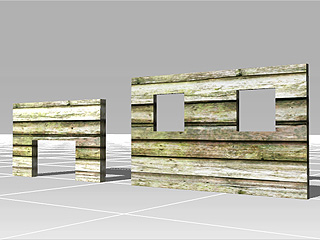
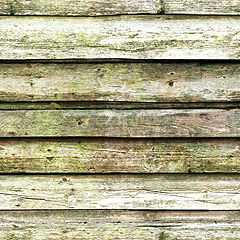
These two objects thus share the same image file as their texture. iClone skips compacting the image file when you save the project but instead records the path of the external file, which keeps it from increasing the project size.
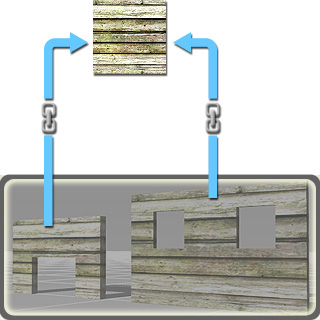
|
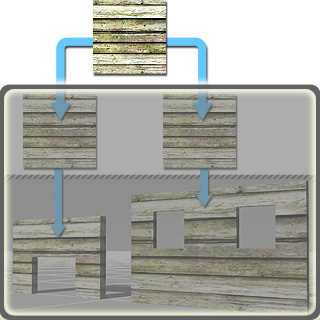
|
|
External-File Methodology in iClone. |
Compacting-File Methodology before iClone 3. |
- If you modify the image file by means of any image editor, the textures for all the objects that share it update altogether.
- Please note that Video files are always applied using the external method.
Material Sharing
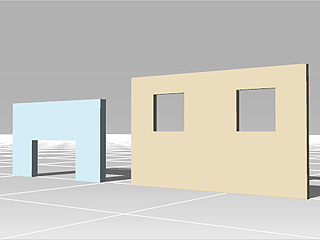
In iClone, you may also define different object to use a same material by using the Paint tool in the Material List section.
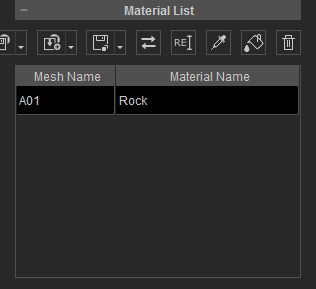
-
Select one object from which you want to share the material.
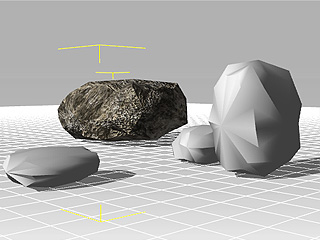
-
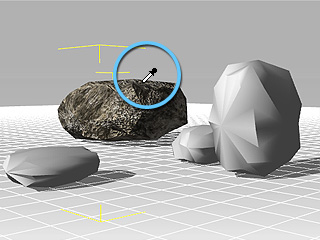
Click the Pick button and click on the face of the material for sharing.
The texture images for the
channels are thus retrieved.
Alternatively, you may select the material in the material list.
-
Click the
Paint button and start to click on the target faces of other objects.
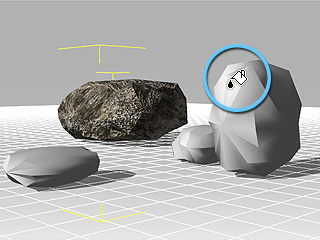
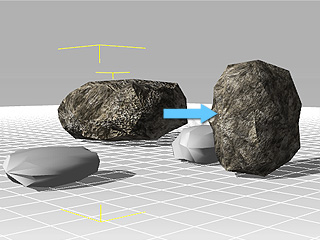
-
Repeat step 3 till all the target faces are sharing the same material (press
ESC to cancel the
Paint mode).
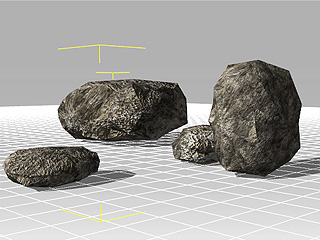
All the faces now share the same material data as the first object in step one.
Material Sync-Editing
Since these objects are using the same material, once you modify the texture channel settings in the Adjust Color section, the other faces sharing the same material will be altered instantly.