About the Puppeteering Panel
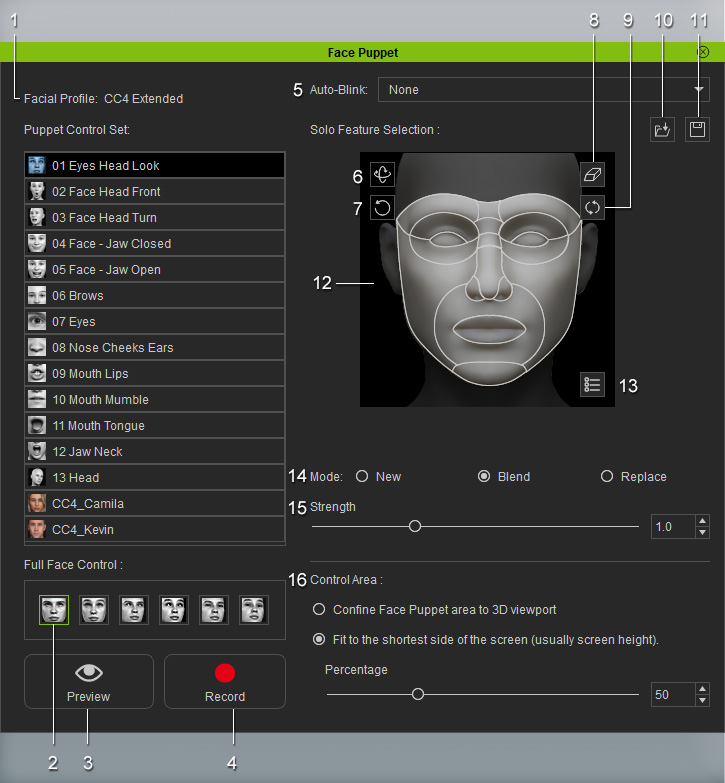
 1. Face Animation Profile
Select one of the built-in profiles with a different personality from the list. Each profile contains various expressions.
2. Full Face Control
Select one of the expressions with pre-defined weight settings for various facial features.
3. Preview
Click this button and then press the Space bar to preview the expressions triggered by your input device (Mouse by default).
4. Record
Click this button and then press Space bar to start recording a motion clip. The recording will be added into the Avatar/Expression Track in Timeline.
5. Auto Blink
Use this drop-down list to determine the
method for blinking while recording. This setting can be
used to stop the interference of auto-blinking when you want to create custom blinks by puppeteering. This setting can also be found on the Modify panel.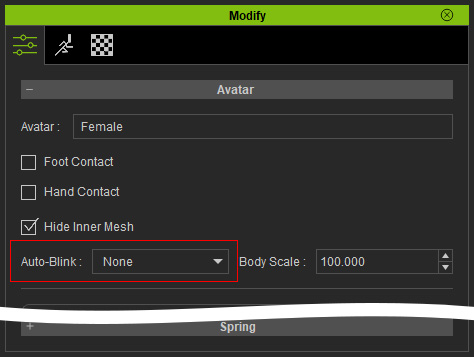
6. Head Orientation
Select this to change the rotation of the head.
7. Head Tilting
Select this to change the tilting of the head.
8. Clear Selection
Deselects any highlighted features.
9. Reset Profile
Resets to the selected profile settings
10. Open Profile
Click this button to load profiles.
11. Save Profile
Click this button to save profiles
12. Solo Feature Selection
Select to highlight any desired features to change. The changes will be converted into Avatar/Expression Track in Timeline. See also: Solo Feature Selection
13.
Edit Property
Adjust the weight of a feature in detail when your input device moves (Mouse by default). See also: Advance Puppet Settings.
14.
Recording Modes
- Create a New Clip: Choose this radio button so that the original clip will be replaced by the newly recorded facial expressions.
- Replace Animation on Existing Clip: Choose this radio button so that the new facial expressions of the selected features replace the facial expressions of the existing clip after recording.
- Blend Animation on Existing Clip: Choose this radio button so that the new motions of the selected features are blended into the existing clip after recording.
See also: Animation Mode.
15. Strength
Use this slider to determine the cursor movement strength for driving the facial expressions.
16. Control Area
Choose the control area for puppeteering and set the size of the area by percentage of the screen area.
