Deleting Unused Morphs
When you export a character from iClone, you are allowed to remove the unused morphs to downsize the FBX file.
-
Prepare a character.
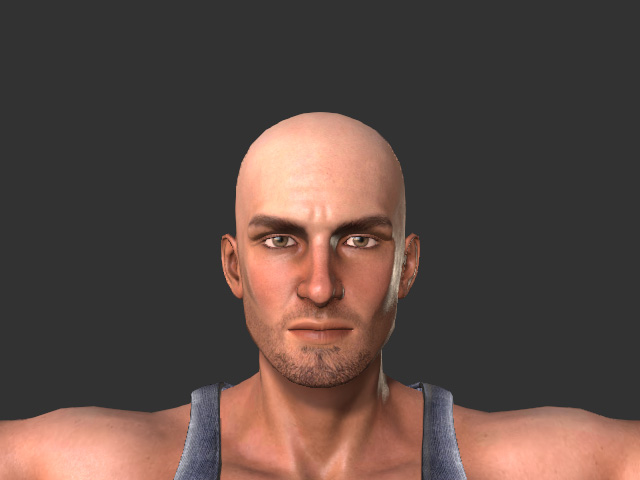
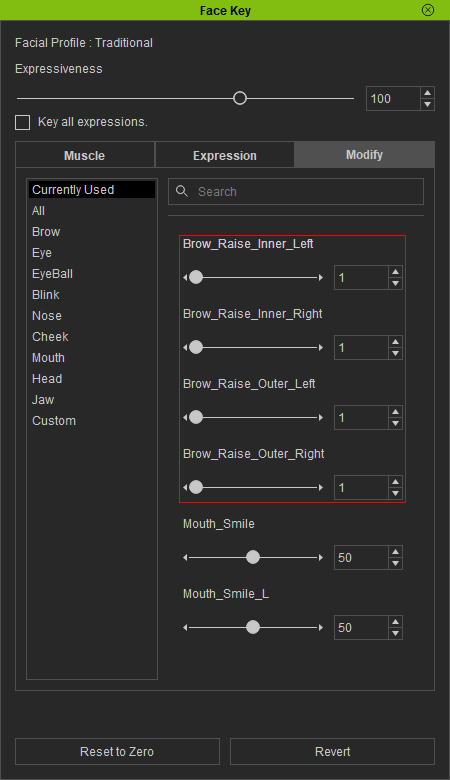
- Setting face key with the sliders in the Modify tab (in this case, Mouth Smile only).
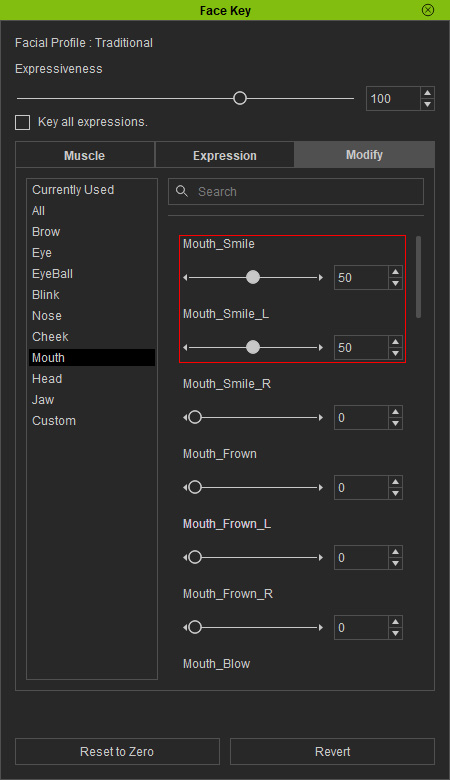
The character will be morphed to change the facial expression.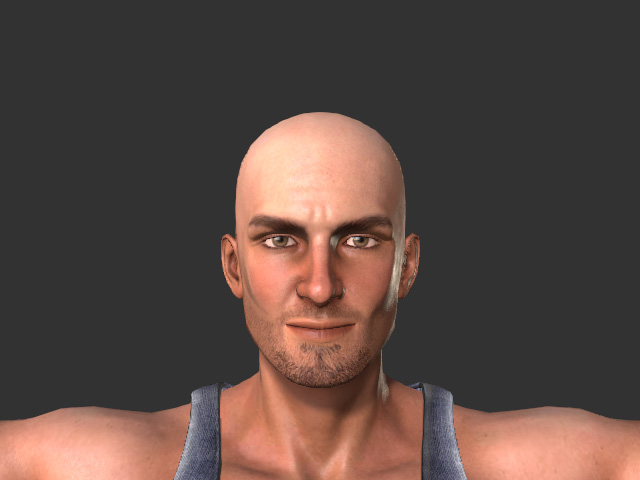
-
Execute File > Export > Export FBX... command.
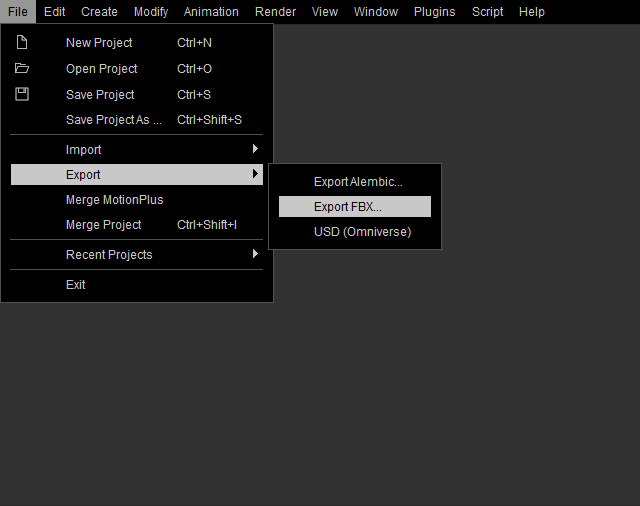
-
In the following panel, leave
the Delete Unused Morphs checkbox deactivated.
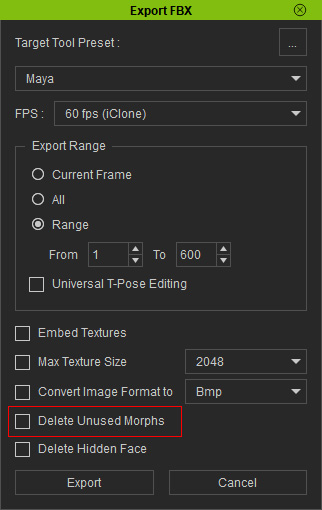
- Click the Export button to export the character into FBX file.
- In iClone, export the character into FBX again. However, activate the Delete Unused Morphs checkbox this time.
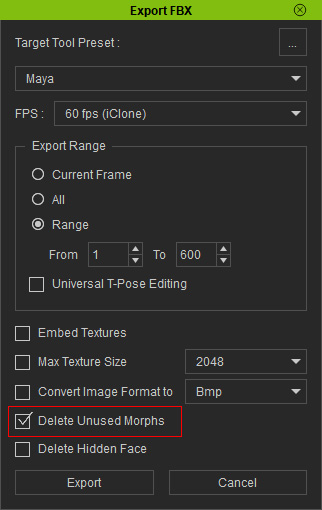
- Compare the size of the two files. The file that has been exported with this feature is smaller than the other one.

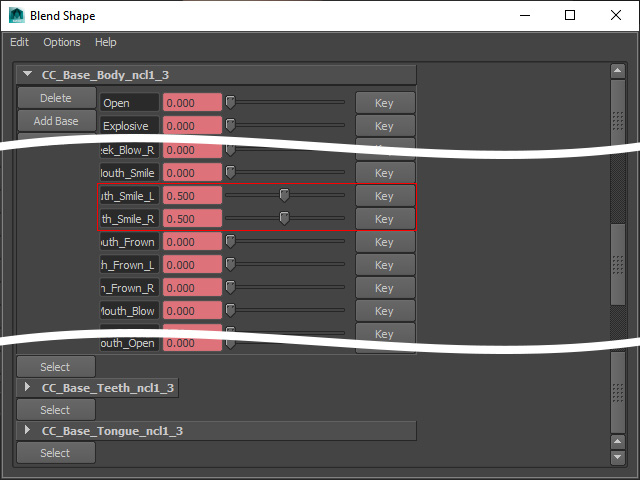
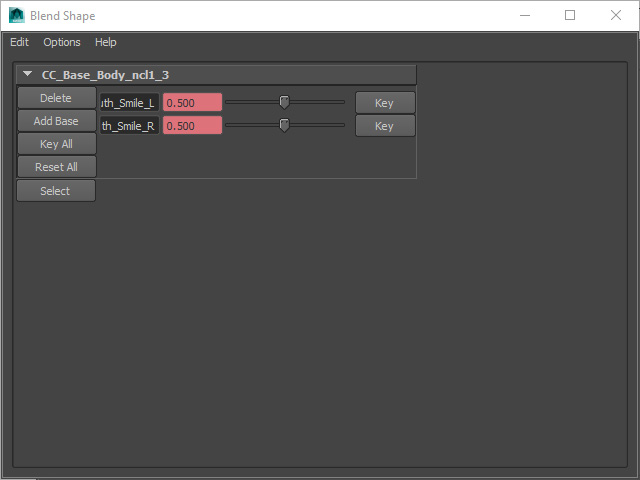
- Load these two FBX files into another 3D software. Open the Blend Shapes panel to compare the differences.
- without applying the Delete Unused Morphs feature: In addition to the one set with a value, the rest of the morph data are also kept in the FBX file.
- Applying the Delete Unused Morphs feature: Only the morph data manually set with value are kept.
 Note:
Note:To preserve certain morphs during export with Delete Unused Morphs checked, assign them a small non-zero value so they are treated as used and won’t be removed by the Delete Unused Morphs functions.
- without applying the Delete Unused Morphs feature: In addition to the one set with a value, the rest of the morph data are also kept in the FBX file.
