Creating Soft Cloth Animation with Alembic
Using Alembic files involves
animations and textures.
You need to individually export animations
and textures in abc format, and then
composite them together in your favorite 3D tools such as 3ds Max, Maya, HitFilm,
and so on.
This is because ABC files contain only animation data of mesh vertices, leaving out the textures to reduce file size.
Step 1: Exporting Character and Motion from Character Creator
- Create a character.
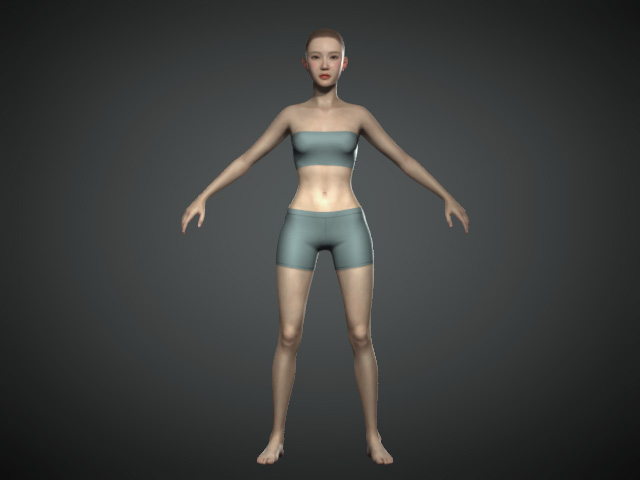
- Export the character with the motion you want to simulate for generating the cloth animations in FBX format.
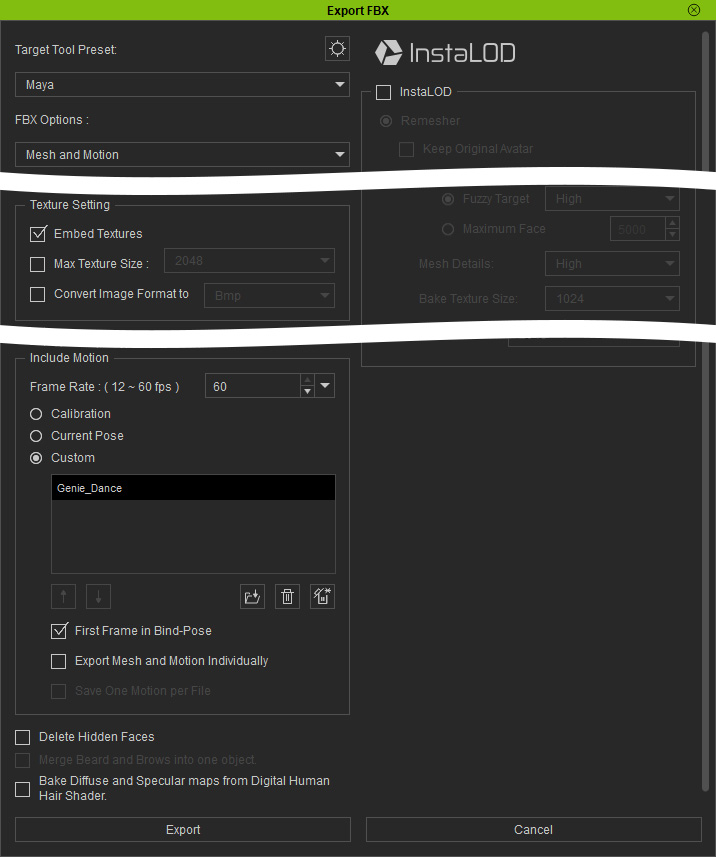
Step 2: Create Soft Cloth for the Character in Marvelous Designer
- Importing the character FBX file into Marvelous Designer.
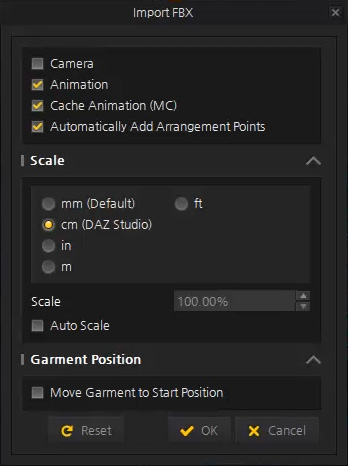
- Start to create pieces of cloths elements.
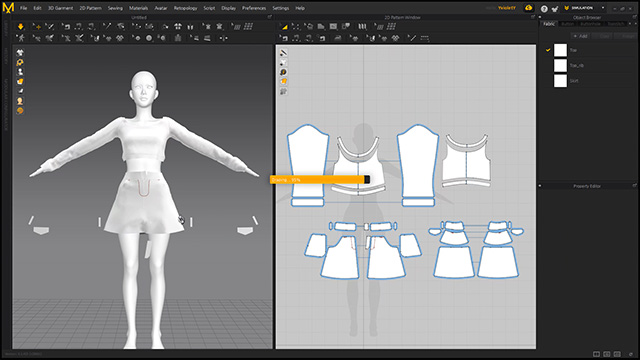
- Draping the clothe pieces to fit the elements of the body.
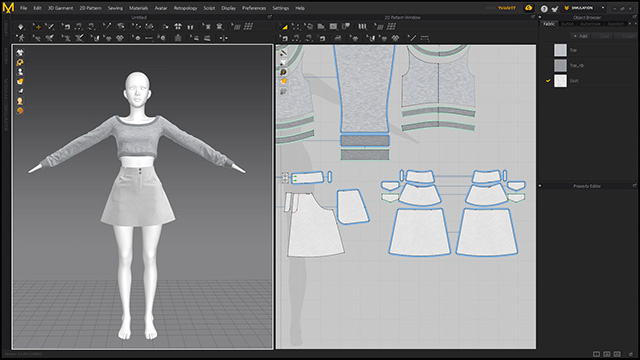
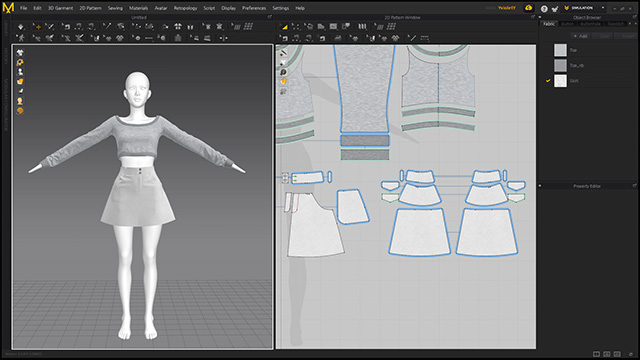
- Produce additional clothe detail.
 Note:
Note:
You can also fine-tune the cloth in ZBrush and Substance Painter.
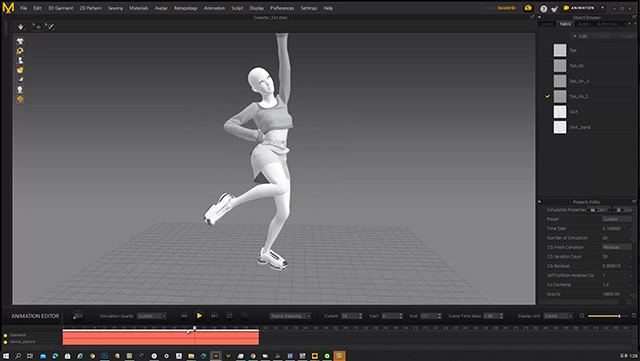
Step 3: Simulate the Cloth Physics in Marvelous Designer
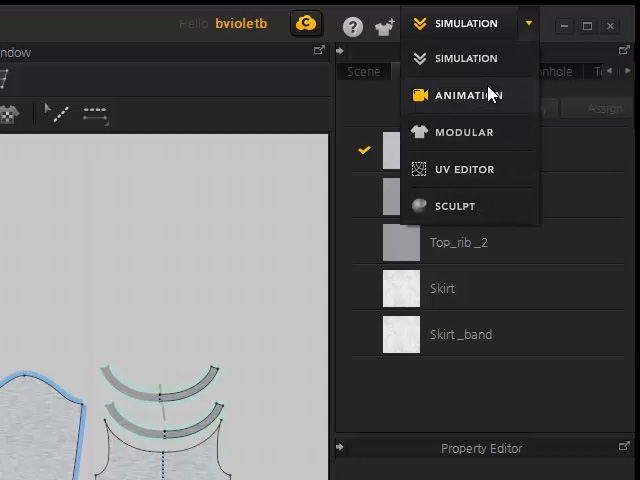
- At the top right corner, change the SIMULATION drop-down list to ANIMATION.
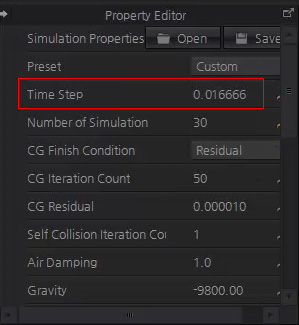
- In the Property Editor, set the Time Step to 0.016666
which is equivalent to iClone's 60 frames per second.
- Click on the simulation button to create clothe physics that is
driven by the character's motion.
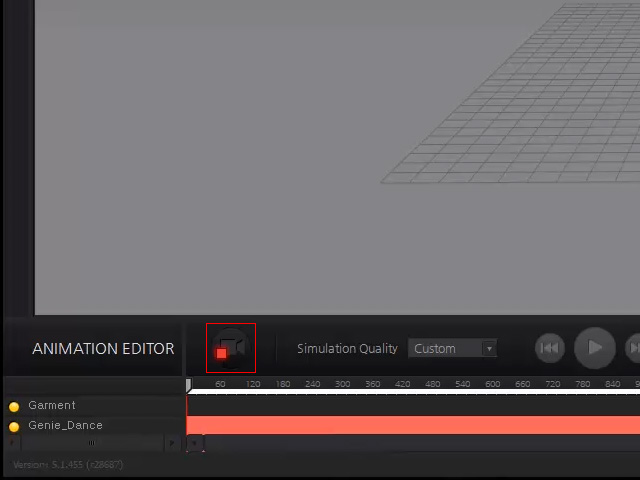
- When the simulation is done, export the clothes in FBX (*.fbx) and Alembic format (*.abc).
Step 4: Load Soft Cloth into iClone in Alembic Format
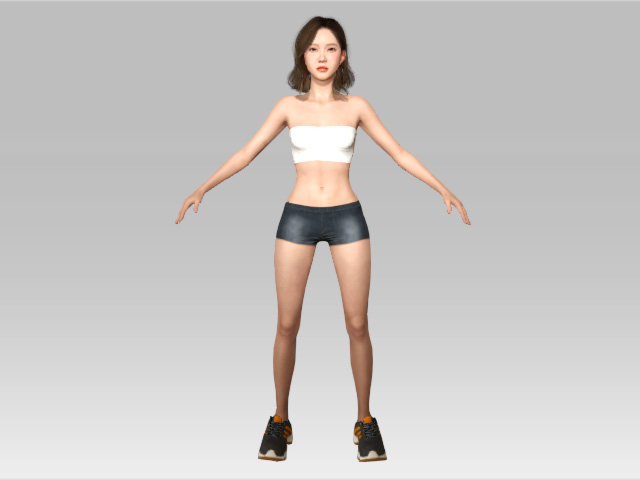
- Load the character from Character Creator (with hair applied in Character Creator) into iClone.
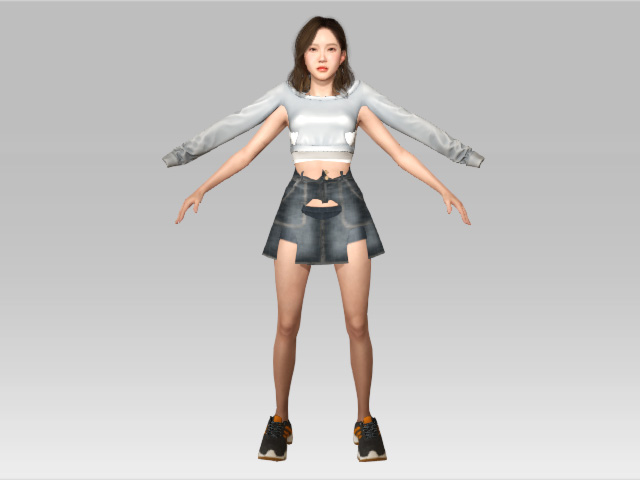
- Load the clothes FBX from Marvelous Designer to form a prop.
- Make sure the clothes is selected and load the Alembic file exported from Marvelous Designer to apply on it.
- Access the File > Import > Import... command.
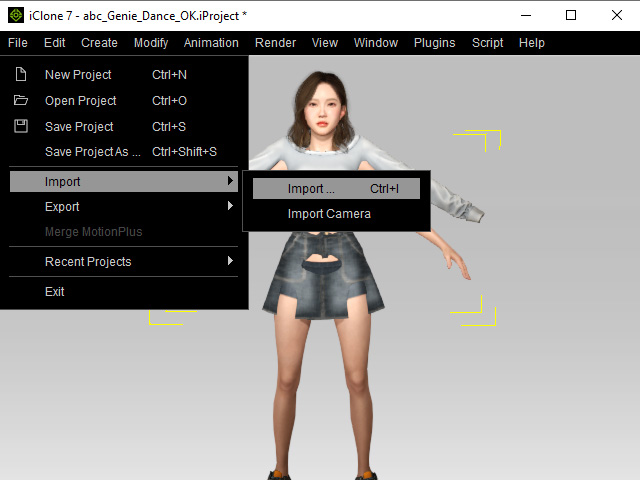
- Right click on the prop and select the Import File command from the context menu.
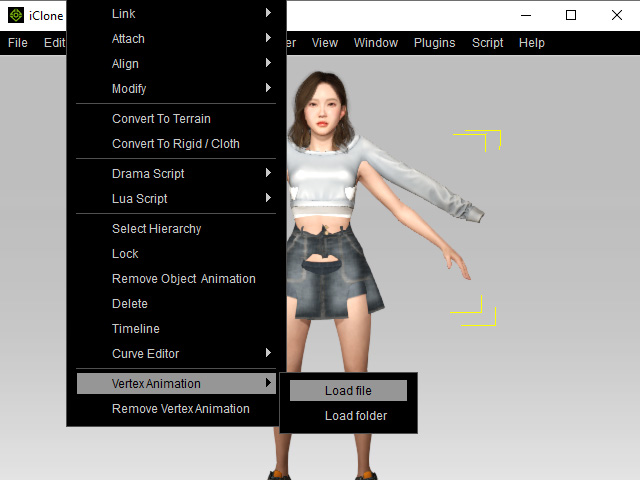
- Or simply drag and drop the Alembic file into the 3D viewport.
- Access the File > Import > Import... command.
- You will be prompted with a dialogue window.
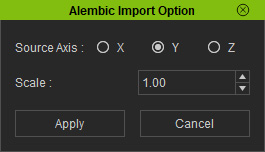
- Source Axis: Specify the up-axis of the 3D tool's that is used to create this file.
- Scale: Determine the size of the object to be imported.
- Playback and you can view the clothe animations.
- Move to the start frame of the clothes proper animation and apply the motion clip in the Step 1 section (in this case, the 61st frame).
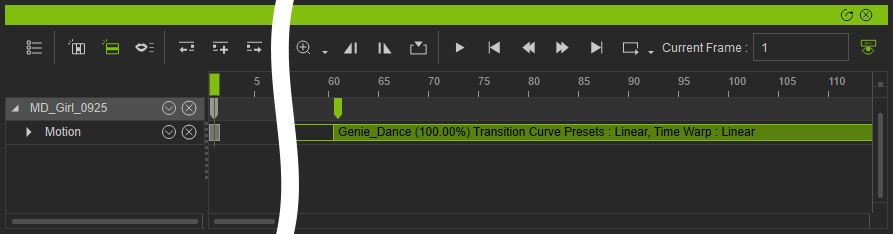
- Playback to view the final result.
