How to convert path to mesh (New for v. 8.41)
When using the walkway to generate pathways for crowds, you can also generate mesh props for trails, streets, footpaths, or any other types of roads.
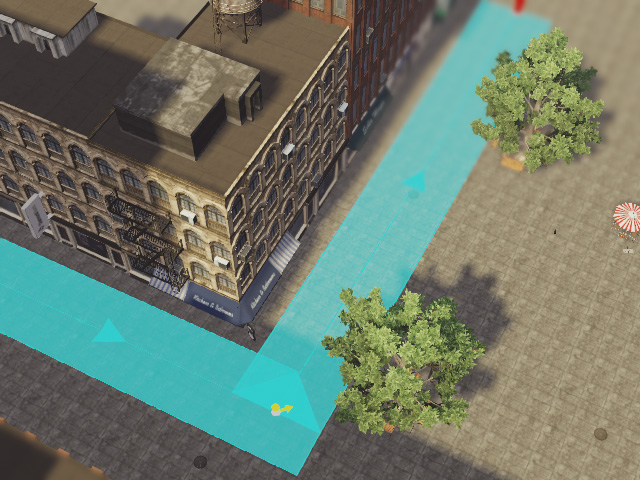
- Create a walkway in the project.
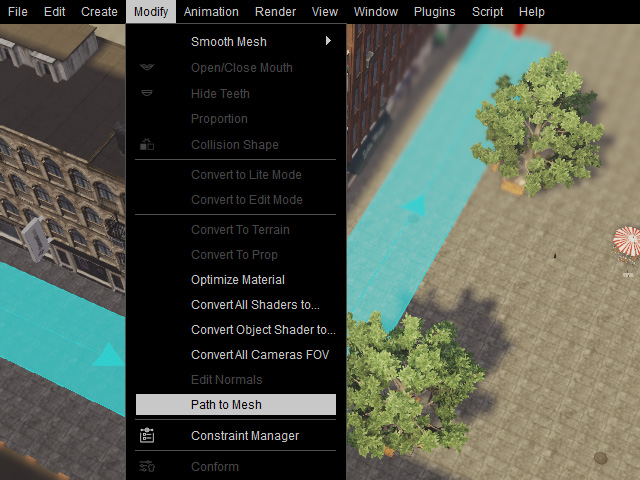
- Go to Modify > Path to Mesh.
The Path to Mesh panel will appear.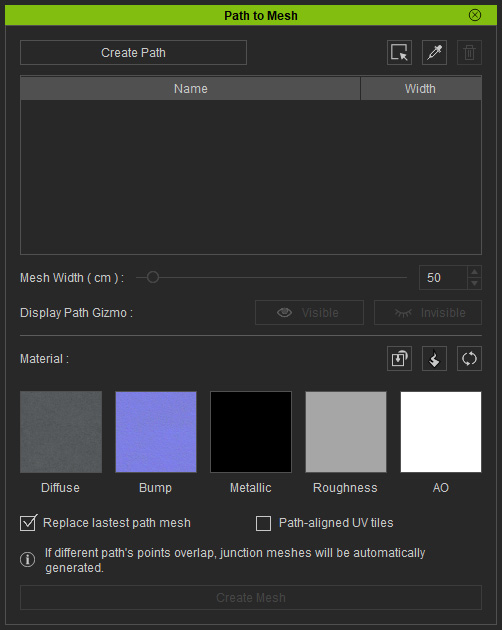
If you have not created a path, then click the Create Path button to start building a new one. - Add paths into the list using either of two buttons:
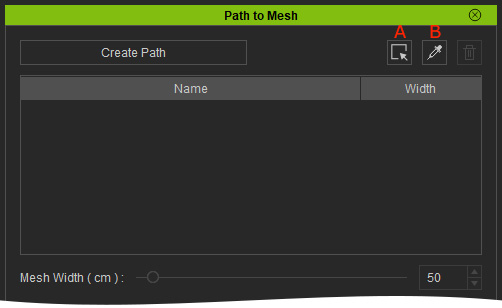
- Adds all paths in the project to the path list.
- Click this button and pick the desired path from the viewport to add it into the path list.
- You can drag the Mesh Width slider to adjust the width of the selected path
or walkway.
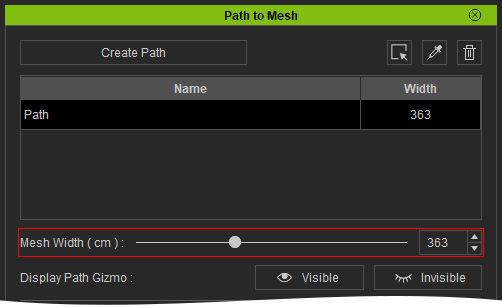
You can show/hide the selected path or walkway with the Visible and Invisible buttons. - The materials on the path can be applied in the panel:
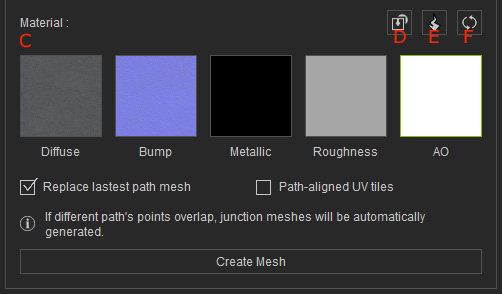
- Double-click on the channels to load the desired image files.
- Click the Load iMaterial button to load material files (*.iMtl, ) and fill the texture channels.
- Click the Load Substance button to load substance files
(*.sbsar, *.iSubstance) and fill the texture channels. In this case,
"road_001.sbsar"
(C:\Users\Public\Documents\Reallusion\Reallusion Templates\Media\Substance).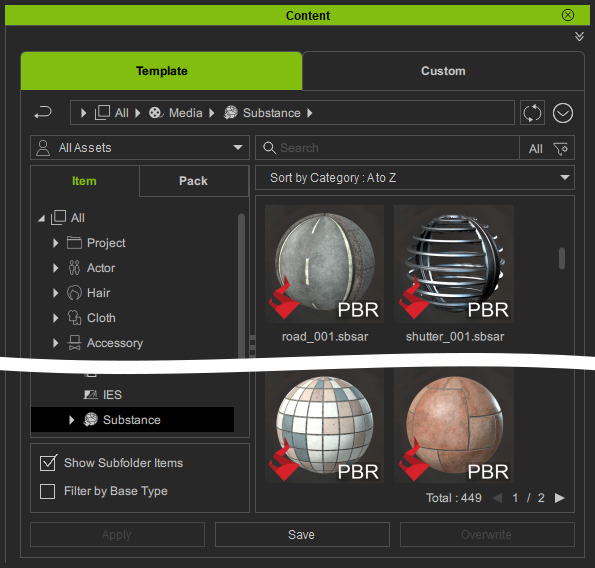
- Fills the channels with default textures.
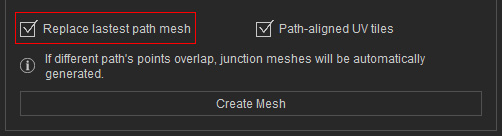
- If you want to create only one mesh per path, then activate the
Replace latest path mesh checkbox.
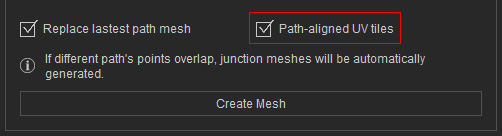
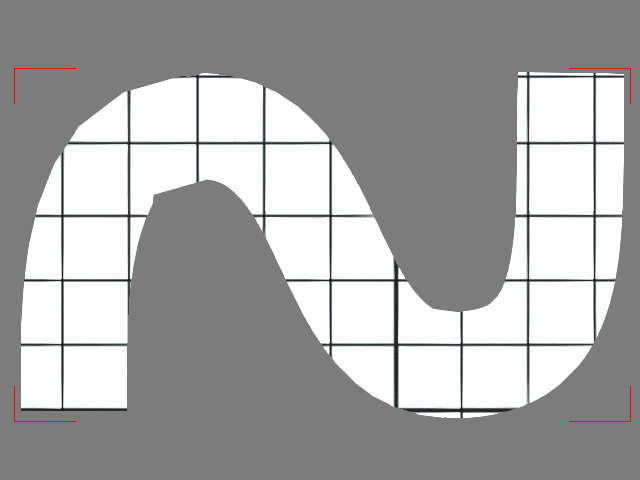
- Activate the Path-aligned UV tiles checkbox to map the UV along the direction of the
paths.
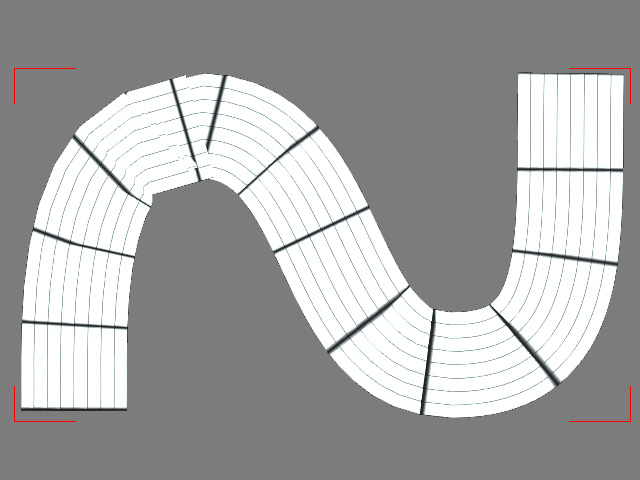
With Path-aligned UV tiles turned on.
With Path-aligned UV tiles turned off.
- Click the Create Mesh button to generate a new road.
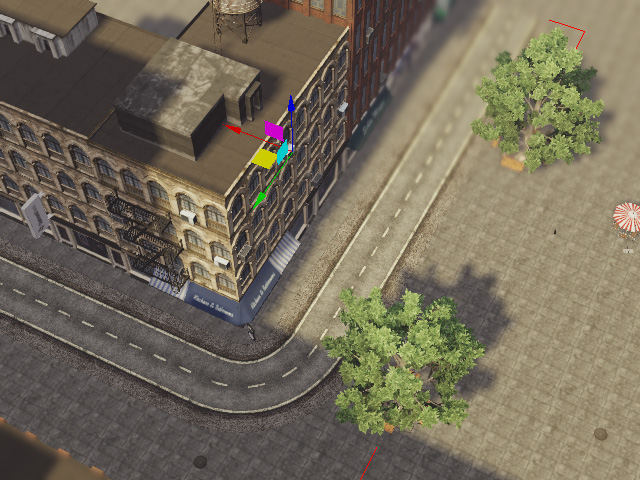
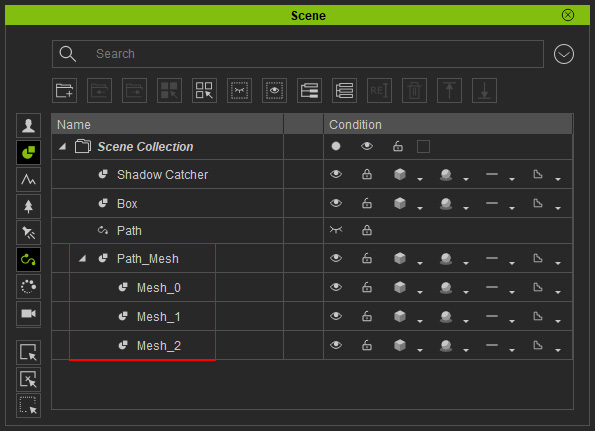
The new road mesh is composed of different pieces.