Editing Motion Nodes (New in version 8.5)
In the Add/ Delete Behavior mode (via the Add/ Delete Behavior button), the nodes in the list can be edited in the following aspects:
Via Right-click Context Menu
When you right-click on a node, a context menu will appear.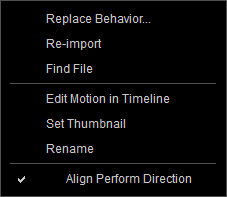
- Replace Behavior...: Replaces the motion of the currently selected node. The node name will be automatically updated as well.
- Re-Import:
- Find File: Opens the directory containing the motion file.
- Edit Motion in Timeline: You can edit the imported motion in timeline to generate unique and unlimited custom motions.
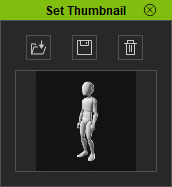
- Set Thumbnail: Displays the namesake panel to save, delete or replace
motion thumbnails.
- Rename: Renames the selected node.
- Align Perform Direction: Ensures the direction of the motion aligning to the previously acting motions.
Condition
In the Condition column, you can set different statuses for the behavior motions accordingly (notice that not all of the behavior motion nodes contains condition settings):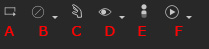
- Loop: The behavior motion will be played repetitively when triggered.
- Disruptable: Use the drop down list to set the behavior motion to be Disruptable, Nondisruptable or Disruptable without directional command.
- Reach Constraint: Toggles the Reach effect of the behavior motion.
- Look At: Toggles the Look At effect of the behavior motion. You can click the down-arrow button and execute the Look At Settings command for advanced adjustments.
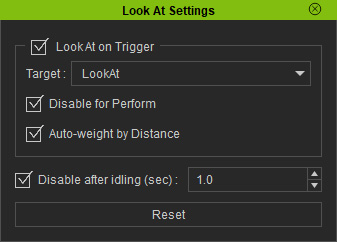
- Loot At on Trigger: Force the character to look at the target when the behavior motion is triggered.
- Target Drop-down List: Choose the target for looking at from the drop-down list.
- Disable for Perform:
- Auto-weight by Distance:
- Disable after idling (sec): The character will stop looking at the target after the perform motion is finished and back to the idle motion for specific seconds.
- Mixer: Toggles the mixer motions for blending to the current behavior motions.
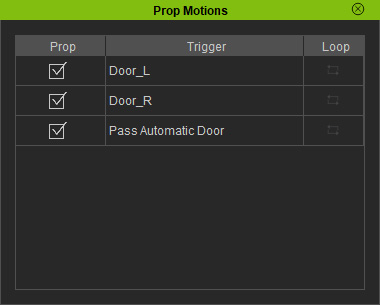
- Prop Motion: Toggles the prop's animation when the behavior motion is triggered. You can click the down-arrow button and execute the
Prop Motions command to toggle individual prop animations.