Making Selections in the Edit Motion Layer panel
Select Different Character
The Edit Motion Layer panel can be used to adjust the poses of different characters.
- Deploy multiple characters.
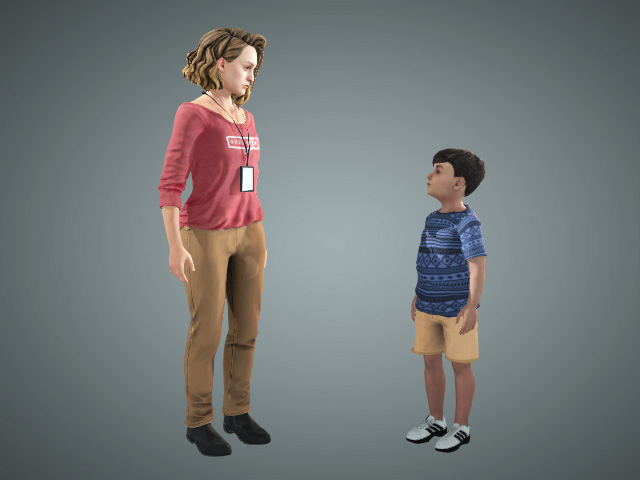
- Select one of the characters.
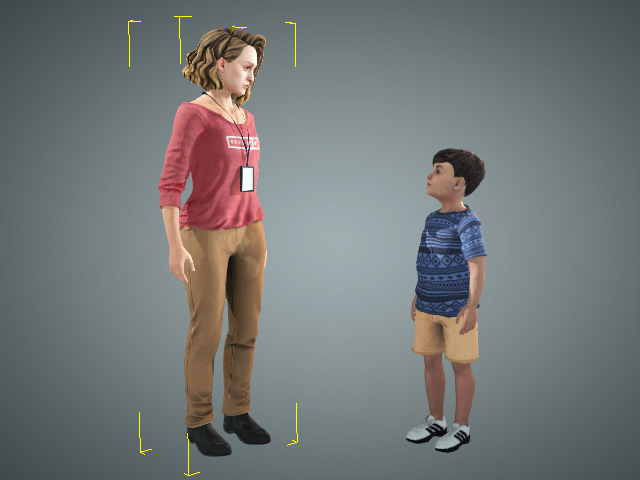
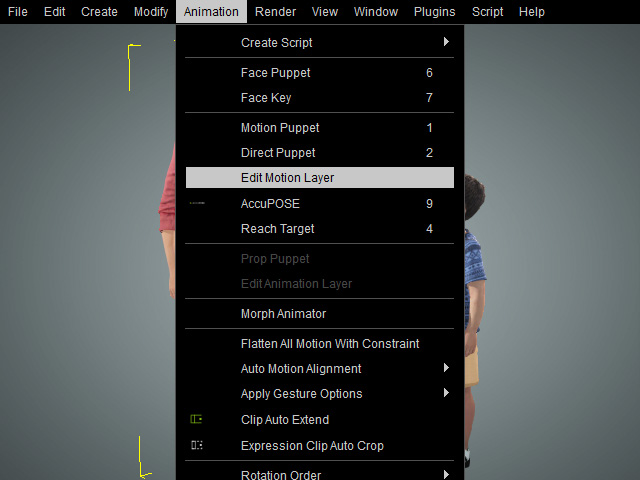
- Launch the Edit Motion Layer panel.
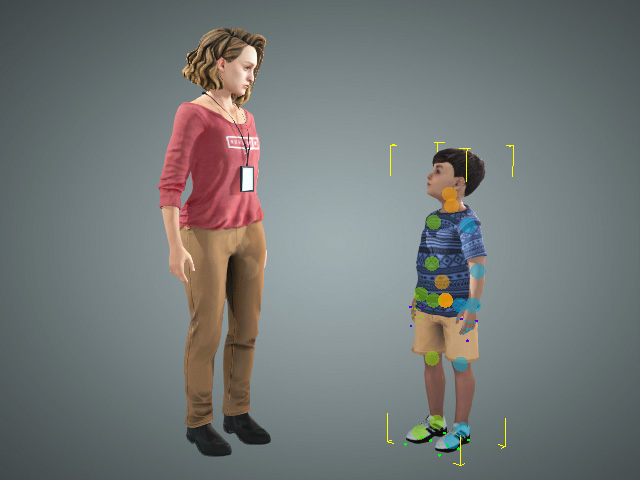
The joint controllers will appear and overlay the selected character.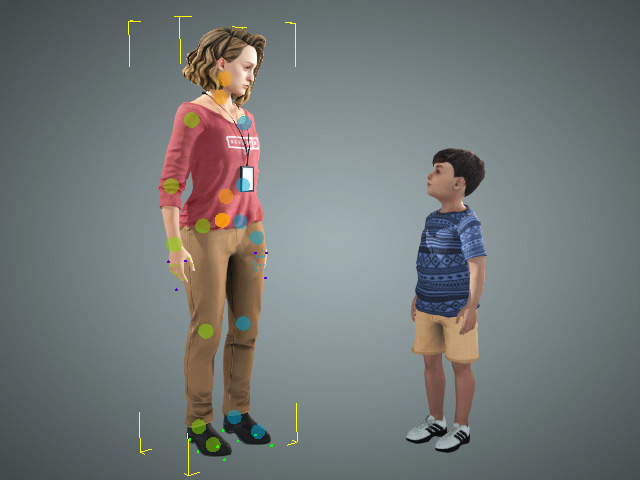
- To edit the selected character:
- Pick character from the Scene Manager.
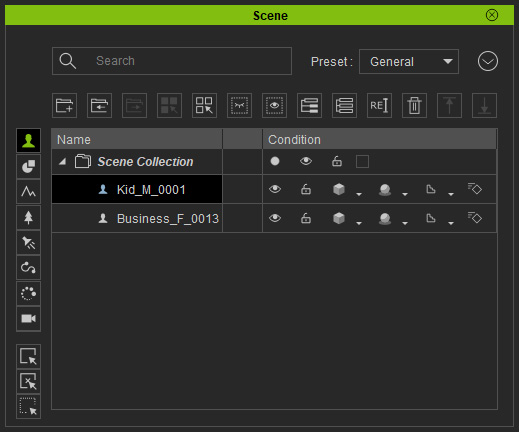
-
Or, directly click on the desired character in the viewport.
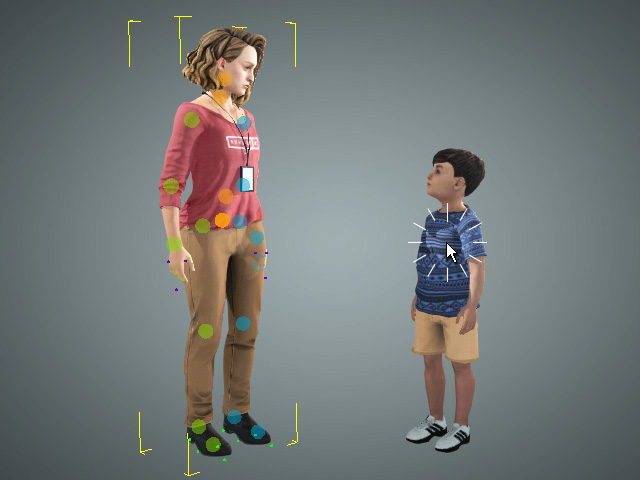
- Pick character from the Scene Manager.
- Start to edit the pose for the selected character.
Selecting Multiple Joints with Viewport Controllers
- Deploy a character and select it.
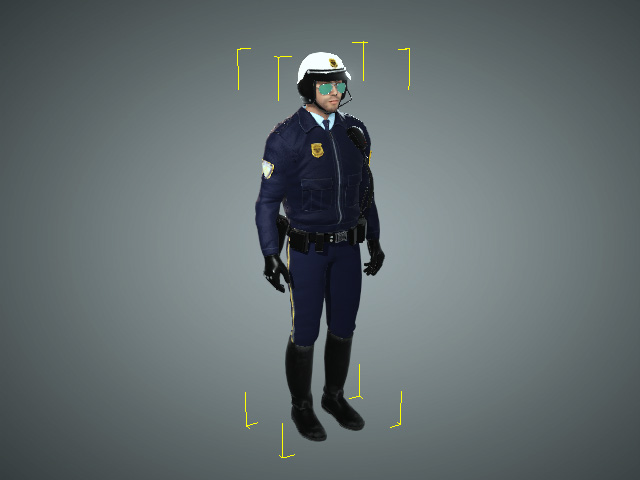
- Launch the Edit Motion Layer panel and the
viewport controllers will appear.
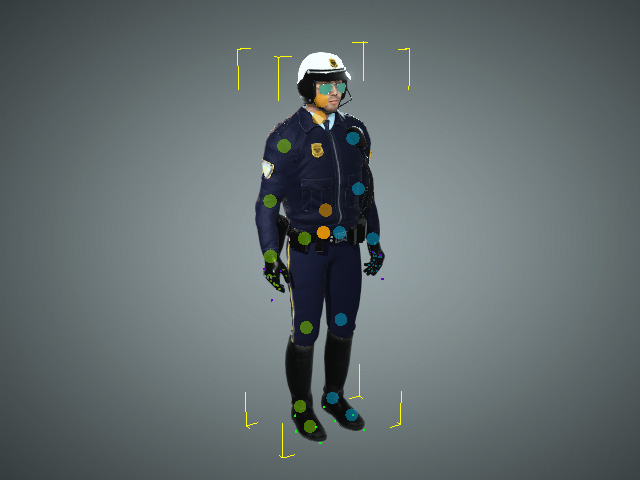
- Hold the Ctrl key and click on the controllers on the viewport.
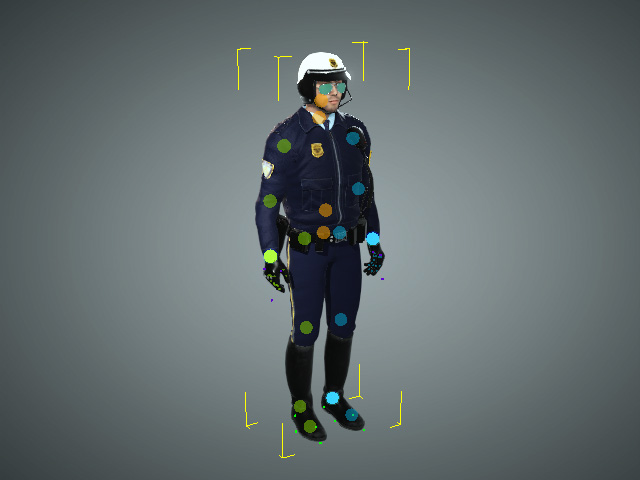
- The selected controllers can be moved with the transform gizmo.
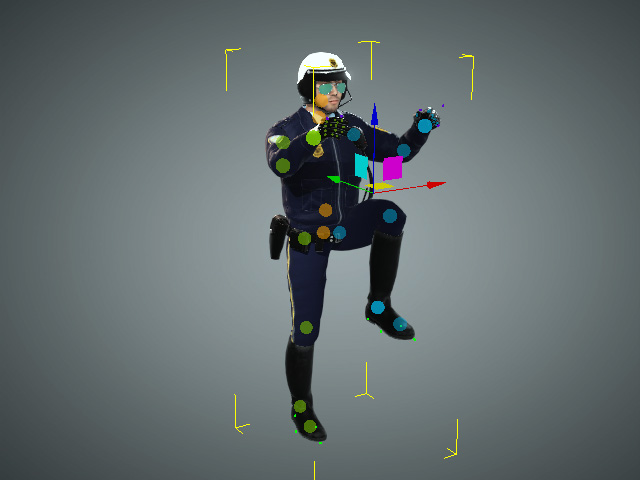
Using the Move tool.
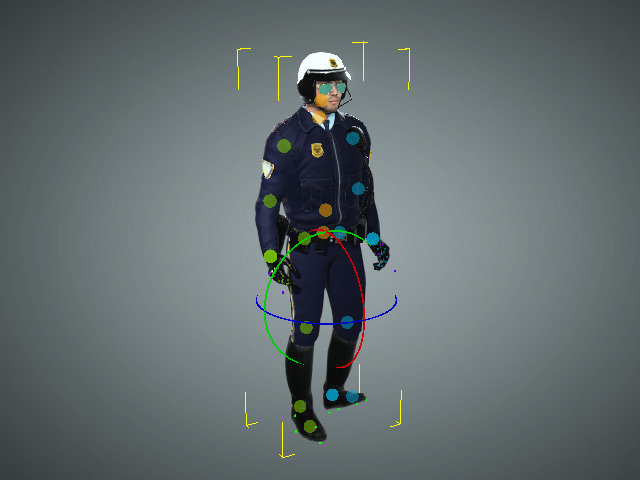
Using the Rotate tool.
You can use the same method to adjust several finger joints at once.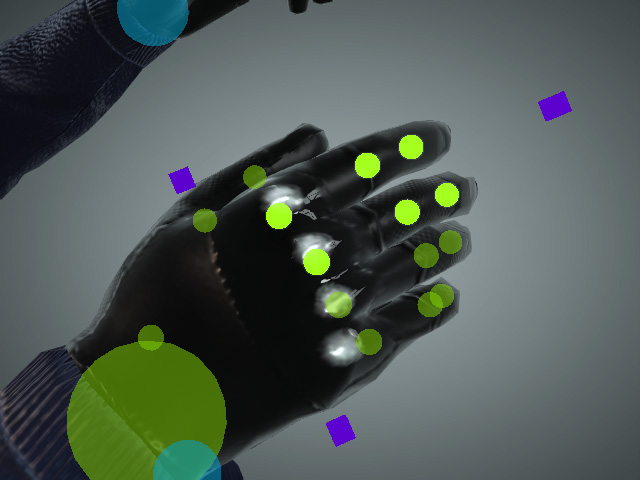
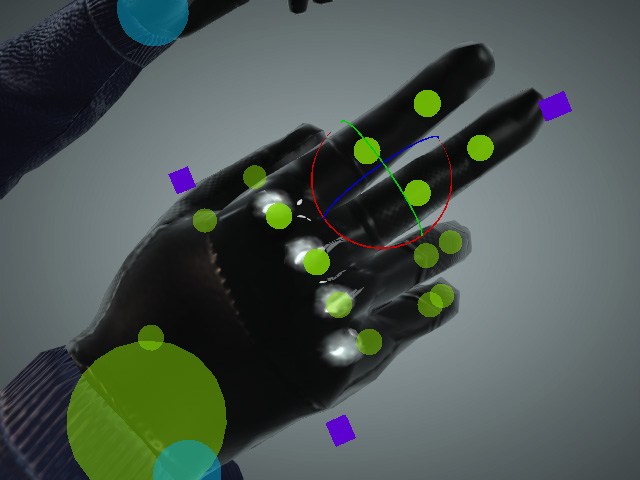
Selecting multiple finger joints.
Using the Rotate gizmo to bend the fingers.
