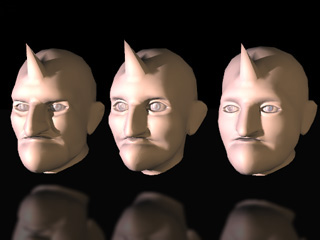
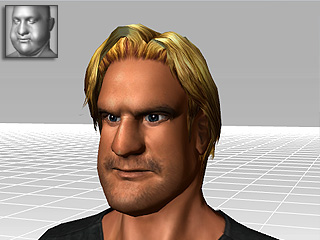
After you create a head for the actor, you may adjust the features on the face individually.
However, you can also apply one of the built in Full Face Morph templates to
automatically change your actor's look in one click.
Select the desired actor and go to the
Attribute tab of the Modify panel.
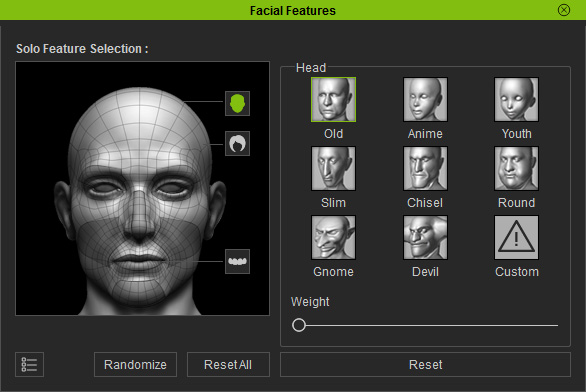
Click the Facial Features button in the Avatar section.
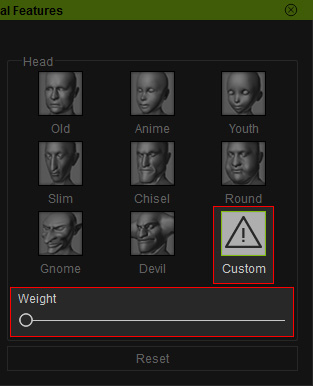
Click the button in the Facial Features panel.
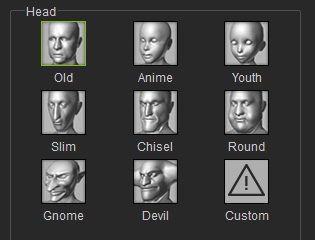
Pick one of the templates to apply the full facial morph.
Drag the Weight slider to adjust the strength of the facial features.
You may click the Reset button at any time to remove the effect of the template.
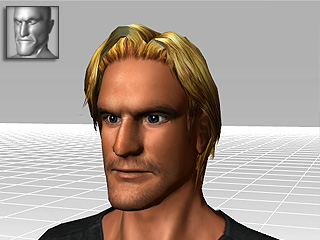
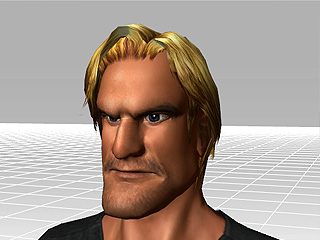
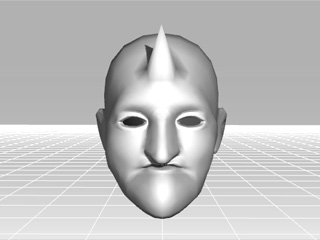
Weight = 20
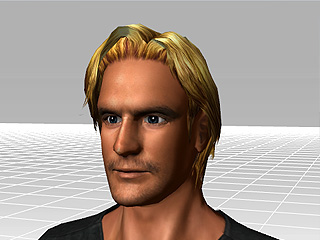
Weight = 80
Note:
You may adjust facial feature deformation after the Face Morph
has been applied,
however, you can only apply one Full Face Morph template
at a time.
Using Custom Head Morph Template
If you have created a custom morphing template, then you may also import it to change the head shape of your actor.
Select the actor and click on the Facial Features button in the Attribute tab of the Modify panel.
Click the button and the Custom icon in the Facial Features panel.
Load the prepared template.
Adjust the Weight.
Note:
The morphing result is based on the head shape of the current actor. If you want the morphing result to be completely identical
to the custom head morph template, then you need to apply the
Neutral Head Shape to the current actor.
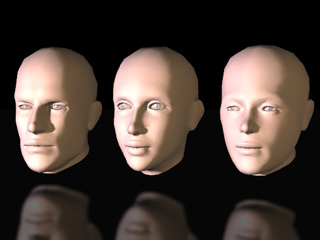
Basic head shapes in iClone
(Male, Female, Neutral)
Morphing Results with Weight set to 100
(Only the result of the neutral head is identical to the template)
Multi-Full Head Morph Effects
If you want to blend two or more Face Morph templates to one actor, please follow the steps:
Pick the desired actor and apply one Face Morph template. Adjust the
Weight value.
If you want to blend two Face Morph templates
together, you may first apply one of
them, save it by adding it to the Content Manager/Custom library, apply
it back and then add the other Face Morph template.
Pick any other Face Morph.
Thus, two Face Morph templates take effect on the same actor.
 button in the Avatar section.
 button in the Facial Features panel.