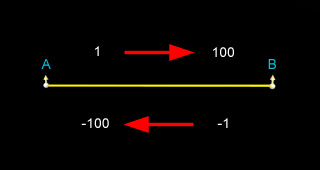
Position keys allow you to set a prop's position at certain frames in the Timeline.
After you have created a path for the prop to follow, the value on the path is always from 1 to 100.
When moving from A to B, you will get a positive number, but when the prop is moving from B to A, the value reverses to a negative value.
You can create a continuous loop by setting the value to 200 to make the prop follow the path twice, 300 for three times and so on.
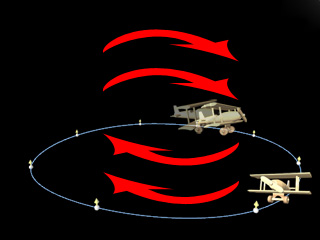
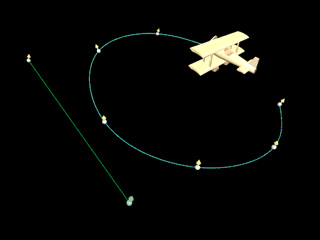
Assigning a different color to each path will help you identify the path that the prop is currently attached to in the 3D viewer.
In this example, we have picked the I path for the prop to follow.
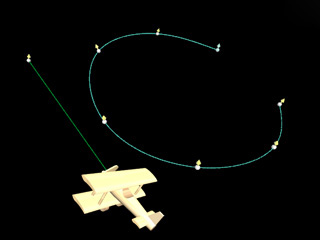
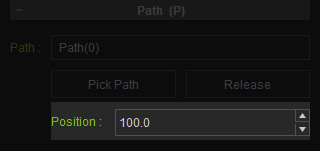
Drag the timeline slider to a new frame and enter a new value in the position field.
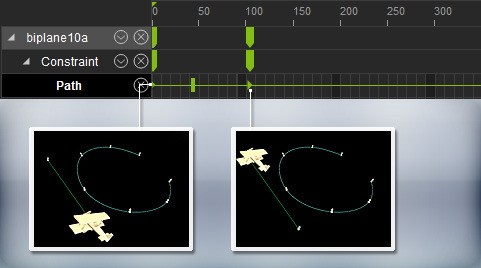
After setting position keys of the prop, open the Path sub-track of the Constraint track in the Timeline panel.
Notice the keys in the path track, these Position keys are set for attaching on the I path.
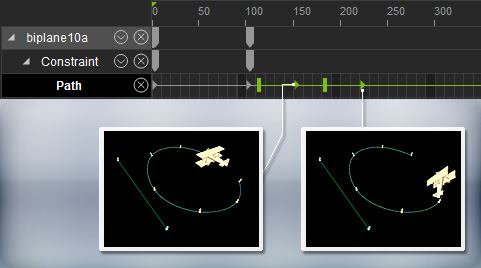
Drag to a new frame and click the Pick Path button in prop modify panel.
Select the C path and repeat step 2 to 4.
Another set of keys are added in the path track.
Releasing constraint from path allows you to release the attached connection from the path to the prop or actor.
Select the prop.
During the session of attaching to the path, you may drag to a frame and press the Release button to detach.
When you have detached the prop from the path, the Path Track in the timeline changes instantly to reflect that the constraint relationship has disappeared.
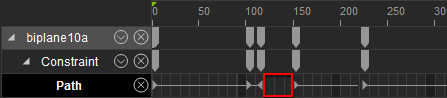
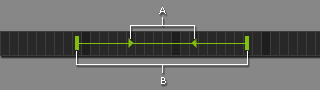
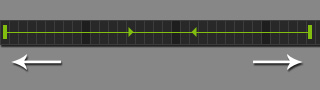
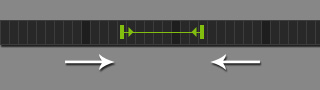
In case position and releasing keys cause the actor or prop to act abruptly, these two kind of keys contain transition durations. You may then adjust the duration so that the positioning time can be prolonged or shortened.
|
Note: |
|
Transition Keys will only appear when the Path or Release keys are selected. |
|
|
|
|
|
If the durations are prolonged, then the positioning or releasing motions will be slower. |
On the contrary, the motion will be quick and sudden. |