When an object contains more than one material and you want these materials to be adjusted at the same time, then
you may follow the descriptions in this page.
What Settings Can be Involved?
There are only some of the settings of the materials can be adjust together, and they are:
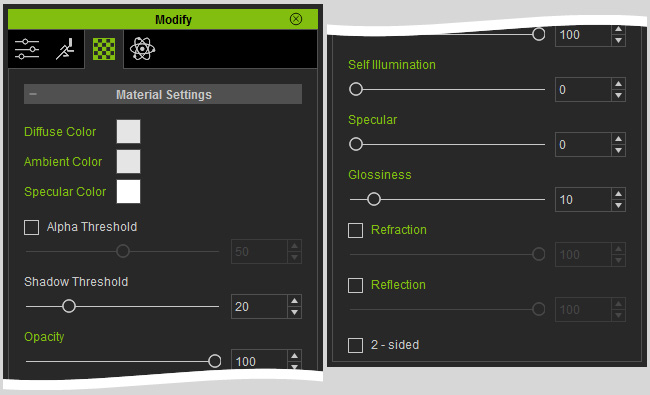
All settings in the Material Settings section. These settings
simultaneously influence all the picked materials.
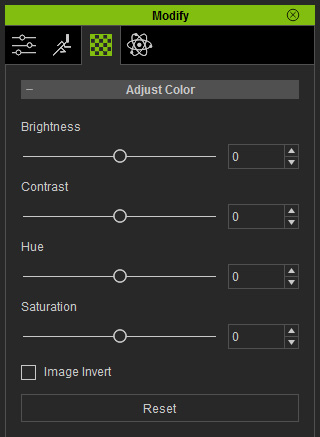
All settings in the Adjust Color section. These settings
simultaneously influence picked channels across the selected materials.
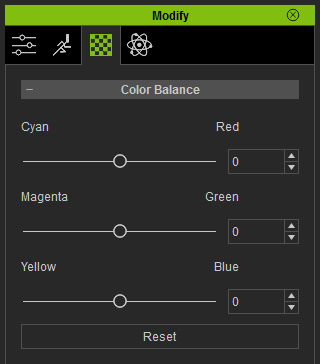
All settings in the Color Balance section. These settings
simultaneously influence picked channels across the selected materials.
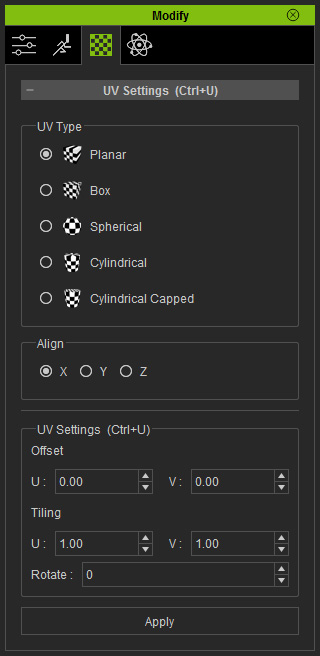
The UV style re-generated from the UV Settings section. These
settings influence the entire UV coordination of the
materials.
Editing Multiple Materials
Select an object (in this case, a G5 character).
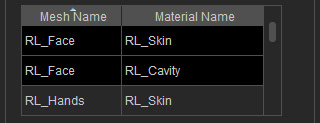
Select the materials you want to edit from the material list.
Note:
There are two methods to selecting multiple materials:
Hold the Ctrl key and click on different materials in the list. This
method is suitable for selecting materials with different material names.
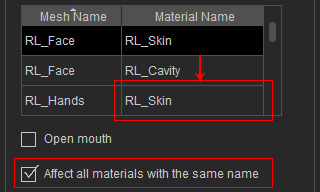
Select one of the material and then activate the
Affect all materials with the same name. This method only adjust the
material with identical material names.
* These two methods are exclusive to each other.
Adjust the settings as the previous section described. The selected
materials or the materials with same name will be adjusted together.
Note:
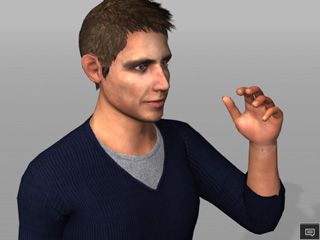
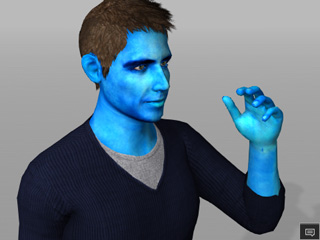
In this case, the skin texture color for the face, upper body and hands
will be adjusted together.