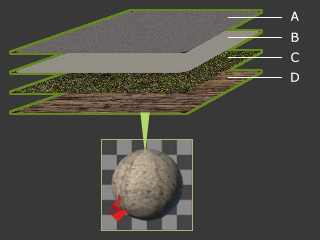
There are basically four layers of the substance material for each iClone embedded Substance Prop
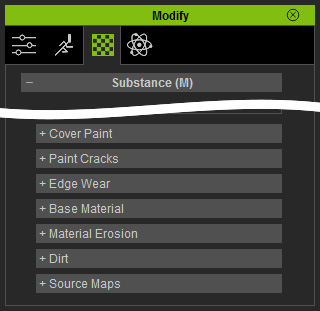
You can find all substance related parameters in the Modify >> Material >> Substance section.
After applying a Substance Prop, you are able to share the substance with complete parameters to
another props, adjust the initial texture appearance of the prop,
and setting keys to generate Substance Material Animations.
|
|
|
|
There are basically four layers of the substance material for each iClone embedded Substance Prop |
You can find all substance related parameters in the Modify >> Material >> Substance section. |
|
|
Layer Name |
Layer Description |
Layer Related Parameter Sections |
|
A |
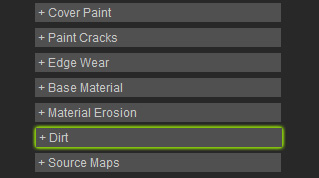
Dirt Layer |
This layer is the topmost layer which covers dirt or dust to the other material layer. |
|
|
B |
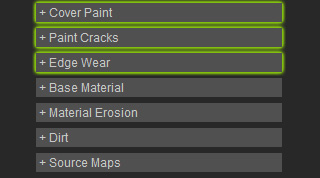
Paint Layer |
This layer sets the paint covers on the object. |
|
|
C |
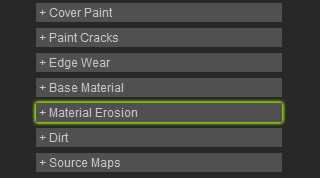
Material Erosion Layer |
This layer gives the basic material layer below it some erosion, rust or moss effects. |
|
|
D |
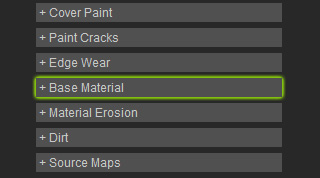
Base Material Layer |
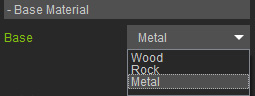
This layer determines the base texture such as wood, rock or metal. When the other three layers above it are completely or partially removed, the basic material reveals. |
|
|
Note: |
|
The Source Maps sub-section contains data to describe the shapes of the 3D blocks and how the material is applied to them. Unless you are familiar with the creating and algorithm of the substance material, you do not suggested to adjust the settings in the section. |
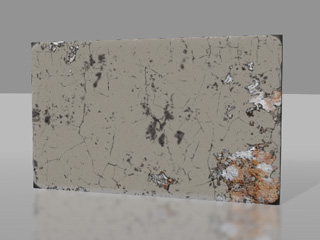
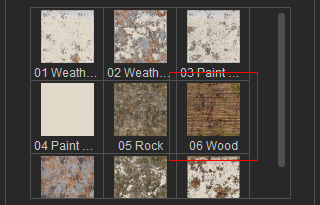
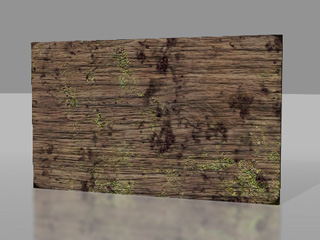
|
Note: |
|
These presets are actually the combinations of different status of the four layers mentioned in the previous section. |
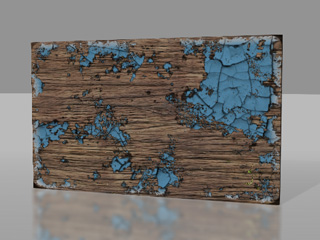
|
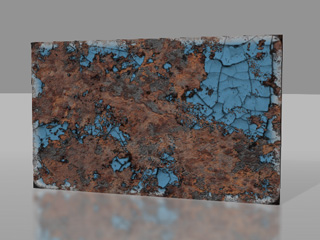
|
|
|
In the basic method, you simply adjust the sliders to change the status of the four layers. However, the texture images for the layers are by default. However, you are allowed to apply prepared images to change the texture images for the four layers.
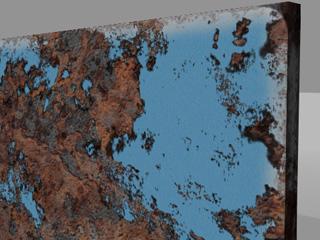
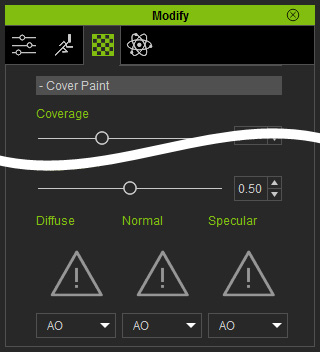
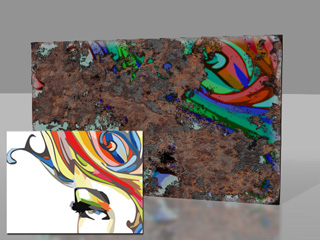
The Paint Layer of the example in the previous section is taken for the advanced adjustments for the layers.
|
|
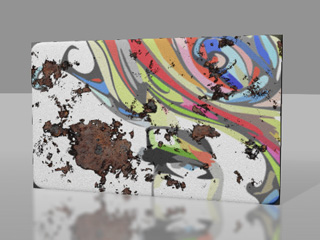
A prepared image is applied to the Diffuse channel of the Paint Layer. |
|
|
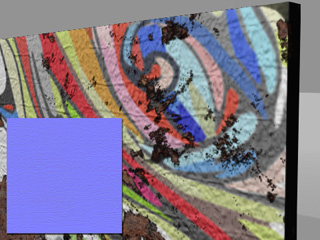
The coverage, saturation, pattern and so on of the paint layer is adjusted. |
|
|
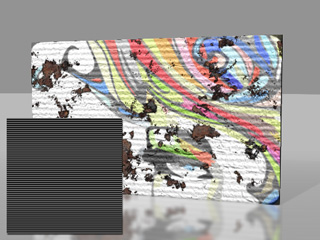
You may apply a normal map to the Normal channel for and only for this layer to give the layer some vein effect. |
|
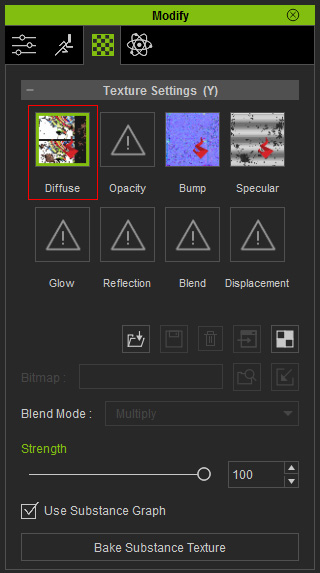
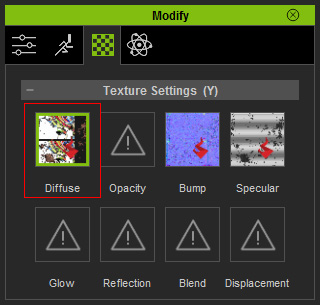
If you like the results created by the Substance Material and you do not want to adjust them afterward, then please follow the steps below to bake it to the material of the prop:
|
Note: |
|
Adjusting the slider values does not influence the texture after this step. |