Material Mapping Regulations
Indigo contains specified material types with different numbers of parameters.
When an iClone project is exported and rendered in Indigo, the
materials settings for each iClone object are transferred to Indigo
according to certain mapping regulations.
Material Types in Indigo
The material types in Indigo include Diffuse, Phong, Oren Nayar,
Diffuse Transmitter, Indigo Specular, Glossy Transparent, Blend, Double-sided Thin,
Coating, Null, and Exit Portal.
The types that iClone maps for the Auto-convert Method are listed below:
|
Material Type Names
|
Illustrations
|
Descriptions
|
|
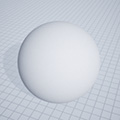
Diffuse
|
|
This material is used to simulate a matte and rough object such as paper.
It gives no shiny surfaces but only the texture and the color of the object.
|
|
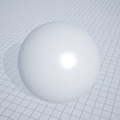
Phong
|
|
A Phong material is actually a diffuse one with
a glossy coating on top of the diffuse base. It is mostly
used for polished objects such as metal or car paint.
|
|
Indigo Specular
|

|
This material is used for transparent objects that refract light. No distinct glossiness on the surfaces of the object can be
seen.
This material is used as source of the Blend material type for rendering
iClone materials.
|
|
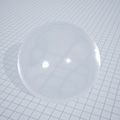
Glossy Transparent
|
|
Much like the Indigo Specular, the Glossy Transparent is a material
that transmits light through the surface, but is also reflective, resulting in a more shiny appearance.
|
|
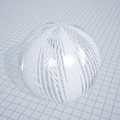
Blend
|
|
This material is very unique because it does not give any visual effect by itself
but blends two materials together via blend mask.
|
|
Null
|
|
This material makes the object invisible.
It is used as source of the Blend material type for rendering
iClone materials.
|
Mapping between iClone and Indigo Material Settings
iClone Settings and Indigo Diffuse
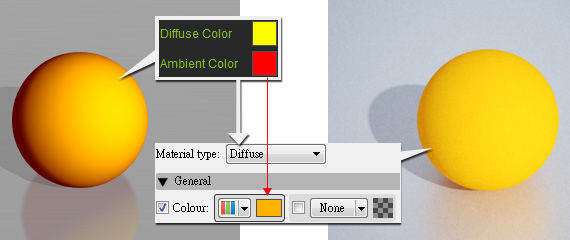
The iClone material settings that map to the Indigo Diffuse type
are the Diffuse Texture, and the Diffuse/Ambient colors.
|
|
The Diffuse and Ambient colors will
be combined and set to the Colour of the Diffuse
material type in Indigo.
|
|
|
|
|
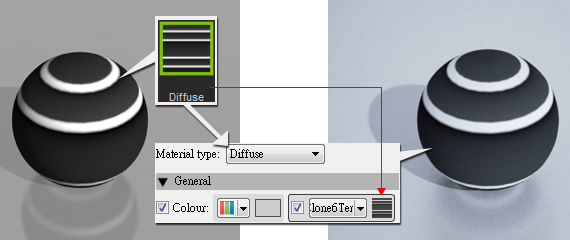
The Diffuse map texture will be set
to the Colour channel.
|
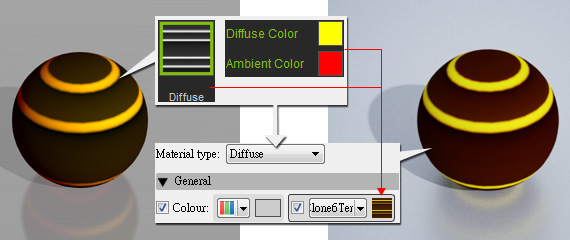
If an object has both these settings, then the texture and the color will be merged together
before being exported to Indigo for rendering.
|
Note:
|
|
This material type is suitable for you to generate wood,
rubber or any surface without shiny spots.
|
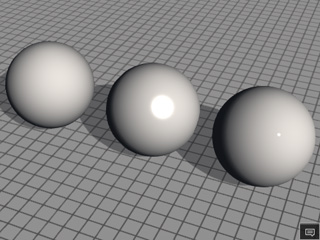
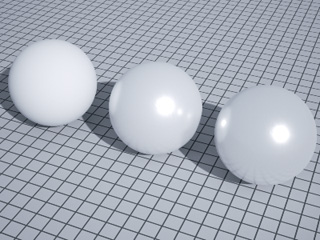
iClone Settings and Indigo Phong
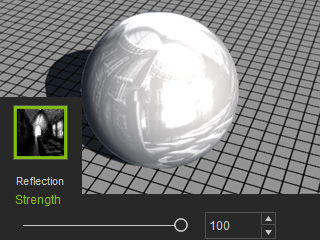
The iClone material settings that map to the Indigo Phong type
are Reflection Texture, Reflection,
iClone Specular, and Glossiness.
|
|
The Diffuse and Ambient colors will
be combined and set to the Colour of the Diffuse
material type in Indigo.
|
|
|
|
|
The Diffuse map texture will be put
to the Colour channel.
|
If an object has both these settings, then the texture and the color will be merged together
before being exported to Indigo for rendering.
|
Note:
|
|
This material type is suitable for you to generate wood,
rubber or any surface without shiny spots.
|
iClone Settings and Indigo Glossy Transparent
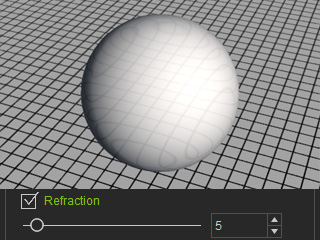
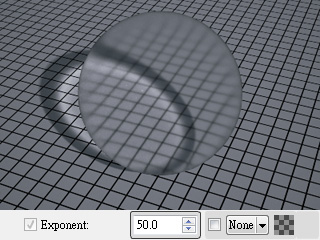
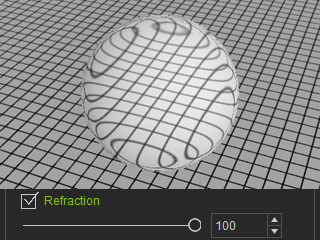
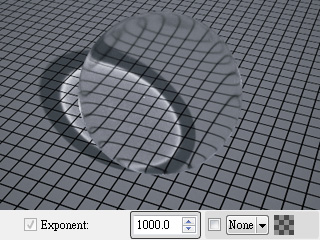
The iClone material setting that maps to the Indigo Glossy Transparent type is
the Refraction
setting only. The mapped Indigo parameter is Exponent.
|
|
|
Low Refraction value in iClone
|
Low Exponent value in Indigo.
|
|
|
|
High Refraction value in iClone
|
High Exponent value in Indigo.
|
iClone Settings and Indigo Blend
The Indigo Blend material does not present any appearance
change, it only blends two source materials to form a new look.
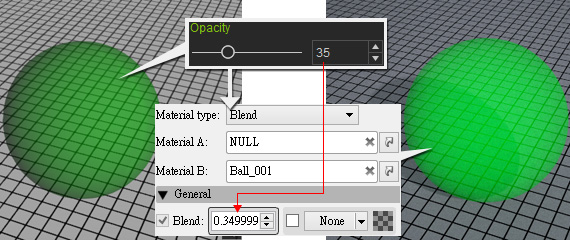
When you utilize the Opacity Texture or Opacity value in iClone,
or when you apply the combinations of the Refraction and Reflection values
at the same time, then the Blend material will take charge
of rendering.
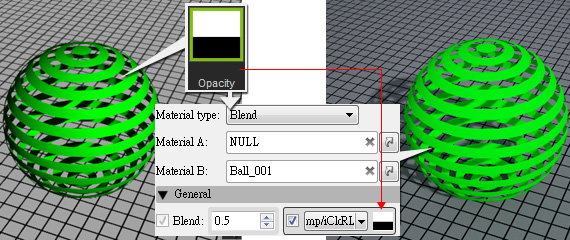
Opacity
When the material applied on an iClone object contains Opacity settings,
either the Opacity Texture or Opacity value, the mapped Indigo
material will become a Blend that blends a Null with any other material
(mostly Diffuse, Phong, Indigo Specular or Glossy Transparent)
in accordance with the other settings.
|
|
iClone material with Opacity Texture only
|
|
|
iClone material with Opacity
value only
|
If the iClone material contains an Opacity Texture and Opacity Value, then
they will be merged before being put into the Blend channel in Indigo.

|
|
iClone material with an Opacity Texture and Opacity
value.
|
Refraction and Reflection