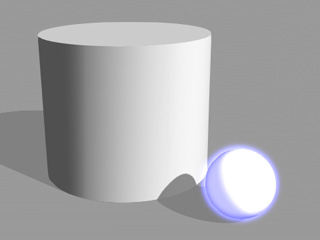
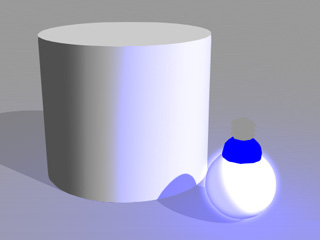
A glowing object (with glow map) without giving true light (photon)
One point light is created and transformed to simulate a glowing object.
There are two reasons to deactivate the candidate lights to prevent them from being rendered. One is to hide the dummy and the other is to accelerate the rendering speed.
In iClone, there is no real glowing objects. Even those that contain glow maps don't emit light. You need to create a light and align it to the object to simulate a glowing object as shown below (point light, for example).
|
|
|
|
A glowing object (with glow map) without giving true light (photon) |
One point light is created and transformed to simulate a glowing object. |
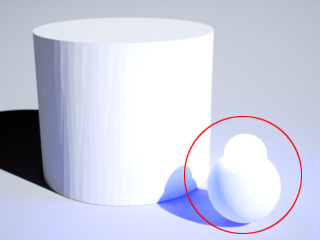
However, when you export this project to Indigo, two illuminating
objects show at identical positions, one is the glowing object and the
other is the 3D entity of the light dummy itself. This can occasionally cause overexposure issues
or other unexpected lighting results.
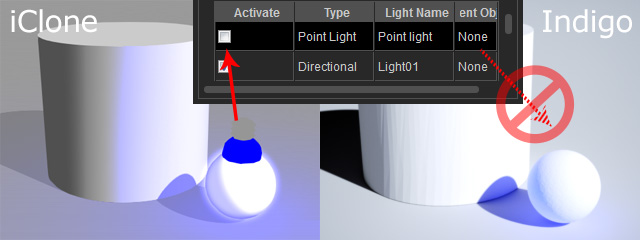
By deactivating a light in the iClone Lights candidate list, you can eliminate the 3D entity that is generated for simulating a lighting object without touching the original light settings in the iClone project.
|
|
The iClone light is eliminated and only the object with a glow map gives light in Indigo. |
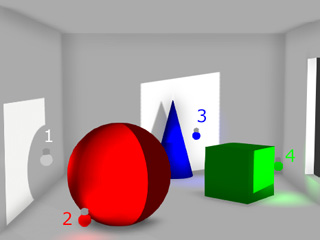
In iClone, you can add Point Lights to generate interesting atmospheric lighting, however point lights provide no shadows to objects they shine on.
|
|
|
Four point lights are added to generate reflected lights from the objects. |
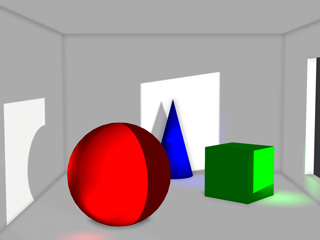
The rendered result in iClone |
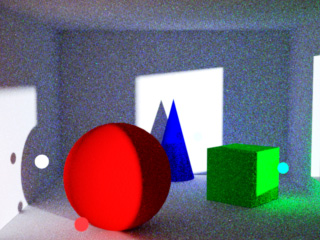
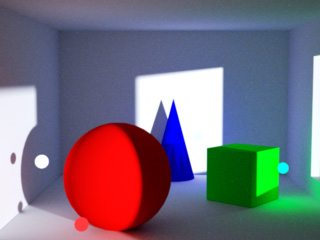
These point lights will become sphere dummies in Indigo and will emit light to all directions, which will slow down the rendering speed because Indigo needs to calculate the photons from these dummy spheres repetitively.
|
|
|
Four dummies shown in the scene, which gives bad rendering results and long rendering time (rendering time: 3 minutes). |
A better quality is achieved after a longer rendering time (rendering time: 13 minutes). |
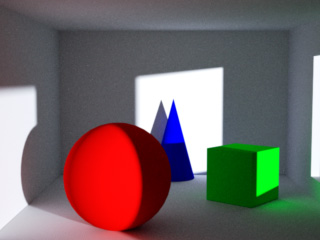
You can also deactivate the iClone scene lights and use the default one provided by Indigo, which perfectly generates exquisite and photorealistic images while the rendering time can be shortened as well.
|
|
The iClone lights are turned off. Using Indigo Sun and Sky (rendering time: 3 minutes). |