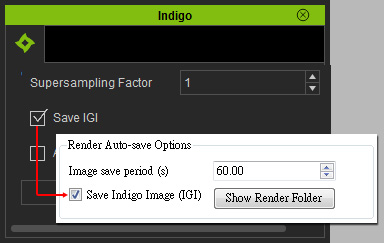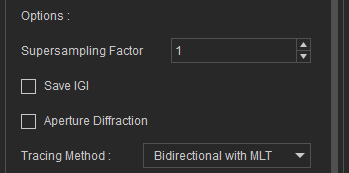
Activate the Save IGI option in order to intermittently save Indigo Image files
(*.igi).
The Indigo Image stores all the information about a render in progress, so if the same scene is loaded again later (even after the rendering has been stopped and Indigo closed), the current rendering state can be fully restored using the IGI file.
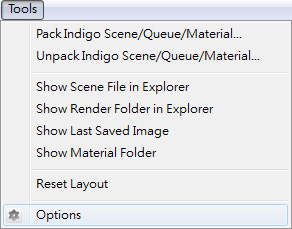
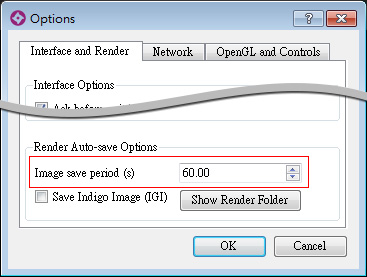
After you activate this option, Indigo will save the rendering progress at each specified time during the rendering. This feature ensures that even if the rendering procedure is interrupted and stopped for any reason, you can still use the IGI file to resume rendering without needing to start from scratch.
|
Note: |
|
Please note that when you activate the Save IGI option in iClone,
you are actually activating the Save Indigo Image (IGI) in Indigo. |
After the IGI file is saved, you are free to resume the rendering any other time by loading it. Please follow the steps below:

|
Note: |
|
The rendering will start from nothing. |
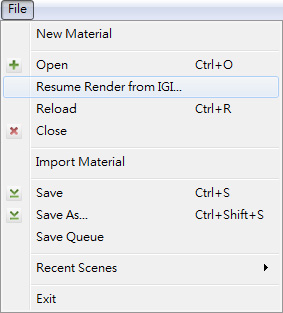

|
|
The rendering will start from the status the last time the IGI was saved. |