


Content Manager
The Content Manager is used for managing the various iClone 3D files including models, animations and content associated with a project.
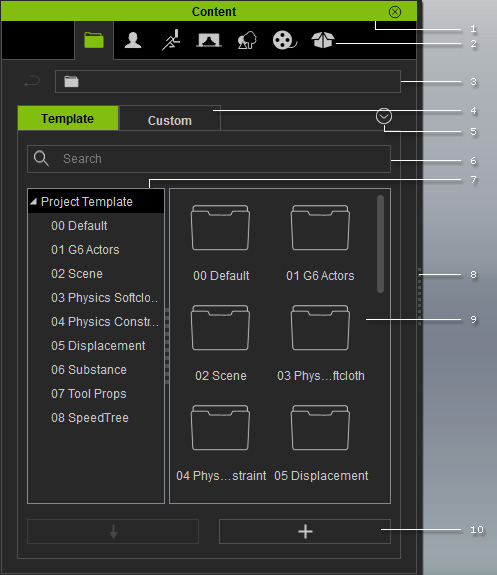
|
1 |
Dock/Undock |
Double-click on the caption to dock the panel to the docking place, or undock the panel and make it float above the main program. |
||||||
|
2 |
Category Tabs |
Click these tabs to switch to the corresponding categories - Project, Actor, Animation, Stage, Set, Media and Package. |
||||||
|
3 |
Location Bar |
Display the file location of the content in the Content Manager.
You may click the |
||||||
|
4 |
Template and Custom Libraries |
Each category is divided into two libraries:
|
||||||
|
5 |
Menu Button |
Click this button to show the menu for manipulating the Content Manager, including:
|
||||||
|
6 |
Search |
Start typing in the text field to enable incremental search.
|
||||||
|
7 |
Navigation Panel |
Display all the library folders under the picked Category Tab. You may click the Menu Button to show the Navigation Panel and drag the middle border to adjust its width.
|
||||||
|
8 |
Resize |
Drag the border to resize the pane of the Content Manager. |
||||||
|
9 |
Templates |
In the library pane, you may manipulate the templates, including:
|
||||||
|
10 |
Applying and Adding Templates |
|
 button to go back to the higher-level folder,
or click any of the directory names to go up to any level.
button to go back to the higher-level folder,
or click any of the directory names to go up to any level.


 : Select multiple templates or template folders and then add into virtual folders
that you have created under the Custom library of the Package category tab.
: Select multiple templates or template folders and then add into virtual folders
that you have created under the Custom library of the Package category tab.


 :
Click this button to apply the selected template to the current project.
This does the same as double-clicking the content thumbnail.
Please refer to the Drag and Drop
section for more information on applying methods.
:
Click this button to apply the selected template to the current project.
This does the same as double-clicking the content thumbnail.
Please refer to the Drag and Drop
section for more information on applying methods.
 :
Click this button to add the current object in the scene into the Custom library of the selected Category Tab.
If you have selected a template in the Custom Library,
then click this button to overwrite the selected template.
:
Click this button to add the current object in the scene into the Custom library of the selected Category Tab.
If you have selected a template in the Custom Library,
then click this button to overwrite the selected template.
