Interactive Props with LUA (iScript)
iClone provides props with LUA script. After applying these props, you are able to control and record their animations with additional control panels. By adjusting the settings in the panel, the animations of these props can be recorded as clips for further editing.
If you have registered iClone on Reallusion Official Web Site, then you can get a free bonus pack named iC5_Bonus_content_collection.exe. Download and install it and you can find the Props with LUA script in the Content Manager.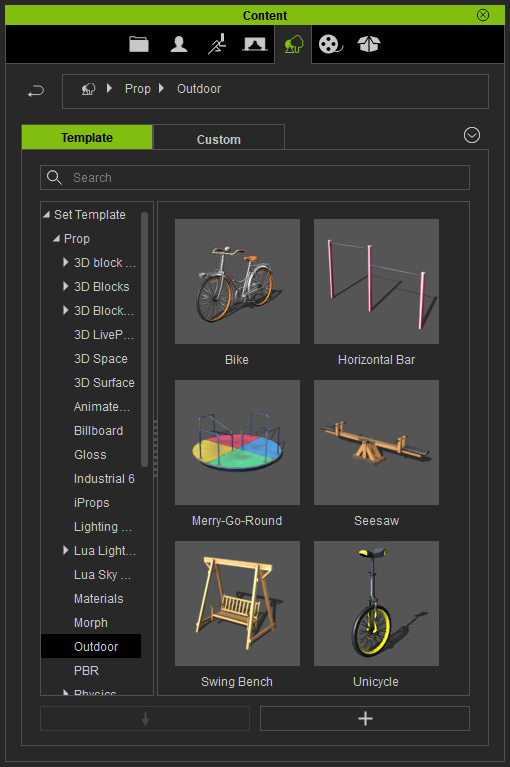
 Note:
Note:
In order to control and record animations for these props, you need to first switch the Physics engine to Bullet Engine in the Project panel.

Animating Props of the Type
-
Apply one of the templates from the Props >> Outdoor library (in this case, the seesaw).

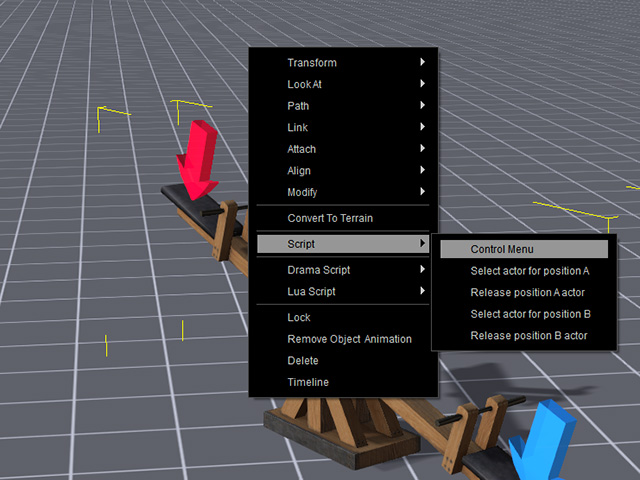
You will see the prop and the control panel of it.Note:In case you accidentally close the control panel, right click on the root node of this prop and select the Script > Control Menu from the right-click menu to bring it back on the screen.
- Set the two values (1 for the red side and 3 for the blue side) to determine the weight for each side.
- Hit the red button. iClone will instantly start recording the animation of the prop. You are able to click the red or blue button any time you want.

- All the animations will be recorded as a clip in the Animation track of the props for play back.
 Note:
Note:If you do not want to create animations for the prop manually, you can activate the Auto box for automatically generating animations by its own.
Adding Characters
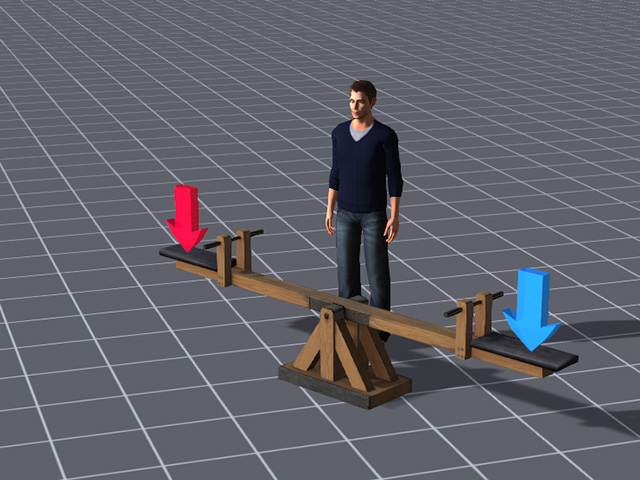
If you want to attach characters to the props of this type, you only need to use the feature provided by the LUA script to have the characters taking it.
- Apply a character.
- Right click on the prop and select the Script > Select actor for Position A (or B) from the right-click menu.
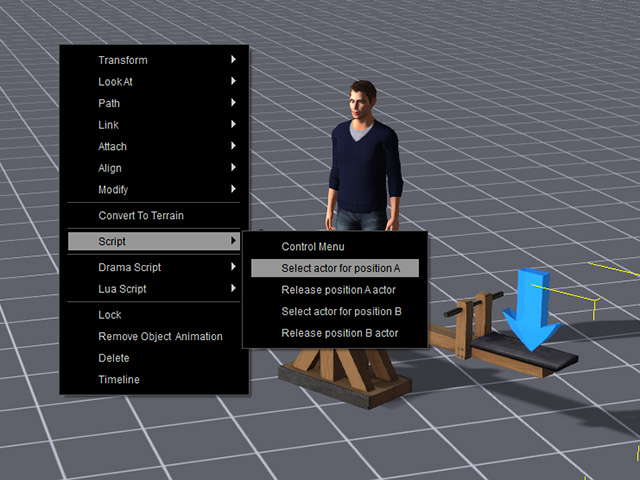
- Click on the character you want to use, then the character will be automatically seated on the prop.

- When the prop is animated, the character will move along with it.

