Adjusting Colors on Eight Texture Channels
Adjust Color
With iClone, you can now adjust the color of any selected channel. This powerful feature allows you to change the texture color or opacity/bump patterns without the need to open external image editing software.

By adjusting Brightness, Contrast, Hue and Saturation, you can create countless texture effects of your 3D models. In this table you can see how the adjustments affect each texture channel.
Diffuse
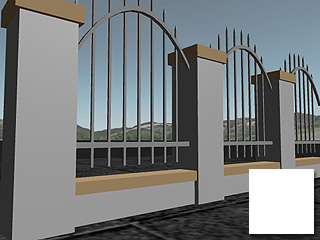
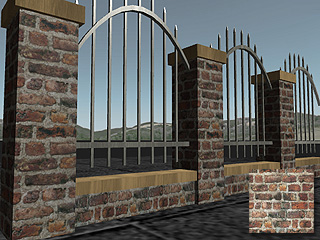
By adjusting the Diffuse image, the 3D model can take on a variety of appearances.
|
|
|
Brightness = 100 (Over Exposure) |
Brightness = 0 (Original Texture) |

|

|
|
Hue = 17 |
Hue = 17 |
Opacity
By adjusting the Contrast of the opacity texture, you can define the level of the face to be masked out. In the following example, the model is mapped with a gradient image shown in this illustration.

|

|
|
Brightness = 27 |
Brightness = 0 |
Bump
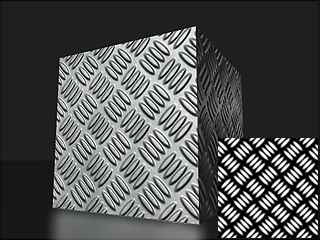
When you adjust the Contrast setting of the Bump channel, you are defining the smoothness or bumpiness of the face.

|
|
|
Contrast = -90 |
Contrast = 100 |
Specular
The Specular setting is very useful when you want to create a damp or oily effect on your object.

|

|
|
Brightness = 0 |
Brightness = 100 |
Glow
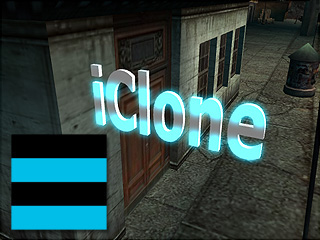
Adjust the Glow map to change the intensity of the glowing effect of your objects.

|
|
|
Saturation = 0 |
Saturation = 100 |
Blend
To adjust details or subtleties blending to the Diffuse map, modify the Blend map instead of launching an external image editor to edit the diffuse texture.

|

|
|
Blend Mode: Overlay |
Blend Mode: Overlay |
|
Note: |
|
