Using HD Face Control Panel and Timeline Display (New for v. 8.6)
Using Facial Control Panel
Simply drag either of the sliders on the panel to create or check out the facial expressions.
Timeline Display
At any timeframe, you can drag the sliders on the HD Face Control panel to create a character expression. A new key will be added to the expression layer tracks automatically. There are three modes for inspecting the data of the key.
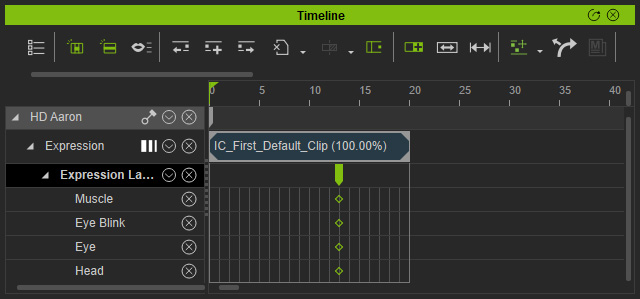
- Basic Tracks mode (default): Displays only Muscle, Eye Blink, Eye and Head tracks.
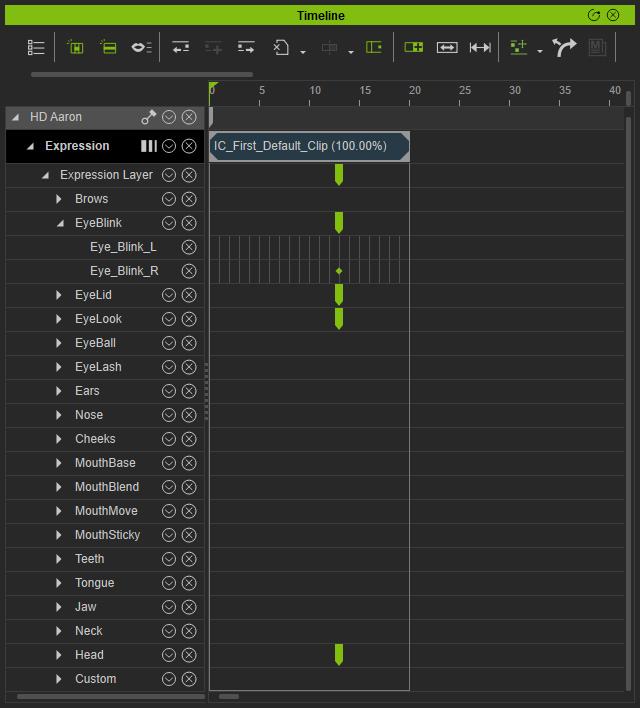
- Feature Tracks:
- Click the Expression button to switch to the Feature Tracks mode.
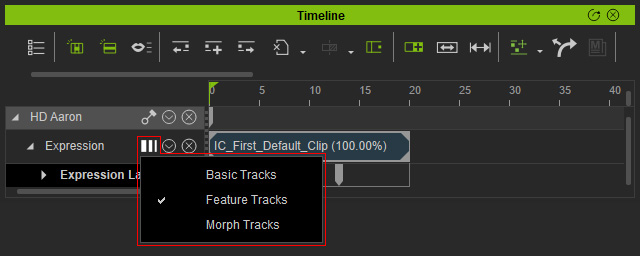
- Timeline will displays all facial feature tracks.
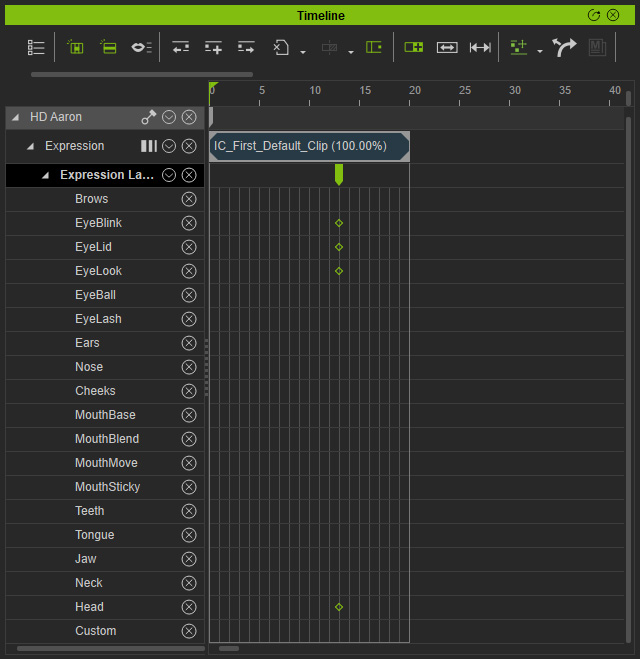
- Click the Expression button to switch to the Feature Tracks mode.
- Morph Tracks:
- Click the Expression button to switch to the Morph Tracks mode.
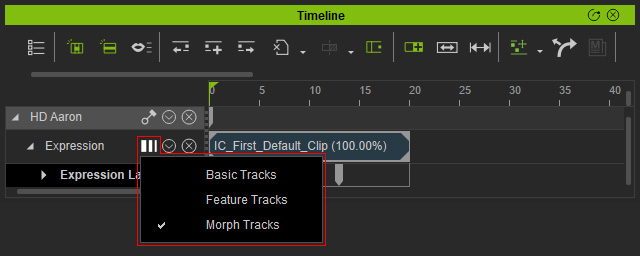
- All morph tracks corresponding to the HD Face Control panel will appear.
- Click the Expression button to switch to the Morph Tracks mode.
