Composite Node
The Composite nodes making the decision logic in the Behavior Tree, determine how child nodes are traversed and executed, and ensure that actions follow the expected logic.
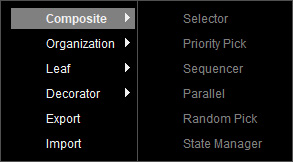
Right-click on the empty area of the Behavior Tree Graph, and select Composite to show the node options to control the execution flow.
 Sequencer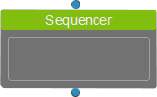
Executes child nodes in order from left to right. If any child node fails, the Sequencer node immediately returns a failure result and stops execution.
- Upward Linking: In the Behavior Tree, this node can be the first child node of the Root, or as a child of any Composite or Decorator Node.
- Downward Linking: This node can link to all types of nodes as its child nodes.
Parallel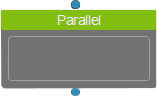
Executes all connected child nodes simultaneously, and determines its own state based on the execution results of all child nodes, which according to the Operation Policy options available in the Parameters section.
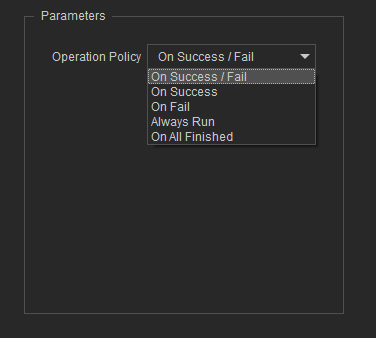
- On Success / Fall: The fastest executing child node, whether successful or failed, determines the Parallel node's final state. If any child node succeeds first, the Parallel node succeeds. If any child node fails first, the Parallel node also succeeds.
- On Success: If any child node succeeds first, the Parallel node changes from running to success. Otherwise, the Parallel node continues running.
- On Fall: If any child node fails first, the Parallel node changes from running to success. Otherwise, the Parallel node continues running.
- Always Run: All linked child nodes run repeatedly, and the Parallel node remains in a running state indefinitely.
- On All Finished: All linked child nodes must be executed, before the Parallel node can evaluate the results. If any child node has failed, the node returns failure; otherwise, it returns success.
- Upward Linking: In the Behavior Tree, this node can be the first child node of the Root, or as a child of any Composite or Decorator Node.
- Downward Linking: This node can link to all types of nodes as its child nodes.
Selector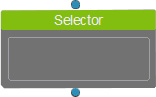
Checks its child nodes from left to right. It returns success as soon as the first successful child is found, or failure if all children fail.
- Upward Linking: In the Behavior Tree, this node can be the first child node of the Root, or as a child of any Composite or Decorator Node.
- Downward Linking: This node can link to all types of nodes as its child nodes.
Priority Pick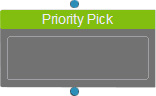
Executes child nodes based on priority order. If a higher-priority child node is running or succeeds, lower-priority nodes will not execute. It checks its child nodes from left to right on every tick, and returns success as soon as the first successful child is found, or failure if all children fail.
Since evaluation restarts each tick from left to right, a running child on the right would get interrupted if a left-side child becomes executable.
For example, consider a Priority Pick Node with three child nodes from left to right: Check Speech API, Check Speech Request, and Check Speech Input.
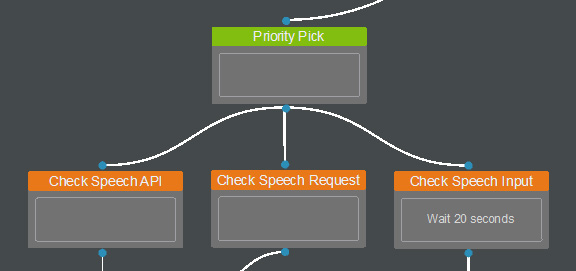
If the node is currently running Check Speech Input, but on the next tick Check Speech API becomes executable, it will switch to run Check Speech API instead.
- Upward Linking: This node cannot be the first child of the Root. It usually serves as a child of a Parallel Node, which is set to Always Run (for continuous Boolean evaluations).
- Downward Linking: This node can link to the following three Decorator Nodes:
- Check Speech API
- Check Speech Request
- Check Speech Input
Random Pick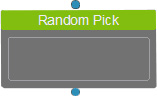
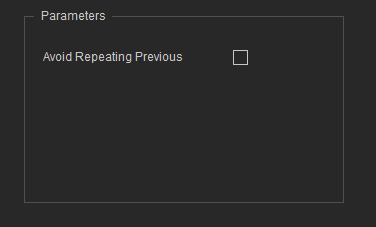
Randomly selects one of its connected child execution nodes to run and returns that child node's result. You can enable the Avoid Repeating Previous checkbox in the Parameter section to avoid having the same random result twice in a row.
- Upward Linking: In the Behavior Tree, this node can be the first child node of the Root, or as a child of any Composite or Decorator Node.
- Downward Linking: This node can link to all types of nodes as its child nodes. However, only one child node will be executed at a time.
State Manager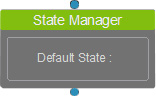
Creates the character states for global usage, and determines which character state is automatically entered when the node is first executed.
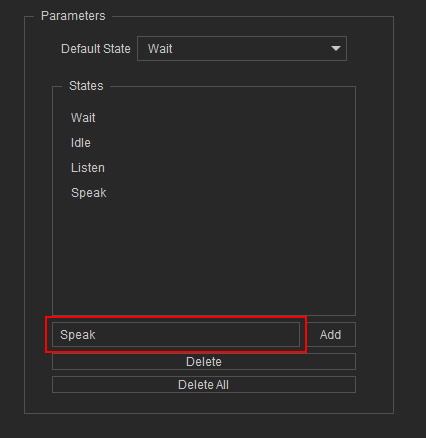
- Adding a State: Type the state name in the text field of the Parameters section, and click on Add to the right to add a state in the list above.
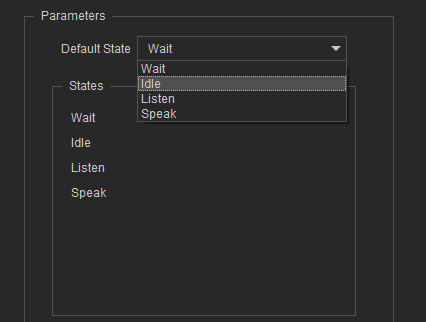
- Setting a Default State: Select a created state to be the default state from the drop-down list.
- Removing a State: Click on Delete to remove a selected state. Or, click on Delete All to remove all states in the list.
- Upward Linking: In the Behavior Tree, this node can be the first child node of the Root, or as a child of any Composite or Decorator Node.
- Downward Linking: This node is exclusively used to link with the Define State child nodes. Multiple Define State nodes can be linked simultaneously.
