Ignoring Foot Rotation
In Cartoon Animator, the characters are embedded with Sprite elements for animation in each perspective. During the motion capture, occasionally you may find that the captured motion is not suitable for certain body parts due to the angle of the sprite images. Or after you replace the foot sprites with the ones in different perspective, you may encounter a problem with foot rotation.
Follow the steps below to correct the foot motions with different sprite angles.
-
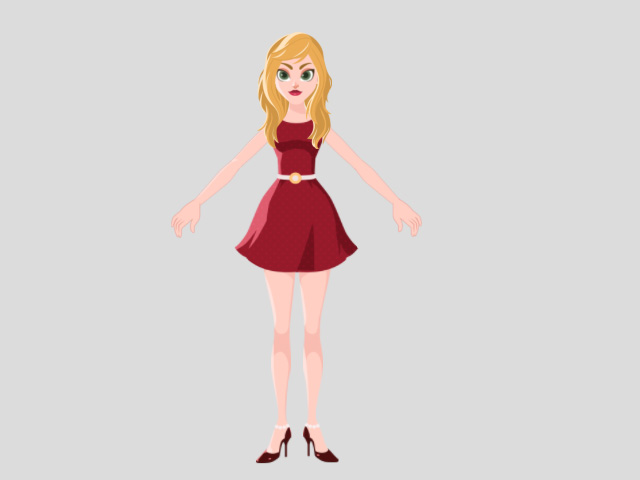
Apply a character. In this case, a front facing character with the foot sprite in a side angle.
-
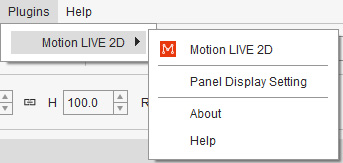
Click the Motion LIVE 2D
 button on the Add-on Toolbar.
Alternatively, go to Plugins > Motion LIVE 2D > Motion LIVE 2D.
button on the Add-on Toolbar.
Alternatively, go to Plugins > Motion LIVE 2D > Motion LIVE 2D.
- Enter the Preview mode.
Do some body motions that will rotate the foot.
You will see the foot motion is suitable for the current foot sprite, which is angled to the side.
- Stop previewing.
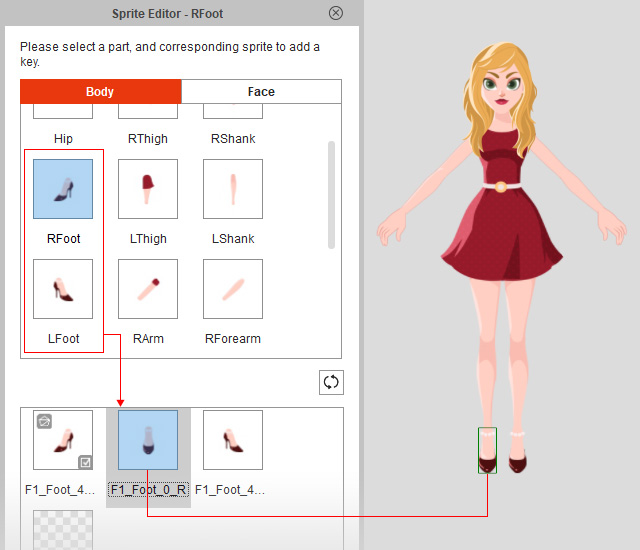
- Press S key to open the Sprite Editor.
Replace the sprite angles of the right foot and left foot with the ones in a frontal angle.
Then close the Sprite Editor.
- Go to the Motion LIVE 2D again.
Enter the Preview mode and do the same foot motion in Step 3.
You will see the incorrect foot rotation with the foot sprite, which is a frontal angle.
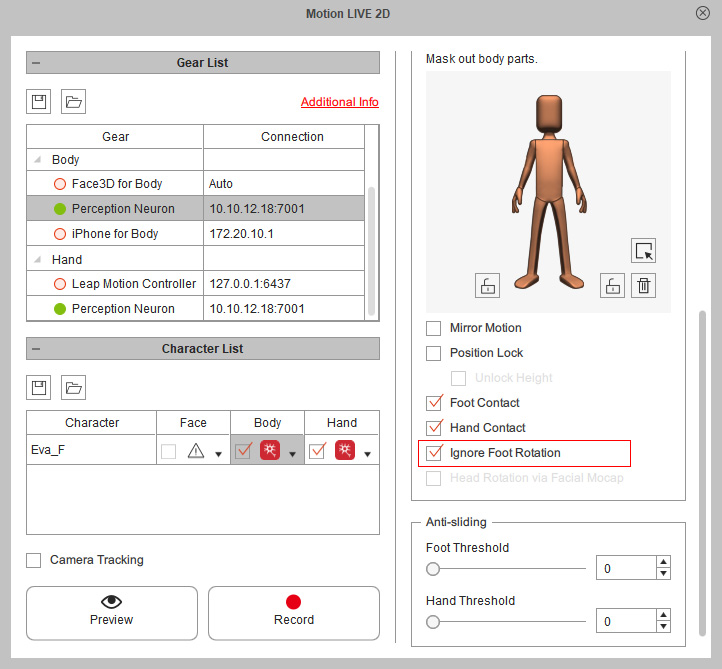
- Activate the Ignore Foot Rotation checkbox to prevent the foot from rotation.
-
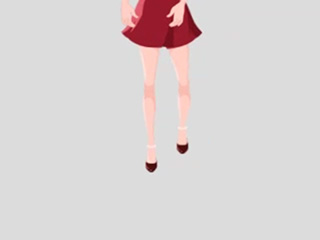
Now the foot motion can be adapted to the foot sprite in a frontal angle.
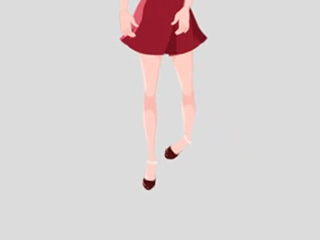
Ignore Foot Rotation = Off
Ignore Foot Rotation = On
