Modifying Motion Captured Hand Gestures
Once the mocap recording is finished, you can edit the hand gestures or export the motion clip in Cartoon Animator, then apply to other characters.
Where is the recorded hand mocap data?
Open the Timeline panel (F3) and click the Motion button.
You will find the recorded hand gesture data stored in a clip form in the Motion master track.
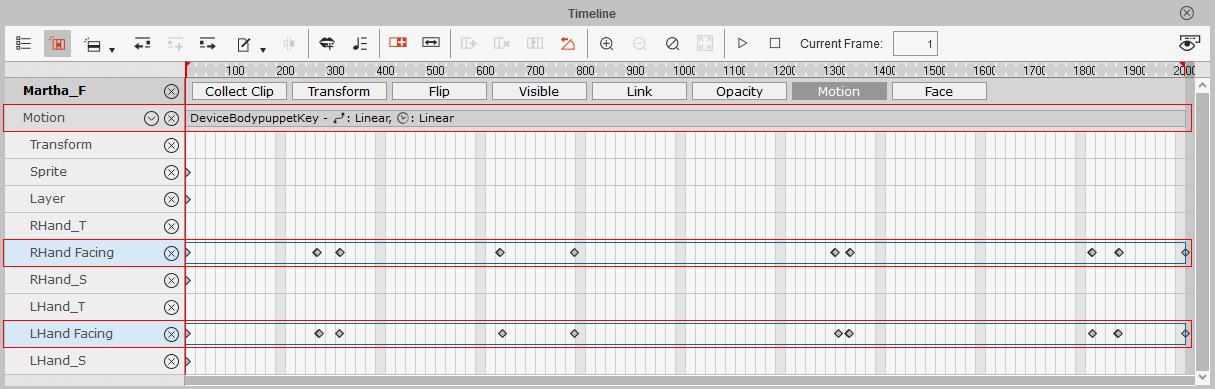
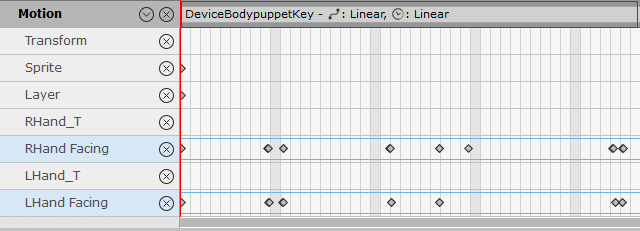
By clicking the down-arrow button on the Motion master track to open the RHand and LHand sub-tracks,
you will find the additional hand flipping data is stored in the RHand Facing and LHand Facing tracks.
 Modifying Hand Gestures
After the hand mocap is done, you can sample the Hand Keys from the mocap motion clip for gesture refinement, and then flatten the modifed keys into the motion clip for reuse on different characters.
-
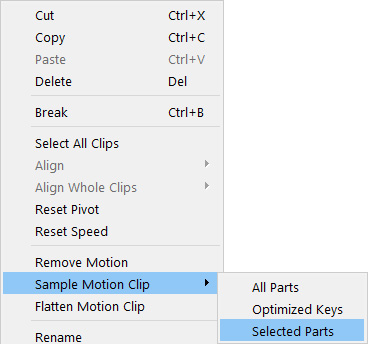
Right-click on the captured hand motion clip,
and select Sample Motion Clip > Selected Parts.
-
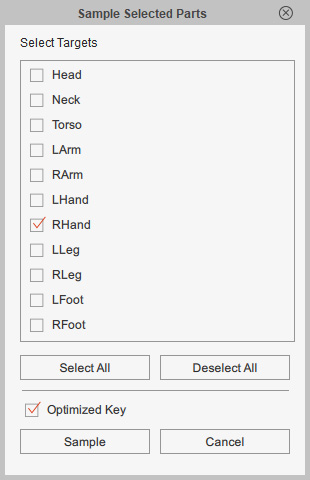
The Sample Selected Parts dialog will display.
Pick the body parts you want to sample and click Sample.
In this case, choose RHand to expose the layer keys for the right hand.
-
The layer keys of the right hand will show on the RHand_T and RFinger_T tracks separately.
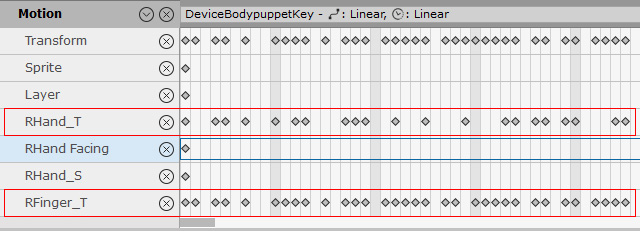
- The RHand_T track stores wrist rotation data for the right hand.
- The RFinger_T track stores finger bending data for the right hand.
Editing the Hand GesturesYou can edit the captured hand gestures with the 2D Motion Key Editor.
- Go to the frame where you want to edit the current hand pose.
Open the 2D Motion Key Editor (Shortcut: K).

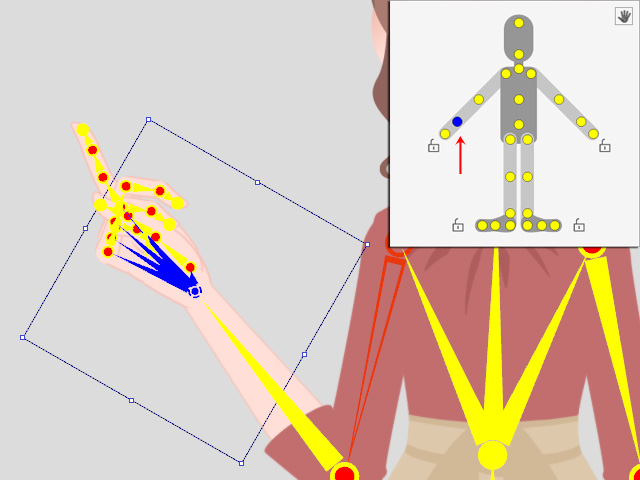
- Click the yellow circle on the right hand of the dummy in the 2D Motion Key Editor to pick the bone of the right hand.
Make sure to pick the highlight circle below.
You will see the selected bone becomes framed and highlighted in blue.
The blue circle on the dummy indicates that the bone is selected.
-
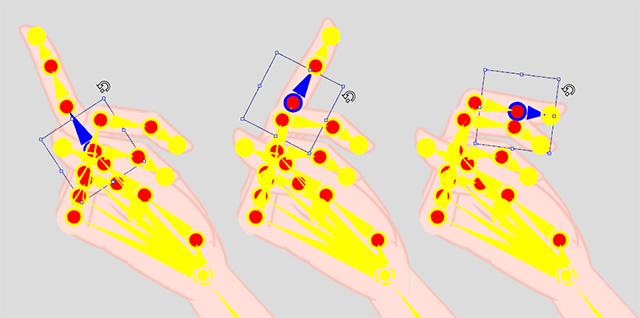
Click on the red circle of the bone to select a bone segment of the finger.
Rotate each bone inward.
-
You can turn on Show Bone to adjust the hand bones or turn off Show Bone to better observe the hand poses.
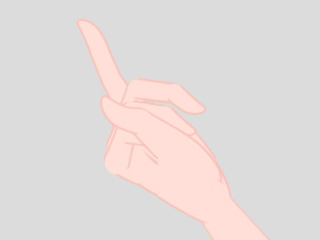
The original hand pose.
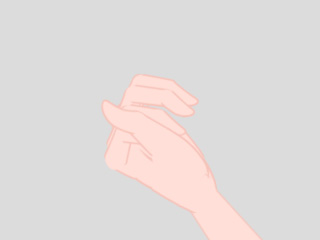
The modified hand pose.
The Show Bone option in the Bone Display dialog box.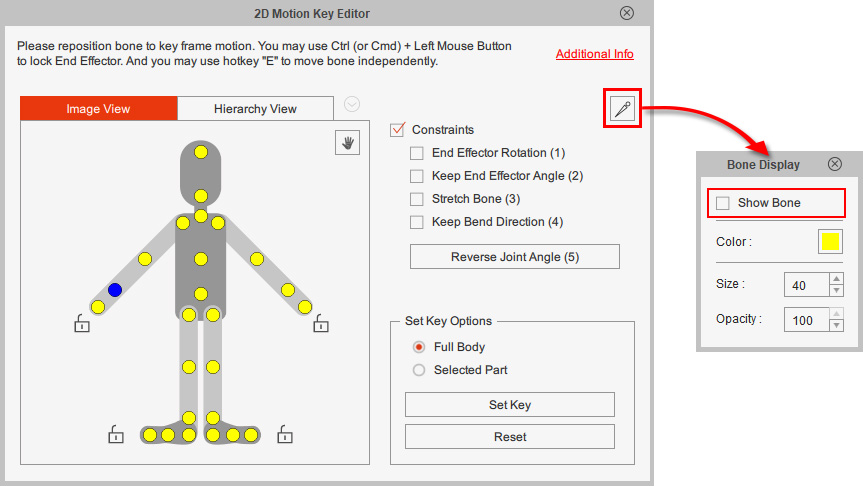
Switching the Hand GesturesYou can switch the captured hand gestures and alternate palm facing with the Hand Pose Editor.
-
Go to the time frame where you want to switch the current hand gesture.

-
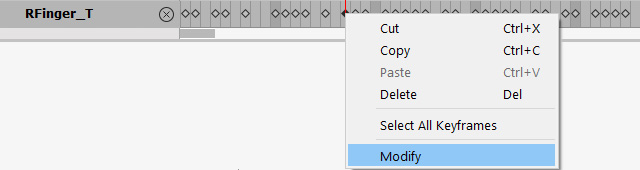
Double click the layer key on the RFinger_T track to modify the hand pose in the current frame.
Alternatively, right-click on the layer key and execute the Modify command.
-
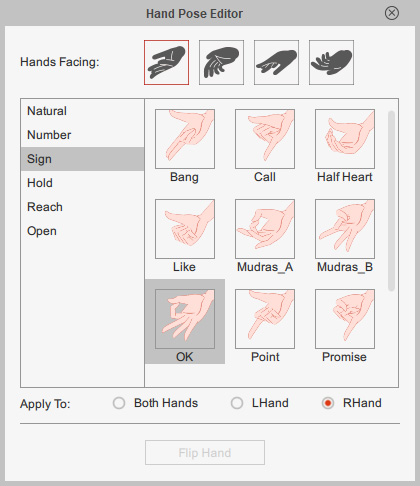
The Hand Pose Editor will display for hand pose modification.
First select a suitable hand facing and the hand target to apply. In this case, the hand facing up and apply to the right hand.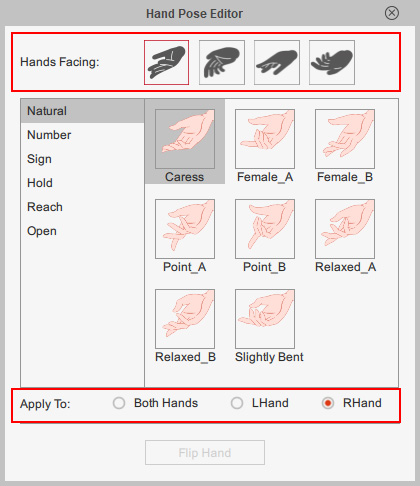 Note:
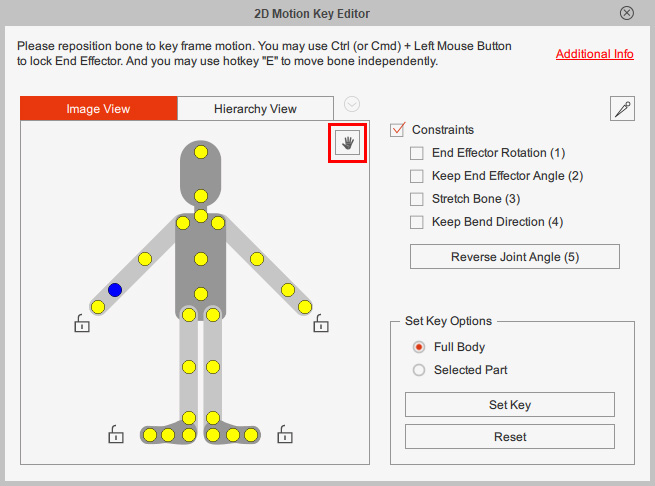
Note:You can click the Hand Pose Editor button in the 2D Motion Key Editor to open the Hand Pose Editor.
-
Next, click a desired hand pose from the gesture styles.
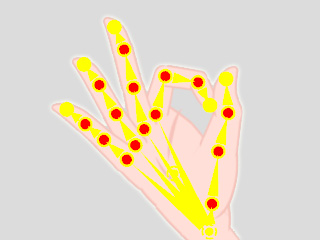
In this case, the OK pose under the Sign style.
-
The current hand gesture will be replaced with the one in the Hand Pose Editor.
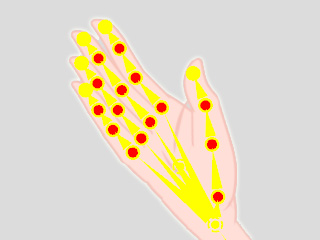
The original hand pose.
The modified hand pose.
- Right click on the captured hand motion clip again and select Flatten Motion Clip to merge the modified hand pose key into the motion clip.
Then you can reuse the captured hand motion on the other characters with ease.
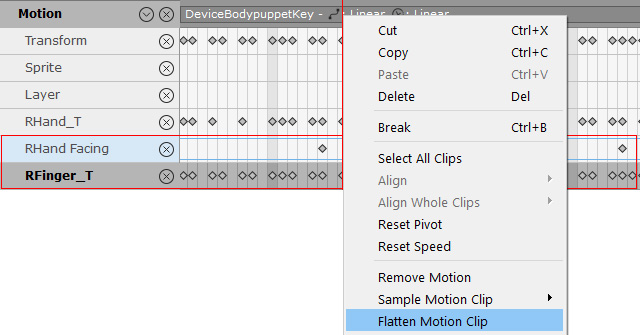
- The RHand Facing track stores hand facing data.
- The RFinger_T track stores hand pose data.
Note:The hand pose modification made in the Hand Pose Editor stores on the RHand Facing and RFinger_T tracks separately.
Reusing Captured Motions on Different Characters-
Make sure the character or the motion clip is selected.
-
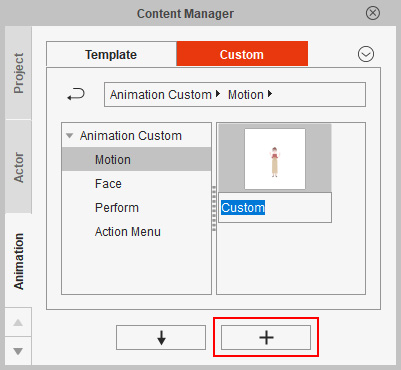
Go to the Content Manager > Animation > Motion folder and click the Add button to save the clip (in *.ctBMotion format) under the Custom tab.
-
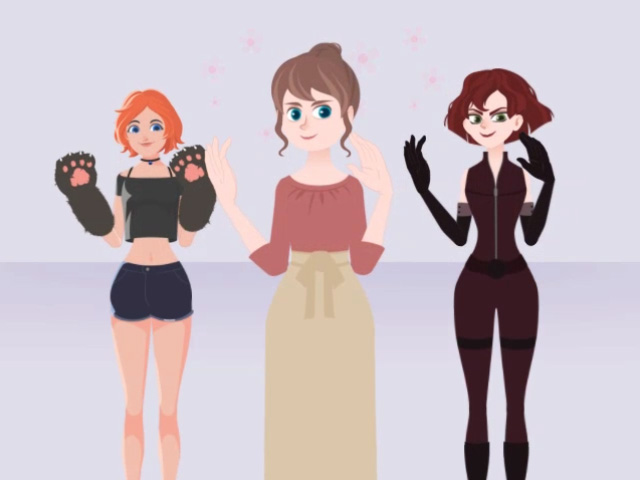
Drag the saved motion clip onto the desired characters and watch they move.
Note:
Please refer to the following sections for more information:
