User Interface Introduction: Export USD Panel
(New for V. 3.44)
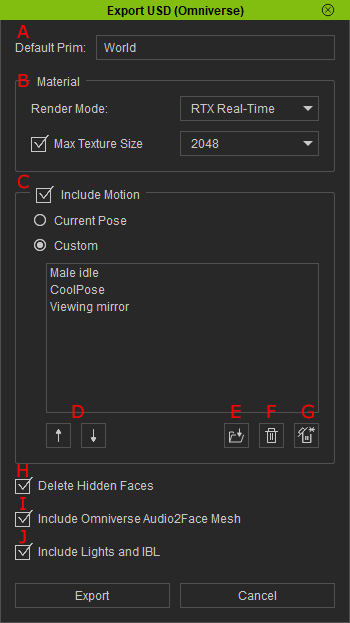
-
Default Prim
- The unique name in Omniverse. You can think of it as the object name in an Omniverse project.
-
Material
- Rendering Mode: Determine if the materials to be exported are suitable for the RTX Real-Time or RTX Path-Traced rendering modes.
- Max Texture Size: Set the maximum size of the textures from 128 x 128 to 4096 x 4096.
-
Include Motion
Activate this checkbox to export characters with motion.
- Current Pose: Export the character in current pose.
- Custom: Export the character with loaded motion clips.
-
Move Up / Down
Click these two buttons to move the motion clip up or down on the list.
-
Load Motion
Click this button to load more motions to the list.
-
Delete Motion
Click this button to delete the currently selected motion clips on the list.
-
Delete All Motions
Click this button to delete all motion clips on the list.
-
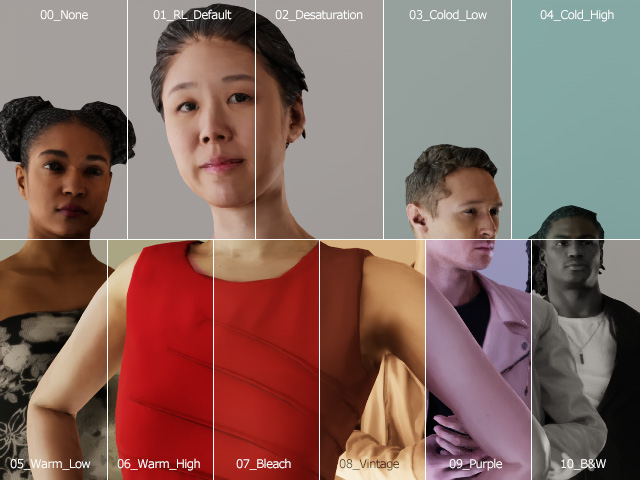
Post Effects
Post Effects: This setting applies a tonal post-process to the Omniverse render.
-
Include Omniverse Audio2Face Mesh
The character's head mesh will also be exported in USD format, when the entire character is exported. The head mesh is to be used in Omniverse Audio2Face for generating facial expressions.
-
Export Current Frame as Static Mesh for Refinement
Activate this checkbox to export only the mesh of bone-skinned object (character, prop) for surface smoothing in Omniverse. Refer to the Exporting Current Frame as Static Mesh for Surface Smoothing section for more information.
-
Delete Hidden Faces
Activate this checkbox to remove the faces that are covered by the clothes to decrease the size of the exported character.
-
Include Lights and IBL
Activate this checkbox to export the character, Lights and IBL in the current CC project.
-
Export
Click this button to export USD files and related folders into a custom directory.
-
Send to Server
Click this button to export USD files and related folders to a server on the intranet for collaboration work.
