Keyframing with the Control Panel
- Create a character.
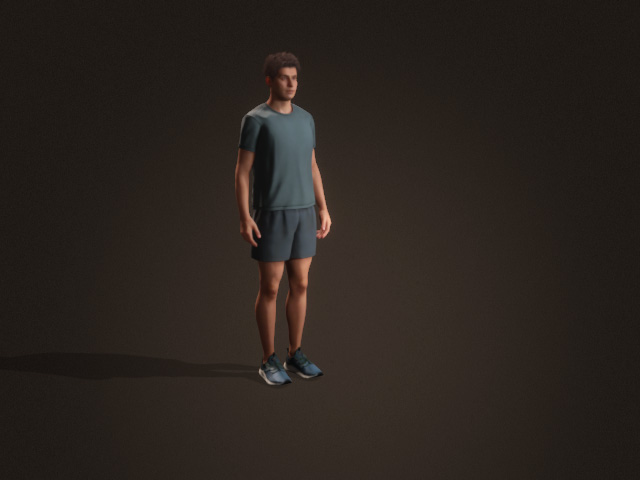
- Select the character and open the AccuPOSE panel.
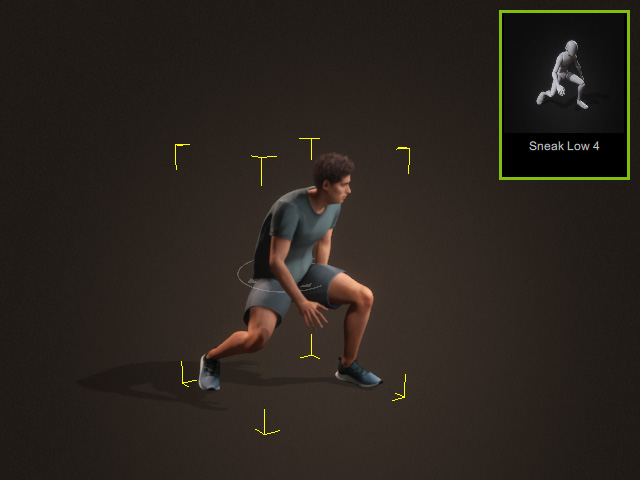
- Apply a pose from the
preset library.
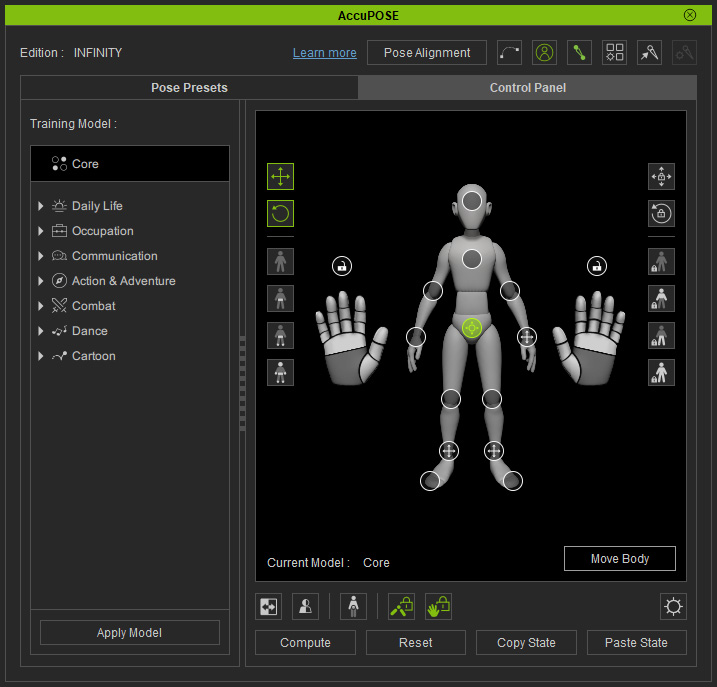
- Switch to the Control Panel for fine-tuning the pose.
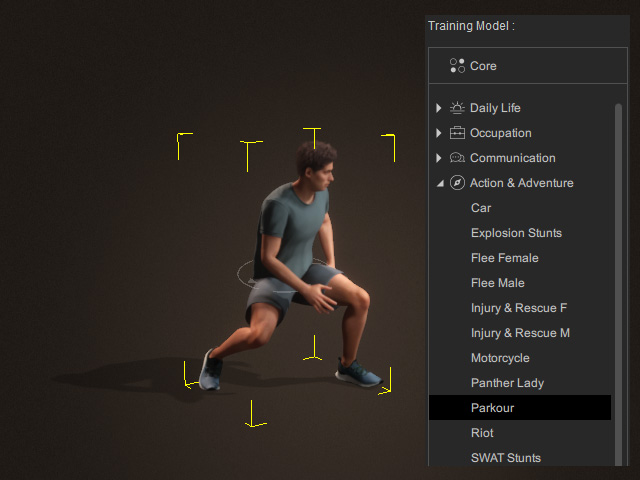
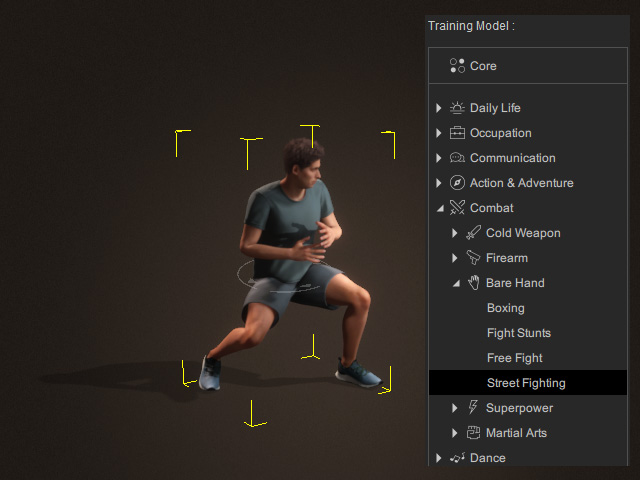
- Choose any AI-training model from the left side.
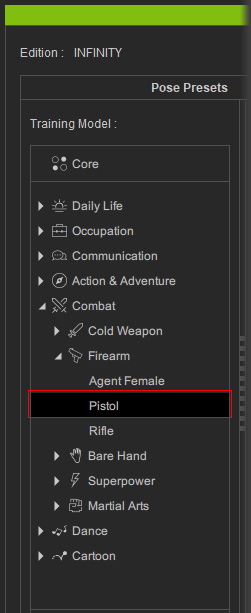
- Click the Apply Model to recomputed the pose.
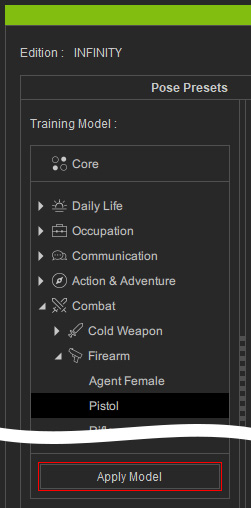
The pose will be recomputed based on the selected model.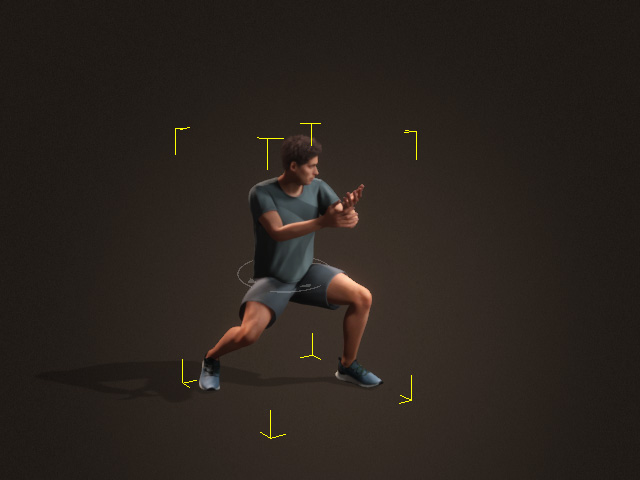
You can repeat the same steps to string together an animation.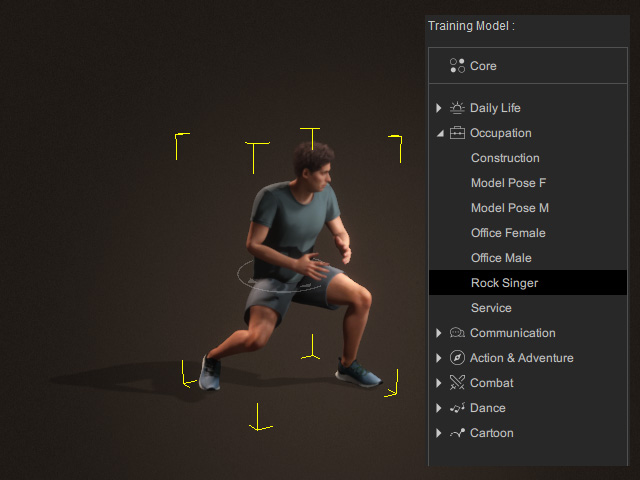
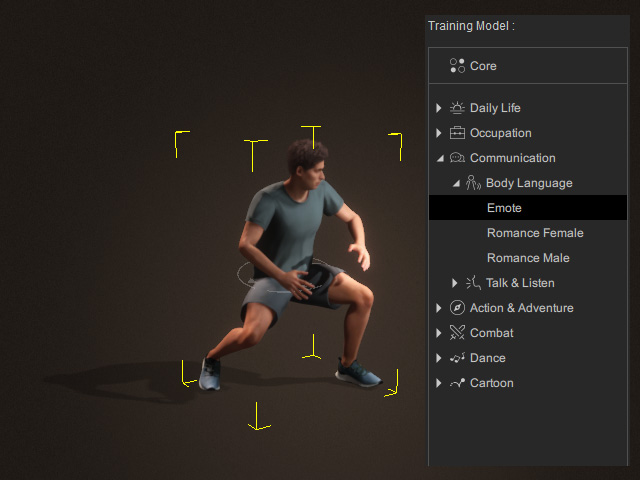
- Pick one or more control points on the dummy diagram or in the
scene (Hold Ctrl).
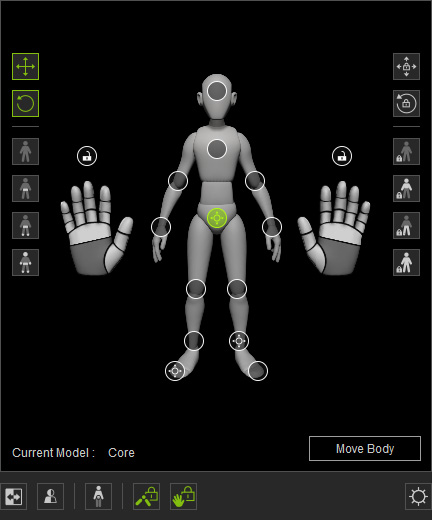
- AI or Manual Control Points
- Pinning Control Points
- Use the Move or Rotate tools
to modify the pose.
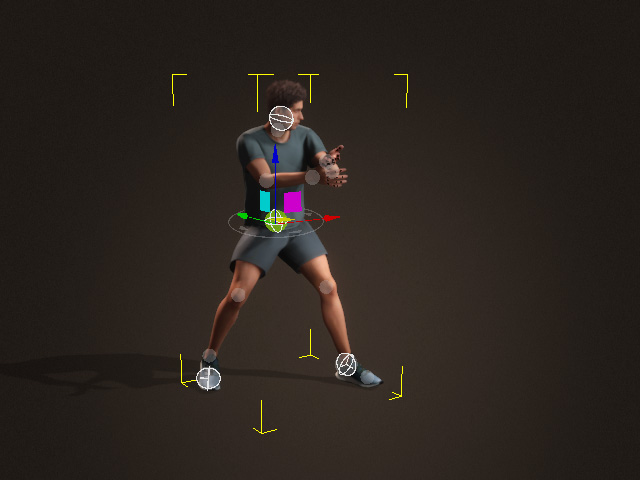
- Move to another time frame, and repeat the same steps to add more pose keys.
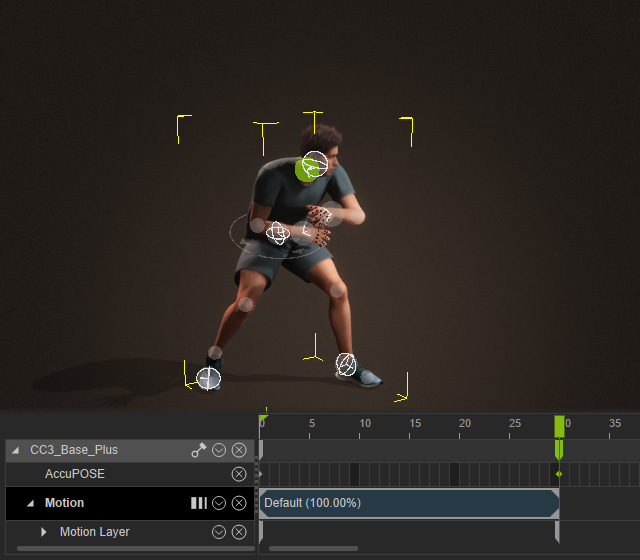
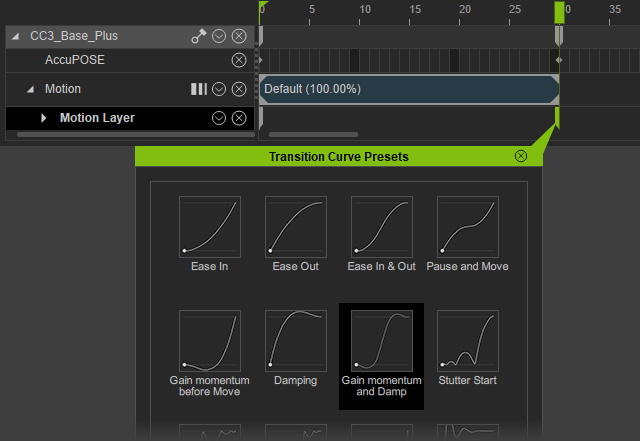
- Optionally adjust the Transition Curve for the second Motion Layer key.
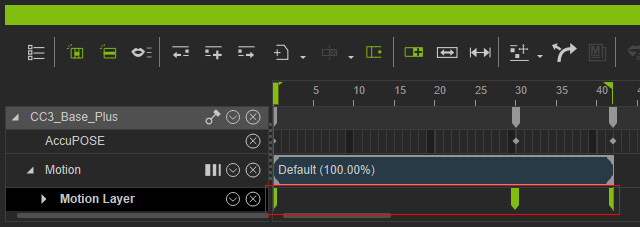
- Add more pose keys to generate a custom motion.
- Playback to view the final animation. The transition will be tweened
by iClone.
