Keyframing with Presets
- Create a character.
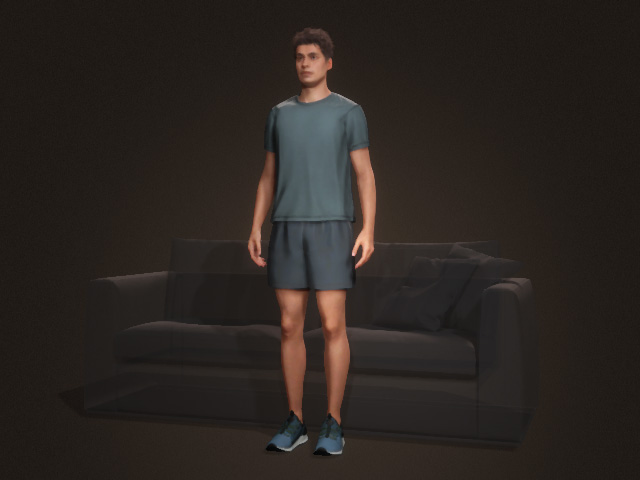
- Select the character and open the AccuPOSE panel.
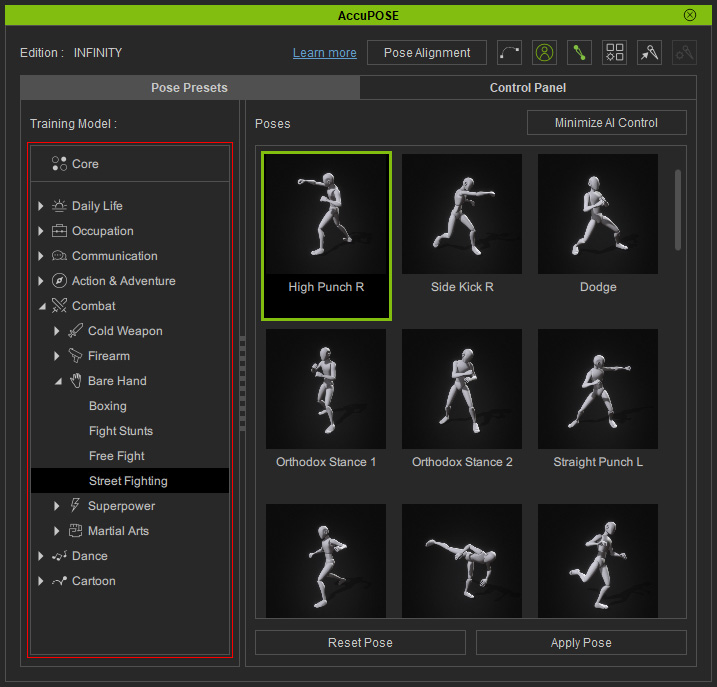
- With the AccuPOSE panel open, select the Pose Preset tab. Choose a model from the Training Model tree list.
- From the pose preset library, apply a pose of your choice:
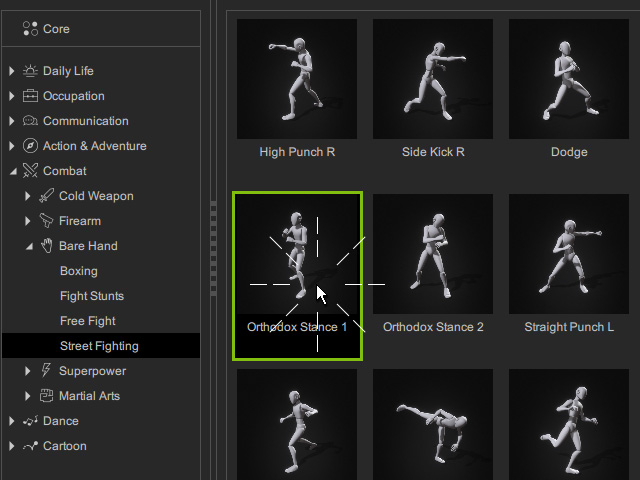
- Method 1: Double-click on the desired preset.
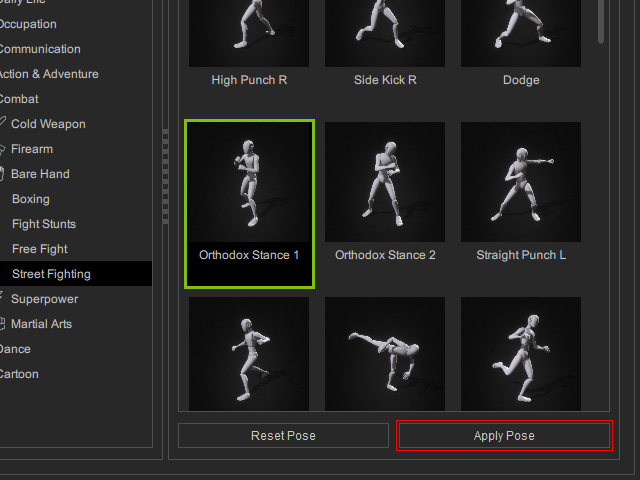
- Method 2: Select the desired preset and click the Apply Pose button.
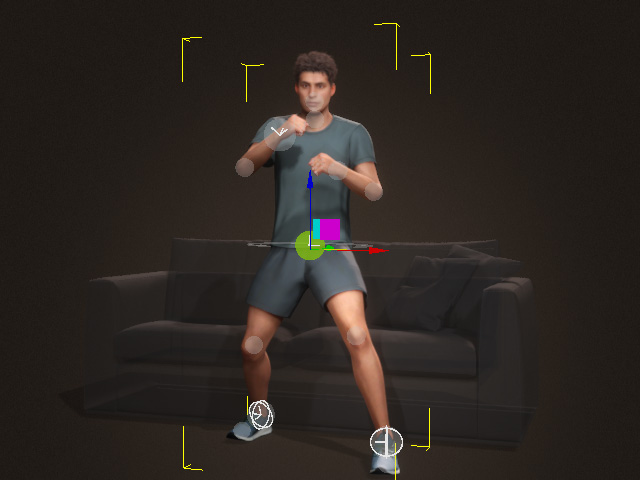
- Method 1: Double-click on the desired preset.
- On the viewport, pick the control points for fine-tuning (for multiple selection, hold the Ctrl key and click on the desired control points).
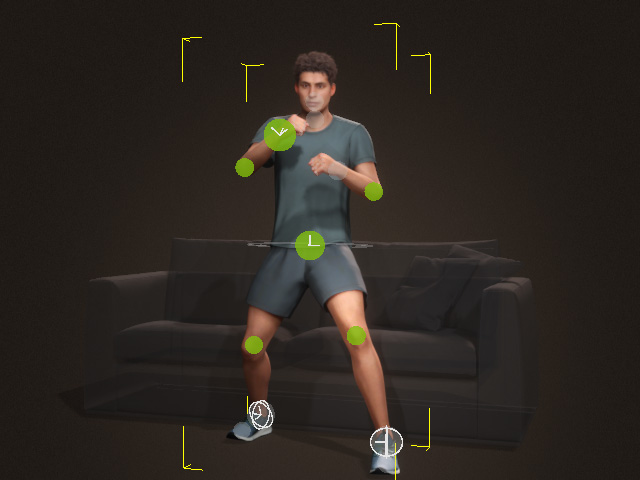
- Use the Move or Rotate tools to modify the pose.
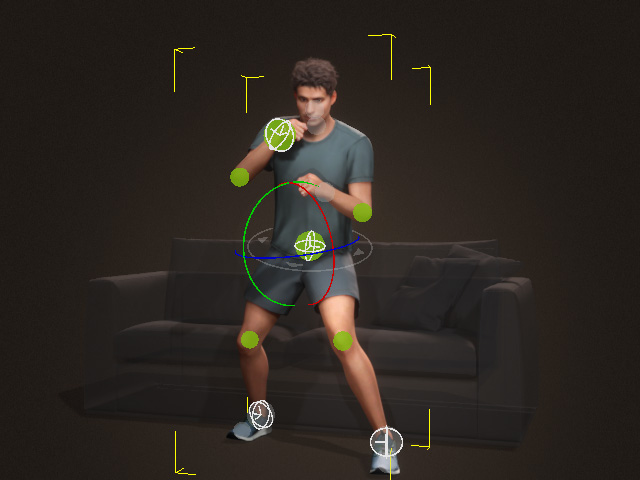
- Move to another time frame and apply another preset of your choice.
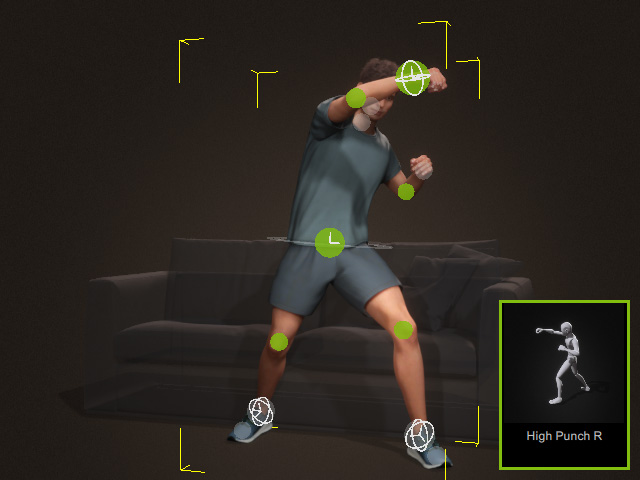
You may need to specify the align bone before applying the new pose presets.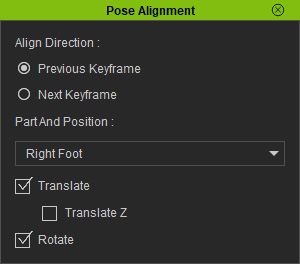
- Move to another time frame, and repeat the same steps.
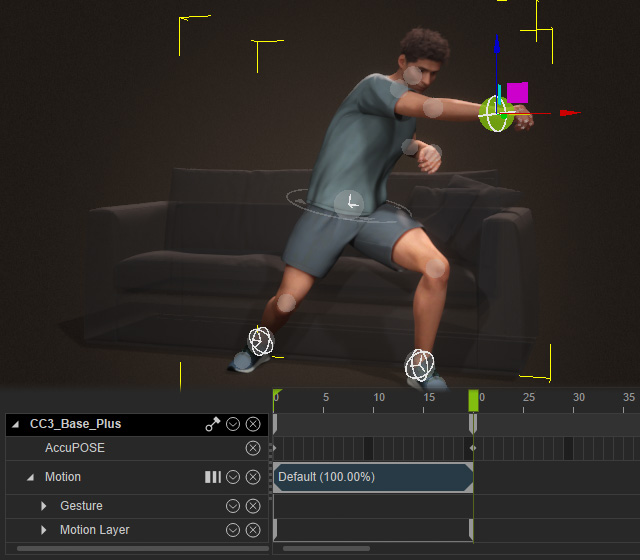
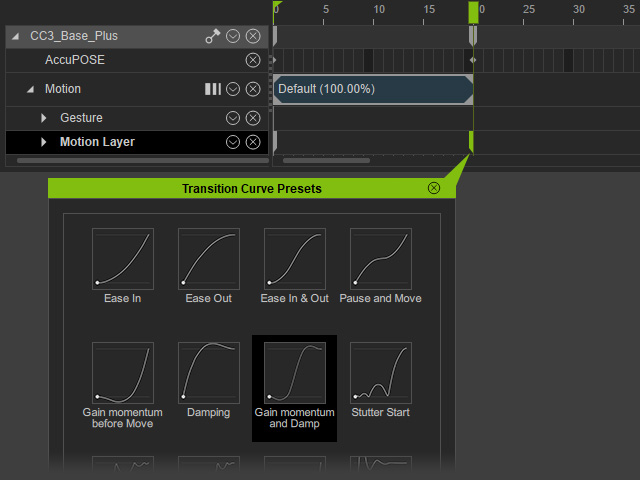
- Adjust the Transition Curve for the second Motion Layer key if needed.
- Playback to view the animation. The transition between the poses will be tweened by iClone.