Aligning Poses
When you apply new poses, you are allowed to align the pose to the previous or next pose, based on specific bones. This will ensure the bone to be held still by the position or the orientation. The Pose Alignment panel can be launched on the AccuPose panel.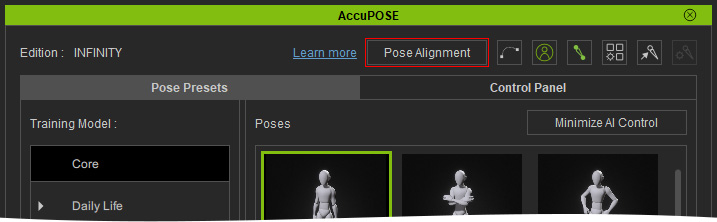
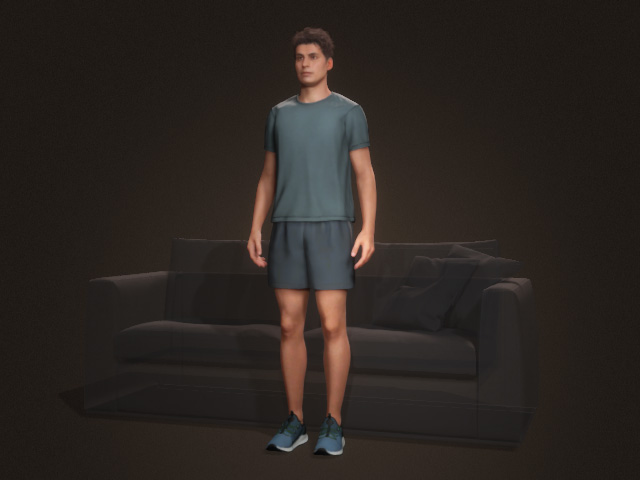
- Create a character.
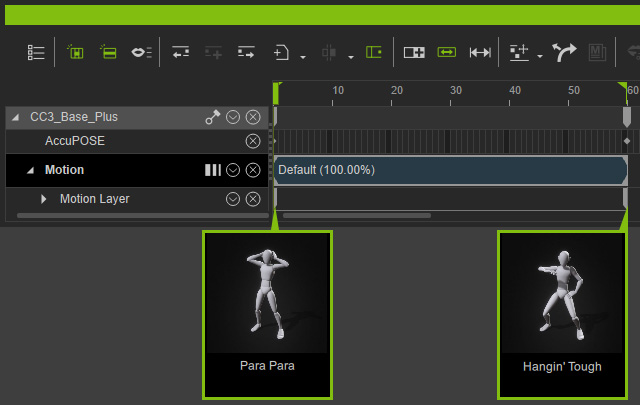
- Create a motion for the character with pose presets (in this case, two pose presets).
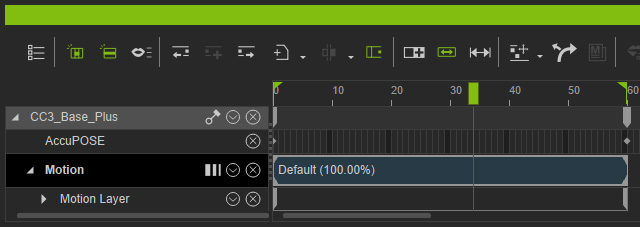
Playback to view the result. - Move the playhead to the timeframe between the two motion layer keys.
- Select the character, open the AccuPOSE panel (shortcut: 9) and click the Pose Alignment button to open the panel.
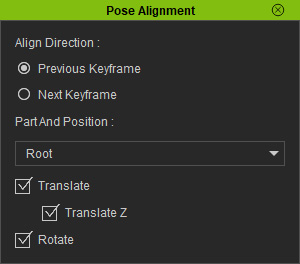
- Align Direction: Choose the Previous / Next Keyframe radio button to determine if the new pose key will be align to the previous or next keys.
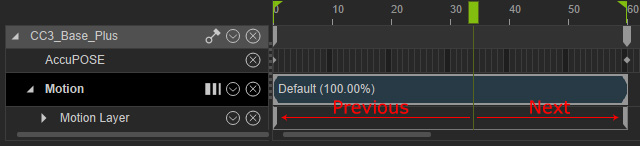
- Part and Position: Choose the base bone for alignment.
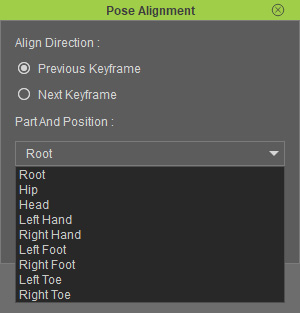
- You can decide to align the Translation or Rotation by activating the Translate, Translate Z or Rotate checkboxes.
- Translation (Align by X and Y only)
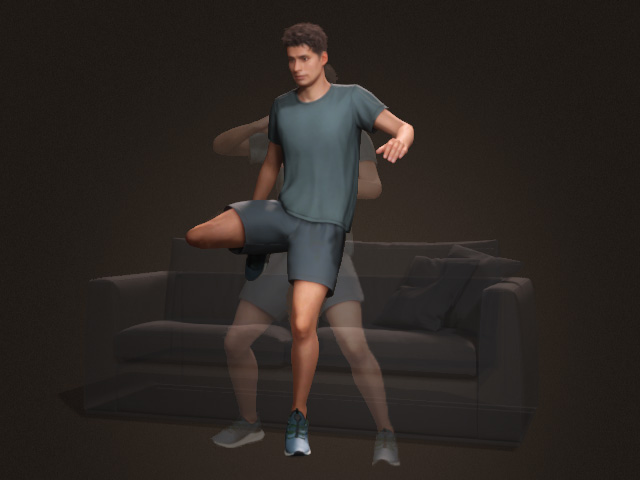
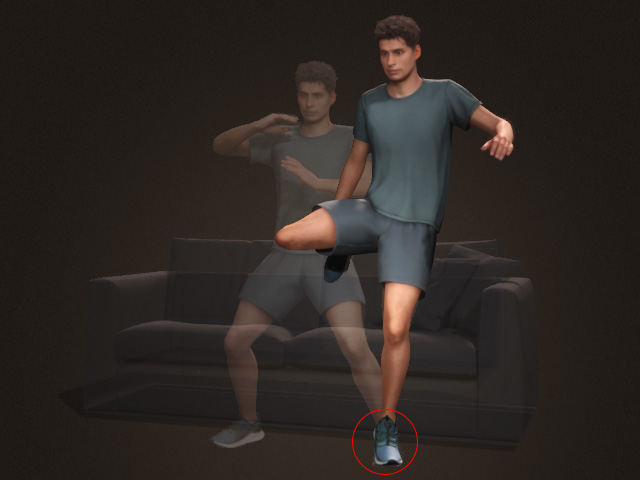
Alignment based on the Root.
Alignment based on the Left Foot.
- Translation Z
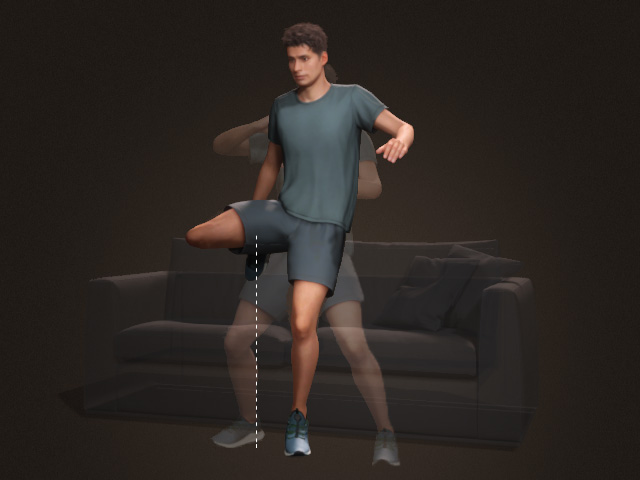
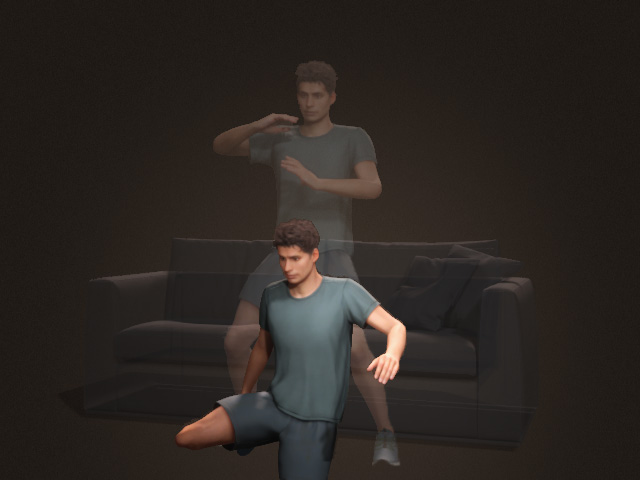
Translation Z is deactivated (X, Y only, based on right foot)
Translation Z is activated
- Rotation
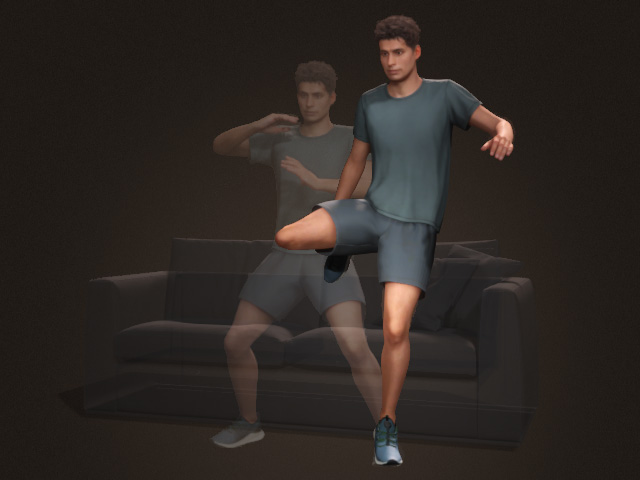
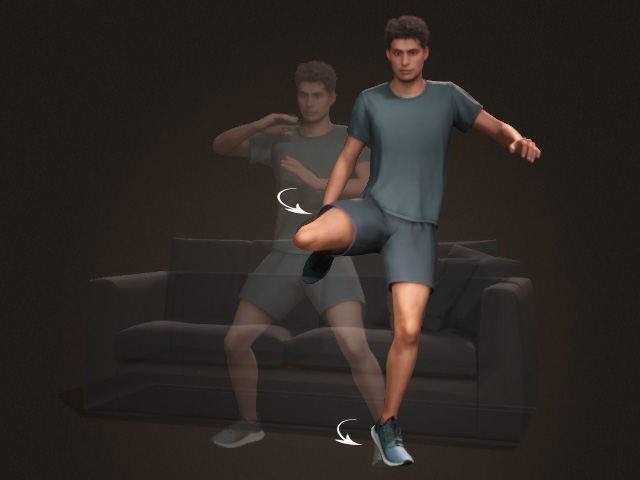
Alignment based on Translation only (left foot)
Alignment based on the Translation and Rotation
- Translation (Align by X and Y only)
- Align Direction: Choose the Previous / Next Keyframe radio button to determine if the new pose key will be align to the previous or next keys.
- Apply desired pose preset to add a new pose key. The pose will then be aligned accordingly. Notice that the Pose Alignment only works for Applying Pose Preset and Copy/Paste State.
- Playback to veiw the result.
