Clip Layer Editing
Besides correcting the layer editing, AI assistance can also enhance the speed and timing of your motion clips.
- Deploy a character.
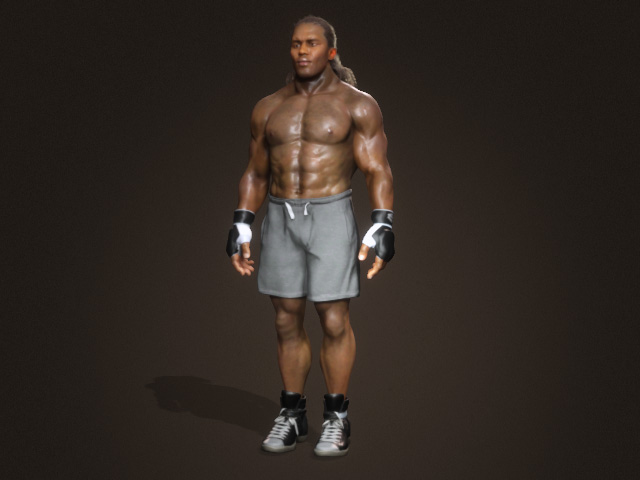
- Apply a motion clip or mocap animation to the character.
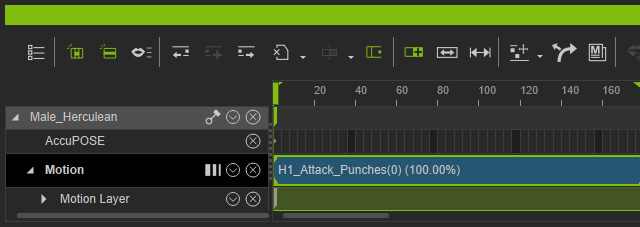
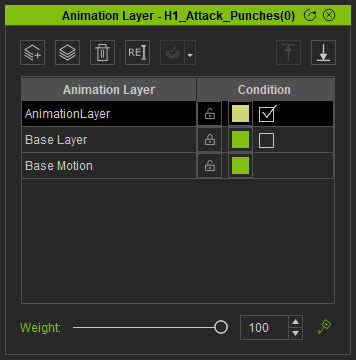
Playback to view the animation. - Open the Animation Layer panel and add a new layer.
- Go to the time frames before and after the pose you want to enhance or correct, and add motion layer key by click the Add Key button.
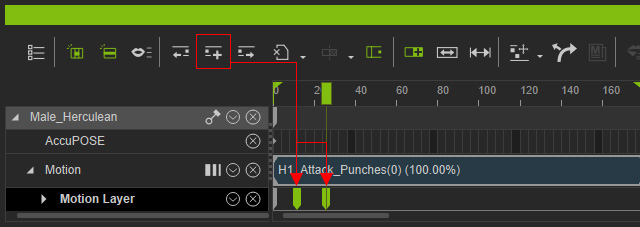
- Go to the time frame between these two keys when the pose of the character is for enhanced.
Open the AccuPOSE panel (shortcut: 9) and switch to the Control Panel tab.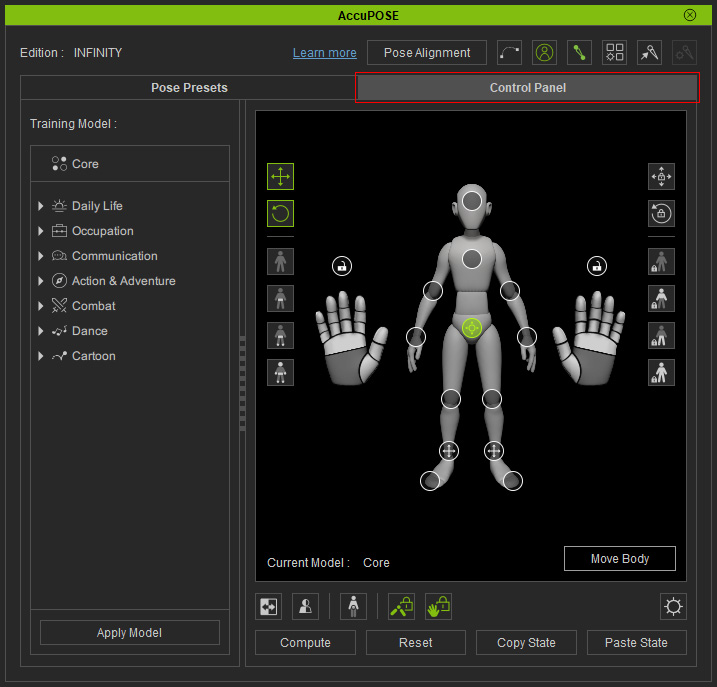
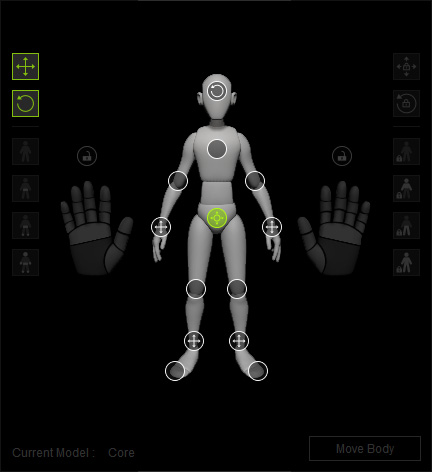
- Choose the control points on the dummy and set their states. This step masks out the Translation and Rotation of the control points from being influenced by the AI assistance.
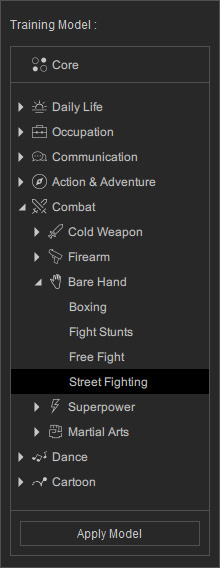
- In the INFINITY Expansion pane, choose a desired AI-assisted model.
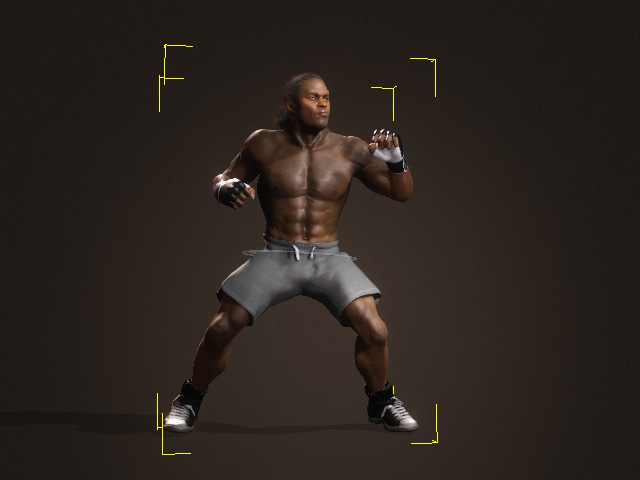
- Click the Apply Model button to switch the AI-assisting style. As you can see the pose is corrected by the AI computation.
- Pick a control point (in this case, the right elbow) and translate or rotate it to enhance the entire pose.
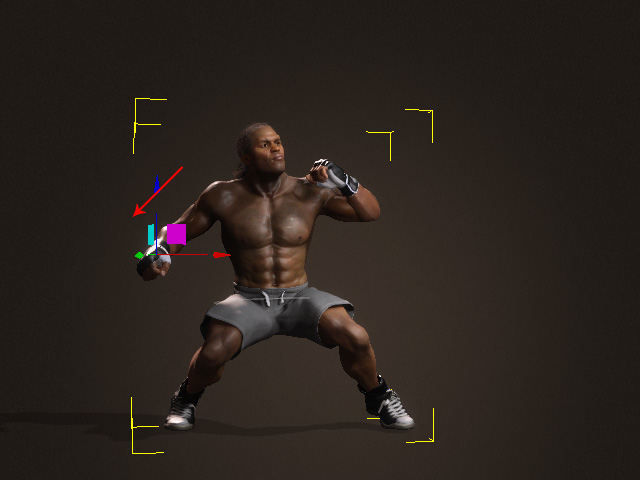
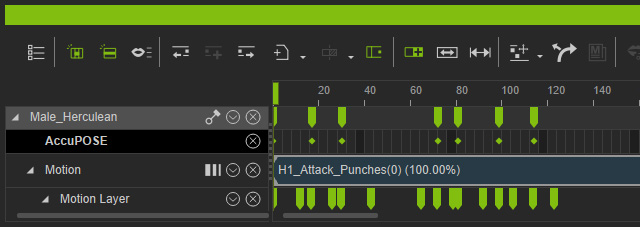
- The pose data will be kept in the Edit Motion Layer key, while the Model and Control Point States, AccuPOSE key.
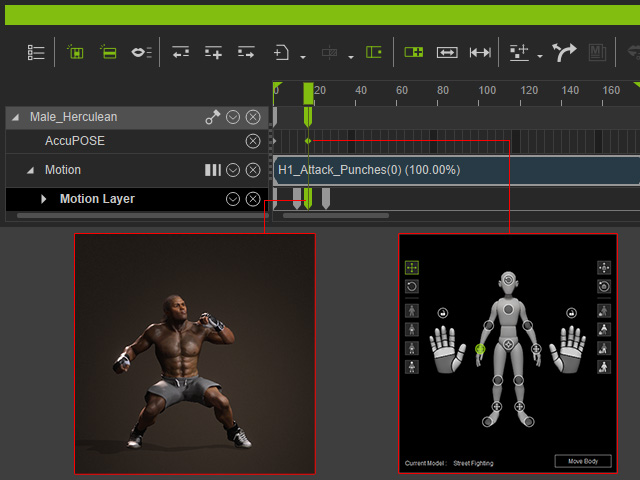
- Repeat the same steps for the next pose for enhancement. The entire body stricture will be driven to move with rational ergonomics.
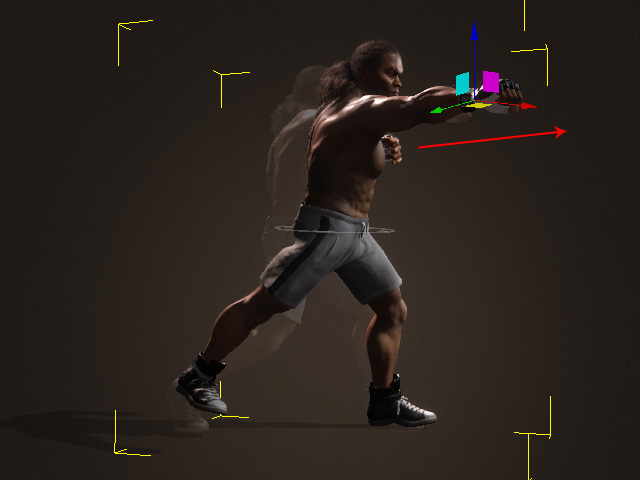
Another new motion layer key will be added.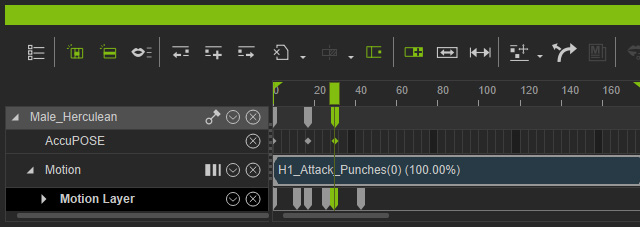
- You can add more keys in the same method to enhance or correct the entire motion clip.
Playback to view the result.Before enhancement
After enhancement
