Embedding the ActorCore Viewer
The embed code will encompass all the detailed settings of your actor as showcased in the ActorCore viewport. You can adjust the settings within ActorCore, then simply copy and paste this code into any website you are authoring. This will enable the display of your actor in motion or in a pose on the website, elevating the visual appeal and interactivity of your websites.
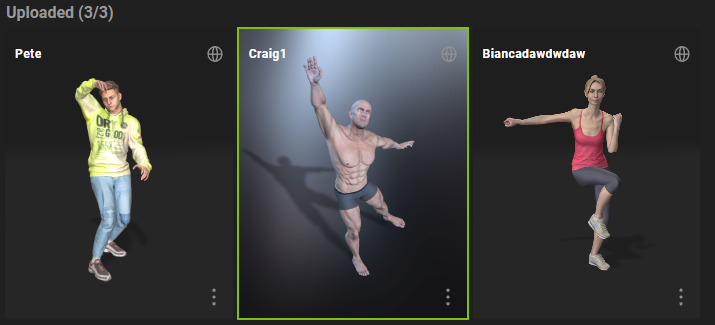
- Select an ActorCore character you wish to integrate into a website.
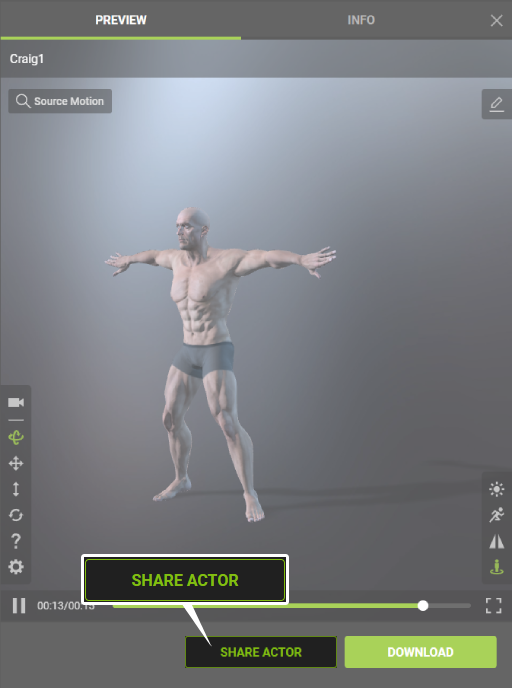
- Within the viewport click the Share Actor button.
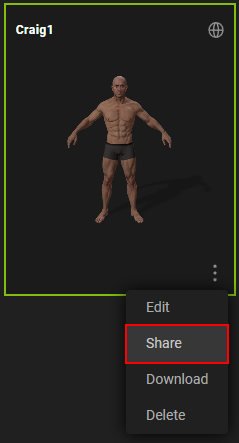
Note: There are two additional ways to access the Embed feature.- Click on the kebab menu within the actor thumbnail to open the Share Actor dialog box to access the actor settings.
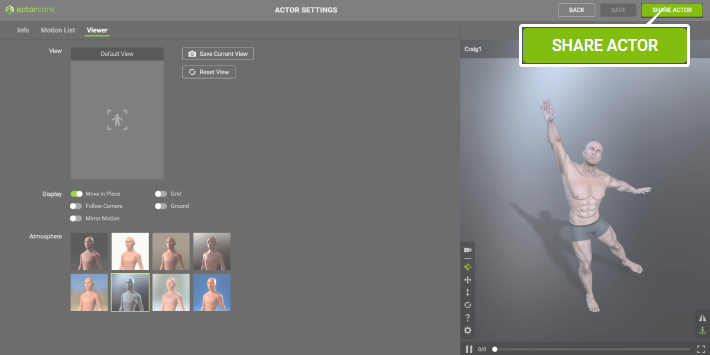
- Navigate to the ACTOR SETTINGS page and click the SHARE ACTOR button located near the top-right corner to access the embed options.
- Click on the kebab menu within the actor thumbnail to open the Share Actor dialog box to access the actor settings.
- Under SHARE ON SOCIAL MEDIA in the SHARE ACTOR dialog, click the Embed icon.
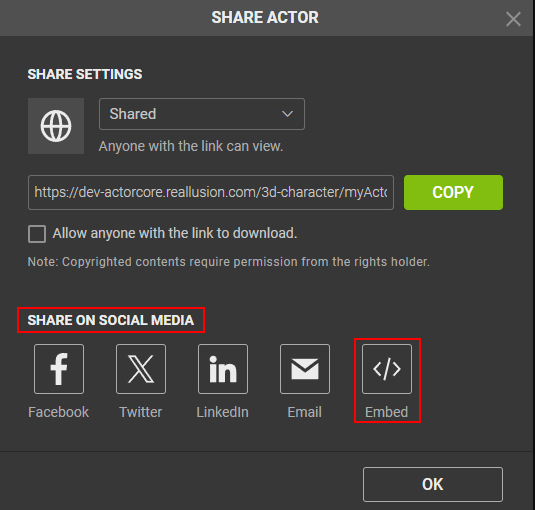
Note: Any shared ActorCore character can be embedded.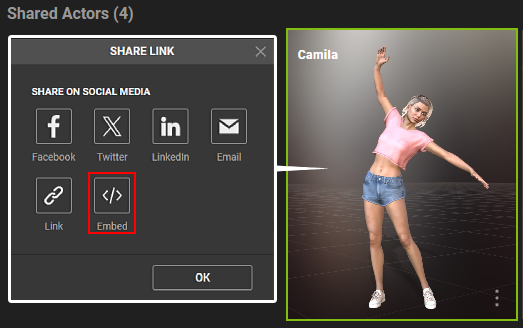
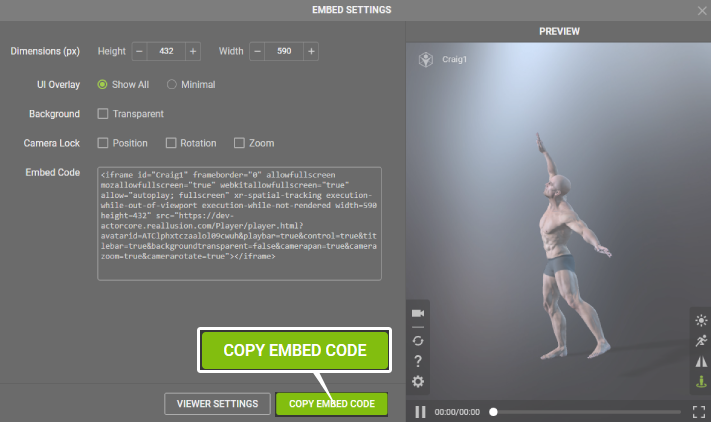
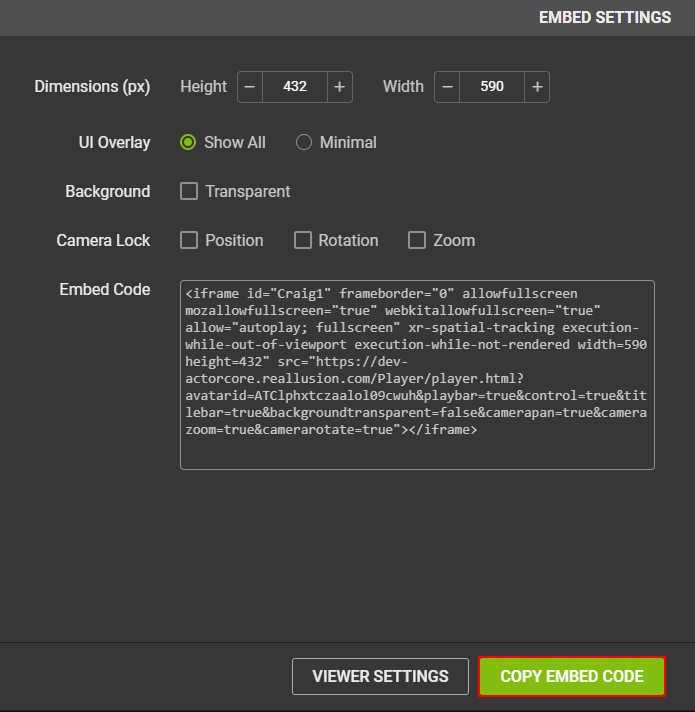
- The EMBED SETTINGS dialog box will appear.
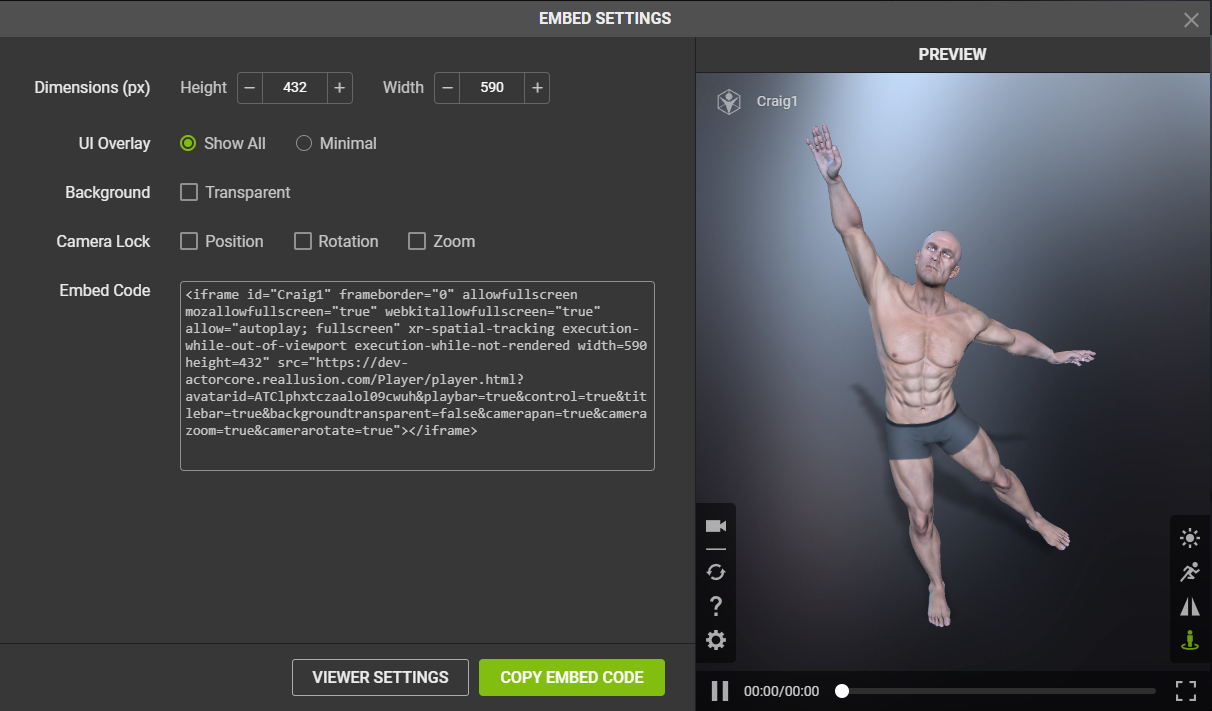
- Click on the COPY EMBED CODE button near the bottom of the window.
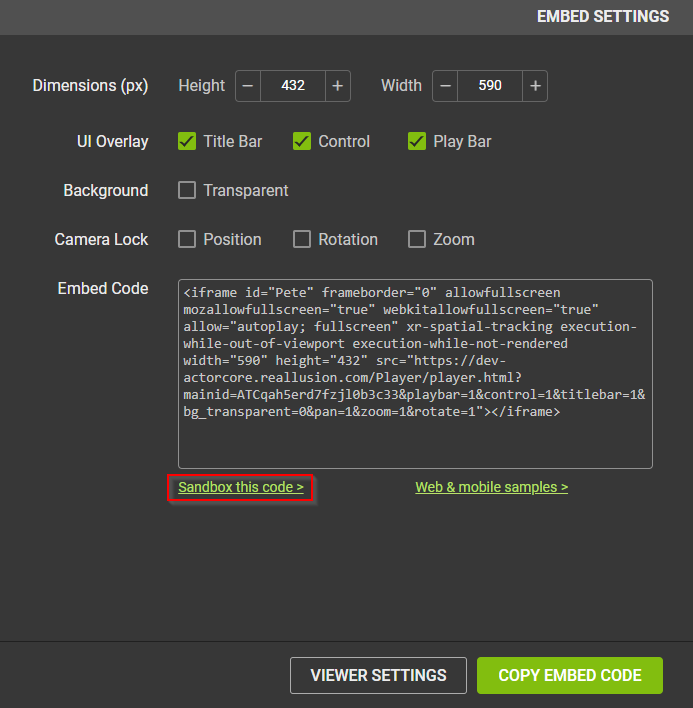
- Simply click the 'Sandbox this code' link to evaluate your actor's embed code as if it were actively deployed within an HTML environment.
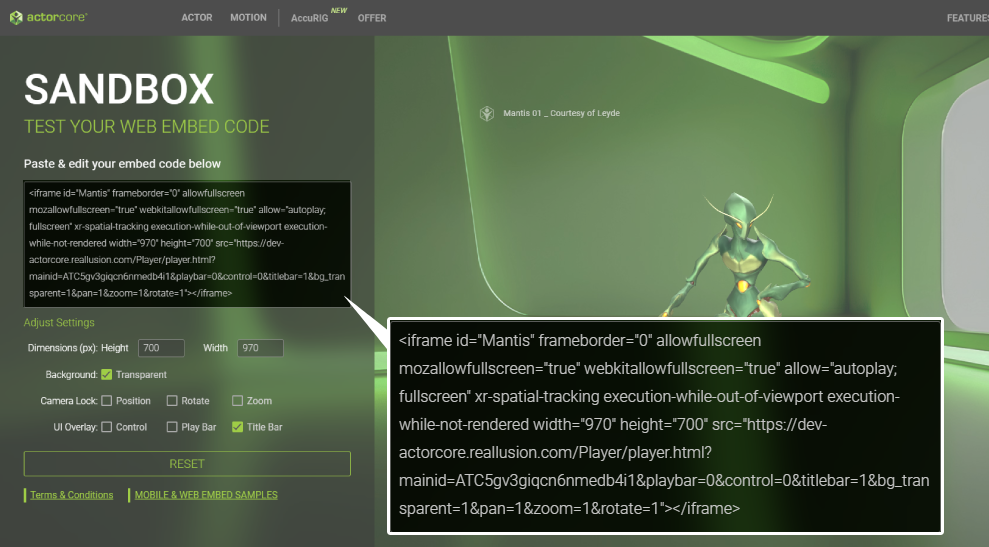
- In the subsequent “SANDBOX” page, paste your embed code into the text area.
Your 3D actor will now display to the right of the Sandbox parameter settings.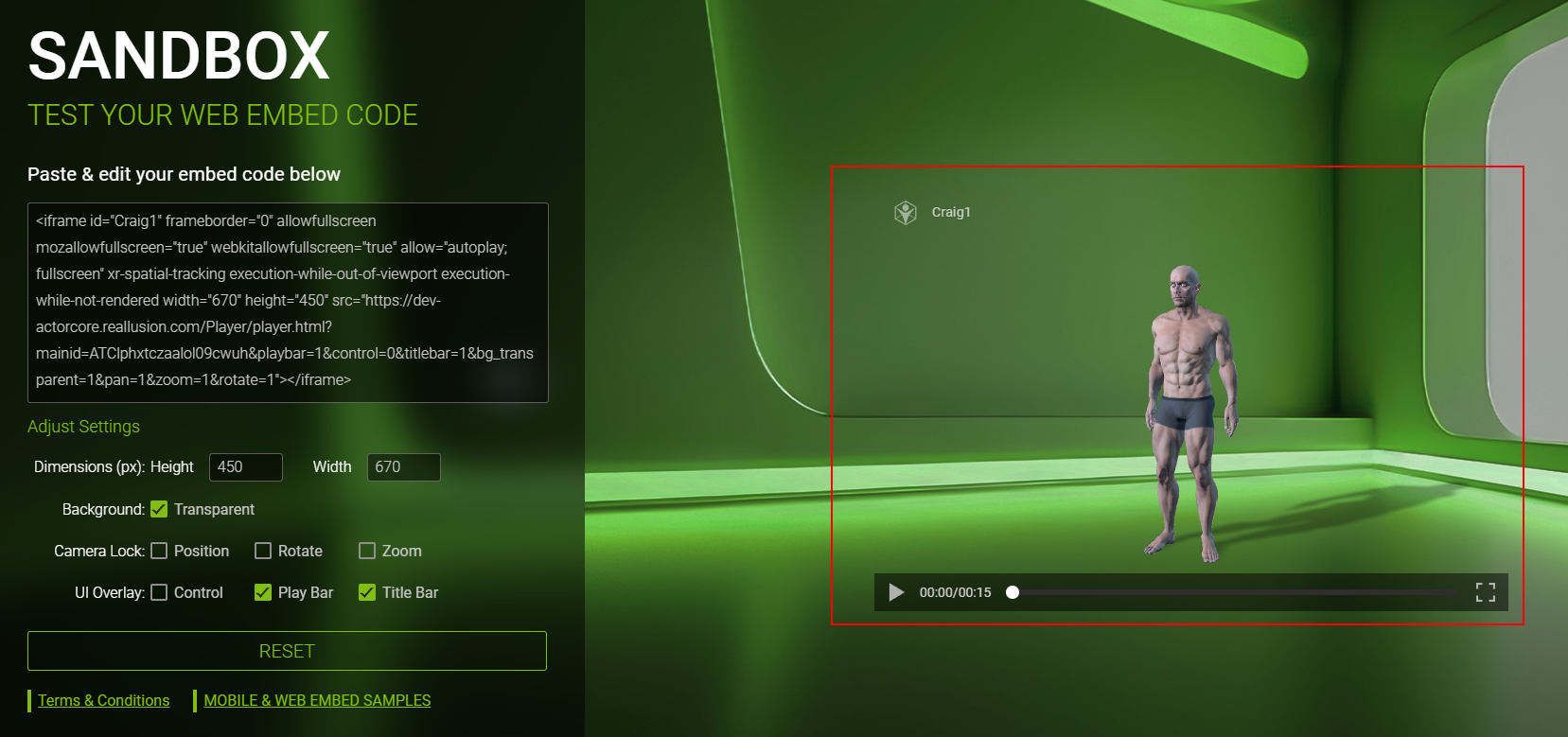
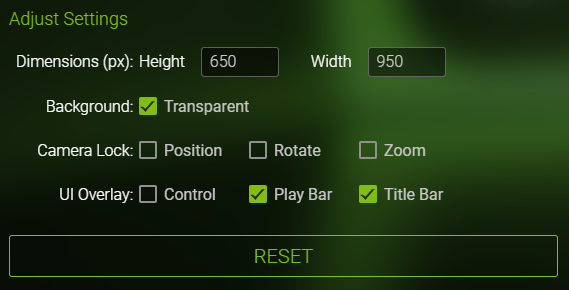
- Modify the parameters under Adjust Settings to make final adjustments to the embed code.
- You can revisit the EMBED SETTINGS to make further adjustments to the character’s display.
Note: Any changes to the settings will not have an impact on the actual embed code.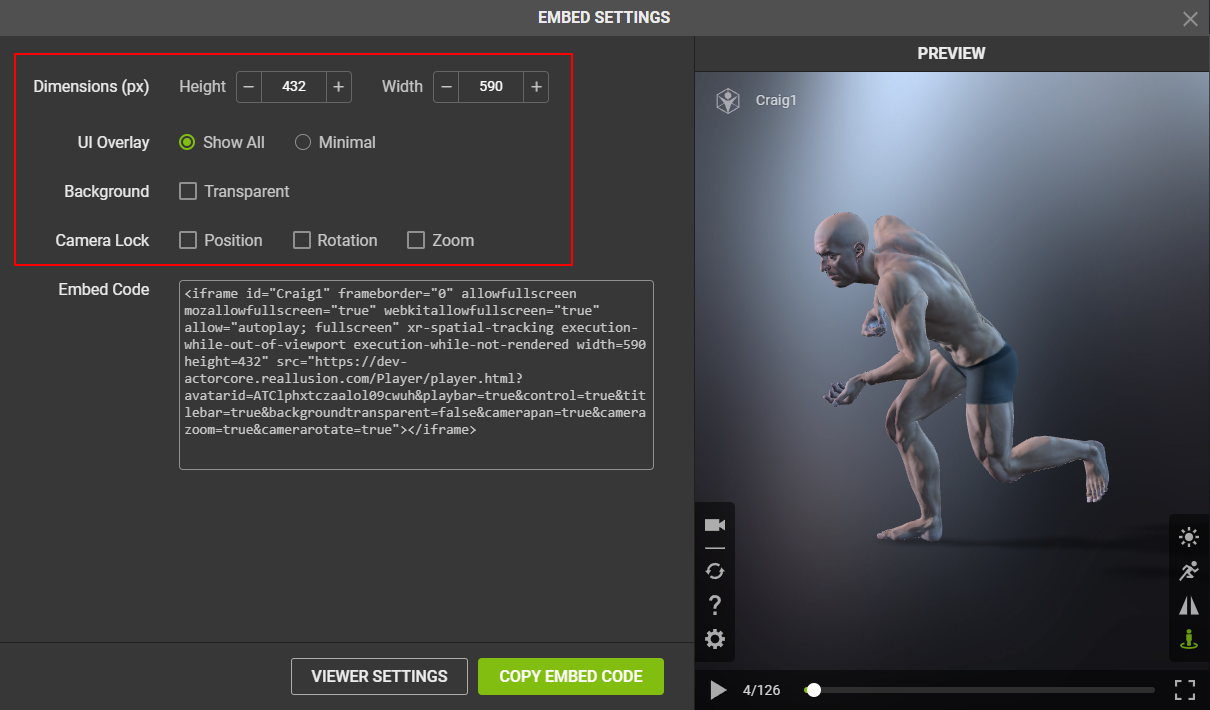
- For adjustments on the Info, Motion List, and Viewer settings of the actor, click the VIEWER SETTINGS button to navigate to the ACTOR SETTINGS page.
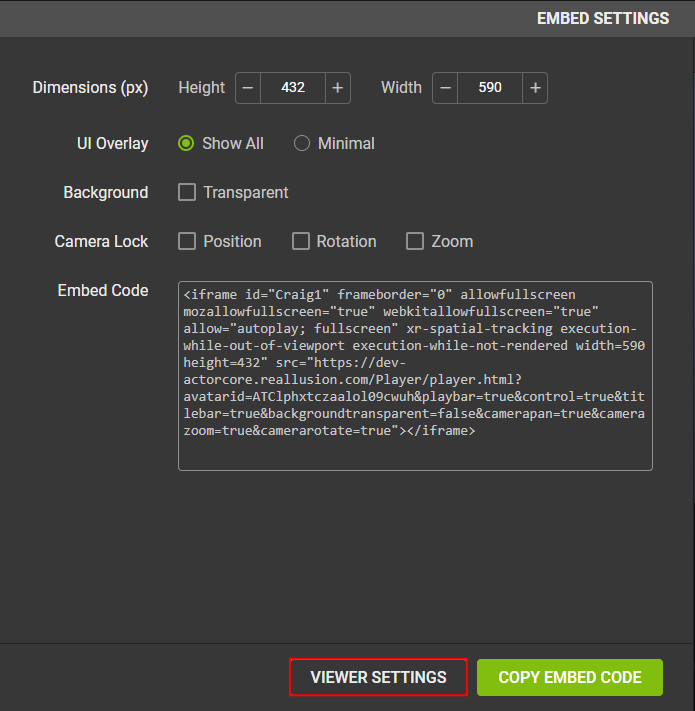
- After the adjustments, return to EMBED SETTINGS and copy and paste the embed code into your website’s HTML once more.