Preview Window
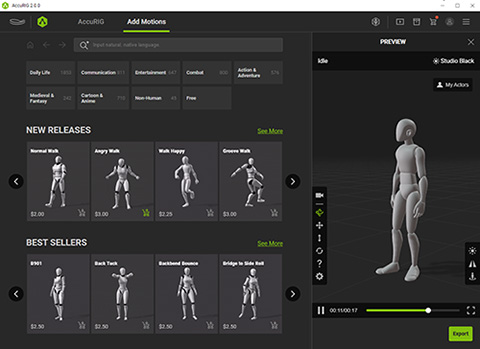
The preview window is conveniently docked to the right of the window, making it possible to test for actor compatibility with a variety of different motions.
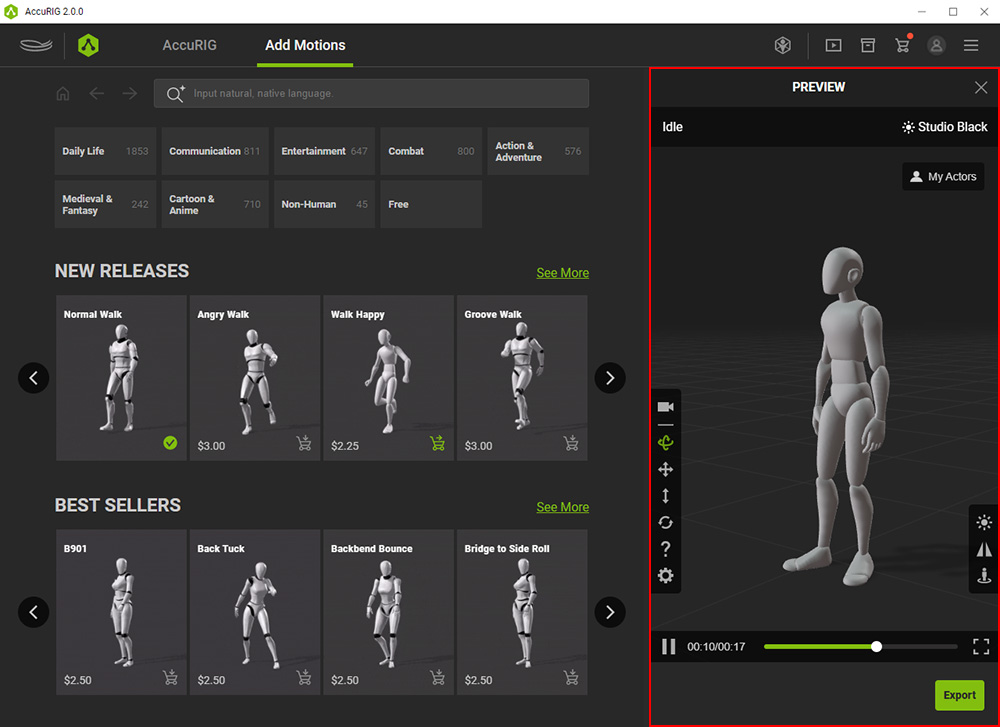
The Preview window allows you to:
- Change camera perspectives.
- Have the camera follow the actor, so you won't lose tracking of a motion with a large offset.
- Preview identical motions applied across different actors.
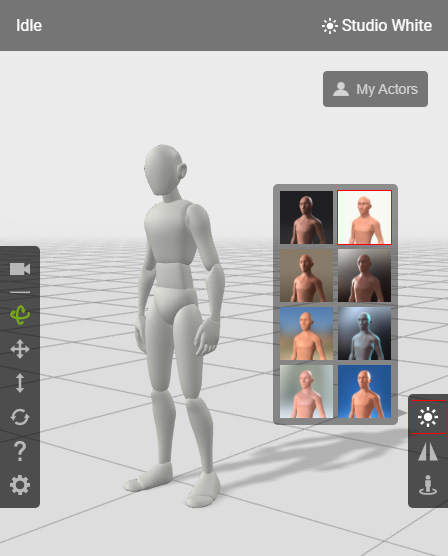
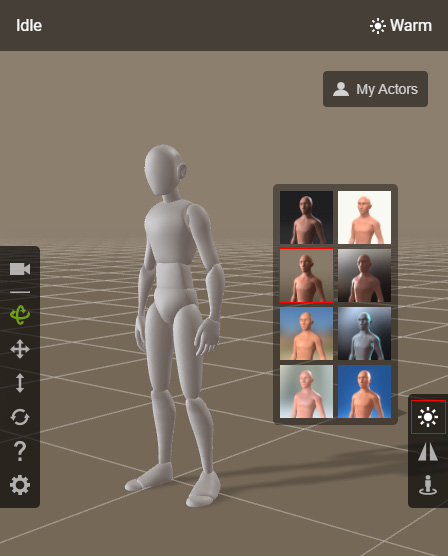
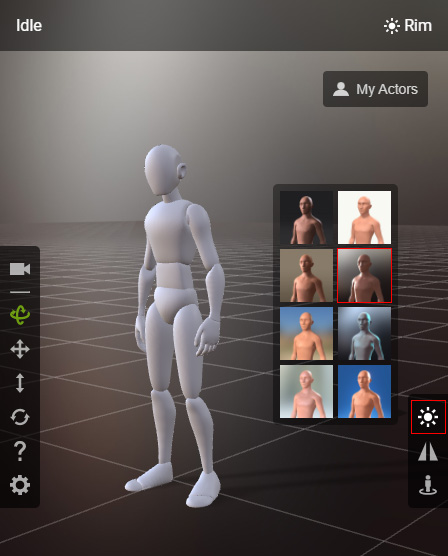
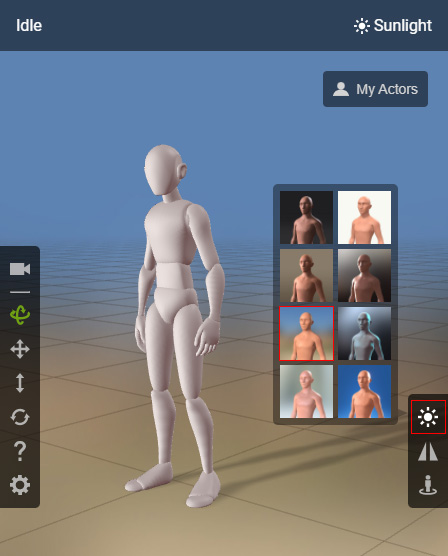
- Preview an actor with motion performed in different lighting conditions.
- Mirror the actor's motion or have it move in place to check for symmetry and rigging conditions.
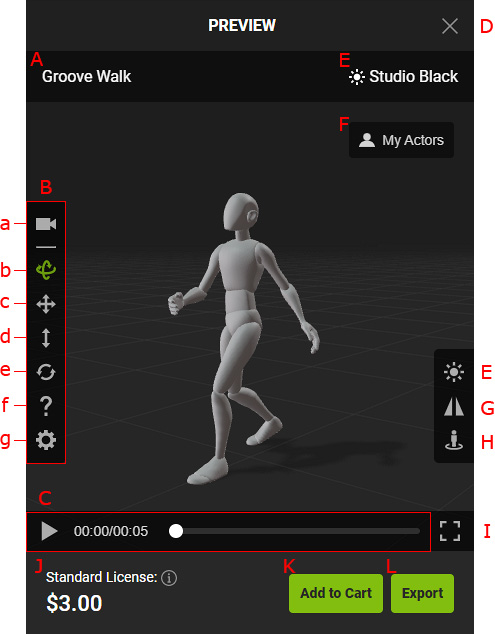
-
 Source Motion
Indicates the motion you are previewing for the character. You can click on the motion name to visit the product page on ActorCore.
-
Camera Manipulation and Preview Settings
You can change the camera perspective using the tool near the bottom-left corner of the preview window.
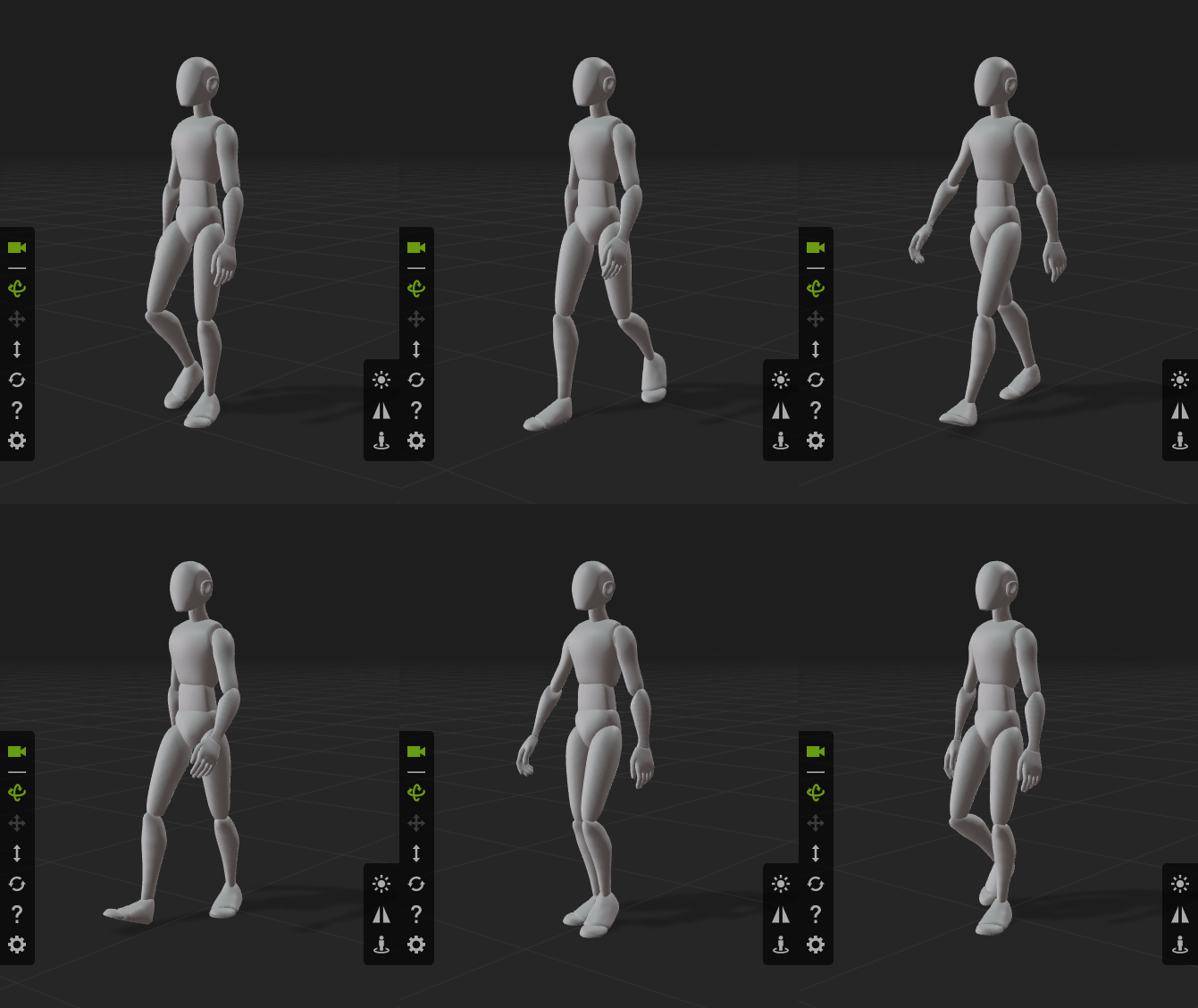
- Follow Camera: Toggles the camera tracking as the actor performs the motion.
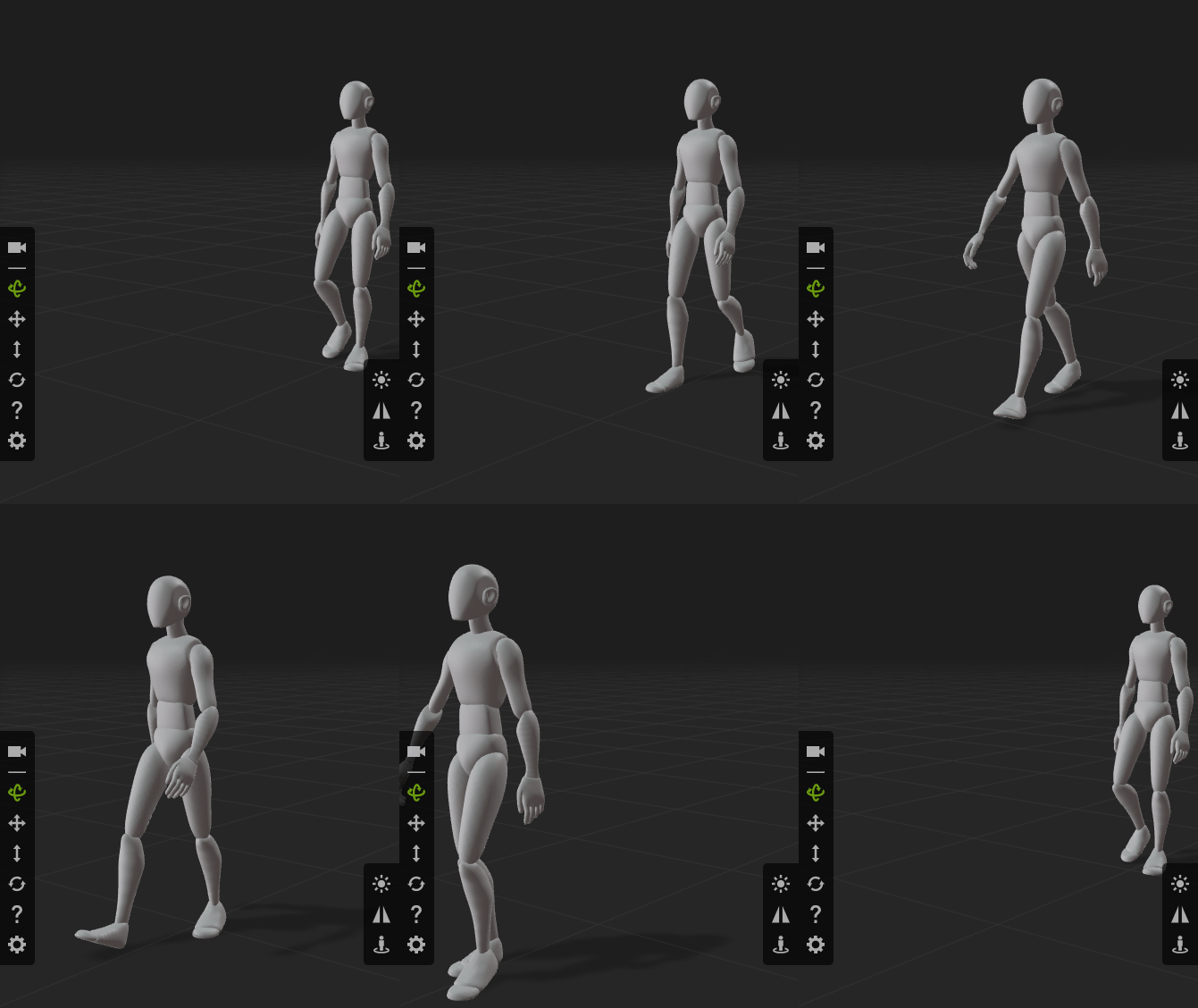
Follow Camera is toggled off (default).
Follow Camera is toggled on.
- Rotate (Mouse Drag): Drag with left mouse button to orbit the camera around the center of the viewport.
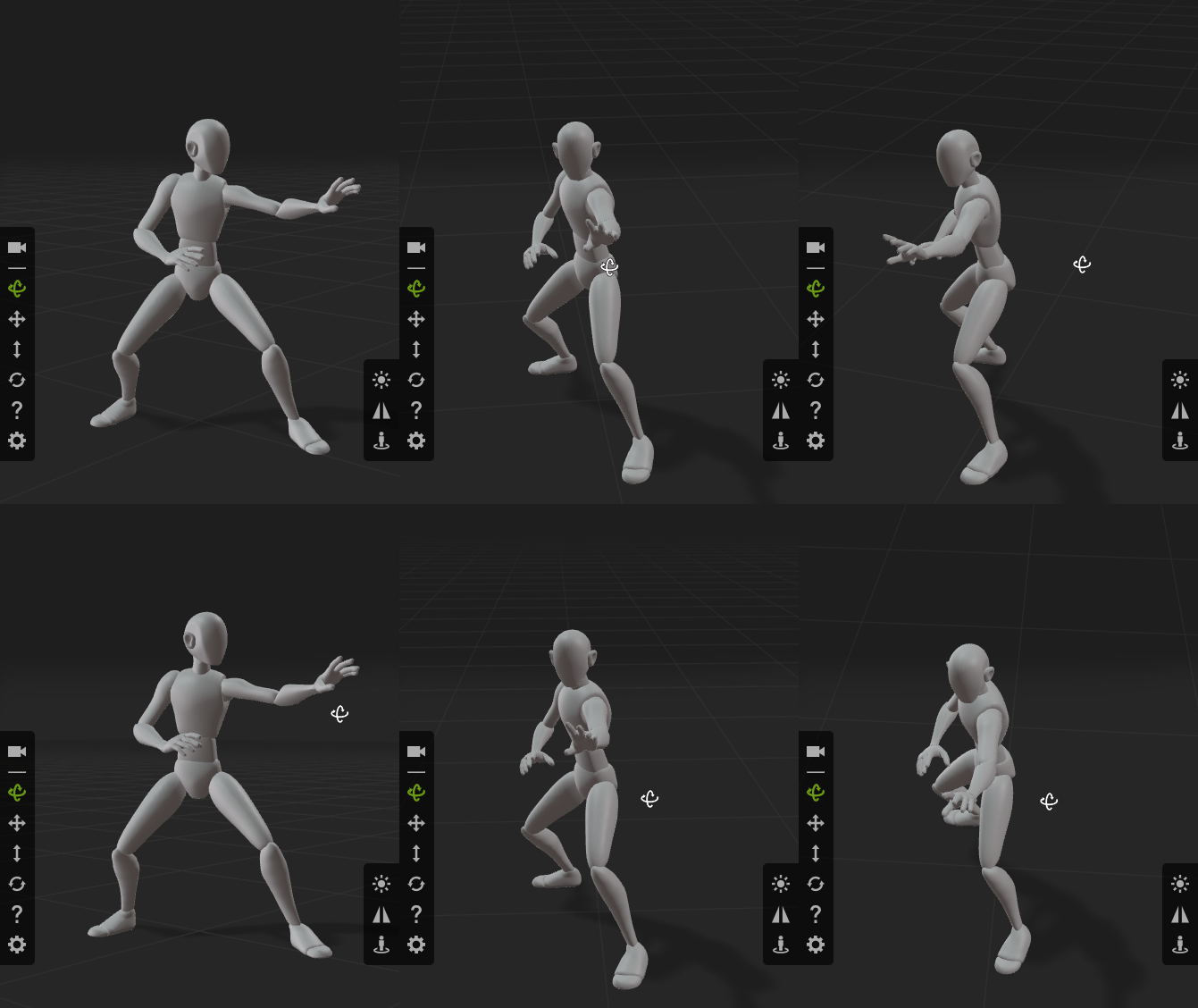
You can also:- Drag with right mouse button to pan the camera.
- While holding the Alt key, drag with the left mouse button to pan the camera.
- Roll the mouse wheel (or drag with the wheel pressed) to zoom.
- Pan (Right Mouse Drag): Drag with left or right mouse button to pan the camera.
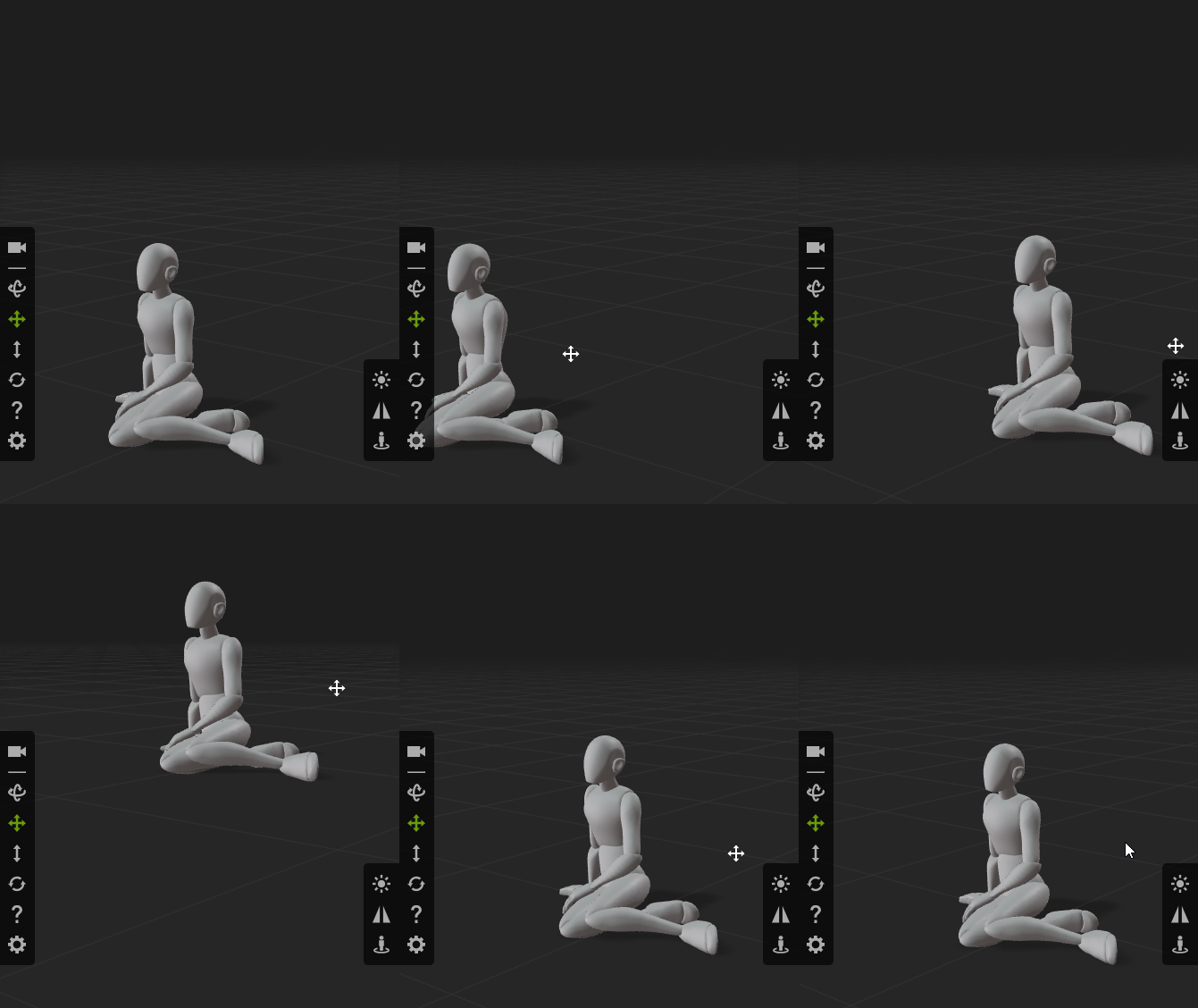
You can also:- While holding the Alt key, drag with the right mouse button to orbit the camera.
- Roll the mouse wheel (or drag with the wheel pressed) to zoom.
- Zoom (Mouse Wheel): Drag with the left mouse button or roll the mouse wheel (or drag with the wheel pressed) to zoom.
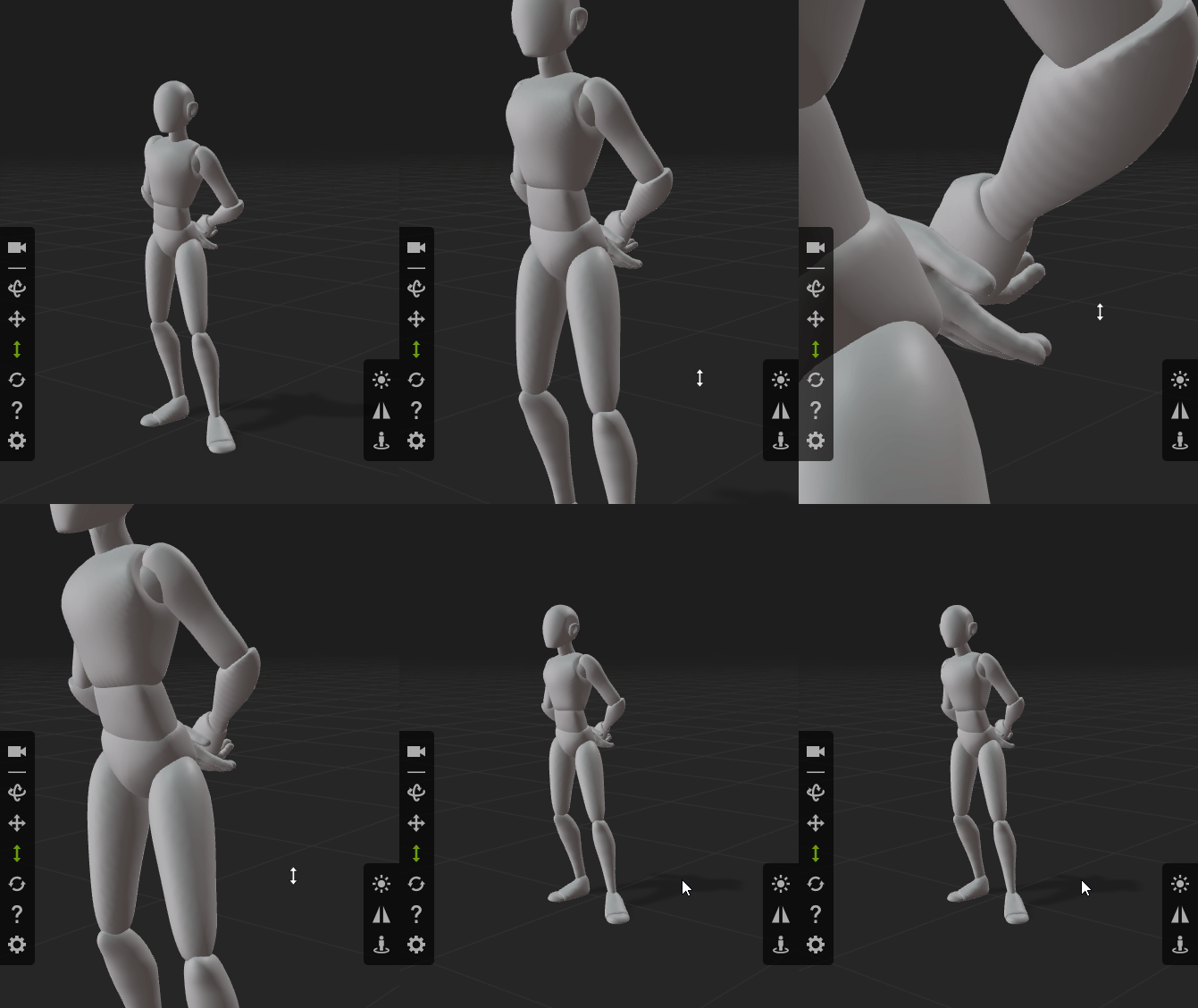
You can also:- While holding the Alt key, drag with the right mouse button to orbit the camera.
- While holding the Alt key, drag with the left mouse button to pan the camera.
- Drag with the right mouse button to pan the camera.
- Reset Camera: Click this button to reset the camera back to its original position and orientation.
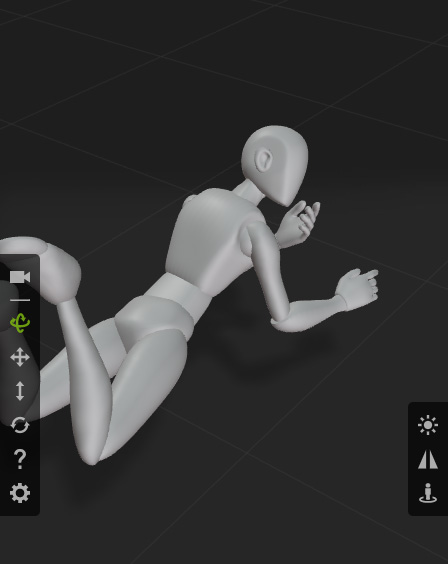
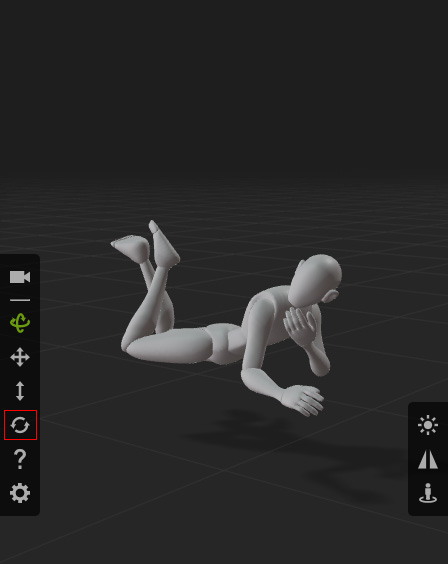
Before resetting the camera.
After resetting the camera.
- Help: Shows the on-screen instruction for manipulating the preview camera.
Click X to exit.
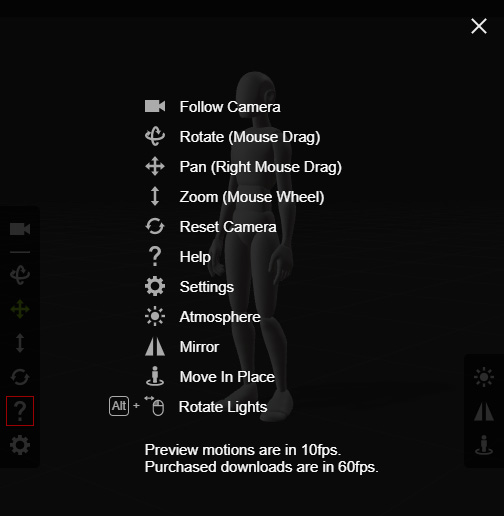
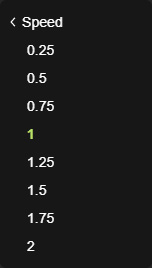
- Settings: Contains toggles for the grid, ground, and adjustment for the playback speed.
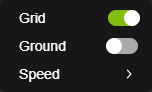
- Grid
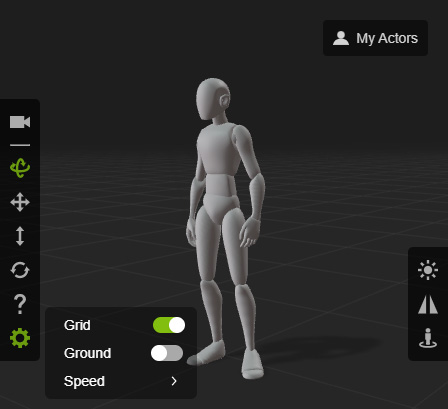
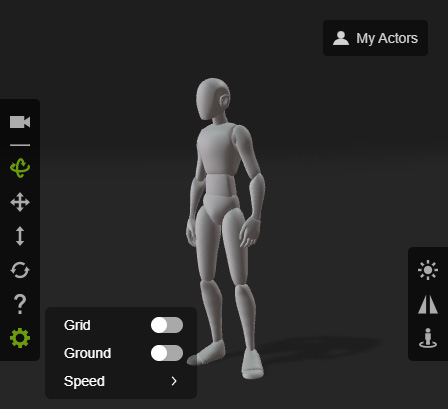
Grid is toggled on (default).
Grid is toggled off.
- Ground
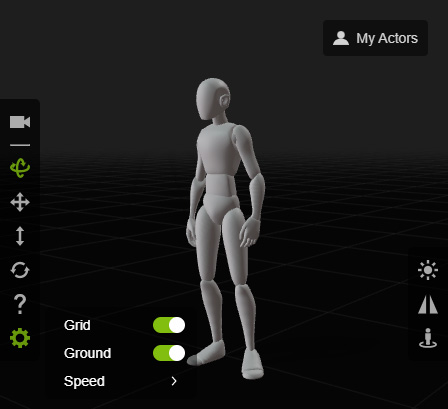
Ground visibility is toggled off (default).
Ground visibility is toggled on.
- Speed: Allows you to change the playback speed.
- Grid
- Follow Camera: Toggles the camera tracking as the actor performs the motion.
-
Play Bar
Playback or pauses the motion.
-
Close
Close the preview window. Once you select a motion from the Motion Library or Motion Inventory, the preview window will automatically appear on the right side.
-
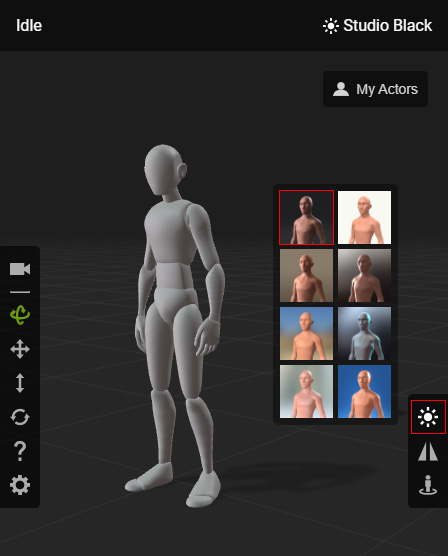
Atmosphere
Indicates the Atmosphere profile applied for the current preview. You can hover over this icon and click on different presets to change atmospheres.
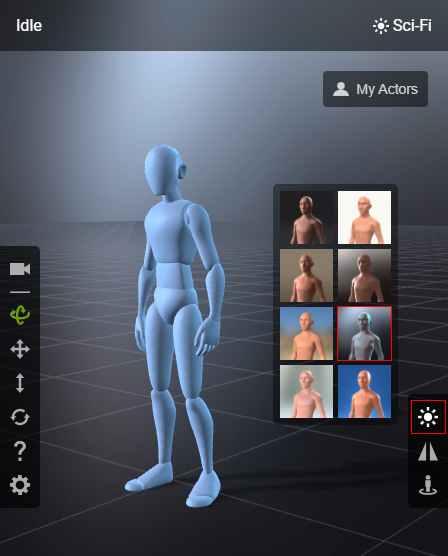
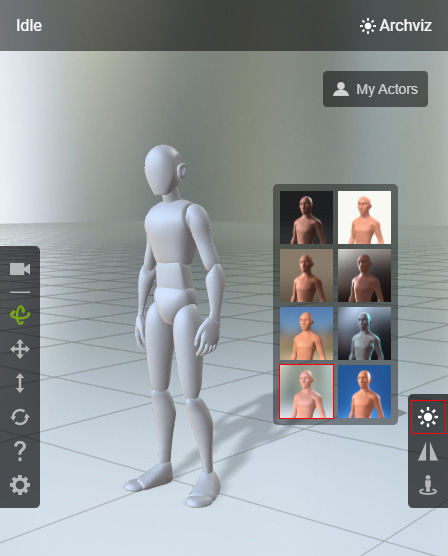
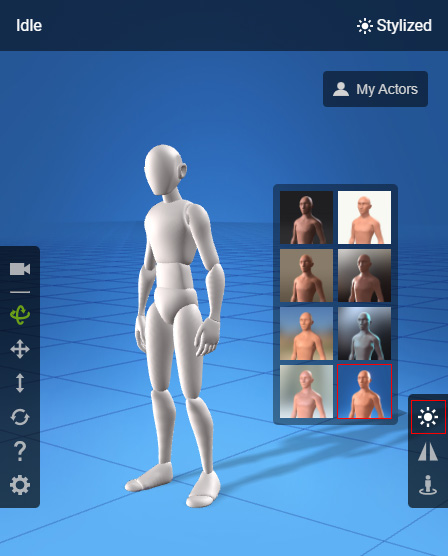
-
My Actors
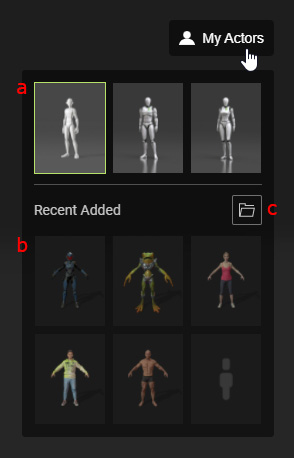
Hover over the text and choose different actors to inspect their rigging with different motions. Before applying motions, the selected actor will be standing idle.- The embedded test characters include a neutral (default), male, and female dummy.
- Prior rigged characters are displayed in the Recent Added list. The list is limited to 6 characters with the most recent shown in front.
- You can manage the recently rigged model files by clicking the folder icon to open the following directory:
C:\Users\[username]\AppData\Local\Reallusion\ActorCore AccuRIG\File History
-
Mirror
Laterally mirrors the motion of your actor. For more information, read about the Mirroring Motion feature for the Calibrate step.
-
Move in Place
Fixes the character onto the origin so it is prevented from moving out of frame while in motion. For more information, read about the Moving in Place feature for the Calibrate step.
-
Full Screen
Toggles full screen to expand the preview window to cover the whole screen.
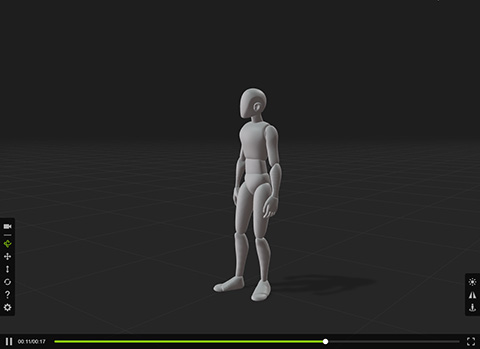
Full Screen is toggled off (default).
Full Screen is toggled on.
-
Item Price
Displays the Standard License (Export Enabled) pricing for the selected item.
-
Add to Cart | Go to checkout
This button is subject to change under different conditions.
- Click the Add to Cart button to add interested items to your shopping cart on ActorCore.
- For items already added in the cart, the button will change to Go to checkout. You can click on it to view your shopping cart on ActorCore to finalize the purchase.
- This button will not appear for purchased items.
-
Export
Exports your character and/or motion to third-party pipelines.
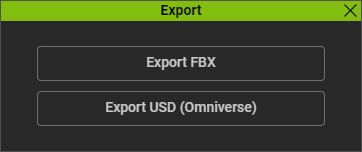
- Export FBX: Used for workflows and pipelines pertaining to Unreal, Unity, Blender, Maya, Cinema 4D, Motion Builder, and 3ds Max.
- Export USD: Used for Omniverse workflows and pipelines.
