Exporting
Once the rigging process is complete in AccuRIG, you can export the fully rigged character to a third-party platform at any time.
- Start the process to rig your character.
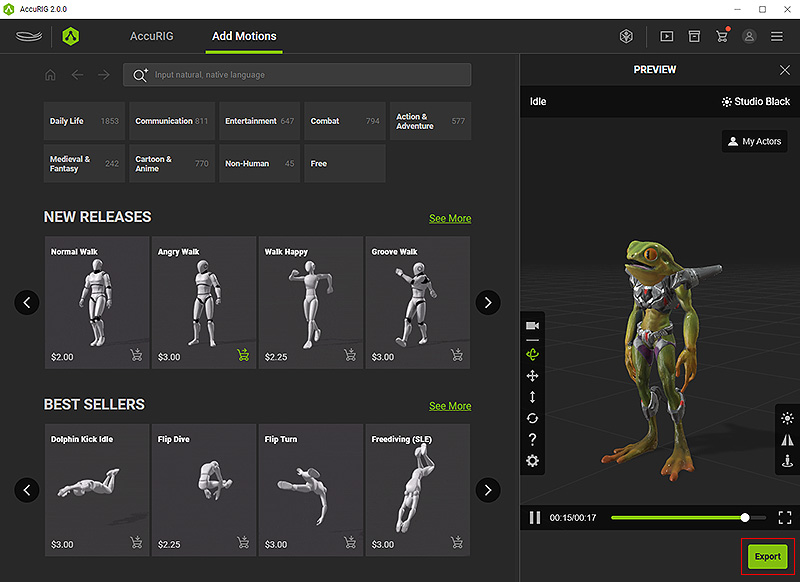
After calibration, enter the final step, Add Motions by clicking on the namesake button on any one of the locations highlighted below.
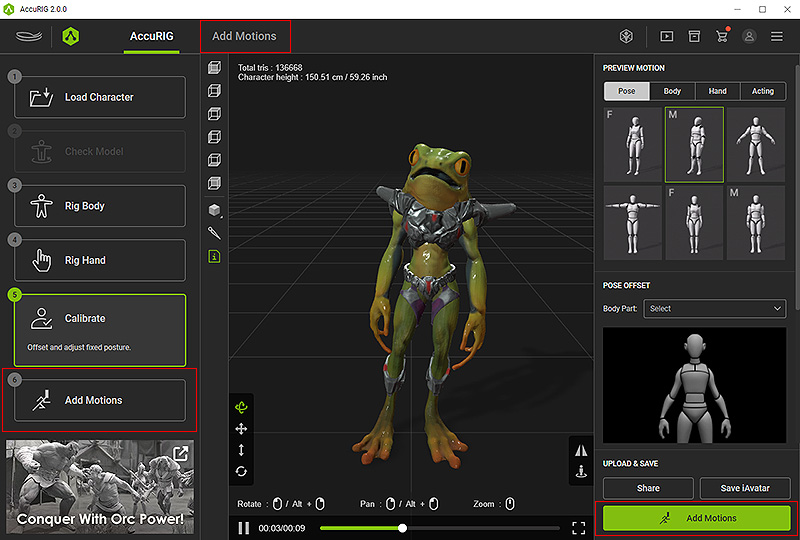
- Under the Add Motions tab, click the Export button on the bottom-right corner.
- Choose an output format in FBX or USD.
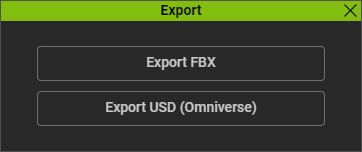
- Export FBX: The workflow or pipeline pertaining to Unreal, Unity, Blender, Maya, Cinema 4D, Motion Builder, and 3ds Max.
- Export USD: For Omniverse workflow or pipeline.
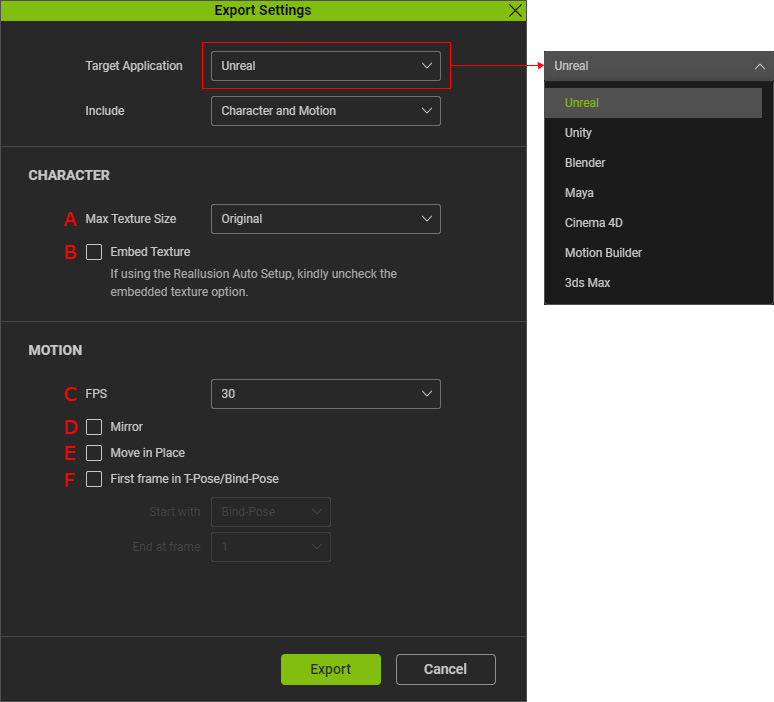
- The Export Settings panel will appear.
If you are going to export FBX, specify the target pipeline from the Target Application drop-down list.
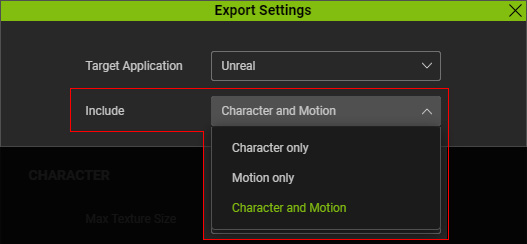
- Choose which content to export.
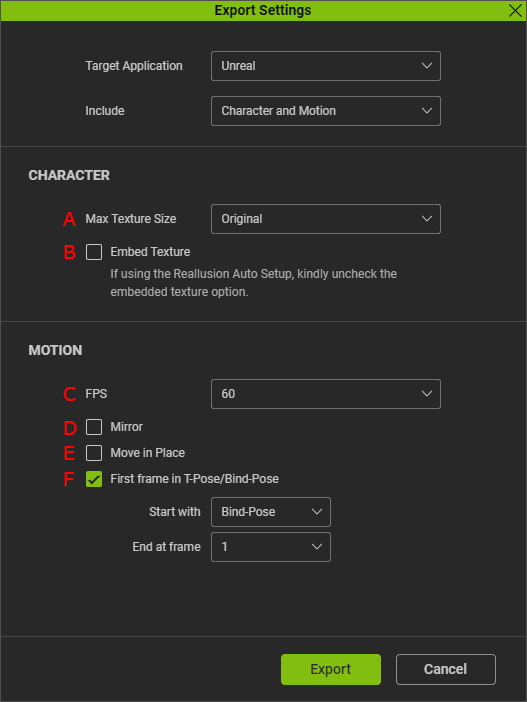
You can only export the character, the motion, or both character and motion using the options within the Include drop-down list.
- Depending on what you are exporting, configure the following settings shown on the interface.
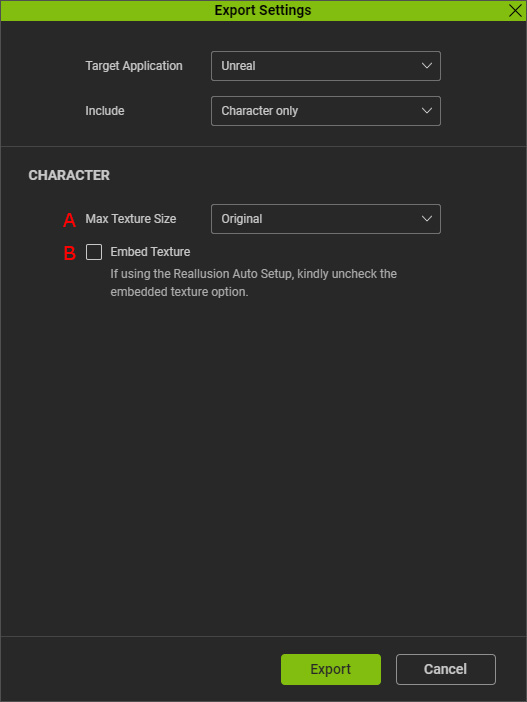
- If the export includes the model, determine the texture size and whether to embed texture on the model.
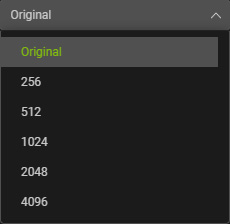
 Max Texture Size
Decide the maximum allowable texture size applied to 3D objects from the drop-down list (from original size to 4,096). When choosing a texture size higher than the one loaded in the program, the output texture size will maintain its initial size.
- Embed Texture
- Enable the checkbox to embed textures in FBX file.
- Uncheck the option in order to export textures to separate folders, especially when you wish to transfer with the use of Reallusion Auto Setup for Unreal, Unity, and Blender.
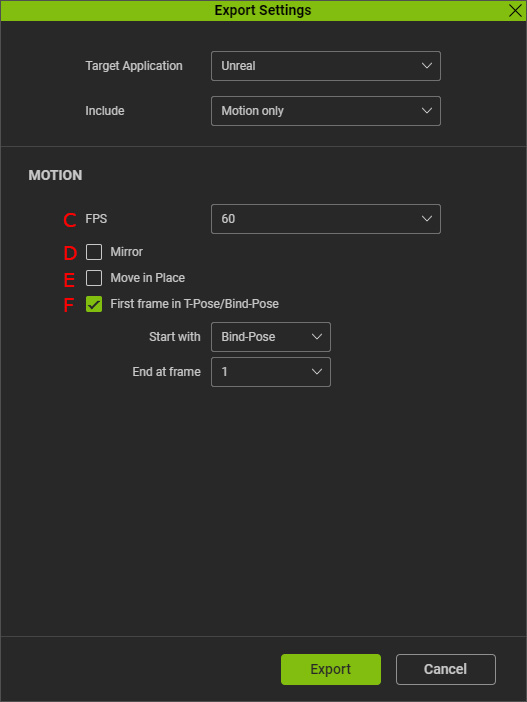
- If the export includes the motion, choose the FPS, decide whether to mirror the motion, whether to fix the character to the origin, and set the initial pose for the character.
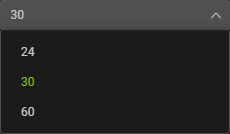
- FPS
Sets the frames per second for the export motions.
- Mirror
Activate this checkbox to laterally mirror the motion for the character.
- Move in Place
Enable this checkbox to keep the character in place when performing the motion.
- First frame in T-Pose/Bind-Pose
Check this option to set the initial pose used for the first frame, and the lasting time frames for the pose.
- After configuring the export settings, click the Export button on the bottom of the panel.
Now you can load the export data to the third-party platform for your project.
* The Reallusion Auto Setup plug-in is highly recommended to streamline the import process. Refer to the step-by-step guide for your target platform: