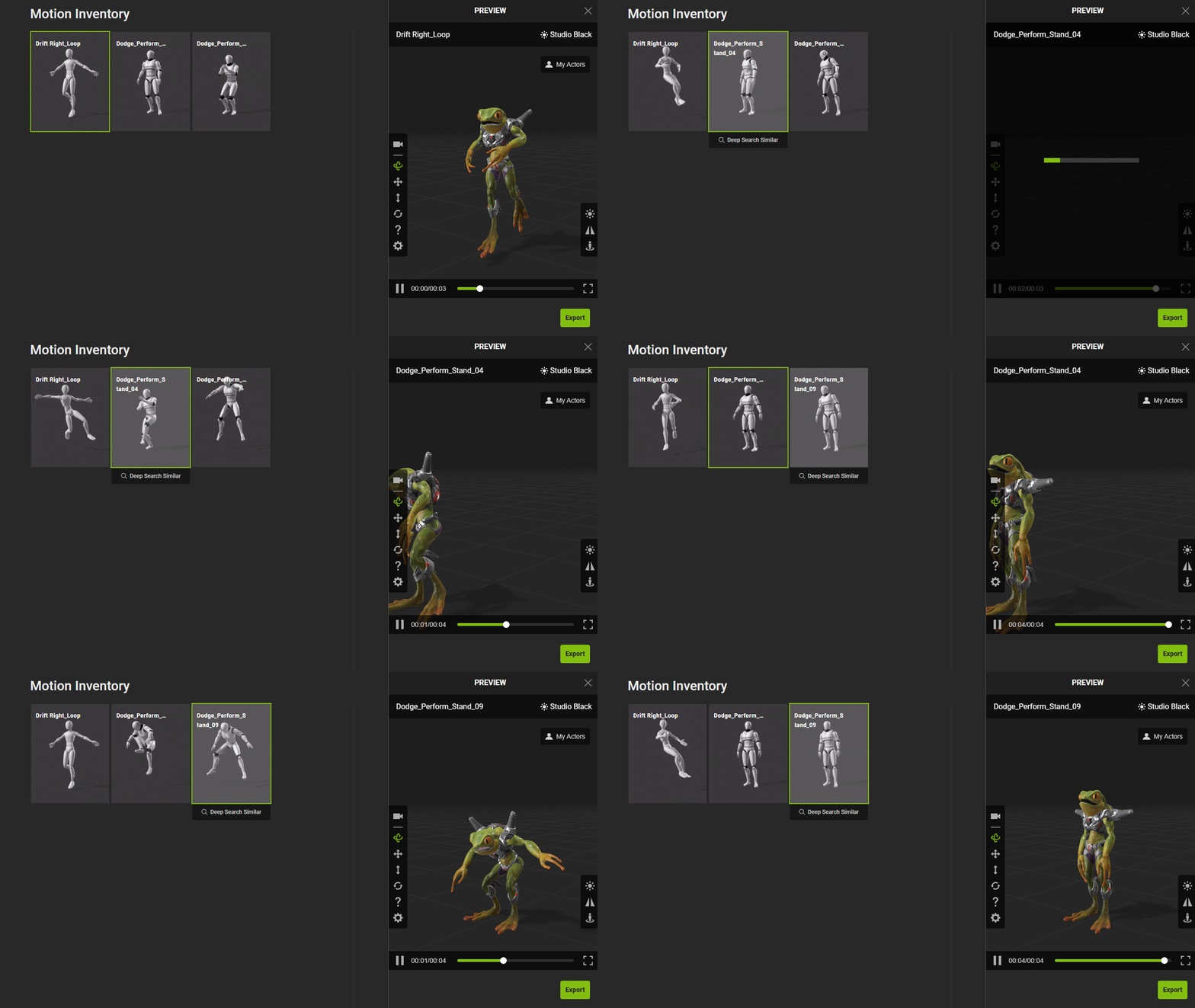
Purchasing Motions
After exploring and applying ActorCore motions on rigged characters, you can purchase additional motions for further integration and post production in the third-party platforms.
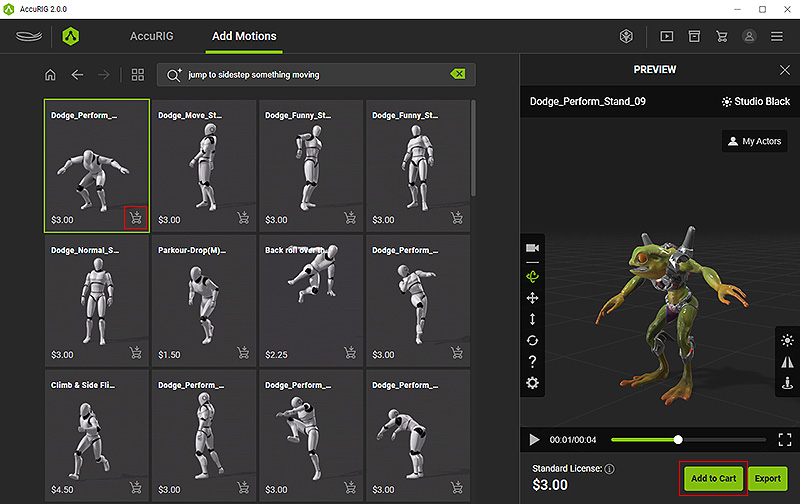
- Add the desired items to your shopping cart by clicking on the cart icon on the bottom-right corner of the thumbnail, or clicking the Add to Cart button below the preview window.
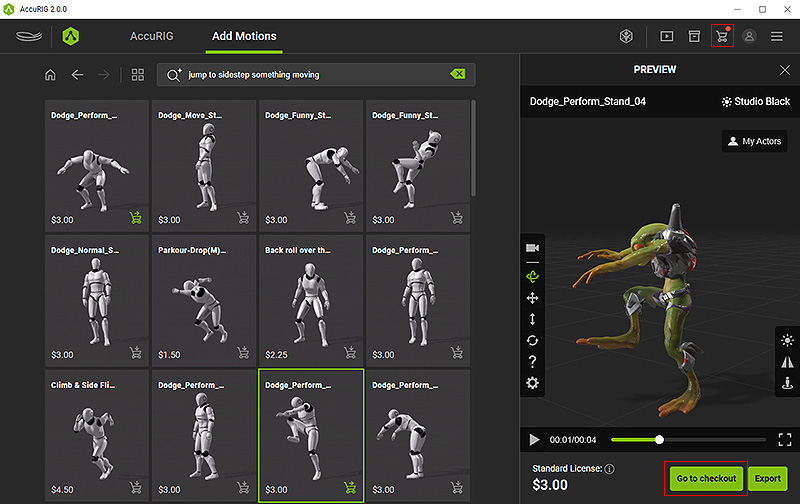
- Click the Go to checkout button below the preview window, or click the cart button on the top menu bar to visit the online shopping cart on ActorCore.
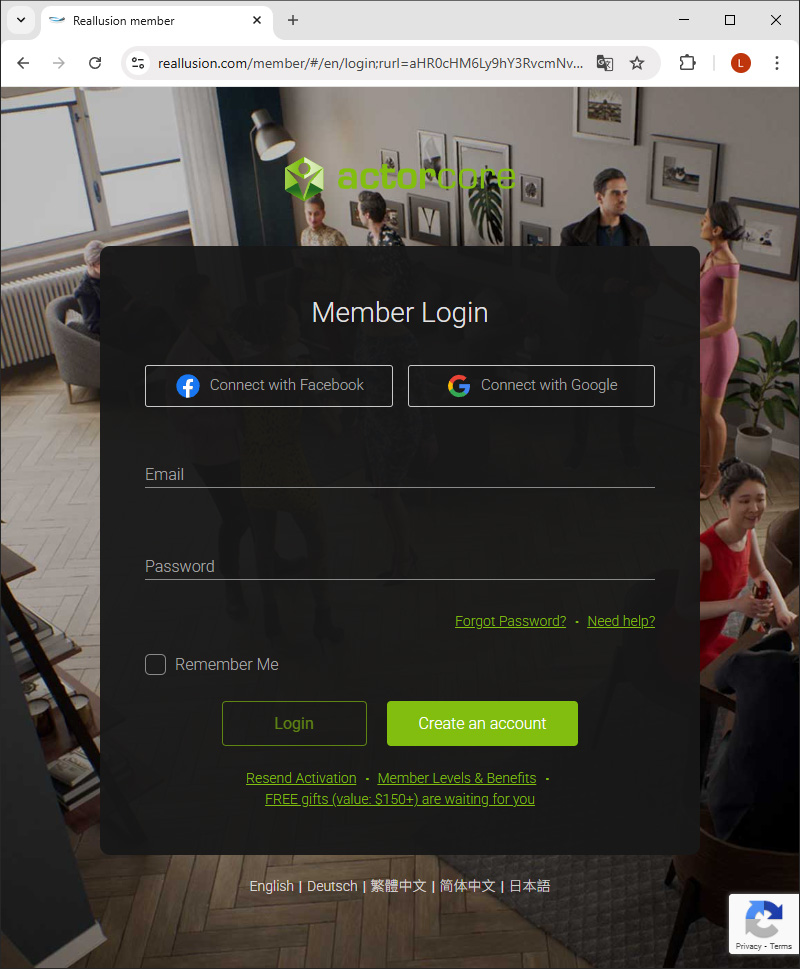
- Log in the ActorCore online store with the same sign-in account.
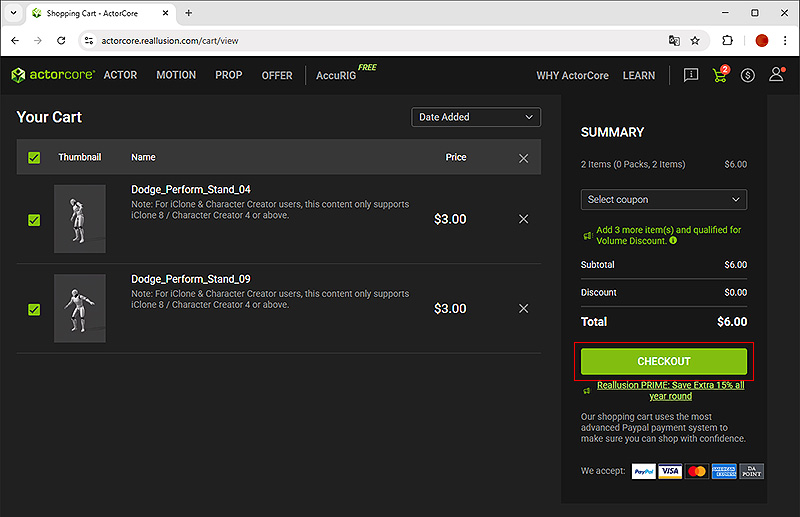
- You will be led to the online shopping cart page.
Check the added items in your cart, and click the Checkout button to continue.
- Determine to use DA Points, Credit Card, or PayPal for checking out and fill in your billing information.
Click the Continue button.
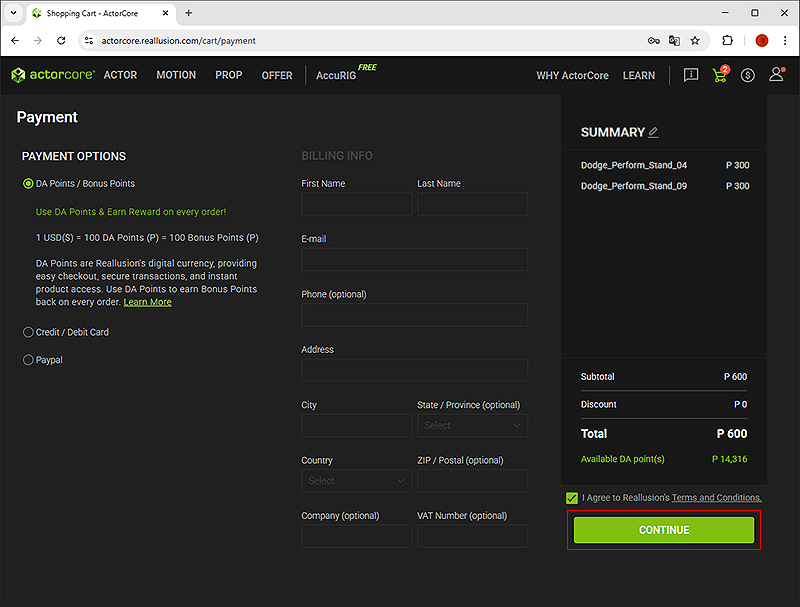
* The DA Points is highly recommended for the following benefits:- DA Points do not have expiration dates.
- DA Points can be used across all Reallusion online stores, including the Software Store.
- DA Points are fast and convenient for small transactions.
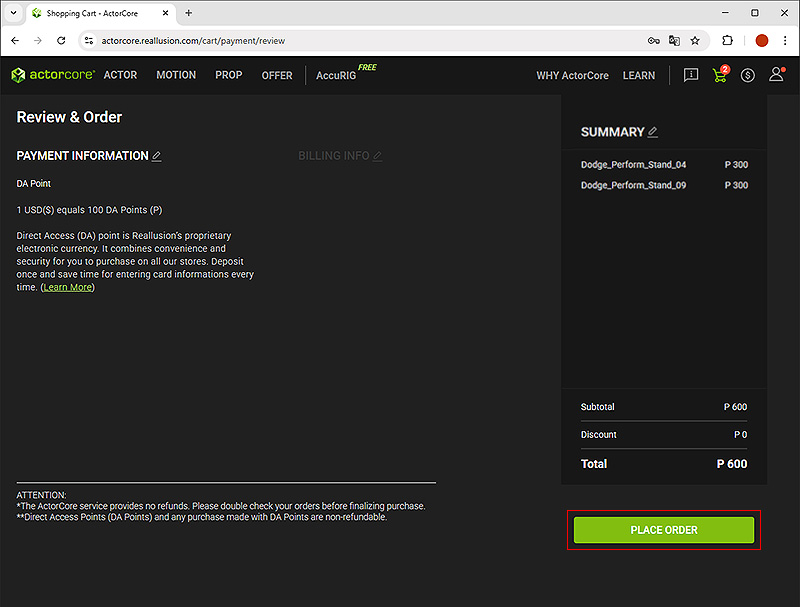
- Click the Place Order button on the ensuing page to confirm.
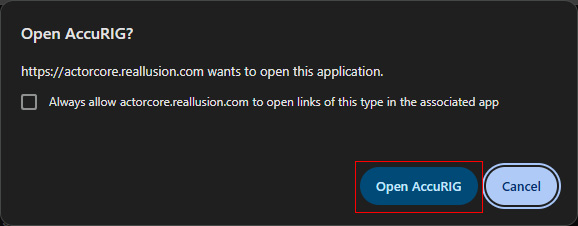
- After completing your payment, a dialog window will appear.
Click Open AccuRIG to refresh the page in AccuRIG.
- Newly purchased motions will be marked with green checkmarks indicating that they are ready for export.
You can click the Motion Inventory button on the top menu bar to view all the assets you've purchased.
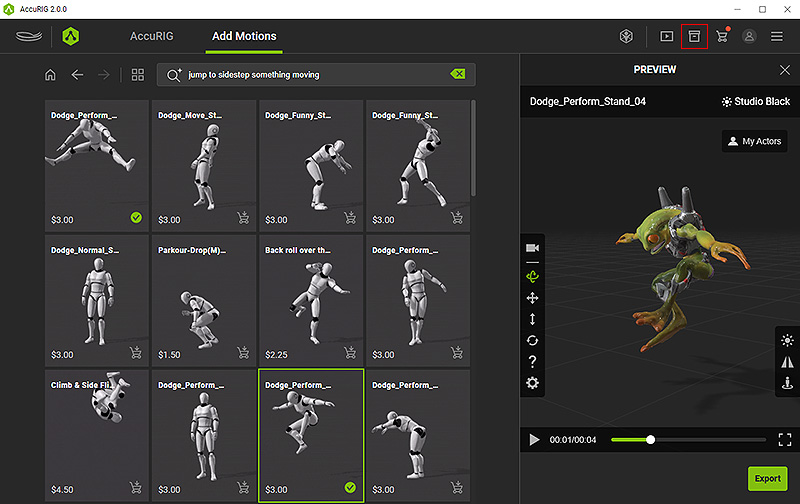
- Click on the item thumbnails to review any of these motions.
Items in the Motion Inventory are export-ready to the third-party pipelines.