Capturing Thumbnails for Mixer Presets
By default, when Mixer Presets are generated, their thumbnails are captured from the current viewport view. As a result, Custom Presets for different parts may look identical in the Content Manager when viewed only by thumbnail. However, with the Capture Thumbnail feature, you can create custom thumbnails based on the type of preset, making it easy to recognize which part each Preset belongs to without needing to check its name.
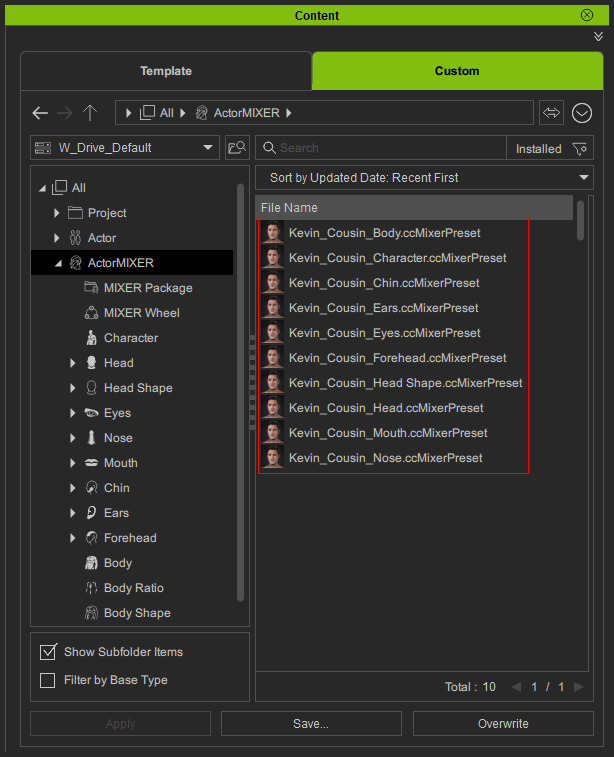
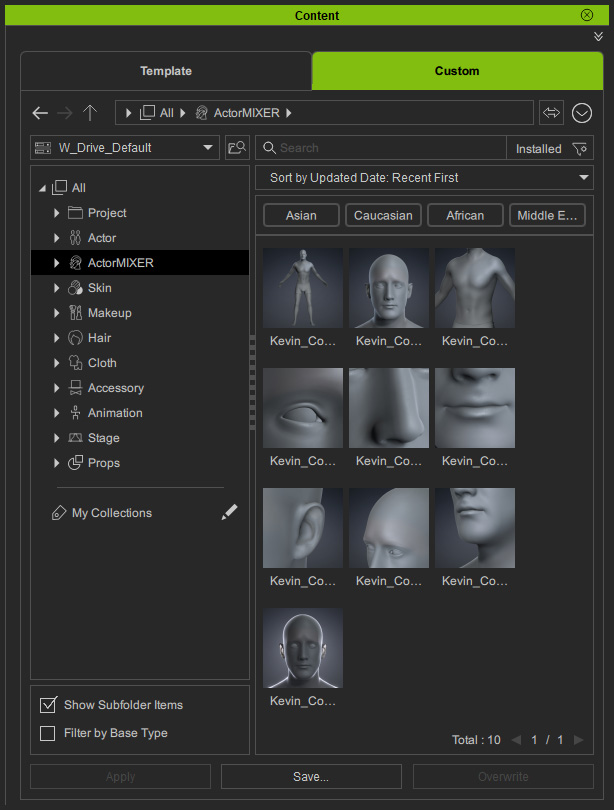
- Create custom Mixer Presets and access the Custom > ActorMIXER category in Content Manager. As you can see the thumbnails are totally identical.
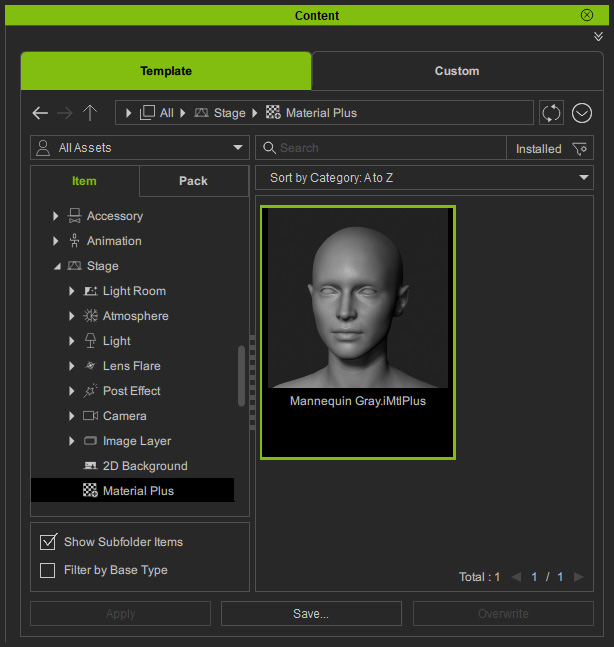
- Optionally apply the Mannequin Gray.iMtlPlus from Content Manager.
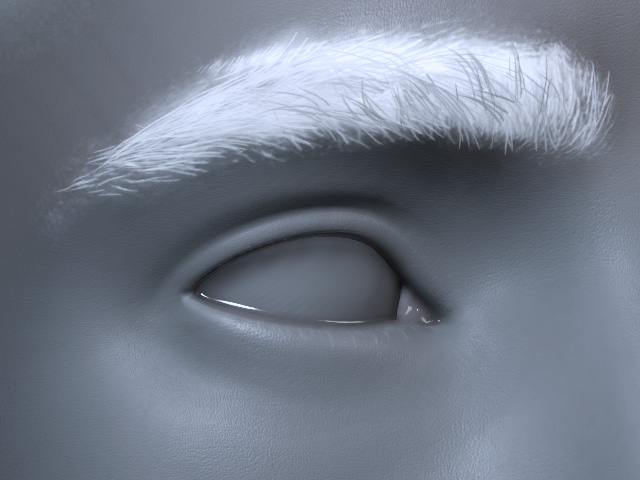
- Change the camera view of the viewport.
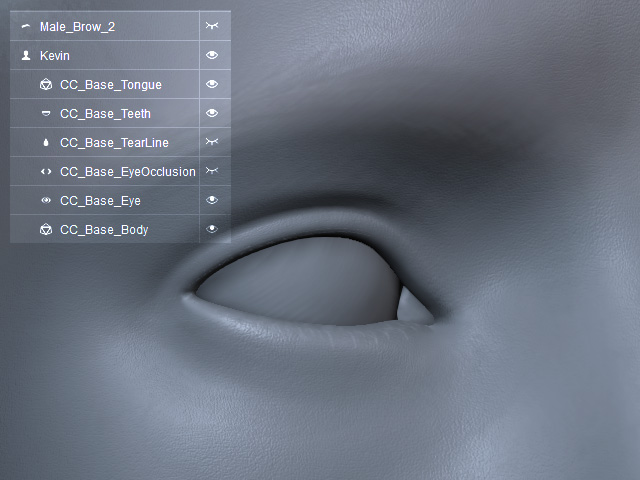
- Hide the unnecessary part (brows, tearlines, eye occlusions, in this case) from the Scene Manager.
- Right-click on the custom Mixer Preset that represents the part, choose the Capture Thumbnail command.
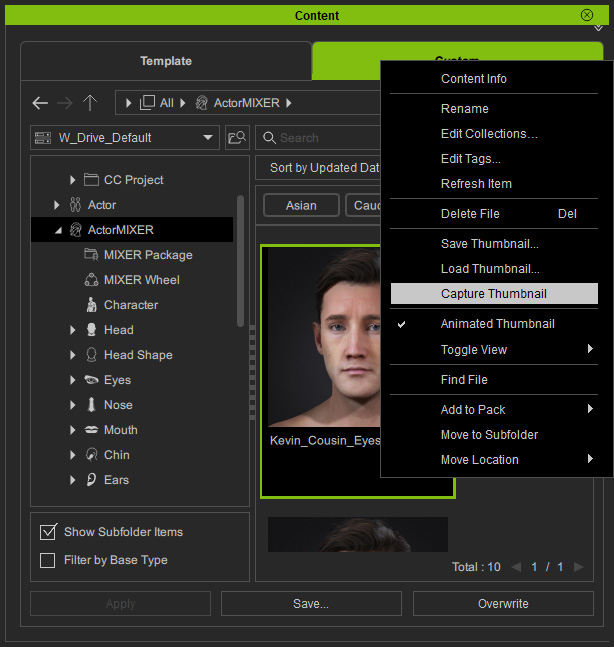
The thumbnail will be changed to the viewport view.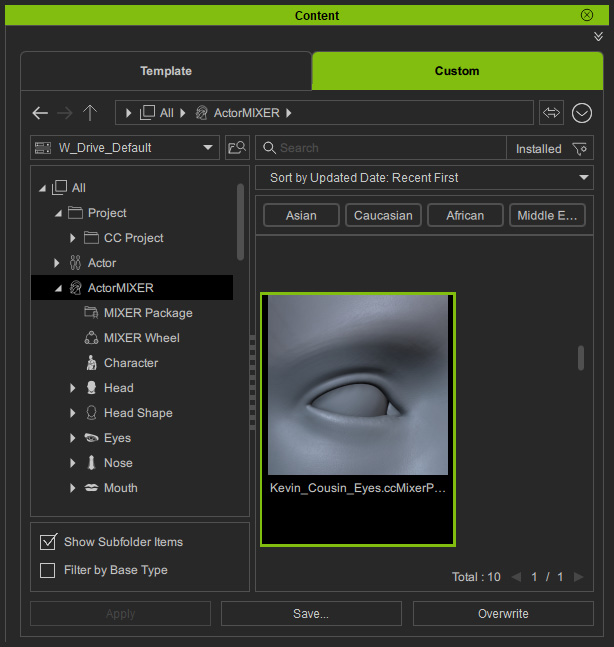
You can optionally save the camera view to the Content Manager > Camera library for future use.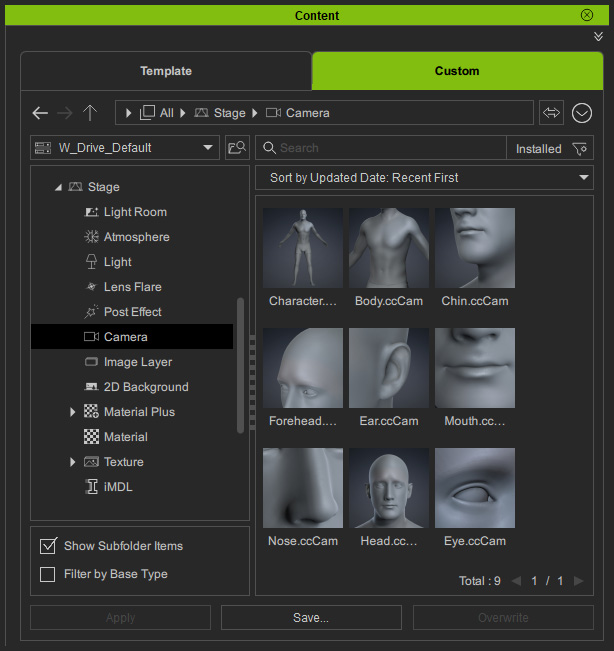
- Repeat the same steps for the rest of the presets.
- Launch ActorMIXER PRO. Switch to either wheel page.
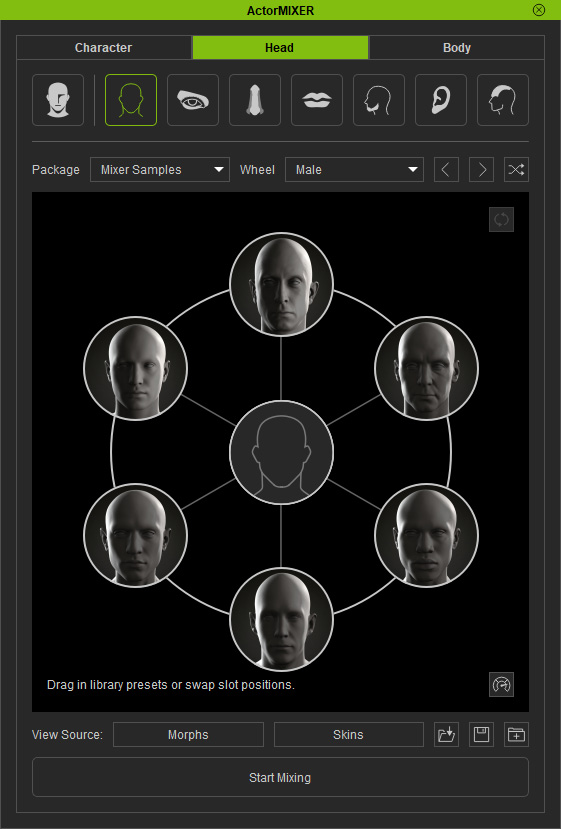
- Drag and drop the custom ActorMIXER Preset from the Content Manager.
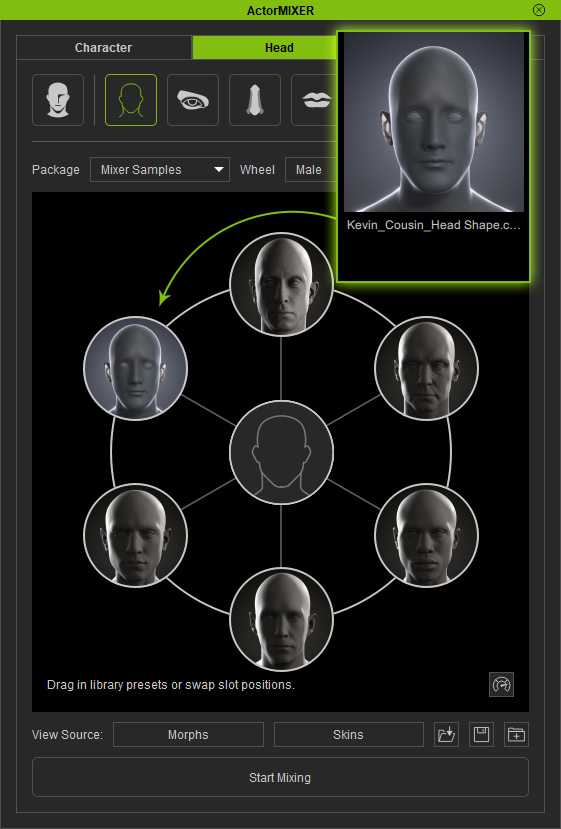
You will see that the target’s thumbnail is the same as the preset’s.
