Creating Custom Mixer Presets
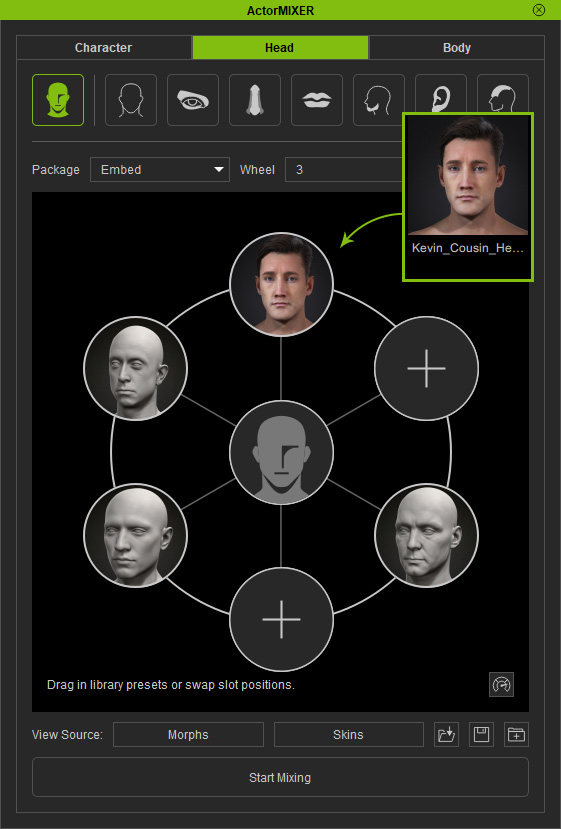
In ActorMIXER Pro plugin system, each character can not only be the base character for being blended or transformed, but also be converted to Mixer Presets as the target for morphing any other characters. Follow the following steps to convert the current character to a Mixer Preset.
Click the Create Mixer Assets button to convert your character into a mixer-ready asset. The system will generate mixer gallery items, facial and body mixer sliders, and skin materials for easy texture swapping.
- Create a character.
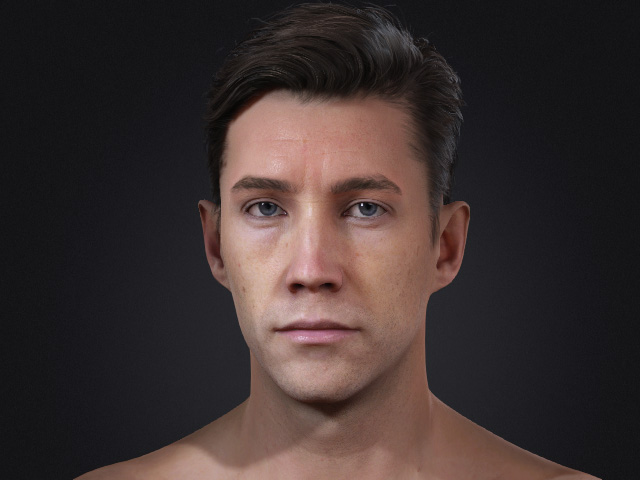
You can use either types of sliders to modify the shape of the character.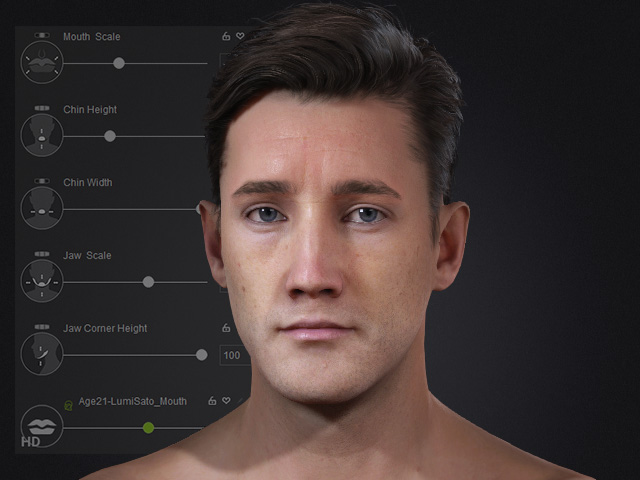
- Set the subdivision levels of the character (0, 1 or 2) to determine the type of the created mixer slider. Different subdivision level can create different type of mixer sliders.
- Open the Create Mixer Assets panel.
- In the Create Mixer Assets panel, type in the name and the path for the custom slider.
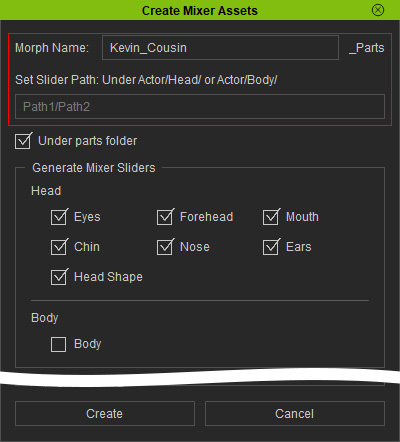
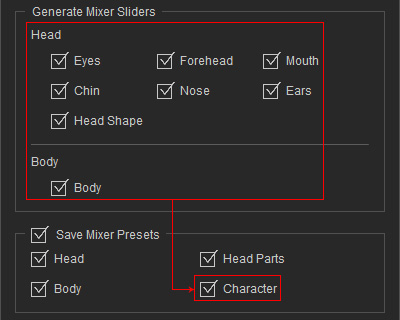
You can check Under parts folder to place the generated Mixer Slider into the appropriate location for easier access later. - Activate the part checkboxes in the Generate Mixer Sliders group. In this case, only the Head parts.
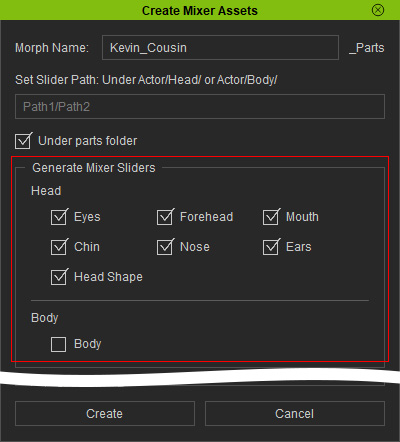
** This step ensures the character can be fully transformed in the ActorMIXER Mixing mode. - Activate the checkboxes of the presets you want to create.
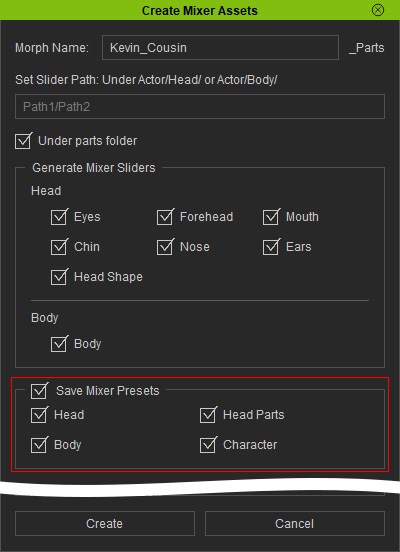
- This section converts the character into specified Mixer Presets so it can be used as a Target of a mixer wheel.
- Head and Head Parts: At least one of the checkboxes in the Generate Mixer Sliders > Head sub-group is activated to enable these two controls.
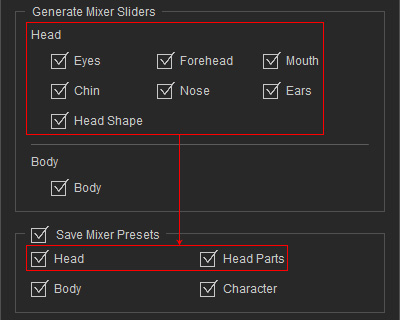
- Body: The Body in the Generate Mixer Sliders > Body sub-group must be activated to enable this control.
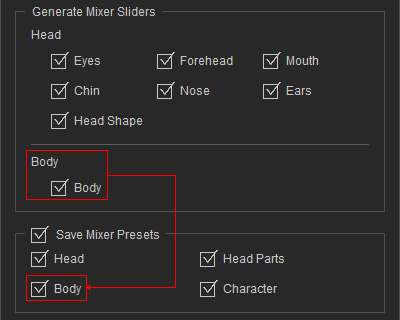
- Character: At least one of the checkboxes in the Generate Mixer Sliders group is activated to enable this control.
- Click the Create button.
- System will dissect the character into different parts controlled by the generated Mixer Sliders, you can then find the mixer sliders according to the settings.
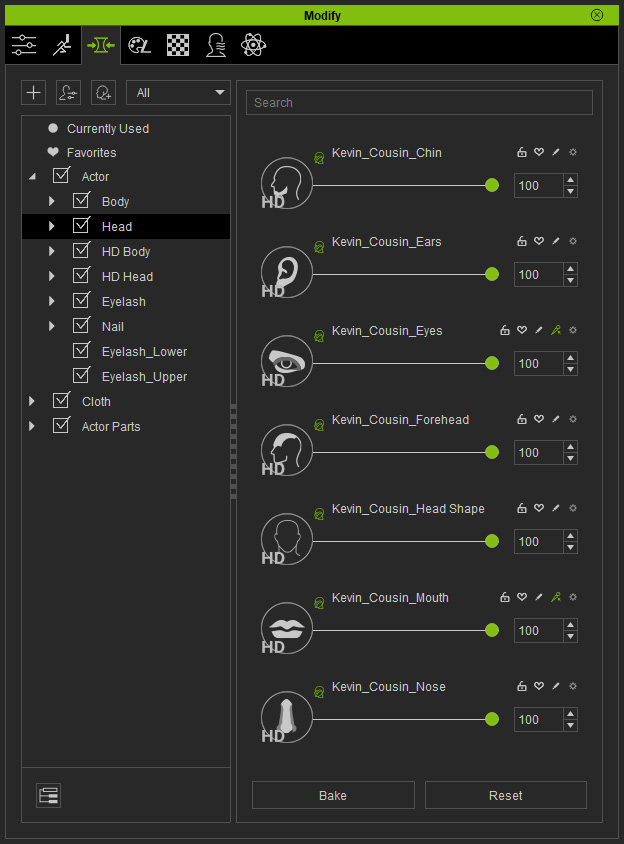
You can click the gear button next to the slider and select Find File to locate the actual file.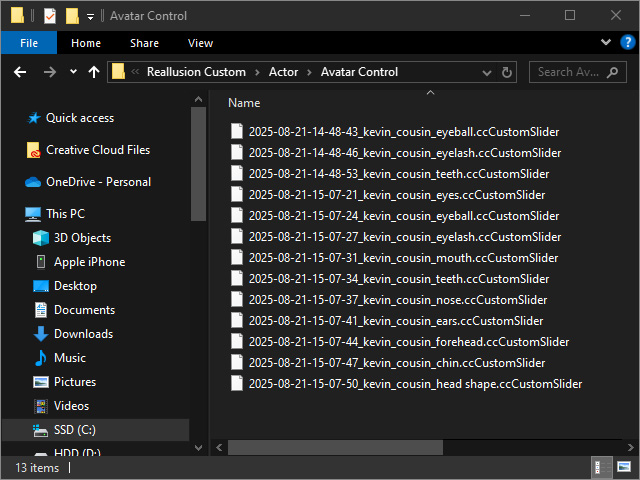
- The specified Mixer Presets that are composed of these Mixer Sliders can be found in the subfolders under the ActorMIXER category in the Content Manager > Custom tab page.
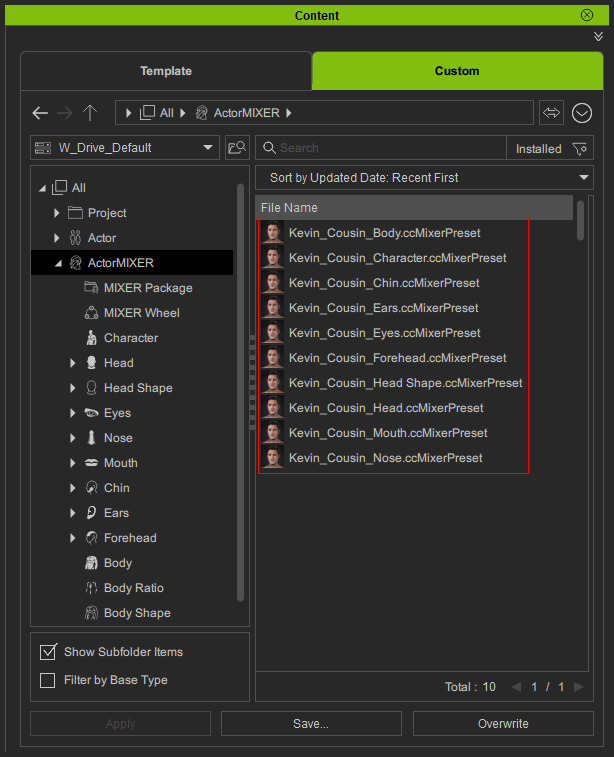
Refer to the Capturing Thumbnails for Mixer Presets section for more information. - You can freely drag and drop these presets to the targets of the wheel in the ActorMIXER panel to customize the wheel.