Customizing Mixer Wheel
In Editing mode, you can drag and drop Mixer Presets into the Wheels of the ActorMIXER panel to add or replace the Targets to customized any Mixer Wheels.
Note that you can perform this action in both ActorMIXER and ActorMIXER Pro versions.
- Create a character.
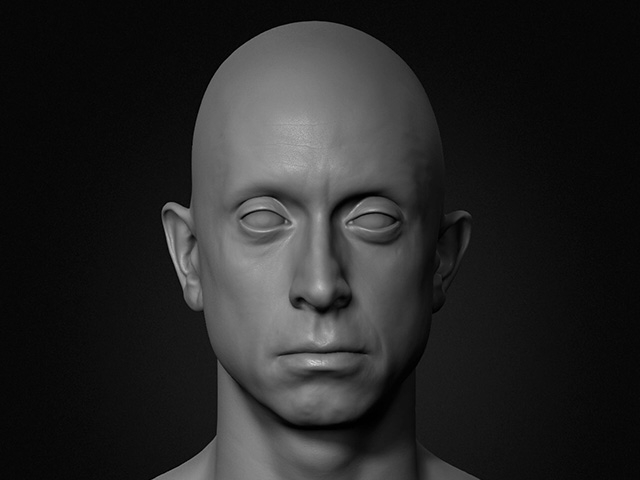
Note that if you want a complete transformation in ActorMIXER’s Mixing mode, then convert the character’s appearance entirely into Mixer Sliders (Pro version only). - Open the ActorMIXER panel.
- You can then freely drag and drop Mixer Presets related to the head from Content Manager to the targets of the wheel in the ActorMIXER panel.
** Note that each Wheel must contain at least three Targets. You cannot reduce the number of Targets to fewer than three. - Customize each wheel under the Character and Body tabs following the same steps.
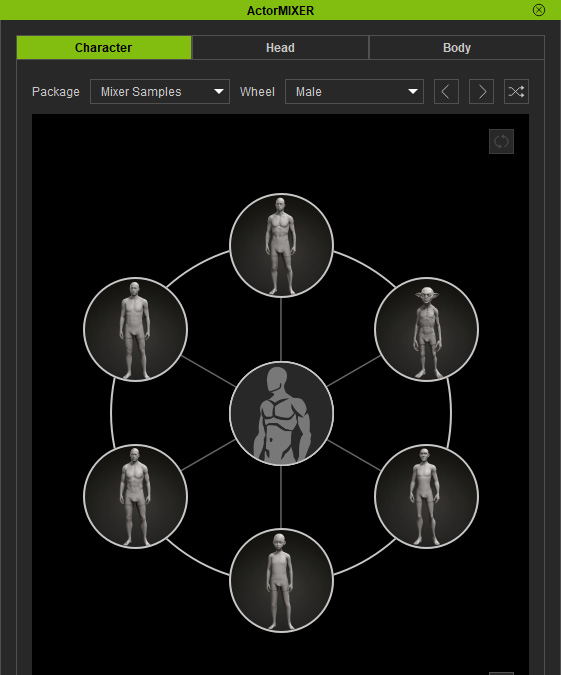
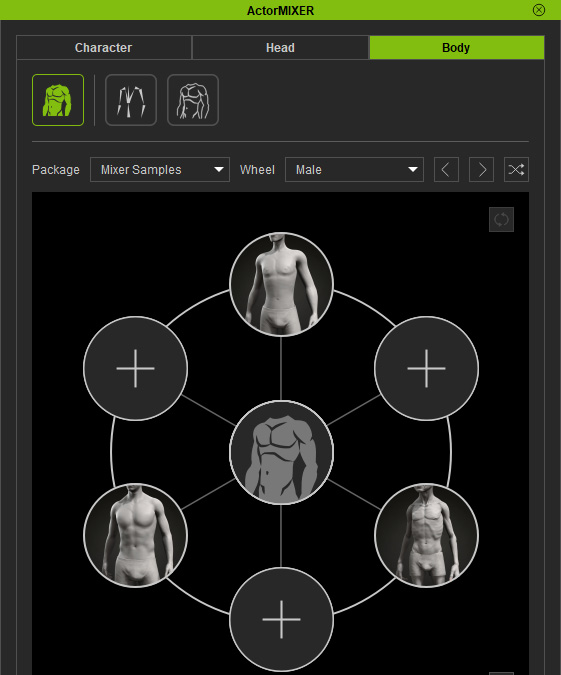
- You can edit the wheel target:
- Repositioning: Drag and drop a target to another empty target.
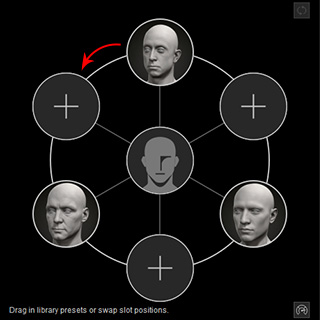
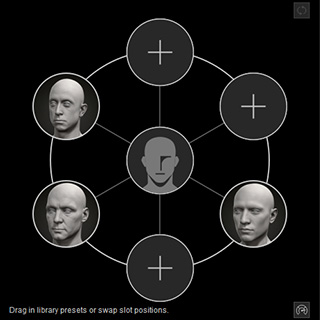
Before
After
- Swapping: Drag and drop a target to another target containing data.
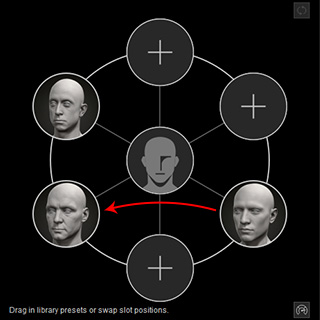
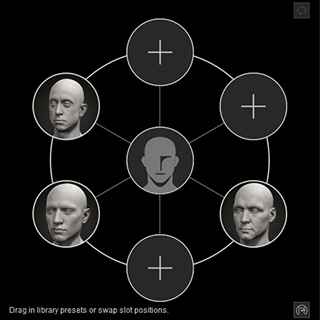
Before
After
- Right-click on a target: You can right-click on any of the target to display the context menu.
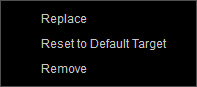
- Replace: Replaces the current target preset with a loaded one (*.ccMixerPreset).
- Reset to Default Target: Resets the target to original status.
- Remove: Removes the preset off the target.
- Repositioning: Drag and drop a target to another empty target.
- Start the Mixing mode, drag the green blend point to view the face feature morphing results.
- You can optionally open the Edit Facial panel to assign a facial expression for previewing the Mixing result during the Mixing mode.
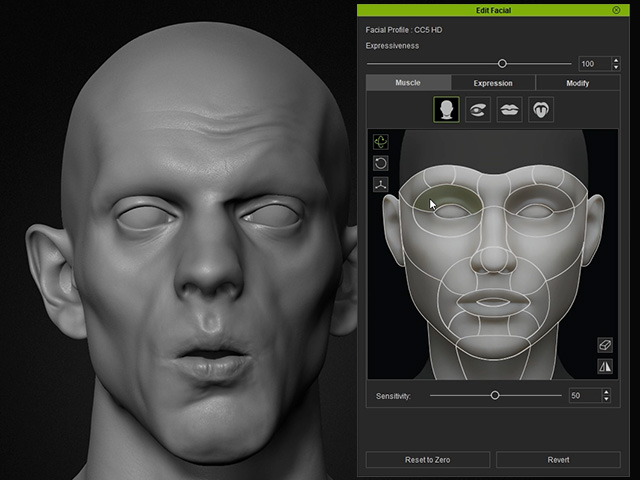
- Repeat the same steps in the Character or Body wheel page.
- You are allowed to open the Pose Editor to strike a desired pose for the character during the mixing mode.
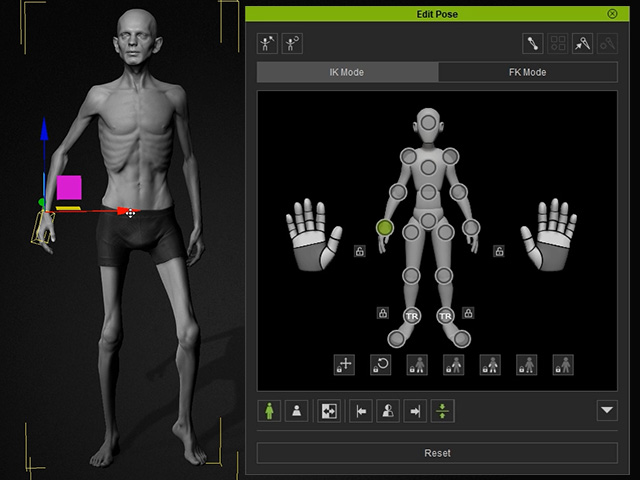
- After the mixing is done, fine-tuning the details by any other morphing sliders.
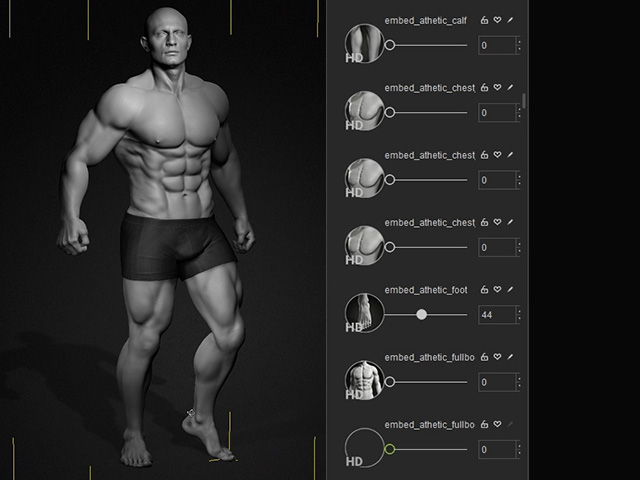
- If you want to save a Custom Wheel for later use with other characters or packages, you can use the Save/Load feature provided by ActorMIXER.
